Add a Sign Out Button to the Windows 11 Start Menu

- 2 ways to do it
- Needs administrator rights
The Windows 11 Start menu already has a logout button: the Sign out option inside the account picture menu at the bottom left. Click your account picture in Start, then click Sign out.
The Power button menu does not list Sign out, so many people think the option is missing. Windows 11 also has no setting that adds a separate sign out button next to Power. If you want a one-click sign-out button, create a shortcut and pin it to Start. Both methods are below, and neither needs administrator rights or a restart.
To sign out of Windows 11, click your account picture at the bottom left of the Start menu, then click Sign out. The option is not on the Power button menu, which is why many people think it is missing. Windows 11 has no built-in sign-out button beside Power, but you can create a shortcut and pin it to Start.
Where the Sign Out Option Lives in 🪟 Windows 11
Windows 11 splits account actions and power actions into two places in the Start menu. The Power button, at the bottom right, offers Sleep, Shut down and Restart. Some PCs also list Hibernate. The account picture, at the bottom left, offers Change account settings, Lock and Sign out.
Signing out is different from the other actions, and the difference matters:
- Sign out closes your apps and ends your session, which is the time your account stays signed in to Windows. The next person sees the sign-in screen.
- Lock keeps your apps open and shows the lock screen. Your session stays running in the background.
- Switch user keeps your session running and lets another account sign in beside it.
- Shut down closes everything and turns the PC off.
Settings Personalization Start Folders lets you show shortcuts next to the Power button, such as Settings and File Explorer. Sign out is not on that list. That is why Method 2 below uses a shortcut.
If you want to adjust the Power menu itself, see how to add or remove the Power button on the Windows 11 Start menu.
Method 1Use the Sign Out Option in the Account Picture Menu
This method uses the built-in logout button that Windows 11 already puts in the Start menu. It works on Home, Pro, Enterprise and Education, and it needs no setup.
- Click the Start button on the taskbar . You can also press the Win. The Start menu opens.
- Find your account picture at the bottom left of the Start menu . It sits on the opposite side from the Power button and shows your name or initials if you have no picture.
- Click your account picture. A small menu opens above it. It lists Change account settings, Lock and Sign out. If other accounts exist on the PC, they may appear below.
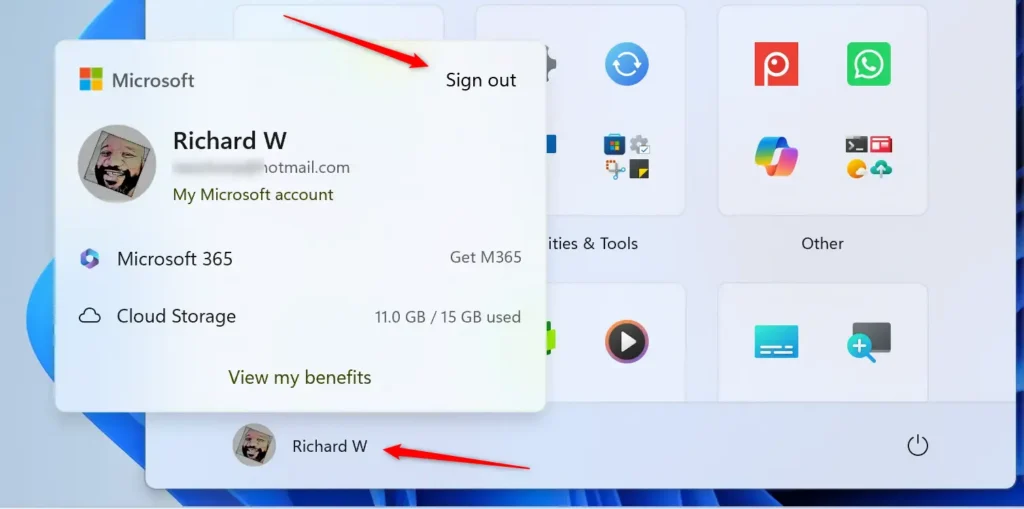
Start Menu - Click Sign out. Windows closes your apps and shows the sign-in screen. Your account is now logged out.
If an app still holds an unsaved file, Windows may show a screen saying the app is preventing sign out. Choose Cancel to go back and save, or Sign out anyway to discard the changes.
If the Account Picture or Sign Out Option Is Missing
On most PCs the account picture menu appears by default. If you click the picture and nothing happens, or the picture is gone, check these causes in order:
- The Start menu is not responding. Restart Windows Explorer (the process that draws the taskbar and Start) from Task Manager, or sign out with Ctrl+Alt+Del, which works even when Start does not respond. The Start repair steps are in how to repair the Windows 11 Start menu.
- The menu was turned off on purpose. The account picture menu can be switched off. The guide on adding or removing the account picture menu on the Start menu covers how to bring it back.
- Your PC is managed by an organization. A work or school policy can remove items from the Start menu, and it overrides anything you change on your own. Ask your IT department.
- Your Start menu looks different. Microsoft changes the Start layout in newer Windows 11 builds, and the account area may sit in a slightly different spot. Look for your profile picture or name near the bottom edge of Start.
This guide does not cover the registry setting behind the account picture menu. To bring the menu back, follow the linked guide on adding or removing the account picture menu on the Start menu.
Method 2Pin a Dedicated Sign Out Button to the Start Menu
This method builds a logout button that appears in the Pinned section of Start and signs you out in a single click. It uses shutdown.exe (a built-in Windows program) with a switch (/l) that logs off the current user. [Verification Required: The switch name is missing from the source text] No administrator rights are needed, and it works on every edition of Windows 11.
Keep that in mind if the tile sits near apps you click often.
Follow these steps to create the logout button and pin it to Start:
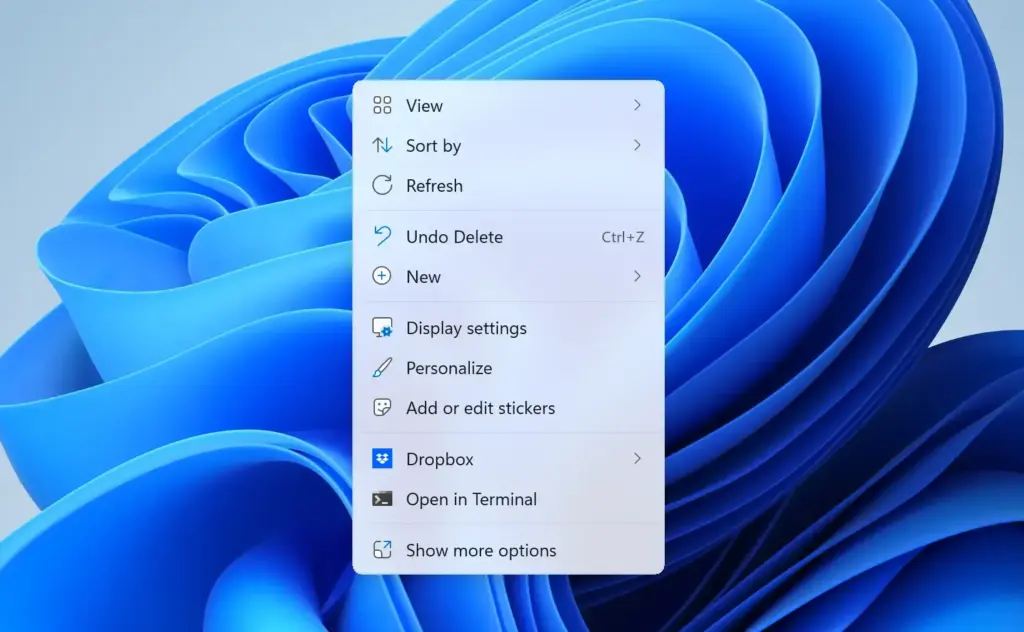
- Right-click an empty area of the desktop. A context menu opens.
- Choose New Shortcut. The Create Shortcut wizard opens.
- Type
shutdown.exe /lin the box under Type the location of the item. [Verification Required: The exact shortcut command is missing from the source text] Type the command shown here, with a space before the switch/l. The last character is a lowercase letter L, not the number 1. - Click Next. The wizard asks for a name.
- Type
Sign outin the name box. Windows shows this name under the tile in Start, so pick one you will recognize. - Click Finish. A shortcut named Sign out appears on the desktop, with a generic icon.
- Right-click the new Sign out shortcut and choose Properties. The Properties window opens on the Shortcut tab. This step and the next two are optional and only change the icon.
- Click Change Icon. If Windows warns that the file contains no icons, click OK. A list of built-in icons appears.
- Select an icon you like, then click OK twice. The shortcut on the desktop now shows your chosen icon.
- Right-click the shortcut again and choose Pin to Start . If the option is not listed, choose Show more options first. The Start menu does not open on its own, but the tile is added.
- Click the Start button. The Sign out tile now appears at the end of the Pinned section.
- Drag the tile to a spot where you want it. Dragging it into the top row keeps it within quick reach.
- Click the Sign out tile to test it. Windows closes your apps and returns to the sign-in screen.
If clicking the tile does nothing, right-click the shortcut, choose Properties, and check the Target box on the Shortcut tab. It must match the command from the earlier step exactly (shutdown.exe /l), with nothing else in the box. A typo is the usual cause. Correct it, click OK, and try again.
If the Pinned section is hidden on your PC, the tile will not show. See how to add or remove the Pinned section on the Windows 11 Start menu. For more on arranging apps and shortcuts there, read how to add or remove apps in the Windows 11 Start menu.
Place the Sign Out Button on the Taskbar Instead
The same shortcut can sit on the taskbar. Right-click the desktop shortcut, choose Show more options, then choose Pin to taskbar. The icon appears with your other taskbar apps.
Windows 11 may not offer this option for every shortcut type. If it is not listed, keep the button in Start.
What Happens to Your Apps and Files When You Sign Out
Signing out ends your session. Apps close, and anything unsaved in them can be lost. Files you saved stay where they are, and OneDrive keeps syncing only while you are signed in.
If you only want to step away from the PC, Lock is the better choice because it leaves your apps open. You can also add Lock to the Power menu. The steps are in how to add or remove Lock in the Power menu on the Windows 11 Start menu.
On a PC shared by several people, Sign out frees up memory and keeps each person’s session separate. If you want to leave your session running and let someone else use the PC, use Switch user instead. The guide on adding or removing Switch user on the user tile in the Start menu shows how.
Other Ways to Reach the Logout Button
These options sign you out without the Start menu. They are useful when Start stops responding.
- Power User menu (a menu of Windows tools): Right-click the Start button, or press Win+X. Choose Shut down or sign out, then Sign out.
- Keyboard path through that menu: Press Win+X, then U, then I.
- Ctrl+Alt+Del: Press the three keys together. A blue screen with options appears. Click Sign out.
- Alt+F4 on the desktop: Close or minimize all windows so the desktop is active, then press Alt+F4. A Shut Down Windows box opens. Open its dropdown, choose Sign out, and click OK.
Alt+F4 closes the window you are using. Click an empty part of the desktop first, so the desktop is the window that closes, then press Alt+F4.
How to Remove the Sign Out Button
Method 1 needs nothing undone, because the built-in menu is part of Windows. Method 2 is reversible in under a minute. Unpin the tile first, then delete the shortcut.
- Click the Start button. The Start menu opens.
- Right-click the Sign out tile in the Pinned section. A context menu opens.
- Choose Unpin from Start. The tile disappears from Start.
- Right-click the Sign out shortcut on the desktop and choose Delete. The shortcut moves to the Recycle Bin.
If you also pinned the shortcut to the taskbar, right-click its icon there and choose Unpin from taskbar.
What to Do Next
If the tile does not appear, check that the Pinned section is showing. If you need a different sign-out route, try the keyboard options in the section above.
A feature update does not remove a pinned shortcut. A new user profile does not carry it over, though, so repeat Method 2 for each account that needs it.
To keep tuning the layout, read how to customize the Windows 11 Start menu for your workflow. To fit more pinned tiles, see how to change the Start menu size in Windows 11.
Frequently asked questions
How to add multiple monitors to your 🪟 Windows 11 PC site:Microsoft.com?
Connect the second monitor with an HDMI, DisplayPort, or USB-C cable, then press Windows key + P and choose Extend. For more control, open Settings, go to System Display, and use the Multiple displays menu to pick Extend these displays. Use the Identify button to check which screen is which.
How to add multiple monitors to your 🪟 Windows 11 laptop?
Plug the external monitor into your laptop's HDMI, DisplayPort, or USB-C port, or into a docking station. Press Windows key + P and select Extend to use the screens side by side. To adjust positions or resolution, open Settings, go to System Display, and select the monitor you want to change.
How to sign out of Microsoft account?
Click the account picture in the Start menu, then click Sign out. This ends your Windows session but keeps your Microsoft account set up on the PC. To sign out of the Microsoft account in a web browser, go to account.microsoft.com, select your picture, and choose Sign out.
How to pin apps to start menu in 🪟 Windows 11?
Click Start, select All apps, then right-click the app and choose Pin to Start. You can also type the app's name in the Start search box, right-click it in the results, and select Pin to Start. Pinned apps appear in the Pinned section at the top of the Start menu.
How to sign out of gmail?
In Gmail on a computer, click your profile picture in the top-right corner, then click Sign out. On an Android phone or iPhone, tap your profile picture in the Gmail app, choose Manage accounts on this device, select your account, and tap Remove or Sign out, depending on your app version.
How to sign out of Google account?
Click your profile picture or initial in the top-right corner of any Google page, then click Sign out. To sign out of every Google account in the browser at once, choose Sign out of all accounts from the same menu. This signs you out only on the device and browser you are using.
Still have a question?
Answered by AI from this guide. Good questions may be added to this page — please don't include personal details.
Did this guide fix your problem?

About the Author
Richard
Tech Writer, IT Professional
Richard is a writer at Geek Rewind who turns complex IT tasks into clear, step-by-step guides. He draws on years of hands-on experience in system administration and enterprise IT operations, focusing on Windows, Linux and WordPress: the problems people actually run into, and the fixes that work. His server and WordPress guides come from systems he runs himself. Richard builds and maintains the platform behind Geek Rewind, from its Ubuntu servers and Nginx configuration to its custom WordPress plugins. Many new tutorials start with readers' questions, and he's always glad to answer them in the comments.
No comments yet — be the first to share your thoughts!