How to Add or Remove Lock In Power Menu on Start Menu in Windows 11

Adding the Lock shortcut to the Start menu power options in Windows 11 lets you secure your computer in two clicks whenever you step away. Lock sits next to Shut down and Restart, so you don’t need to sign out or close any open apps.
You need administrator rights on your PC to make this change. Locking keeps your apps and files open but hides them behind your sign-in screen. Lock is shown by default, so you only need these steps if it has been removed or if you want to hide it.
To add or remove the Lock option from the Start menu ’s power menu, open Control Panel , go to Power Options, and then select “Choose what the power buttons do.” Change the link “Change settings that are currently unavailable” to check or uncheck the Lock option, then save changes.
Option One
Control Panel is the easiest method. It changes your power button settings, and those settings decide whether Lock appears when you click the power icon on the Start menu . It works on every edition of Windows 11, including Home.
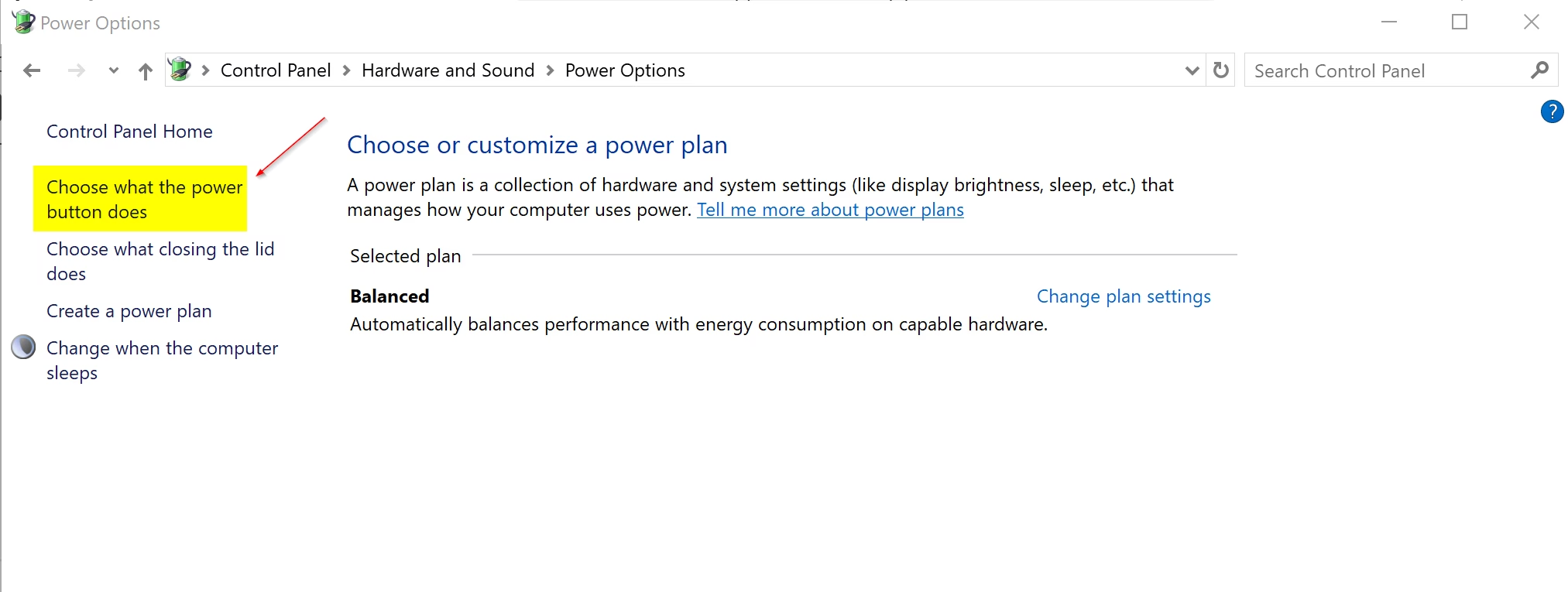
- Open Control Panel in icons view (Large icons or Small icons), then click Power Options. The Power Options window opens.
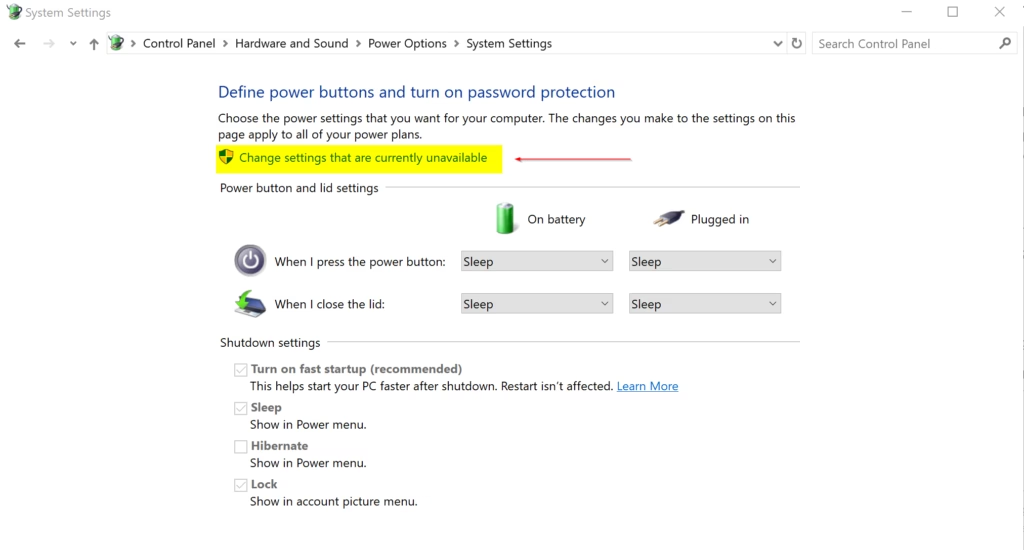
- Click Choose what the power buttons do in the left pane. You will see the power button and sleep button settings, with a Shutdown settings section further down that is currently greyed out.
- Click Change settings that are currently unavailable. Approve the User Account Control prompt if one appears. The Shutdown settings options are now active.
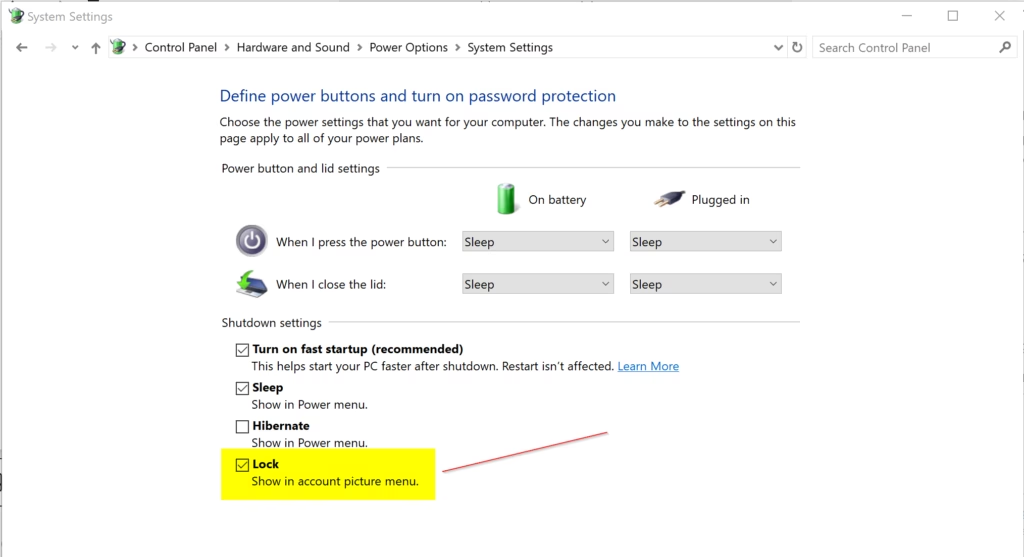
- Under Shutdown settings, check Lock to add it (the default), or uncheck it to remove it. Then click Save changes.
- Close Control Panel . Open Start Power to check. Lock should now be listed, or gone, depending on what you chose.
If the Lock checkbox stays greyed out or doesn’t match what you see on the Start menu , a Local Group Policy setting may be overriding it. See Option Two. To undo this change, repeat the steps and set the checkbox back.
Option Two
Local Group Policy Editor is a quick way to manage the Lock option on Windows 11 Pro, Enterprise, and Education. The policy decides whether Lock appears next to the power icon on the Start menu . It also lets an administrator force the setting, so users can’t change it from Control Panel .
The Local Group Policy Editor does not ship with Windows 11 Home. If you run Home, skip to Option Three.
⚠️ Admin Required: Open the Local Group Policy Editor (gpedit.msc).
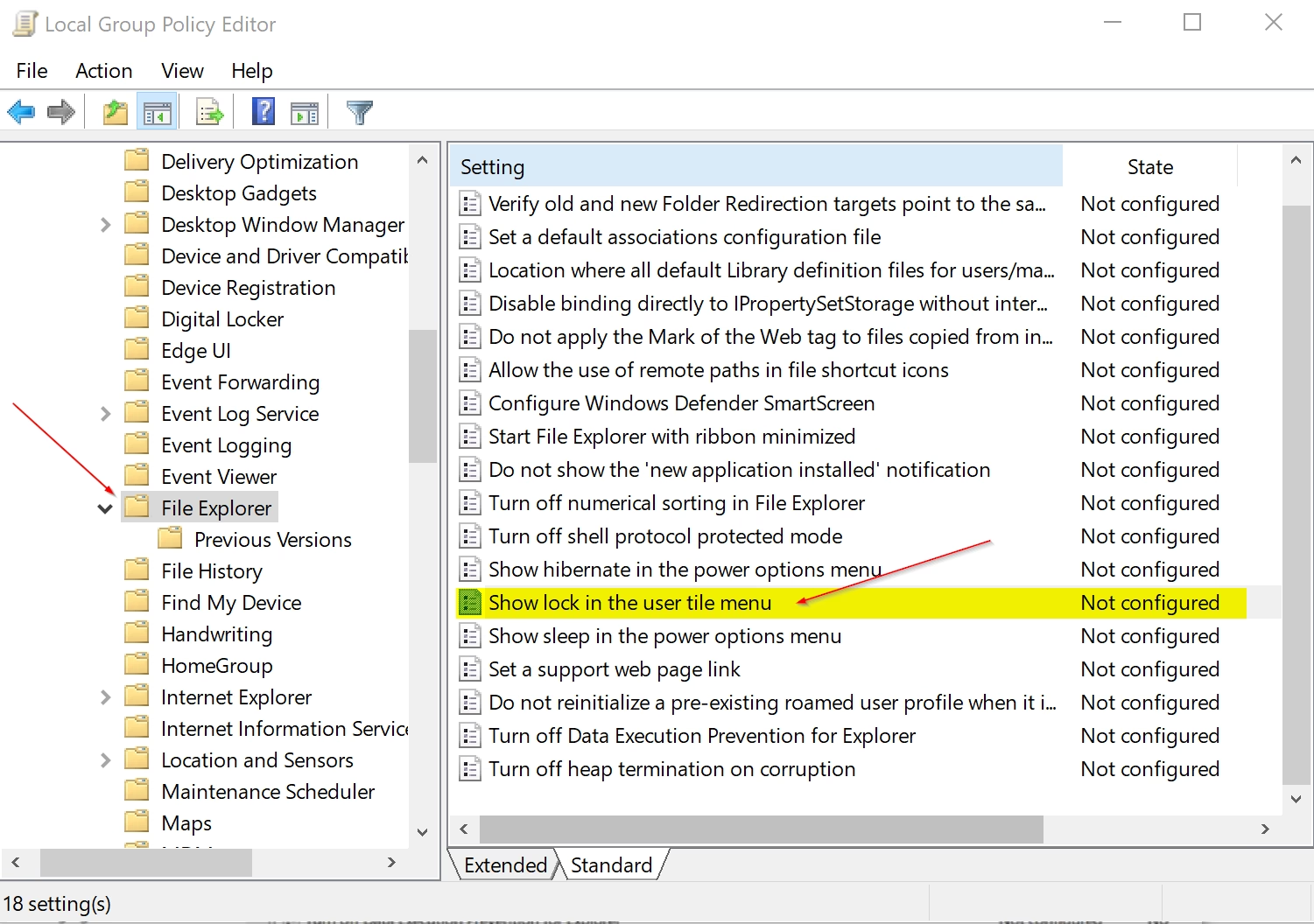
- In the left pane, go to Computer Configuration Administrative Templates Windows Components File Explorer
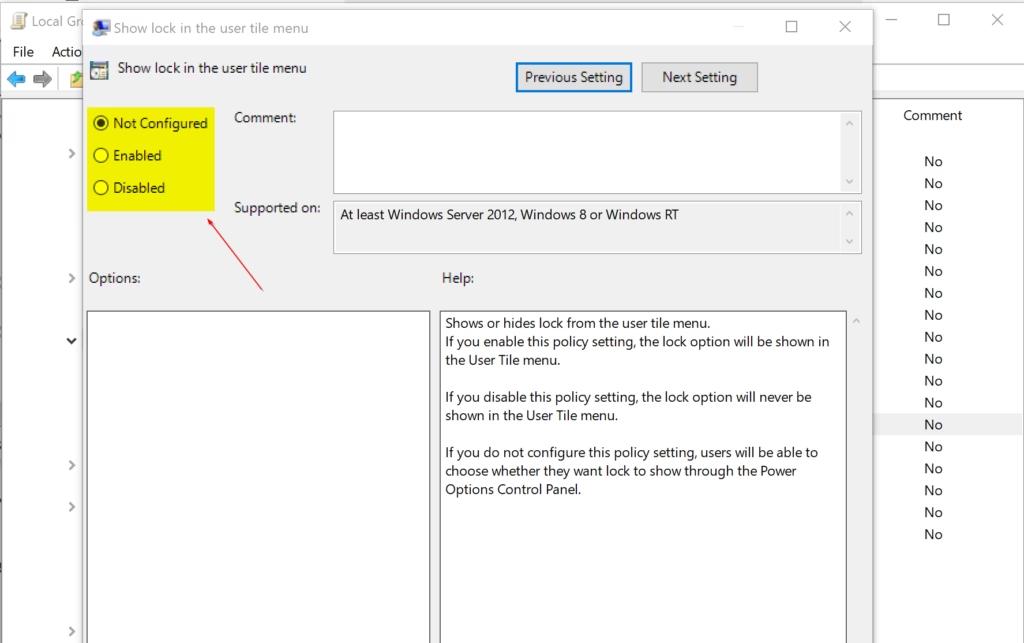
- In the right pane, double-click the Show lock in the user tile menu policy. Its settings window opens.
- Choose one of the three settings below, then click OK.
- Close the Local Group Policy Editor.
Return to the default (Not Configured)
This is the default state of the policy. It lets the Option One setting in Control Panel control whether Lock is shown.
- Select Not Configured.
- Click OK.
Add Lock to Power Menu on Start Menu
This forces Lock to show, and it stops you from using Option One to change it.
- Select Enabled.
- Click OK.
Remove Lock from Power Menu on Start Menu
This hides Lock from the power menu.
- Select Disabled.
- Click OK.
Then close the Local Group Policy Editor (step 4 above). Open Start Power to confirm the result. To undo any of these choices, reopen the policy and select a different setting.
Option Three
Registry Editor works on every edition of Windows 11, including Home. This method changes registry values directly to show or hide Lock on the Start menu power icon. Back up your registry, or create a restore point, before you change anything, so you can recover if something goes wrong. You need administrator rights.
Add Lock to Power Menu on Start Menu
This is the default setting. Apply the change shown below.
reg add "HKLM\SOFTWARE\Microsoft\PolicyManager\default\Start\HideLock" /v value /t REG_DWORD /d 0 /f
reg add "HKLM\SOFTWARE\Microsoft\Windows\CurrentVersion\Explorer\FlyoutMenuSettings" /v ShowLockOption /t REG_DWORD /d 1 /f
reg delete "HKLM\SOFTWARE\Policies\Microsoft\Windows\Explorer" /v ShowLockOption /f
Remove Lock from Power Menu on Start Menu
Apply the change shown below to hide Lock.
reg add "HKLM\SOFTWARE\Microsoft\PolicyManager\default\Start\HideLock" /v value /t REG_DWORD /d 1 /f
reg add "HKLM\SOFTWARE\Microsoft\Windows\CurrentVersion\Explorer\FlyoutMenuSettings" /v ShowLockOption /t REG_DWORD /d 0 /f
reg add "HKLM\SOFTWARE\Policies\Microsoft\Windows\Explorer" /v ShowLockOption /t REG_DWORD /d 0 /f
That completes the process. Open Start Power to check the result. If the menu still looks the same, sign out and back in, then check again. To undo the change, apply the other setting.
Summary
Windows 11 gives you three ways to add or remove Lock in the Start menu power menu. Control Panel suits most people, Local Group Policy Editor suits Pro-level editions, and Registry Editor works everywhere.
- Option One: Use Control Panel and Power Options (easiest method).
- Option Two: Use Local Group Policy Editor (available in Pro, Enterprise, and Education editions only).
- Option Three: Use Registry Editor (works on all editions).
Admin privileges are required for all three methods, and especially for editing the registry. Locking your PC is a fast way to protect your open work whenever you leave your desk.
Have a question about this guide?
Answered by AI from this guide. Good questions may be added to this page — please don't include personal details.
Did this guide fix your problem?

About the Author
Richard
Tech Writer, IT Professional
Richard is a writer at Geek Rewind who turns complex IT tasks into clear, step-by-step guides. He draws on years of hands-on experience in system administration and enterprise IT operations, focusing on Windows, Linux and WordPress: the problems people actually run into, and the fixes that work. His server and WordPress guides come from systems he runs himself. Richard builds and maintains the platform behind Geek Rewind, from its Ubuntu servers and Nginx configuration to its custom WordPress plugins. Many new tutorials start with readers' questions, and he's always glad to answer them in the comments.
No comments yet — be the first to share your thoughts!