How to Add or Remove the Sign Out Button in Windows 11


- 18 steps
- Needs administrator rights
- Group Policy needs Windows 11 Pro, Enterprise or Education
- Includes a restart or sign-out
The Sign Out button in Windows 11 logs you out of your current user account and returns you to the lock screen. You reach it from the Start menu in a few clicks. Windows 11 Pro and Enterprise include a Group Policy setting that hides this button. That helps on a shared computer where you don’t want someone signing you out by mistake. Windows 11 Home has no Group Policy Editor, so Home users need the Registry Editor method later in this guide.
Click your account name or picture at the bottom left of the Start menu and select Sign out. To hide that button on Windows 11 Pro, Enterprise or Education, set Remove Logoff on the Start Menu in Local Group Policy Editor to Enabled. Home has no Group Policy Editor, so use the Registry Editor.
Alternative Ways to Sign Out
You can still sign out when the Start menu button is missing or hidden. Several other routes lead to the same result, and hiding the Start menu button does not block most of them. Each method is listed below.
To sign out from the Start menu, click the Start button, then click your account name or picture at the bottom left. A small menu opens and Sign out is in it. If an administrator has hidden the button, you won’t see it here.
Press Ctrl+Alt+Del and a full-screen menu appears. Select Sign out on that screen. On the desktop, press Alt+F4 to open the Shut Down Windows dialog and pick Sign out from the dropdown list. Click OK to confirm. If apps are open, close the app windows first, because Alt+F4 closes the active window before it opens the dialog.
You can also right-click the Start button and use the Shut down or sign out submenu. And you can make a one-click desktop shortcut: right-click the desktop, select New Shortcut, type shutdown.exe -l, name it Sign Out, and click Finish. The next section walks through each method.
- Right-click the Start button: Right-click Start (or press Win+X) and hover over Shut down or sign out. A submenu opens and shows the Sign out option. Click it to log out right away.
- Ctrl+Alt+Del: Press these three keys together and select Sign out from the screen that appears. If this option is missing, the Ctrl+Alt+Del policy described later in this guide has probably been set.
- Alt+F4: Click the empty desktop, or minimize your windows, and press Alt+F4 to open the shutdown dialog. Select Sign out from the dropdown menu and click OK.
- Desktop Shortcut: Right-click your desktop, select New Shortcut, and type
shutdown.exe /lin the location box. Click Next, name it ‘Sign Out’, and click Finish. The new icon appears on your desktop, and double-clicking it signs you out straight away without asking for confirmation, so save your work first.
Using the Local Group Policy Editor
The Local Group Policy Editor is a built-in tool for managing system settings. It is the cleanest way to add or remove the sign out button in Windows 11. It controls how the Start menu behaves and needs administrator access. It is only available in Windows 11 Pro, Enterprise and Education. On Home, skip to the Registry Editor section. You hide or show the logoff option by changing one policy in the Start Menu and Taskbar folder.
- Click the Start button or the search box, type ‘Edit group policy’, and open the result. Sign in with an administrator account first if you aren’t using one. The Local Group Policy Editor window opens with a folder tree on the left.
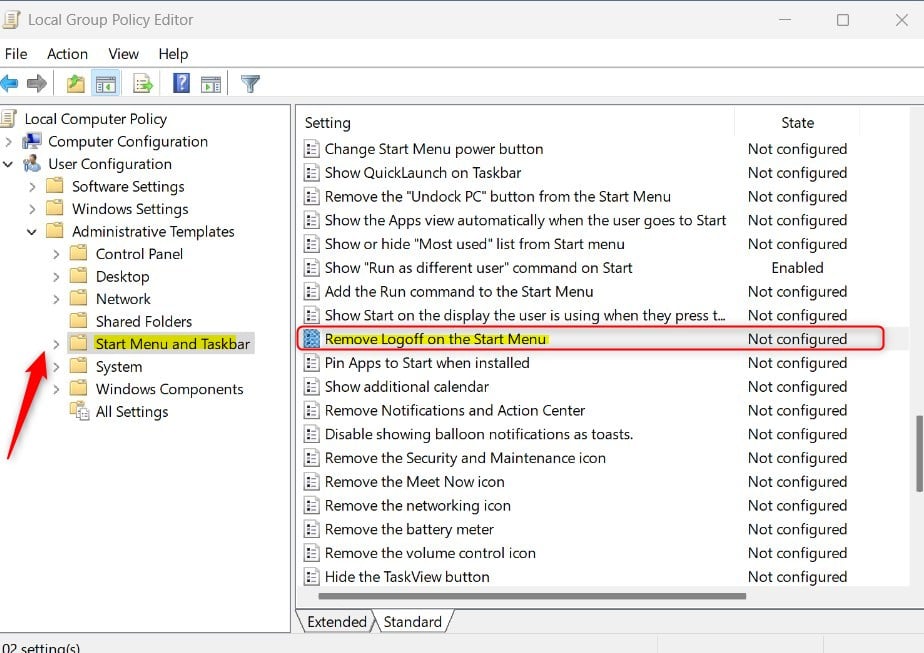
- In the left pane, go to: User Configuration Administrative Templates Start Menu and Taskbar. Click the folder name, and a long list of policies appears on the right.
- Find Remove Logoff on the Start Menu in the list and double-click it. A settings window for that policy opens.
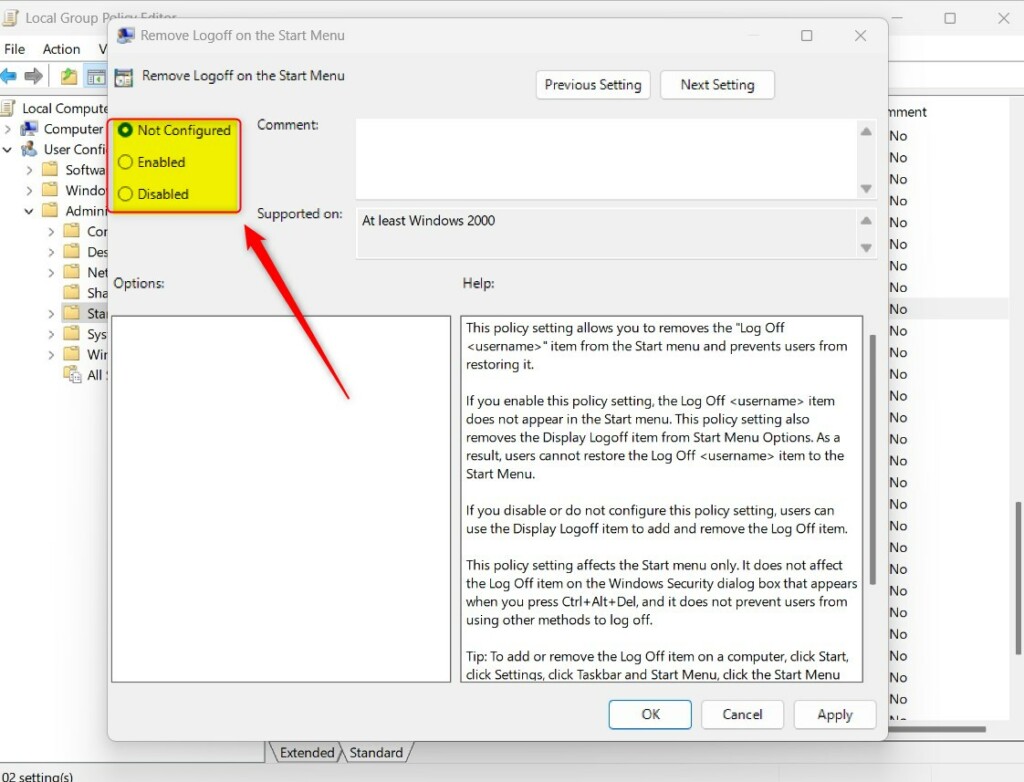
Now pick the state you want in the policy window:
- Select Enabled to hide the Sign out button. Select Disabled to show it.
- Click Apply, then OK, to save the preference.
The change usually takes effect once you sign out and back in. A restart also works. To undo it, open the same policy and choose Not Configured, which returns Windows to its default behavior.
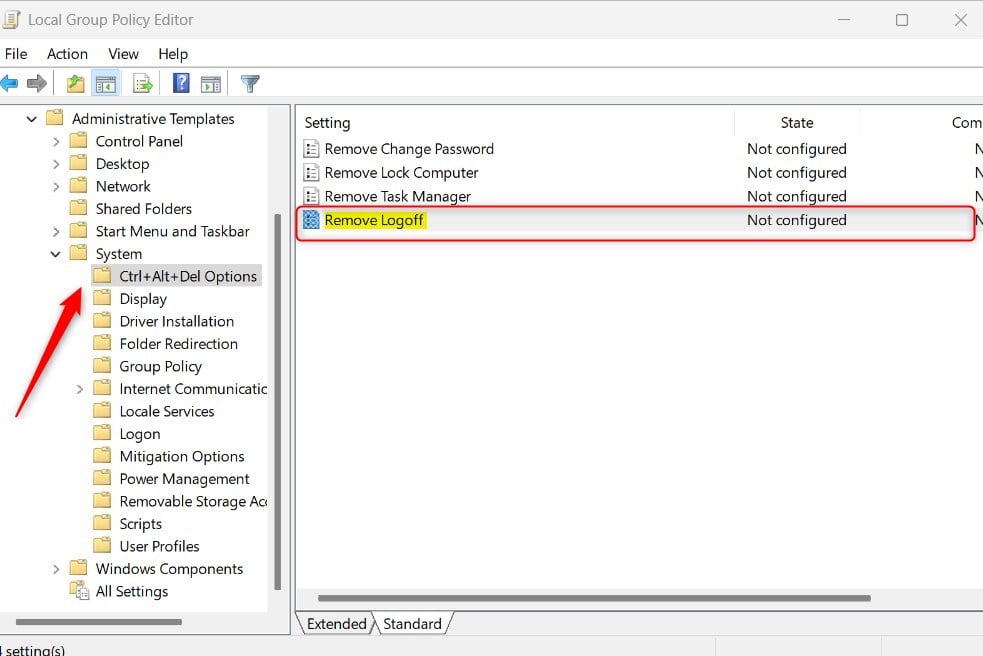
The Ctrl+Alt+Del screen has its own policy, so hiding the Start menu button doesn’t remove Sign out there. To change it:
- In the Local Group Policy Editor, go to User Configuration Administrative Templates System > Ctrl+Alt+Del Options.
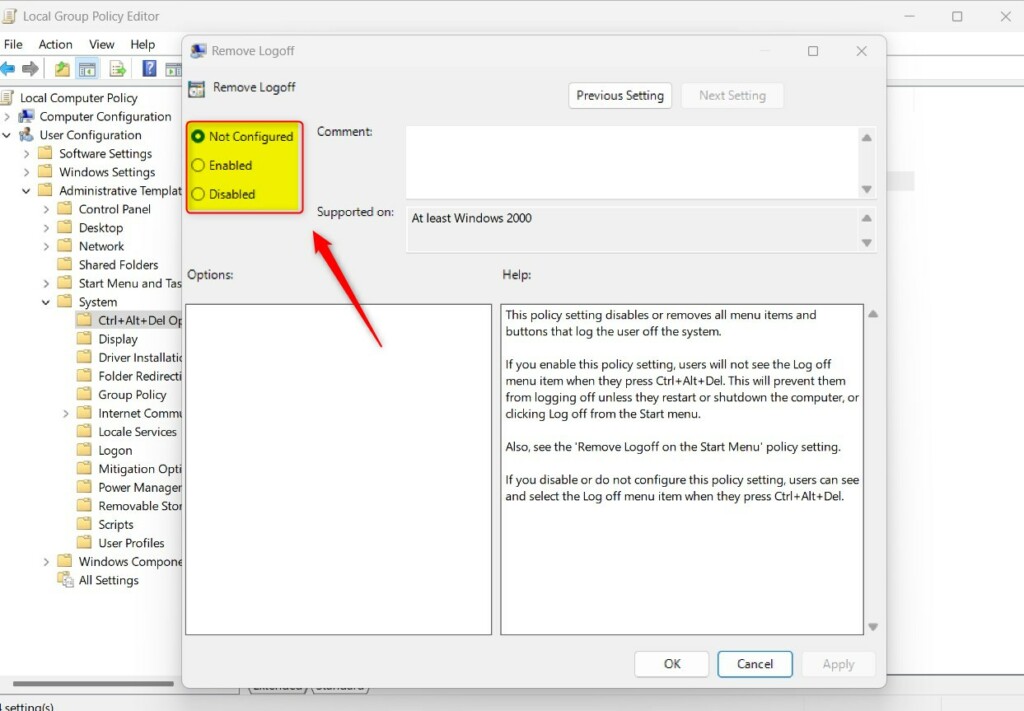
- Double-click Remove Logoff.
- Choose Enabled to hide the option, Disabled to show it, or Not Configured to go back to the default.
- Click Apply, then OK.
Sign out and back in to check the result. Press Ctrl+Alt+Del and confirm that the Sign out option is gone or present, as you chose.
Using the Windows Registry Editor
You can use it to add or remove the sign out button when Group Policy isn’t available, which is the case on Windows 11 Home. It needs administrator rights, and a wrong edit can cause system errors. Before you start, back up the registry: in Registry Editor choose File Export and save a copy. You can also create a restore point first.
- Press Win+R, type regedit, and press Enter. Click Yes if User Account Control asks for permission. Registry Editor opens.
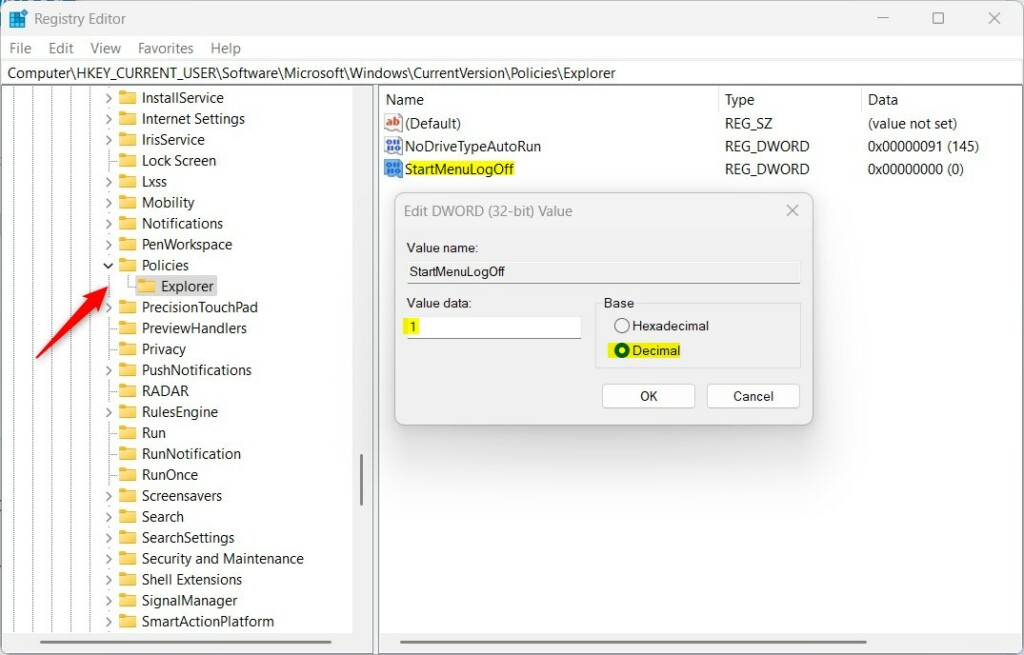
- Go to the following key, either by expanding the folders on the left or by pasting the path into the address bar at the top:
HKEY_CURRENT_USER\Software\Microsoft\Windows\CurrentVersion\Policies\Explorer
- In the right pane, double-click
StartMenuLogOff. An Edit DWORD window opens. - Set Value data to
1to hide the button, then click OK. - If the value isn’t listed, right-click a blank space in the right pane and choose New, then DWORD (32-bit) Value. Name it
StartMenuLogOffand repeat the first two steps.
To undo this, change the value back to 0 or delete the value you created. Sign out and back in for the change to take effect.
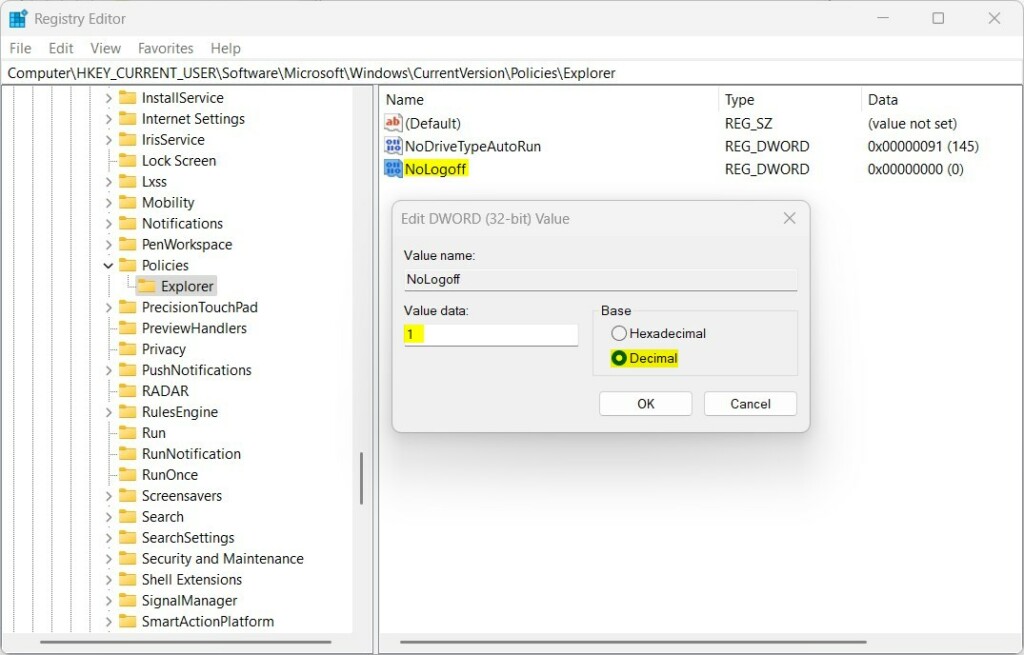
The second setting mirrors the Ctrl+Alt+Del policy from the previous section. Go to this key: HKEY_CURRENT_USER\Software\Microsoft\Windows\CurrentVersion\Policies\Explorer
- Double-click
NoLogoff. - Set the value to
1to hide the button, then click OK. - If the entry doesn't exist, create a new DWORD (32-bit) Value named
NoLogoffand set it the same way. - Restart the computer to apply the changes.
To bring the option back, set the value to 0 or delete it, then restart again.
Summary
You manage the Sign out button on the Windows 11 Start menu with either the Group Policy Editor or the Registry Editor, which gives you full control over how users sign out. Use Group Policy on Pro, Enterprise and Education, and the registry on Home. Whichever you pick, remember the shortcuts above still work, so hiding the button reduces accidental sign-outs but doesn't lock anyone out of signing out on purpose.
Have a question about this guide?
Answered by AI from this guide. Good questions may be added to this page — please don't include personal details.
Did this guide fix your problem?

About the Author
Richard
Tech Writer, IT Professional
Richard is a writer at Geek Rewind who turns complex IT tasks into clear, step-by-step guides. He draws on years of hands-on experience in system administration and enterprise IT operations, focusing on Windows, Linux and WordPress: the problems people actually run into, and the fixes that work. His server and WordPress guides come from systems he runs himself. Richard builds and maintains the platform behind Geek Rewind, from its Ubuntu servers and Nginx configuration to its custom WordPress plugins. Many new tutorials start with readers' questions, and he's always glad to answer them in the comments.
No comments yet — be the first to share your thoughts!