How to View Local Group Policies That Are Configured in Windows 11

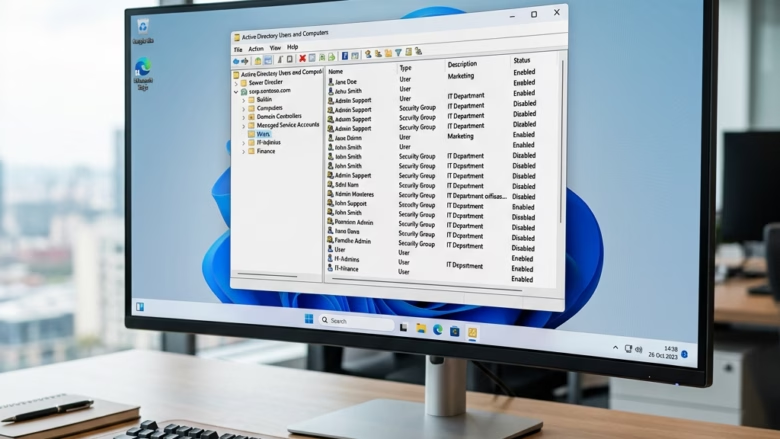
Local Group Policies in Windows 11 are system rules that change how your PC behaves and override standard settings. You can find which ones are active with the built-in Local Group Policy Editor (gpedit.msc). That tool ships only with Windows 11 Pro, Enterprise, and Education. Windows 11 Home doesn’t include it, so on Home use the registry method near the end of this guide.
Checking your active group policies helps when a PC behaves unexpectedly, for example when the Microsoft Store is blocked or some security settings are locked. Once you can see the configured policies, you know which rules are running behind the scenes. The methods below are in order from easiest to most technical.
Press the Win, type gpedit.msc, and press Enter to open Local Group Policy Editor. Go to Computer Configuration Administrative Templates All Settings or User Configuration Administrative Templates All Settings to see configured policies and their states. On Windows 11 Home, use gpresult /h 📁C:\
Option 1Using the Local Group Policy Editor
A standard account can’t see everything, and some tools below won’t run at all without admin rights.
- Press the Windows key, type gpedit.msc, and press Enter.
- If a User Account Control prompt appears, click Yes. The Local Group Policy Editor opens with a tree on the left and the details on the right.
If Windows says it can’t find gpedit.msc, you are almost certainly on Windows 11 Home. Skip ahead to the gpresult or registry methods.
To View Computer Configuration Policies
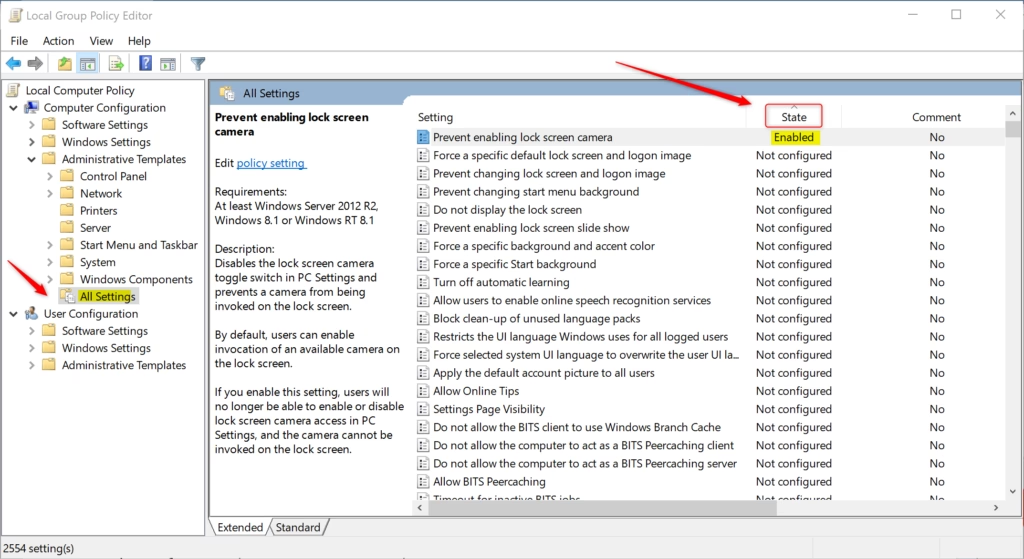
Computer Configuration policies apply to the whole PC, whatever user signs in. In the editor you find them under Computer Configuration Administrative Templates All Settings The All Settings node lists every administrative template policy in one flat list, which saves you from digging through folders one by one.
The State column in that list shows whether each policy is Not configured, Enabled, or Disabled. Sorting by it brings the policies someone has changed to the top or bottom, so you can see them at once. This works in current Windows 11 versions, including 23H2.
To View User Configuration Policies
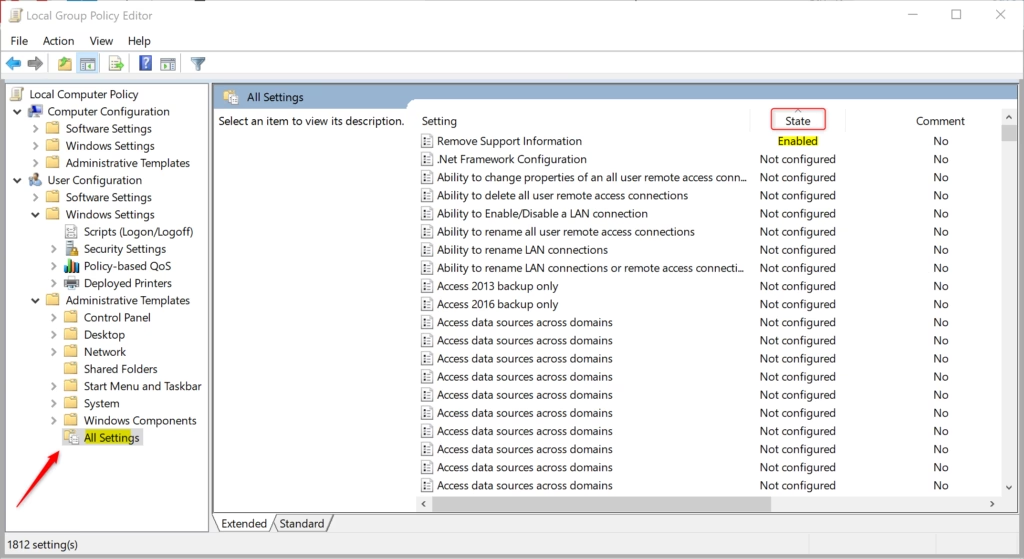
User policies apply to the account you are signed in with. They are listed in the same way as the computer policies.
- In the left pane, go to User Configuration Administrative Templates All Settings The right pane fills with a long list of policies.
- Click the State column header to sort by status. If the Not configured entries sit at the top, click the header again to reverse the order. The Enabled and Disabled policies are the ones that have been set.
- Double-click any policy to read its description and see its exact setting.
To undo a policy you find, open it, choose Not Configured, and click OK. Do this only if you know why the policy was set. On a work or school PC an administrator may have set it on purpose.
Option 2Using Resultant Set of Policy (RSOP)
Resultant Set of Policy (a tool that displays the policies actually applied to your PC and account) lists the settings that currently take effect. It differs from the editor, which shows what is set locally. RSoP shows only what is applied.
- Press the Windows key, type rsop.msc, and press Enter.
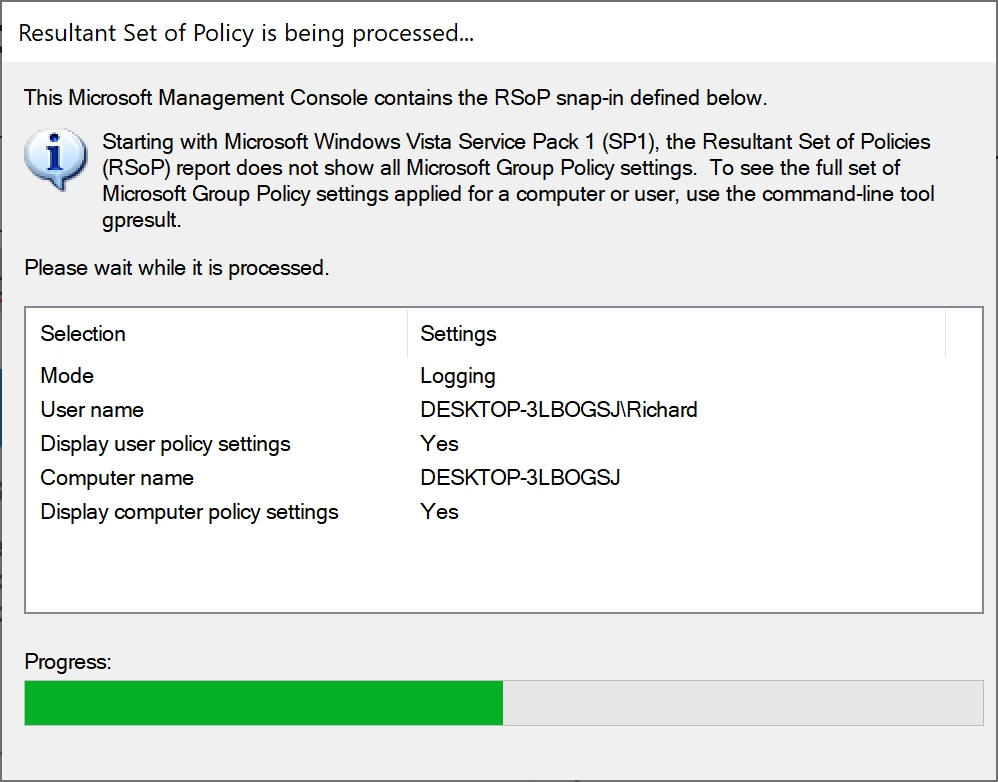
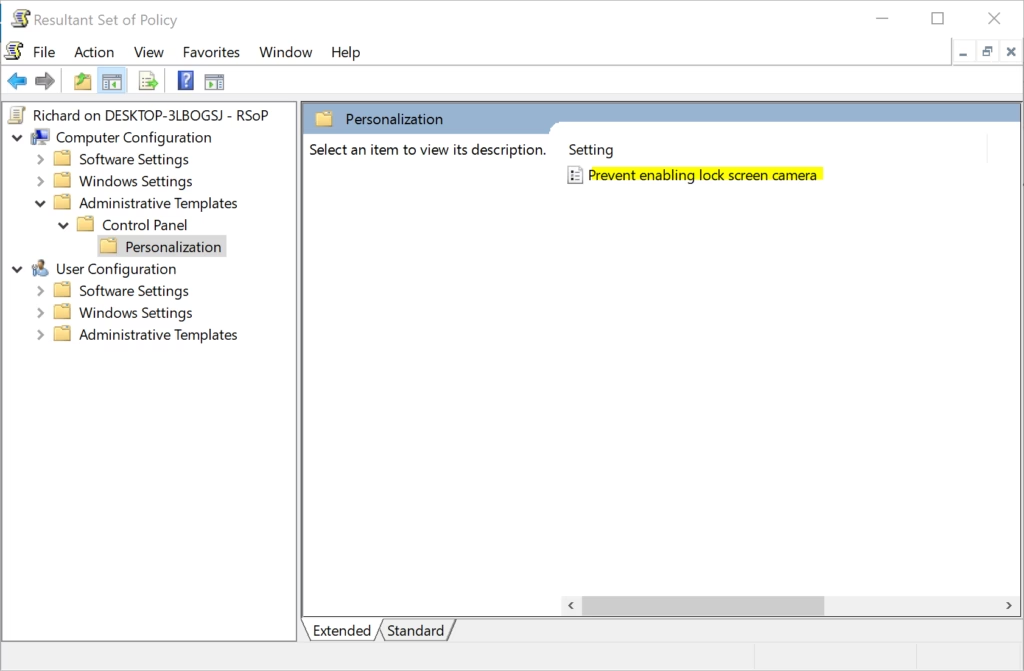
- Wait while Windows builds the report. This can take a few seconds. When it finishes, a console window opens with a tree similar to the Group Policy Editor.
- Expand Computer Configuration or User Configuration and browse to the settings listed. Only policies that are actually configured appear, together with their state.
Like gpedit.msc, rsop.msc is generally not available on Windows 11 Home. It may also report that it can't process some data if you aren't running as an administrator.
Option 3Command Line Reporting (gpresult)
The gpresult command-line tool builds an HTML report of every applied policy. This works well for troubleshooting because you get a file you can save, search, or send to someone else. It also runs on Home, though a Home PC will often have few or no policies to list.
- Open the Start menu, type cmd, right-click Command Prompt, and select Run as administrator. Click Yes at the User Account Control prompt.
- Enter the following command and press Enter:
gpresult /h C:\policy_report.html - Open the file C:\policy_report.html in your web browser. You will see a breakdown of all applied policies, split into computer and user settings.
If you run the command from a window that isn't elevated, the report may be missing the computer settings. Close it and start again as administrator.
Registry Storage Locations
Windows stores group policies in the Windows Registry (a database of system settings). You can view them with the Registry Editor. This is the option for Windows 11 Home, since Home has no Group Policy Editor.
Back up your registry before changing anything. For viewing policies you only need to look, not edit.
- Press Win + R, type regedit, and press Enter.
- Click Yes at the User Account Control prompt.
- Navigate to: HKEY_LOCAL_MACHINE\SOFTWARE\Policies
- Expand the folders beneath it. Each subkey holds the values for policies that have been set, and the values appear in the right pane.
The path HKEY_LOCAL_MACHINE\SOFTWARE\Policies contains system-wide policies for Windows 11 that affect all users. For policies that apply only to the current user, check HKEY_CURRENT_USER\Software\Policies. If a key is missing or empty, no policy of that kind has been set.
A policy value in the registry doesn't tell you where it came from. It could be a local policy, a domain policy, or a management tool. The gpresult report names the source.
How to Reset Local Group Policies
If you need to revert local policy settings to default, use Command Prompt with administrator privileges. Be careful, because this removes policy settings you may have chosen to keep. Note down anything you need first, for example from your gpresult report.
- Open an elevated Command Prompt, as described in the gpresult section.
- Run the following commands one at a time, pressing Enter after each and waiting for it to finish:
rd /s /q "%windir%\System32\GroupPolicy"rd /s /q "%windir%\System32\GroupPolicyUsers"gpupdate /force - Restart the PC, then check again with one of the methods above to confirm the policies are gone.
Summary
You can view active group policies in Windows 11 with the Group Policy Editor, RSoP, or the gpresult command, and by checking the registry if needed. The editor and RSoP need Pro, Enterprise, or Education. gpresult and the registry work on every edition.
Why can't I find gpedit.msc on 🪟 Windows 11 Home?
The Local Group Policy Editor is a feature exclusive to Windows 11 Pro, Enterprise, and Education editions. Microsoft does not include this tool in the Home edition. If you use Windows 11 Home, you must rely on the Registry Editor or third-party tools to modify or view system policies.
Frequently asked questions
How to find GPO in windows?
Press Windows key, type gpedit.msc, and press Enter to open Local Group Policy Editor. This tool shows all Group Policy Objects (GPOs) applied to your computer. You must have administrator access and be on Windows Pro, Enterprise, or Education edition to use it.
How can I edit local Group Policy remotely?
You cannot edit local Group Policy remotely using the standard Local Group Policy Editor. You need Group Policy Management Console (GPMC) on a domain network, or use remote desktop to connect to the computer directly, then open gpedit.msc there as an administrator.
Where to find local users and groups in 🪟 Windows 11?
Open Settings, go to System About, then click Advanced system settings. In the System Properties window, select the Advanced tab and click Environment Variables. For user accounts, open Settings System Users, or press Windows key and type lusrmgr.msc for Local Users and Groups.
How to access Group Policy on 🪟 Windows 11?
Press the Windows key, type gpedit.msc, and press Enter. This opens Local Group Policy Editor where you can view and modify policies. This feature is available on Windows 11 Pro, Enterprise, and Education editions only. You must be signed in as an administrator.
Still have a question?
Answered by AI from this guide. Good questions may be added to this page — please don't include personal details.
Did this guide fix your problem?

About the Author
Richard
Tech Writer, IT Professional
Richard is a writer at Geek Rewind who turns complex IT tasks into clear, step-by-step guides. He draws on years of hands-on experience in system administration and enterprise IT operations, focusing on Windows, Linux and WordPress: the problems people actually run into, and the fixes that work. His server and WordPress guides come from systems he runs himself. Richard builds and maintains the platform behind Geek Rewind, from its Ubuntu servers and Nginx configuration to its custom WordPress plugins. Many new tutorials start with readers' questions, and he's always glad to answer them in the comments.
No comments yet — be the first to share your thoughts!