How to Enable or Disable Video Autoplay in Microsoft Store on Windows 11

Video autoplay in the Microsoft Store on Windows 11 plays preview clips of games and apps automatically as you browse the store. This feature starts trailers without asking, which uses internet data and can create unexpected noise on your screen.
You can turn off video autoplay in the Store’s app settings to save data and stop surprise sound while you look for new apps. The same switch turns it back on if you change your mind. The setting is the same on Windows 11 Home and Pro.
Open the Microsoft Store, click your profile icon, select Settings, and toggle the Video autoplay switch to your preference. This setting controls whether preview videos play automatically as you browse the store.
How to Turn Video Autoplay On or Off
Controlling Microsoft Store autoplay takes a few clicks. You open the Store, go to the app settings from your profile icon, and flip one toggle. No restart of Windows is needed, and you do not need administrator rights, because the setting only affects the Store app for your user account.
In short: open the Microsoft Store app, click your profile icon in the top right corner, open the app settings, and switch the Video autoplay toggle on or off.
- Open the Microsoft Store app on your Windows 11 PC. Click the Start button and type
Microsoft Store, then select the Store from the results. The Store window opens on the Home page. - Look at the top right corner of the Store window, next to the search box, and click your profile picture (or the generic account icon if you have no picture set). A menu drops down.
- From the menu, select Settings. In some versions of the Store this entry is labelled App settings. It is the same page. The settings page opens with a list of options.
- In the settings page, find the Video autoplay option. If you can’t see it, the Store is probably out of date. Close the settings , open Library Get updates, let the Store update itself, then try again.
- Click the switch to turn it On if you want videos to play automatically, or Off if you want to stop videos from auto-playing. The label next to the switch changes to show the new state.
If the Store is already open, you can skip straight to the profile picture in the top-right corner.
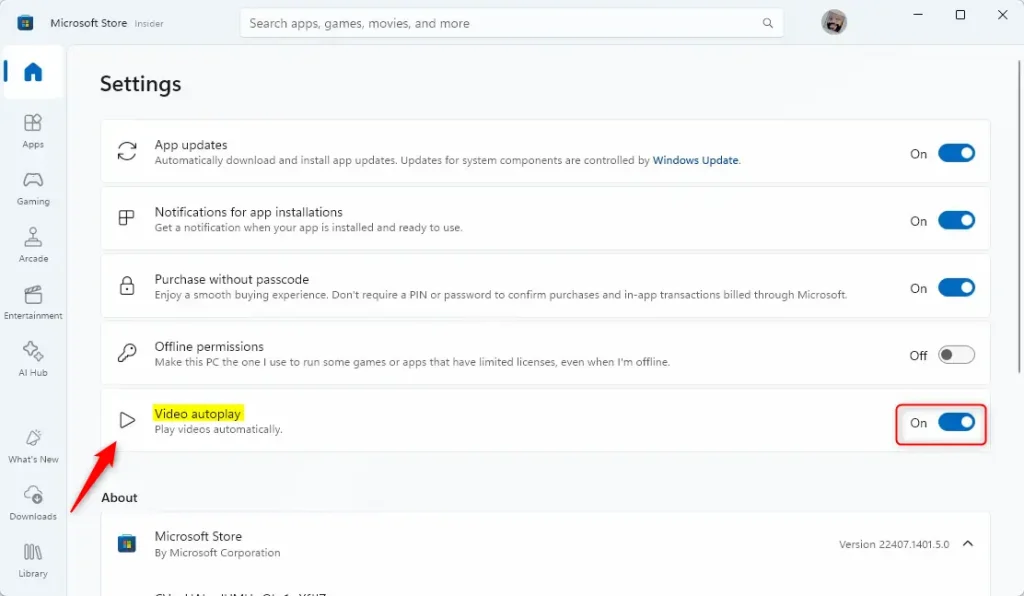
The change applies straight away and is saved automatically, so there is no Save or Apply button. To check it, go back to the Store’s Home page and open a game or app page that normally shows a trailer. With autoplay off, the video should wait for you to press play.
Microsoft Store video autoplay now follows the preference you chose. To undo the change, repeat the same steps and move the Video autoplay switch back the other way. Toggling this switch puts control of the store interface back in your hands.
Why Turn Off Video Autoplay?
- Save internet data: Videos can use a lot of data, especially on limited plans. This matters most on a metered connection or a capped mobile hotspot.
- Reduce distractions: No more surprise videos playing when you browse. That also means no sudden sound in a quiet room or a meeting.
- Customize your experience: Choose what works best for you while using the Store. You can switch autoplay back on whenever you want to watch trailers as you browse.
Turning off Microsoft Store autoplay stops trailers and game previews from downloading and playing on their own while you browse. This helps you save limited internet data, reduces visual distractions on your screen, and can make pages feel quicker to load inside the app. It is a useful adjustment if you are on a capped mobile hotspot or just want a quieter browsing experience.
Turning autoplay off does not remove trailers from the Store. You can still play any video yourself by selecting it on the app or game page.
Summary
Controlling media playback keeps browsing sessions focused. To recap: open the Store, click your profile picture, open the settings page, and flip the Video autoplay switch to match your preference. The change takes effect immediately, and you can reverse it at any time the same way.
Have a question about this guide?
Answered by AI from this guide. Good questions may be added to this page — please don't include personal details.
Did this guide fix your problem?

About the Author
Richard
Tech Writer, IT Professional
Richard is a writer at Geek Rewind who turns complex IT tasks into clear, step-by-step guides. He draws on years of hands-on experience in system administration and enterprise IT operations, focusing on Windows, Linux and WordPress: the problems people actually run into, and the fixes that work. His server and WordPress guides come from systems he runs himself. Richard builds and maintains the platform behind Geek Rewind, from its Ubuntu servers and Nginx configuration to its custom WordPress plugins. Many new tutorials start with readers' questions, and he's always glad to answer them in the comments.
No comments yet — be the first to share your thoughts!