How to Create Desktop Shortcuts in Windows 11

Desktop shortcuts are small icons on your screen that open apps, files, folders and websites with a single double-click. They let you skip digging through folders like C:\Program Files. Creating one takes less than 10 seconds, and you no longer have to open File Explorer every time you want to launch a favorite program or document.
A shortcut is only a pointer. Deleting a shortcut does not delete the app or file it points to, so you can create and remove them freely. This guide covers the shortcut wizard, the Send to menu, apps from the Start menu , websites, custom icons, and fixing broken shortcuts.
Right-click an empty spot on the desktop, select New, then Shortcut, and type the path to the file, folder or app, or click Browse to find it. Click Next, name the shortcut, then click Finish. The icon appears on the desktop immediately, and deleting it leaves the original item untouched.
Create shortcuts using the New Item wizard
The built-in shortcut wizard is the most flexible method. You can use it to link your most used apps, files, or folders directly to your main screen. In short, you right-click an empty spot on the desktop, pick New, and then select Shortcut. Type the path to the item, or click Browse to find it. Then click Next, type a clear name for your icon, and click Finish. The detailed steps follow below.
That option needs to be ticked, or new shortcuts will be hidden.
- Right-click on any empty space on your desktop.
- Select New, then select Shortcut. (If you don’t see this, click Show more options first).
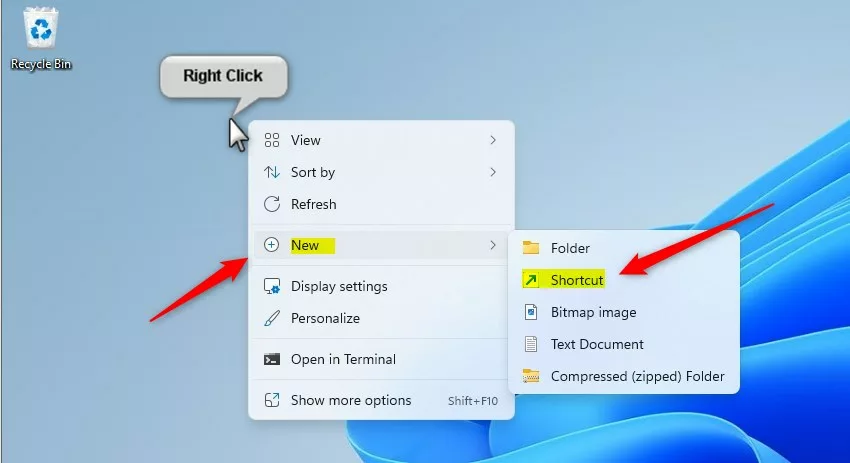
- Right-click any empty space on your desktop.
- Choose New, then Shortcut. If you are using Windows 11 and do not see these options, click Show more options first. This opens the full classic menu. Pressing Shift+F10 does the same thing.
The Create Shortcut window opens and asks for the location of the item.
- Type or paste the full path of the item you want to link to. Unsure of the location? Click the Browse button to find it.
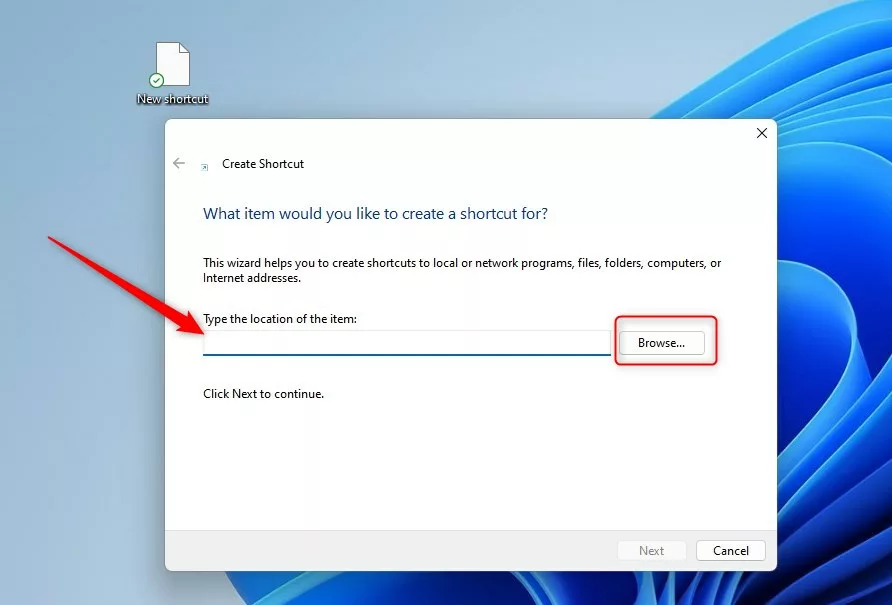
For example, to link to the Documents folder, locate it in the Browse window.
- Select the folder or file you want.
- Click OK.
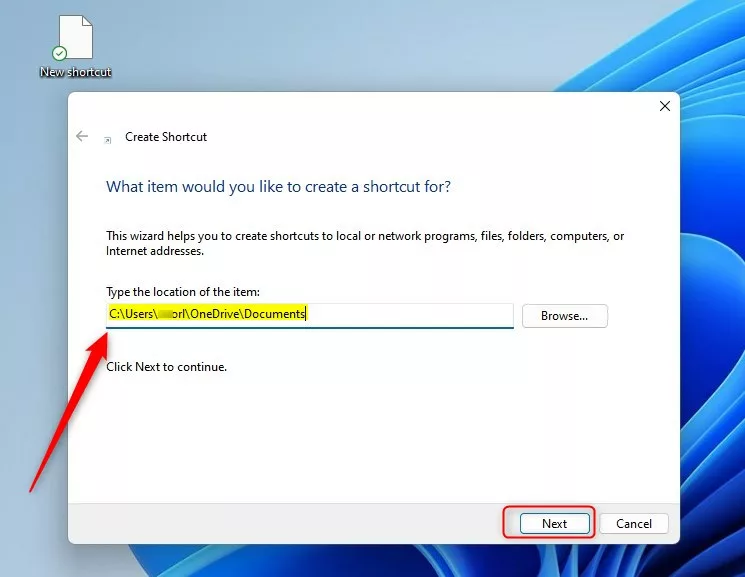
The full path now appears in the location box.

- Click Next.
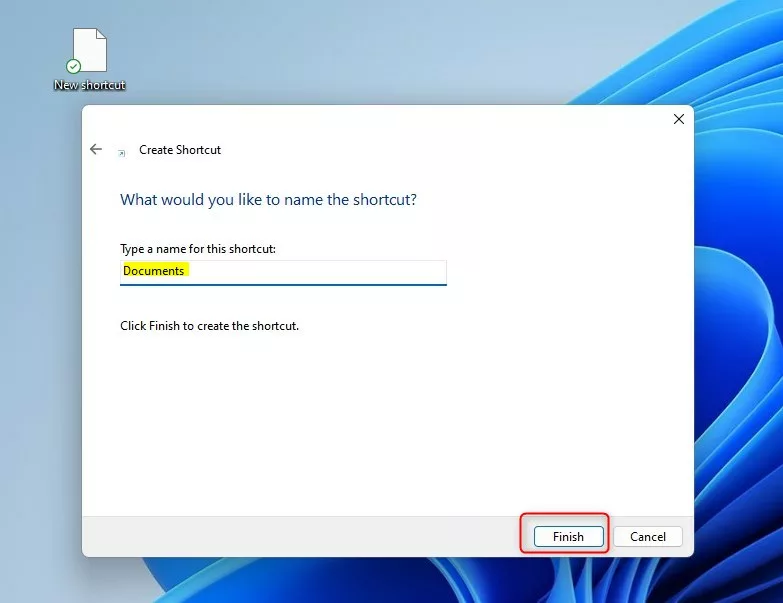
The wizard now asks you to name the shortcut.
- Type a clear name. Windows fills in a default, but you can replace it with something shorter.
- Click Finish.
The new icon appears on your desktop right away. To undo it, right-click the icon and choose Delete. Only the shortcut is removed, not the original item.
Create shortcuts using the Send to command
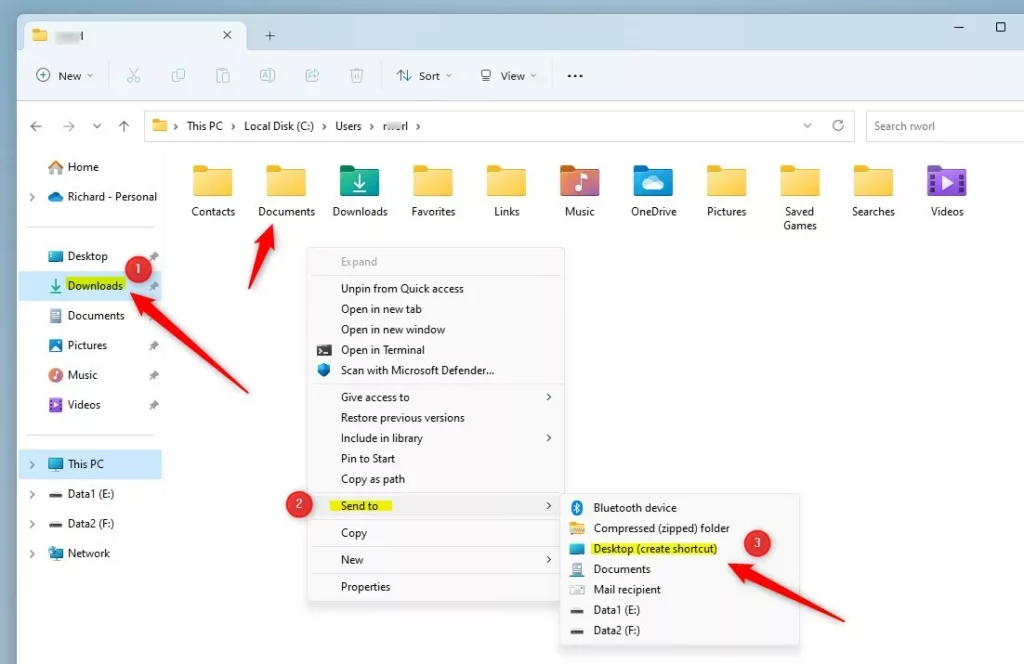
If you already have File Explorer open, the Send to menu creates a shortcut even faster. You don’t have to type or browse for a path. Find the file, folder or app in File Explorer, right-click it, and look for Send to, then Desktop (create shortcut). In Windows 11 the Send to option is in the classic menu, so click Show more options first. Holding Shift while you right-click also opens the classic menu directly.
- Open File Explorer and find the file or folder you want to link.
- Right-click the item.
- Select Show more options if needed, then choose Send to, and select Desktop (create shortcut).
The shortcut appears on the desktop with the original name and a small arrow on the icon. You can rename it by selecting it and pressing F2.
Create shortcuts from the Start menu
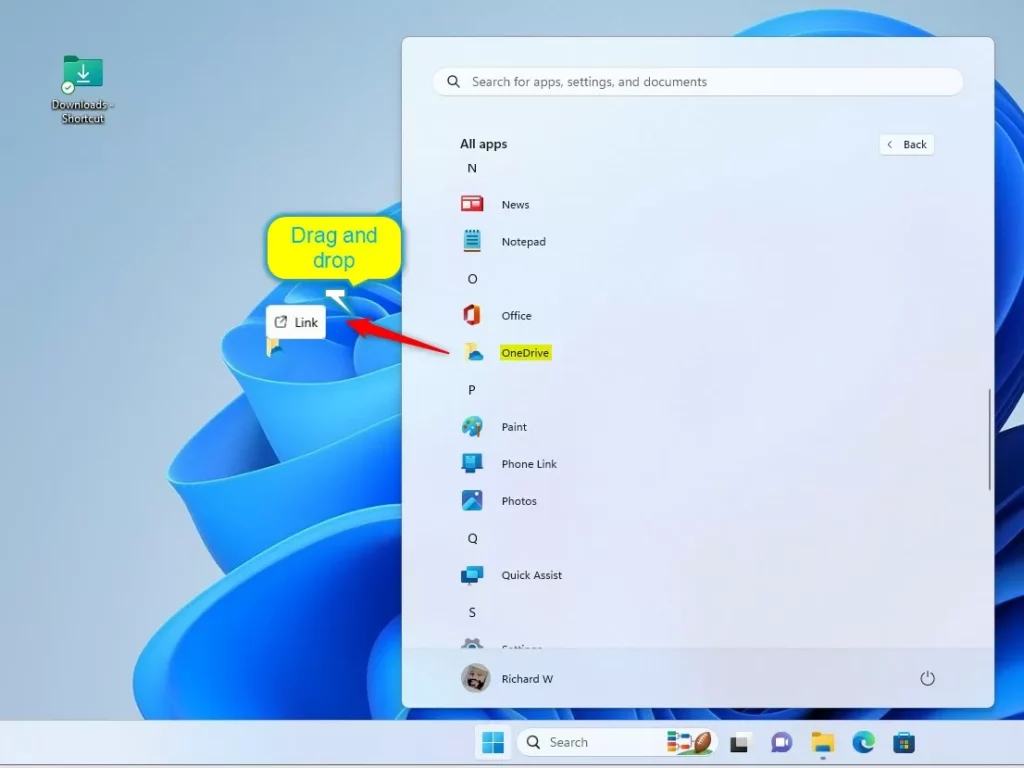
Converting installed apps into desktop icons takes only a few clicks. Open the Start menu , click All apps, and find the app in the list. Then follow the steps below. Some apps from the Microsoft Store may behave differently from classic desktop programs. If one will not drag to the desktop, look for its entry in the Start menu and try the shortcut wizard instead.
- Click the Start menu and select All apps.
- Simply click and drag any app icon directly onto your desktop.
After the last step, the app’s icon should sit on your desktop. Double-click it to check that it launches.
Create shortcuts for websites
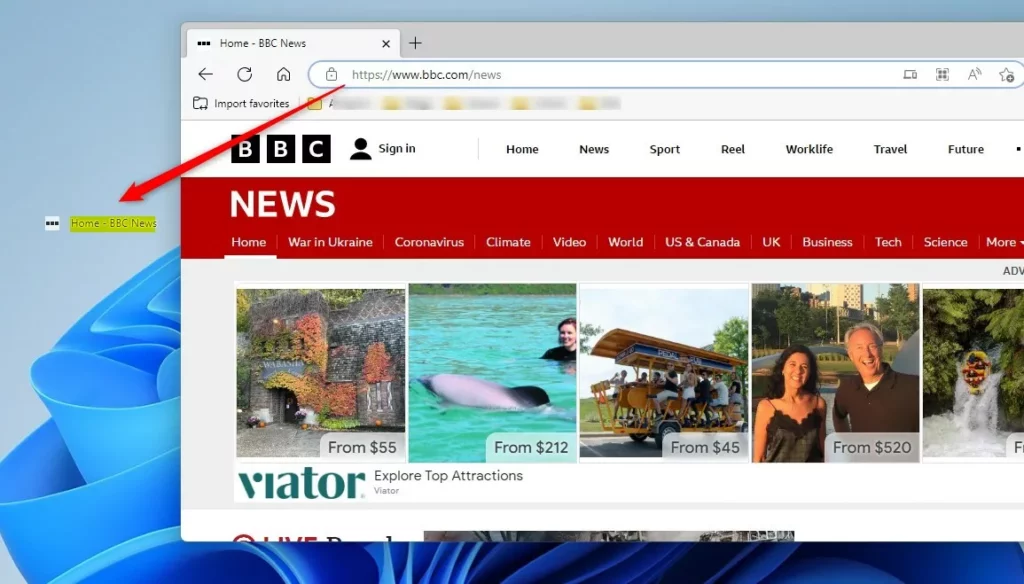
Favourite websites open instantly when you turn their web addresses into desktop icons. A website shortcut opens in your default browser. Copy the full address, including https://, from the address bar before you start. You can paste it into the location box of the shortcut wizard described earlier. Many browsers also have their own option to create a site shortcut from the browser menu.
- Open your web browser and go to the website.
- Highlight the website address in the top bar.
- Click and drag the address directly onto your desktop.
Give the shortcut the name of the site so you can tell it apart from your file shortcuts. If the icon looks generic, you can change it in the next section.
How to change the icon of a shortcut
Desktop customization allows you to change the appearance of any shortcut icon. This helps when you have several similar shortcuts and want to spot the right one quickly. The change only affects the shortcut, never the original app or file. Start by right-clicking the shortcut and choosing Properties. Then open the Shortcut tab and click Change Icon.
- Right-click the shortcut and select Properties.
- Go to the Shortcut tab and click the Change Icon button.
- Select a new icon from the list or browse for your own file.
- Click OK to save your changes.
To undo the change, open the same window, click Change Icon again, and pick the original icon. In many cases the Restore Defaults button there does this for you.
Troubleshooting desktop shortcuts
Broken desktop shortcuts usually mean the original file was moved, renamed or deleted. Double-clicking one shows an error that the item can’t be found. Updating the file path fixes these broken shortcuts in Windows 11.
- Right-click the broken shortcut and choose Properties.
- Open the Shortcut tab.
- Click in the Target field and replace the old path with the new location of the item.
- Click Apply, then OK.
If the item was deleted and you can't restore it, delete the shortcut and create a new one.
Summary
Time management improves when desktop shortcuts are set up in Windows 11. Several methods exist, including the New Item wizard, the Send to menu and drag-and-drop from the Start menu. Pick the one that fits the item you are linking. Keep your shortcut names short and clear so the desktop stays easy to scan.
Have a question about this guide?
Answered by AI from this guide. Good questions may be added to this page — please don't include personal details.
Did this guide fix your problem?

About the Author
Richard
Tech Writer, IT Professional
Richard is a writer at Geek Rewind who turns complex IT tasks into clear, step-by-step guides. He draws on years of hands-on experience in system administration and enterprise IT operations, focusing on Windows, Linux and WordPress: the problems people actually run into, and the fixes that work. His server and WordPress guides come from systems he runs himself. Richard builds and maintains the platform behind Geek Rewind, from its Ubuntu servers and Nginx configuration to its custom WordPress plugins. Many new tutorials start with readers' questions, and he's always glad to answer them in the comments.
[…] You can run these commands in the Run box (press Windows Key + R on your keyboard), the File Explorer address bar, Command Prompt, Windows PowerShell, or create a shortcut. […]