How to Turn On Internet Explorer Mode in Microsoft Edge

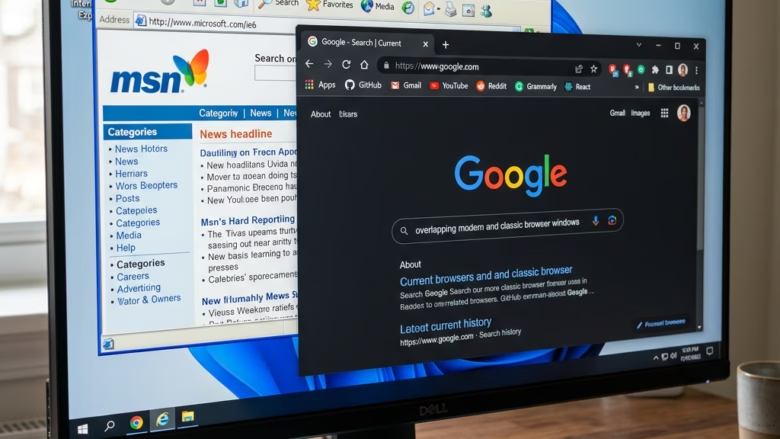
Internet Explorer mode inside Microsoft Edge runs old business tools and legacy websites that require Internet Explorer 11 to load correctly. It uses the older rendering engine inside Edge, so these pages work without a separate browser. The standalone Internet Explorer 11 app has been retired, which makes this mode the supported way to open such sites.
You turn the mode on in the Edge settings and then either reload individual pages in it or add specific web addresses so they open in it automatically. It works in the Windows 10 and Windows 11 versions of Edge.
Open Microsoft Edge, click the three dots, select Settings, go to Default browser, find Internet Explorer compatibility, change the dropdown to Allow, and restart Edge. IE mode is now enabled and ready to use on pages that require it.
Why You Might Need Internet Explorer Mode
You might need this mode to run older company platforms or apps built for legacy browsers. Typical examples are internal intranet portals, old admin consoles for printers or network gear, and web apps that depend on ActiveX controls or other IE-only features. If a site works fine in normal Edge, you do not need this mode.
Turning On Internet Explorer Mode in Microsoft Edge
Before you can reload any page in Internet Explorer mode, you have to tell Edge to allow it. This is a one-time setting, and everything else in this guide depends on it.
Open Microsoft Edge and Go to Settings
- Launch Microsoft Edge.
- Click the three horizontal dots (…) in the top-right corner of the browser window. The main menu opens.
- Select Settings from the menu. The Settings page opens in a new tab.

Go to the Default Browser Section
- Look at the navigation panel on the left side of the Settings page.
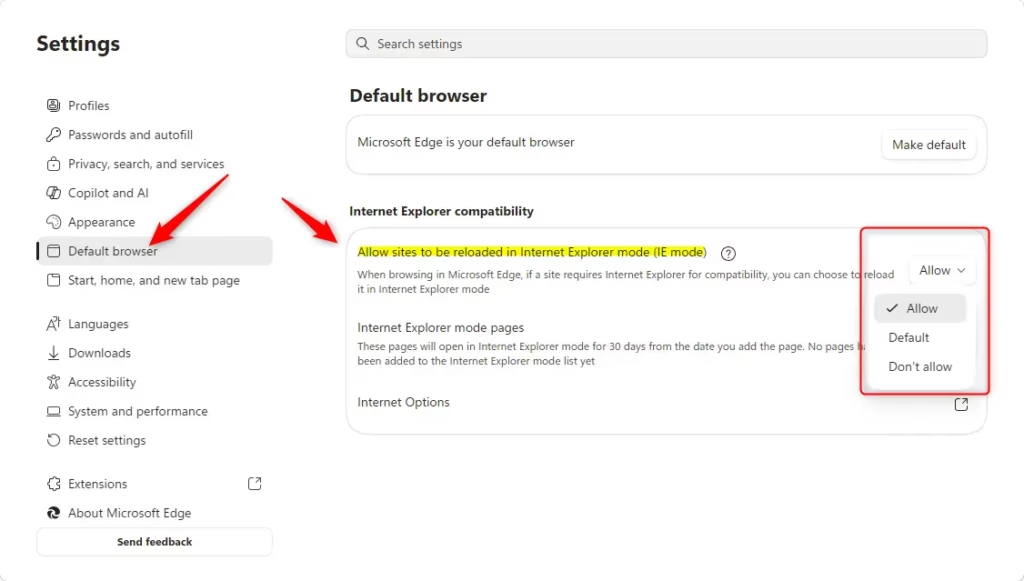
- Click Default browser. This is where Edge handles interoperability and compatibility options. You should now see the Internet Explorer compatibility settings on the right.
Allow Sites to Reload in Internet Explorer Mode
- Find the section labeled Internet Explorer compatibility.
- Find the dropdown next to Allow sites to be reloaded in Internet Explorer mode.
- Change the dropdown to Allow. Edge now shows a prompt asking you to restart the browser.
If this dropdown is greyed out, a policy from your organization is controlling it. See the managed-computer section below.
Restart Microsoft Edge
The change does not take effect until Edge restarts.
- Click the Restart button if Edge shows one. If it does not, continue with the next step.
- Close every open Edge window completely.
- Launch Edge again. IE mode is now ready for any page you reload.
To undo this later, return to the same dropdown and choose the option that does not allow reloading, then restart Edge again.
How to Open a Specific Website in Internet Explorer Mode
With the setting enabled, you can use IE mode right away on pages that depend on it. How you use it depends on whether the PC is your own or managed by an employer.
For Personal Devices or When IE Mode is Fully Enabled
On a personal computer you control the setting yourself. Once the compatibility setting is switched on, you choose which individual sites to open in IE mode. You do not need any special software or administrator tools for this.
Navigate to the Website
- Open Microsoft Edge and go to the address of the site that needs compatibility mode.
- Wait for the page to finish its first load, even if it looks broken.
Access Edge’s Settings Menu
- Click the three horizontal dots (…) in the top-right corner of the Edge window. The main menu opens.
Find the “Reload in Internet Explorer Mode” Option
- Find Reload in Internet Explorer mode in the menu. It appears only after you have allowed IE mode in Settings and restarted Edge.
- Click it. The page reloads using the older engine.
Important Note: Edge version 141 and newer changes this sequence slightly. Go to Settings Default browser and find Internet Explorer compatibility. Click Add under Internet Explorer mode pages and type the address of the target page. Reload the page afterward so it renders properly.
Open that submenu first, then choose Reload in Internet Explorer Mode.
Confirm the Website is Loading Correctly
The page refreshes on its own. A small IE icon appears in the address bar, which confirms the page is running in Internet Explorer mode. Click through the page and check that the menus, forms and buttons work as they should.
For Enterprise Devices or When Your Organization Manages IE Mode
On company-managed devices, IT sets policies that open approved work sites in IE mode automatically. You usually do not need to change any settings yourself. When you visit a designated company page, Edge handles the older code in the background.
Navigate to the Website
- Go to the company-approved address that is meant to use IE mode.
- Let the page load. No manual setup should be needed in a standard enterprise deployment.
Look for the “Reload in Internet Explorer Mode” Option
- After the page loads, click the three dots (…) in the top-right corner of Edge.
- Look for Reload in Internet Explorer mode. It should be there for approved sites.
If the option is missing or the page is broken, the address is probably not on the approved list, or a policy is blocking sites that are not listed. Contact your internal IT support and ask them to add the site.
On managed computers, Allow sites to be reloaded in Internet Explorer mode is often greyed out. Administrators have to set specific rules first, such as the Enterprise Site List, before the option becomes available. You cannot override this from the Settings page, and it is the same whether the PC runs Windows 11 Home or Pro, since the policy is what controls it.
Exiting Internet Explorer Mode
When you finish with the legacy site, going back to normal browsing takes only a moment.
Look for the Information Bar
While an IE mode session is active, Edge shows an information bar across the top of the window. It reads something like "This site is running in Internet Explorer mode."
Click "Leave"
- Look at the notification banner at the top of the active tab.
- Click the Leave button. The page switches back to the standard Microsoft Edge engine, and you can browse normally.
New tabs start in the standard Edge engine.
Reference:
https://support.microsoft.com/en-us/edge/internet-explorer-mode-in-microsoft-edge
Summary
Legacy websites that lack modern browser support load correctly in Internet Explorer mode inside Edge. You turn it on under Settings Default browser, restart Edge, and then reload the pages that need it.
Have a question about this guide?
Answered by AI from this guide. Good questions may be added to this page — please don't include personal details.
Did this guide fix your problem?

About the Author
Richard
Tech Writer, IT Professional
Richard is a writer at Geek Rewind who turns complex IT tasks into clear, step-by-step guides. He draws on years of hands-on experience in system administration and enterprise IT operations, focusing on Windows, Linux and WordPress: the problems people actually run into, and the fixes that work. His server and WordPress guides come from systems he runs himself. Richard builds and maintains the platform behind Geek Rewind, from its Ubuntu servers and Nginx configuration to its custom WordPress plugins. Many new tutorials start with readers' questions, and he's always glad to answer them in the comments.
No comments yet — be the first to share your thoughts!