How to Browse with HTTPS-First Mode in Microsoft Edge

HTTPS-First Mode, which Edge calls Automatic HTTPS, is a built-in security feature. When you open a link that starts with http://, Edge tries the secure https:// version of the page first. If the secure version loads, you get an encrypted connection and nothing else changes. Edge has offered this feature for several years, and it is part of current Edge on Windows 11.
The point is to stop your browser from using plain HTTP when it doesn’t have to. Plain HTTP is not encrypted, so anyone on the same network path can read or alter what passes between you and the site. This guide covers what the mode does, how to check that it’s on, and how to switch between its two strictness levels.
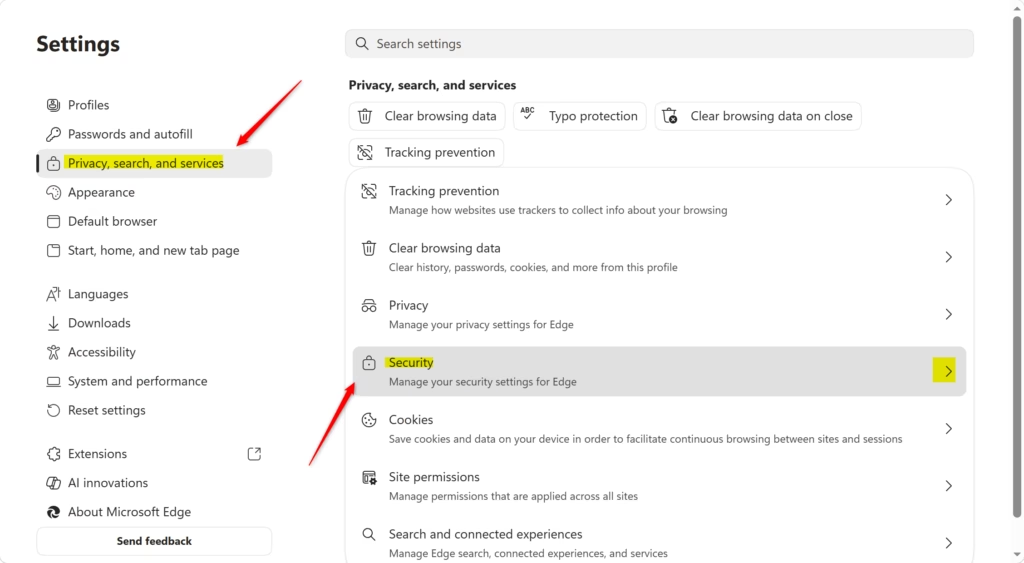
Open Microsoft Edge, click Settings and more (three dots) > Settings Privacy, search, and services, then scroll to Security and toggle on Automatically switch to more secure connections with Automatic HTTPS. The feature upgrades HTTP links to HTTPS automatically.
What HTTPS-First Mode Actually Does
When a site supports HTTPS, Edge upgrades the connection quietly and you won’t notice. When a site only supports HTTP, Edge doesn’t load it straight away. Depending on your setting, it shows a warning page first, and you decide whether to continue. This matters most on public Wi-Fi , where someone else on the network could read passwords or anything else you type into a web form over HTTP.
In the default configuration, Edge only warns you for public websites. If you want stricter control, you can change this so Edge also flags insecure HTTP connections to private sites, such as internal company pages. Both options are covered below.
A warning doesn’t mean the site is malicious. It means the connection isn’t encrypted. Before you click through, ask whether the page handles anything sensitive, such as a login, payment details or personal data. If it does, think twice. If it’s a static page with nothing to enter, the risk is much lower.
Checking If HTTPS-First Mode Is Enabled
Edge keeps this setting in the Security section of its privacy settings. The steps below check that it’s on. You can follow them in any current build of Edge on Windows 11, Home or Pro.
- Open Microsoft Edge. Launch it from the taskbar or the Start menu.
- Click the menu button in the upper-right corner. It's the three-dot icon labeled Settings and more. A dropdown menu opens.
- Select Settings from the dropdown. Your Edge preferences open in a new tab.
- Select Privacy, search, and services in the left sidebar of the Settings page. If the sidebar is hidden because the window is narrow, click the menu icon at the top left of the Settings page to show it. The privacy options now appear on the right.
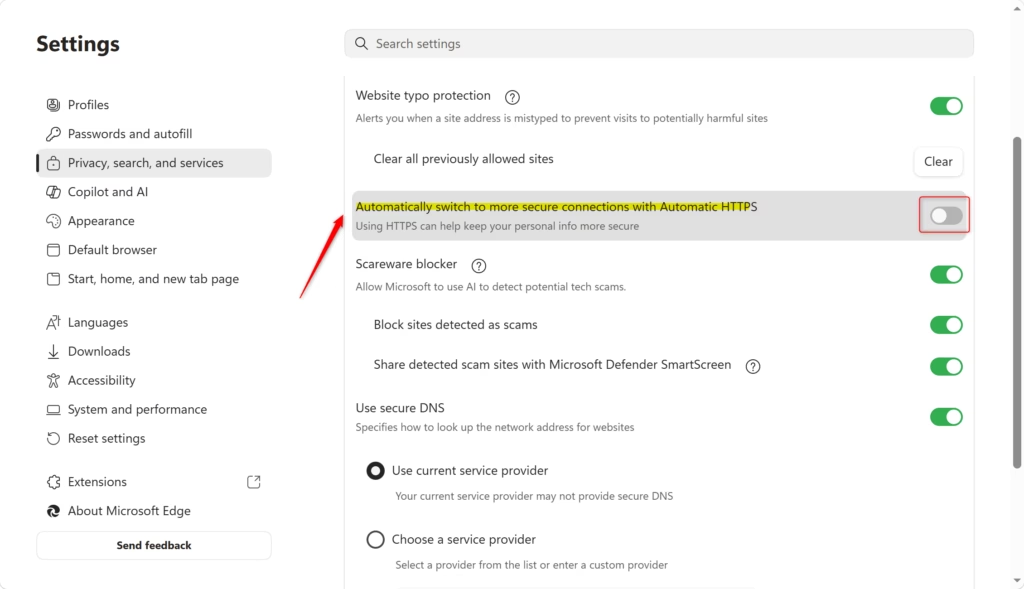
- Scroll down to the Security section. This is where Edge keeps its connection security options.
- Find the toggle named Automatically switch to more secure connections with Automatic HTTPS. This toggle controls whether Edge upgrades HTTP links to HTTPS and warns you about sites that can't be upgraded. It should be on, with the switch blue and moved to the right. If it's grey and on the left, click it once to turn it on. The change applies immediately and you don't need to restart Edge.
On a work or school PC, ask your IT department. On a personal PC, check that nothing else is managing Edge.
To undo the change later, return to the same toggle and switch it off. Leaving it on is the safer choice.

If you can't find the Security section, keep scrolling. It sits well down the Privacy, search, and services page, below the tracking prevention and clear browsing data sections. On a small screen or a window that isn't maximized, it can be a long way down. Once you reach it, the encrypted connection controls are all in that one block.
Choosing Your Security Level
With the toggle on, Edge gives you two levels of strictness. The right one depends on how you browse and what you do online. The next two sections cover each level.
Option 1Default Setting (Recommended for Most People)
The default level suits most people. Edge upgrades HTTP pages to HTTPS wherever it can, and it warns you only when a public website lacks proper security. Most modern sites already use HTTPS, so you will rarely see a warning screen. Edge still does the upgrade in the background, so you get the protection without the interruptions.
This gives you a good balance between security and convenience. You are protected on the public internet, and you aren't constantly clicking past warnings.
The trade-off is that private or internal sites are not flagged. If your company runs older internal sites over plain HTTP, they will keep loading as they always have, with no warning.
Option 2Maximum Security Setting
The maximum security level is stricter. Edge flags unencrypted connections on both public and private websites. That means you will see warnings on older sites, internal company pages and anything else still running on HTTP, and the decision to continue is yours each time. Choose this level only if you handle sensitive data and want the strictest checking available.
The frequency of alerts is the main drawback. Every insecure connection triggers a warning, and it falls on you to proceed or back away. If you work with internal HTTP tools every day, expect to click through a lot of warnings.
This stricter level arrived in Microsoft Edge version 115. If you don't see it, you are probably on an older build, so update Edge first. People who benefit most are those in security-sensitive jobs, anyone who handles other people's financial data, and anyone who simply wants the tightest privacy.
How to Change Your Setting
- Stay in the Security section of Settings. You should already be there from the earlier steps. If not, open Settings and select Privacy, search, and services, then scroll down to Security.
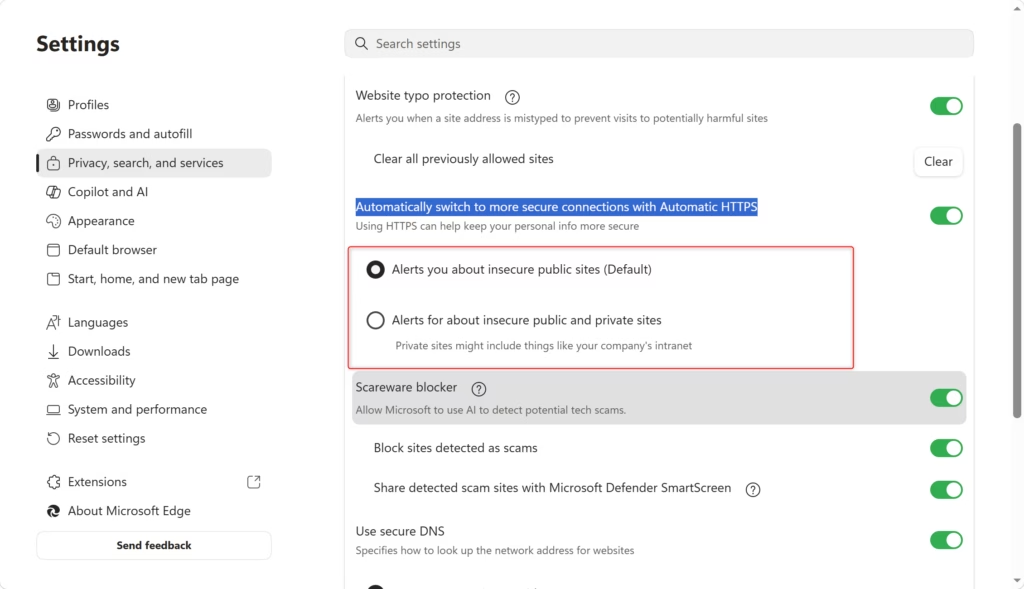
- Find the two alert options below Automatically switch to more secure connections with Automatic HTTPS. A radio button sits next to each. They only appear when the toggle is on. Read the short description under each one, because it tells you which level is which.
- Select the radio button next to the level you want. The default level is already selected. Click the other option to move to the stricter setting. The dot moves to your new choice.
- Close the Settings tab when you're done. Edge saves the choice automatically, so there is no Save button and no restart.
To go back, return to the same place and select the default option again. You can switch between the two levels as often as you like.
In short, the options live in Edge's security preferences. Open Settings, choose Privacy, search, and services, find the Security section and click the radio button for the level you want. This switches between standard warnings and maximum security.
Reference:
Summary
HTTPS-First Mode protects you out of the box, with no manual setup. Standard users get solid security by default. If you handle sensitive data or browse unfamiliar sites often, you can switch to the stricter level and accept more warnings in return.
Once the mode is running, a padlock icon appears in the address bar on sites that use an encrypted connection. That tells you the page was loaded securely. Check the toggle in the Security section now and then, especially after a major Edge update or if your PC is managed by someone else.
Have a question about this guide?
Answered by AI from this guide. Good questions may be added to this page — please don't include personal details.
Did this guide fix your problem?

About the Author
Richard
Tech Writer, IT Professional
Richard is a writer at Geek Rewind who turns complex IT tasks into clear, step-by-step guides. He draws on years of hands-on experience in system administration and enterprise IT operations, focusing on Windows, Linux and WordPress: the problems people actually run into, and the fixes that work. His server and WordPress guides come from systems he runs himself. Richard builds and maintains the platform behind Geek Rewind, from its Ubuntu servers and Nginx configuration to its custom WordPress plugins. Many new tutorials start with readers' questions, and he's always glad to answer them in the comments.
No comments yet — be the first to share your thoughts!