

Fade inactive tabs is a visual feature in Microsoft Edge. It dims the tabs that Edge has put to sleep, so you can see at a glance which pages are saving memory. Sleeping tabs sit in a low-power mode, and Edge lowers their brightness by default to show it.
If you would rather have every open tab keep its normal brightness, you can turn the fade effect off. The switch is under System and performance in Edge settings, not under Appearance. The steps below walk through it. The change takes effect immediately and does not need a restart.
Open Microsoft Edge and click the three dots menu in the top-right corner, then Settings System and performance. Scroll down to find Fade inactive tabs and click the switch to turn it Off. Sleeping tabs will no longer appear dimmed and match your active tabs visually.
How to Stop Sleeping Tabs from Fading
Fade inactive tabs only changes how sleeping tabs look. It does not stop them from sleeping. If you find the dimmed tabs distracting, turn the fade off like this:
- Open Microsoft Edge. Start the browser as you normally would.
- Open the settings menu. Click the three dots
...in the top-right corner of the window. A menu drops down. - Click Settings . A Settings page opens in a new tab, with a list of categories down the left side.
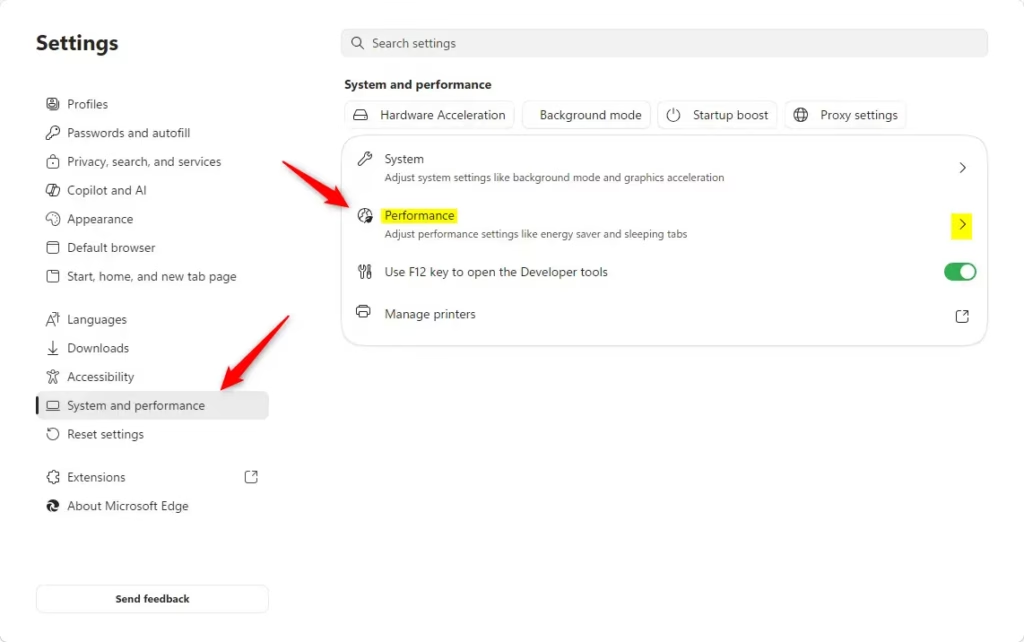
- Click System and performance. Find it in the left-hand list. If you can’t see the list, widen the window, because Edge hides it when the window is narrow.
- Go to the Performance section. In the System and performance page, find the performance options, which cover sleeping tabs and related settings.
- Find the Fade inactive tabs option. Scroll down until you see the setting named Fade inactive tabs. In some Edge versions the label reads Fade sleeping tabs. It is the same setting. It usually sits just below the switch that turns on sleeping tabs.
- Turn the switch off. It is normally On by default. Click it once. The switch slides to the left and changes color to show it is Off.
Turn on sleeping tabs first, and the fade option becomes available. If your PC is managed by an employer or school, the setting may be locked by policy, and only your administrator can change it.

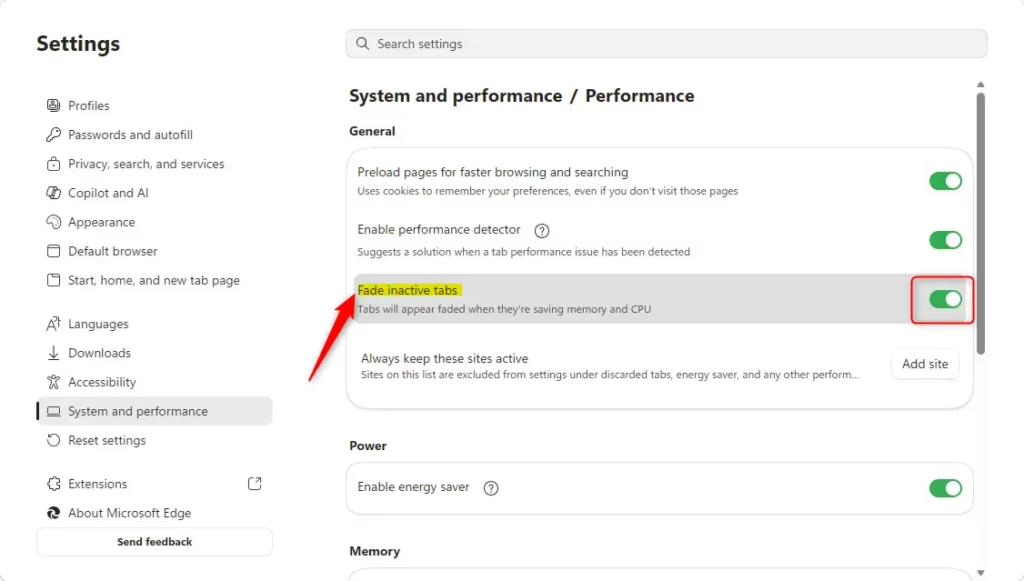
Tabs that go to sleep will no longer look faded. They match your active tabs visually, but Edge still puts them into low-power mode in the background and still saves the same memory. To check, leave a few tabs alone for a while and look at the tab strip. Sleeping tabs should keep their normal brightness.
To undo the change, go back to the same page and click the switch again so it shows On. Sleeping tabs will fade again straight away.
Summary
The fade setting controls only how sleeping tabs look, not how they save resources. You can turn the dimming on or off in Edge settings whenever you like, depending on whether you want every tab to look the same or want a visual cue for the ones that are asleep.
Have a question about this guide?
Answered by AI from this guide. Good questions may be added to this page — please don't include personal details.
Did this guide fix your problem?

About the Author
Richard
Tech Writer, IT Professional
Richard is a writer at Geek Rewind who turns complex IT tasks into clear, step-by-step guides. He draws on years of hands-on experience in system administration and enterprise IT operations, focusing on Windows, Linux and WordPress: the problems people actually run into, and the fixes that work. His server and WordPress guides come from systems he runs himself. Richard builds and maintains the platform behind Geek Rewind, from its Ubuntu servers and Nginx configuration to its custom WordPress plugins. Many new tutorials start with readers' questions, and he's always glad to answer them in the comments.
… liked this!