Prevent Copilot Using Current Webpage, Browser History, or Preferences to Provide Responses in Microsoft Edge

Microsoft Copilot in Microsoft Edge is a built-in AI tool that answers questions using your browsing activity. By default it can read your current webpage, your browser history, and your preferences. Turning these features off stops the assistant from looking at your personal web data while you browse.
The short version: open Microsoft Edge, go to settings, and turn off the option labeled Show me relevant Copilot suggestions based on the webpage I’m viewing. That stops the sidebar from tracking your habits. The steps below walk through each screen, including the Context clues setting.
To disable Copilot context in Microsoft Edge, click the Copilot icon in the top-right corner, select the More menu (three dots) at the bottom of the sidebar, choose Settings, go to Privacy, search, and services, then turn off the Context clues toggle. This stops Copilot from using your current webpage, browser history, or preferences.
How to Change Copilot Privacy Settings in Edge
Microsoft Edge lets you change privacy settings so you can control what the assistant sees. The change takes a minute or two and makes a real difference to your privacy while you browse.
These settings are the same on Windows 11 Home and Pro, because they live inside Edge, not Windows. Edge also updates often, so menu wording and icon positions can differ slightly between versions. If a setting is greyed out or missing, your device may be managed by an organization that controls Edge through policy. In that case, ask your administrator.
Open Copilot and Find Settings
- Open Microsoft Edge.
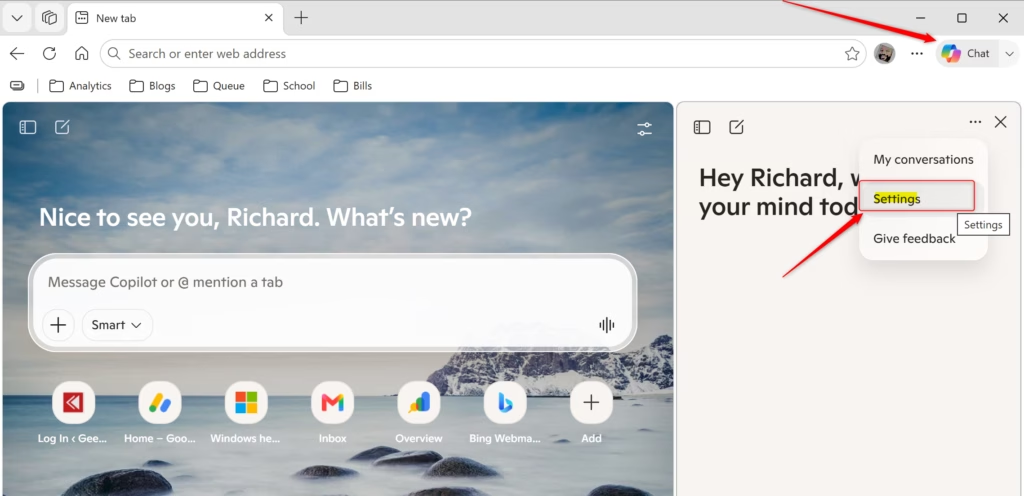
- Click the Copilot icon in the top-right corner of the window. It is usually a speech bubble or a ‘C’. The Copilot sidebar opens on the right side of the browser.
- Find the More menu icon (three dots) at the bottom of the Copilot sidebar and click it. A short menu of Copilot options appears.
If you can’t see the Copilot icon, the Edge toolbar may be hiding it, or your Edge version may place it elsewhere. Check the toolbar for a similar icon before moving on.
Go to Privacy Settings
- In Copilot, click the More menu.
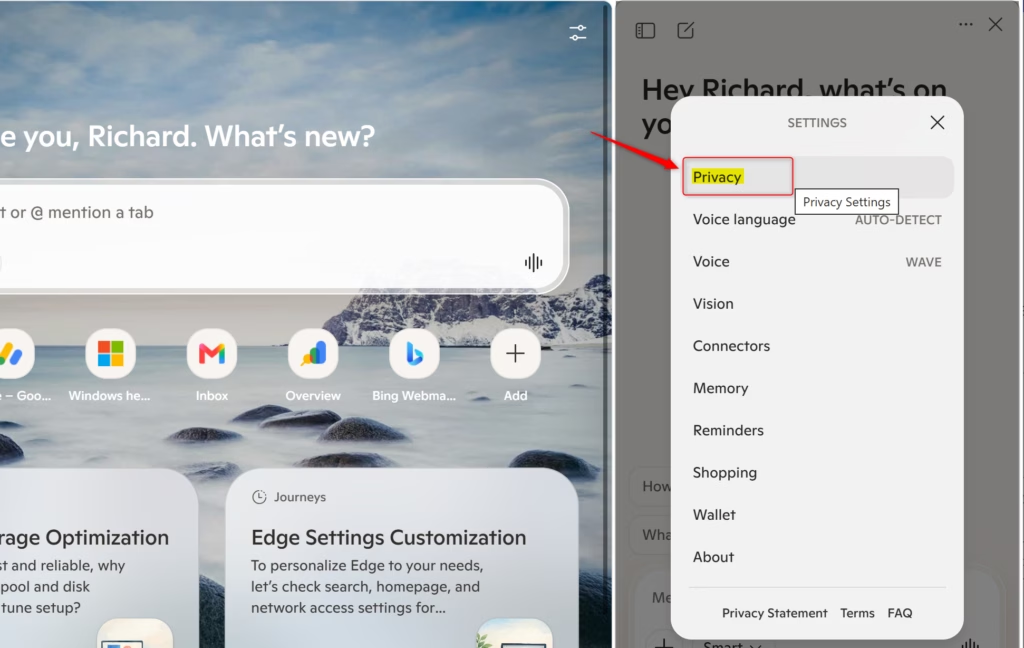
- Choose Settings. The main Edge settings page opens in a tab.
- Look for the Privacy, search, and services section and select it. You should see the privacy and service options for your Edge profile.
Turn Off Context Clues
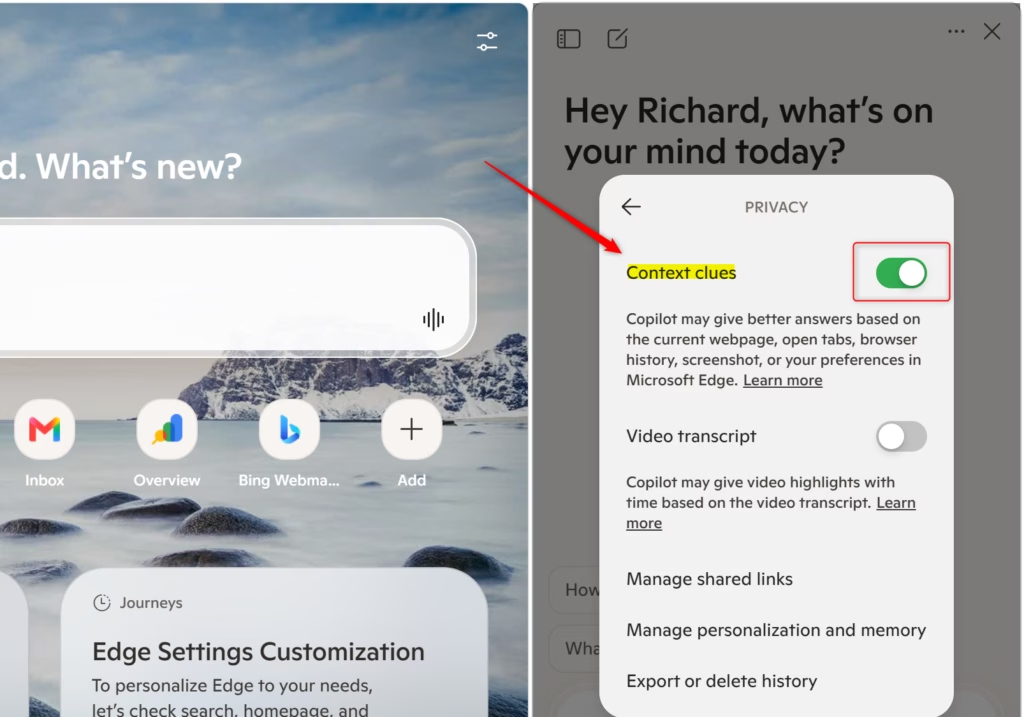
- In the Copilot privacy settings, find the Context clues option.
- Turn the Context clues toggle off. Copilot can no longer use your current webpage, history, or preferences.
- If you see the option Show me relevant Copilot suggestions based on the webpage I’m viewing, turn that off too to stop the sidebar from tracking your habits.
The change normally applies straight away and no restart is needed. If Copilot still seems to react to the page you’re on, close and reopen the sidebar. To undo it, return to the same screen and turn the toggle back on.
Reference:
https://support.microsoft.com/en-us/microsoft-copilot/getting-started-with-copilot-in-microsoft-edge
Summary
You can disable Copilot context in Microsoft Edge to stop the AI from using your open tabs, browsing history, and personal preferences to answer questions. With these settings off, your web activity stays private and Copilot relies only on your direct prompts instead of your personal data.
Turning off Context clues stops Copilot from using current webpage details, browser history, or saved browser preferences for its answers. Its responses then become more general, because it no longer knows what you are looking at. With the toggles off, Copilot relies strictly on your direct questions and its built-in knowledge base. If you want page-aware answers again, turn the setting back on at any time.
Have a question about this guide?
Answered by AI from this guide. Good questions may be added to this page — please don't include personal details.
Did this guide fix your problem?

About the Author
Richard
Tech Writer, IT Professional
Richard is a writer at Geek Rewind who turns complex IT tasks into clear, step-by-step guides. He draws on years of hands-on experience in system administration and enterprise IT operations, focusing on Windows, Linux and WordPress: the problems people actually run into, and the fixes that work. His server and WordPress guides come from systems he runs himself. Richard builds and maintains the platform behind Geek Rewind, from its Ubuntu servers and Nginx configuration to its custom WordPress plugins. Many new tutorials start with readers' questions, and he's always glad to answer them in the comments.
No comments yet — be the first to share your thoughts!