How to Enable or Disable Copilot Access to Microphone in Windows 11


You can allow or block microphone access for Microsoft Copilot, the AI assistant built into Windows, in a few clicks. There are two ways to do it: from inside the Copilot app, or from Windows Settings . Both work on Home and Pro editions.
Control Copilot’s microphone access through Copilot Settings or Windows Settings . In Copilot, navigate to Settings Preferences Permission settings and toggle the Microphone switch. Alternatively, go to Windows Settings Privacy & security Microphone, find Copilot, and adjust its toggle.
What is Microsoft Copilot?
Microsoft Copilot is an AI assistant built into Windows that handles tasks and responds to your voice. With microphone access turned on, you can have voice chats with it, which is handy when talking is easier than typing.
Spoken conversations let you use the assistant hands-free. Copilot processes your voice input to understand what you ask and return better answers. If you never use voice, or you don’t want an app that can listen, turning access off is a sensible choice.
Reference: Using Copilot Voice with Microsoft Copilot – Microsoft Support
Microsoft Copilot Voice lets you talk to Copilot in a natural voice instead of typing.
Option 1Use Copilot Settings
Managing the permission inside the Copilot app takes only a few clicks, and the switch takes effect right away. The control sits a few levels deep, so follow the path below.
- Open the Copilot app.
- Sign in with your Microsoft account if you want your settings saved. Without signing in, some preferences may not carry over between sessions.
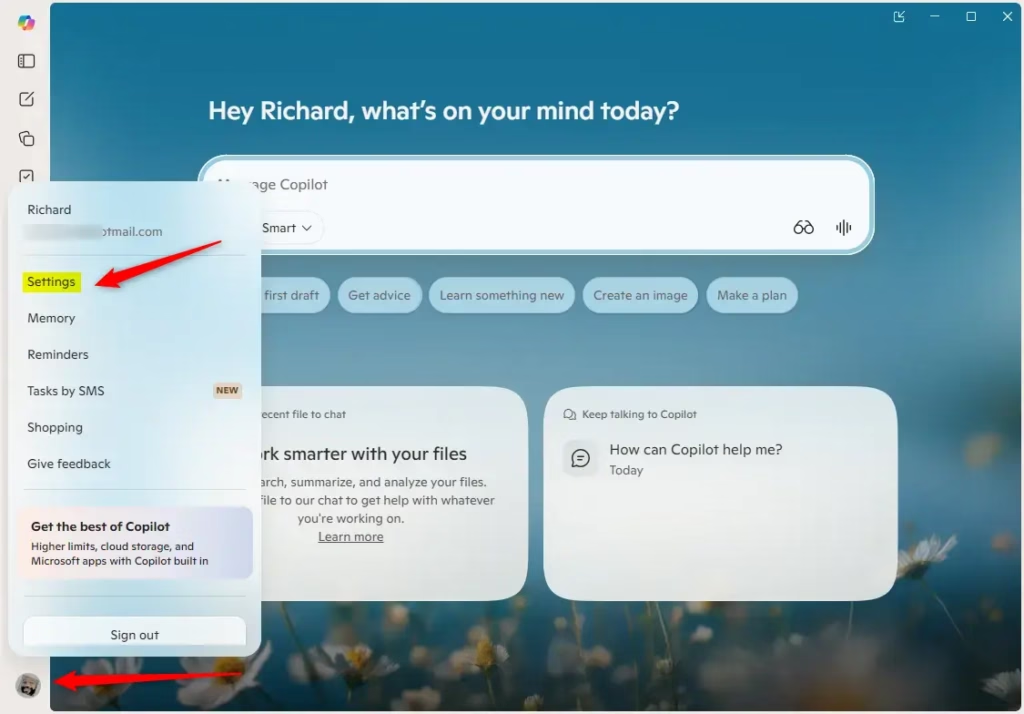
- Click or tap the Account button on the left side, then click or tap Settings. The Copilot settings page should now open.
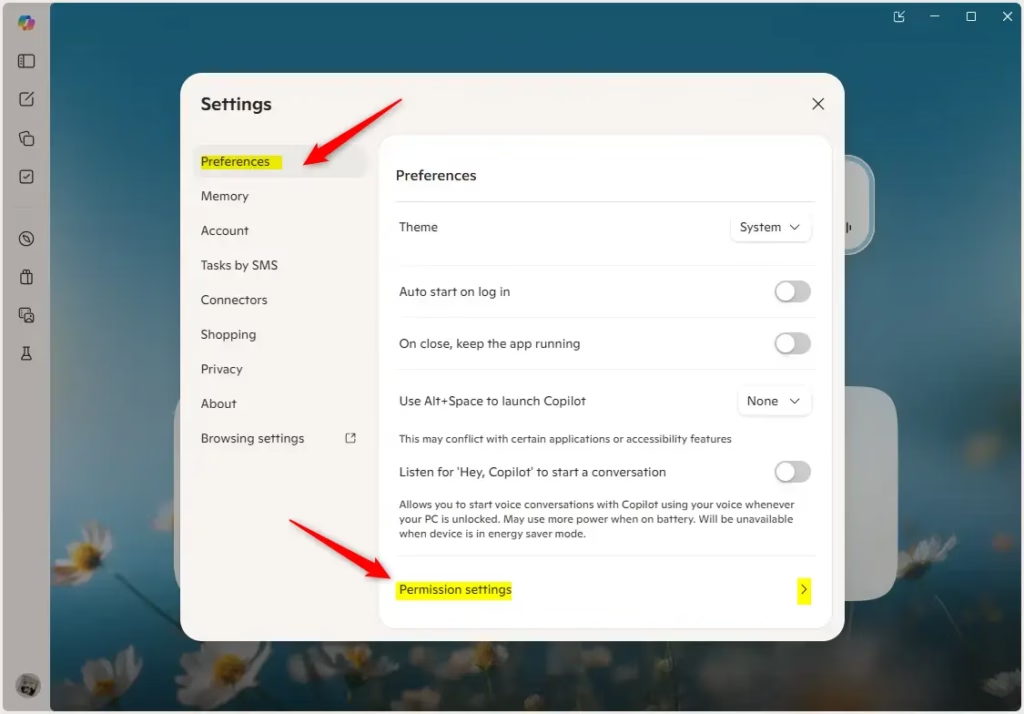
- Click or tap Preferences on the left, then click or tap Permission settings on the right side. You should see a list of permissions Copilot can use, including the microphone.
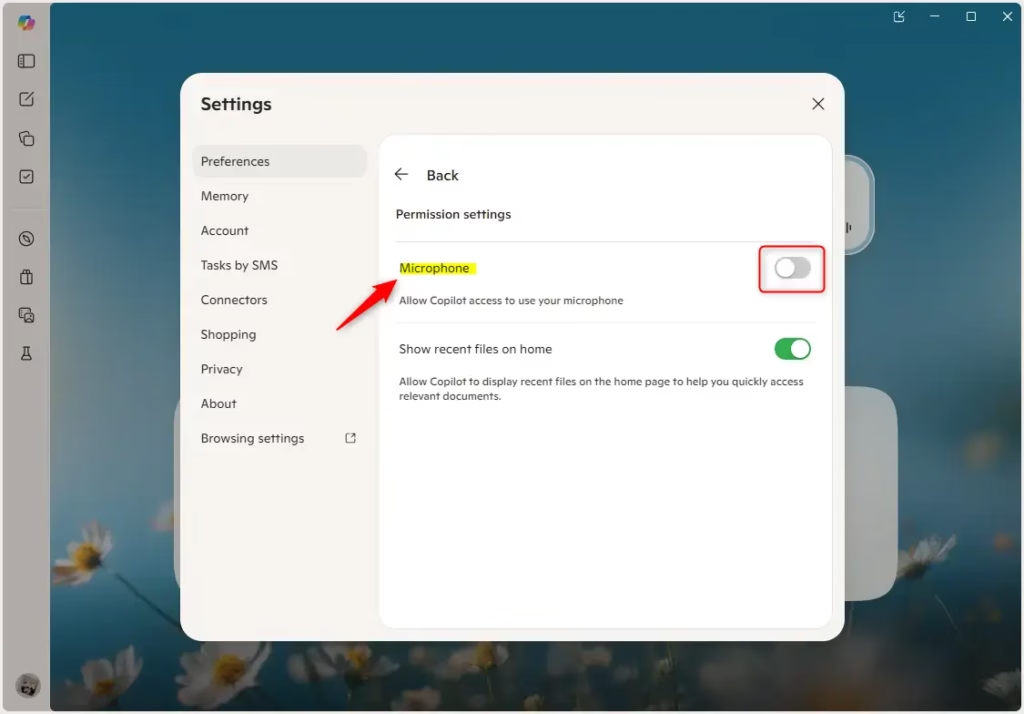
- Turn the Microphone switch on or off. On is the default setting. Switch it off if you want Copilot to stop listening.
- If you turned microphone access on, click or tap Yes to confirm. Turning it off needs no confirmation.
Option 2Use Windows Settings
Windows Settings gives you a second way to manage the same permission. This route is also useful if you can't open the Copilot app.
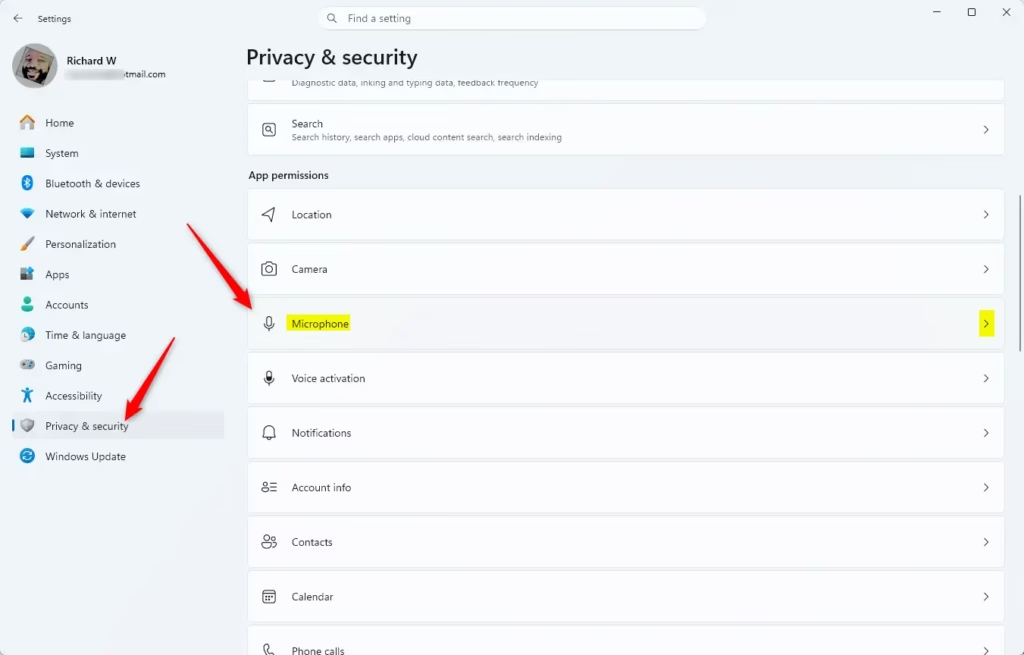
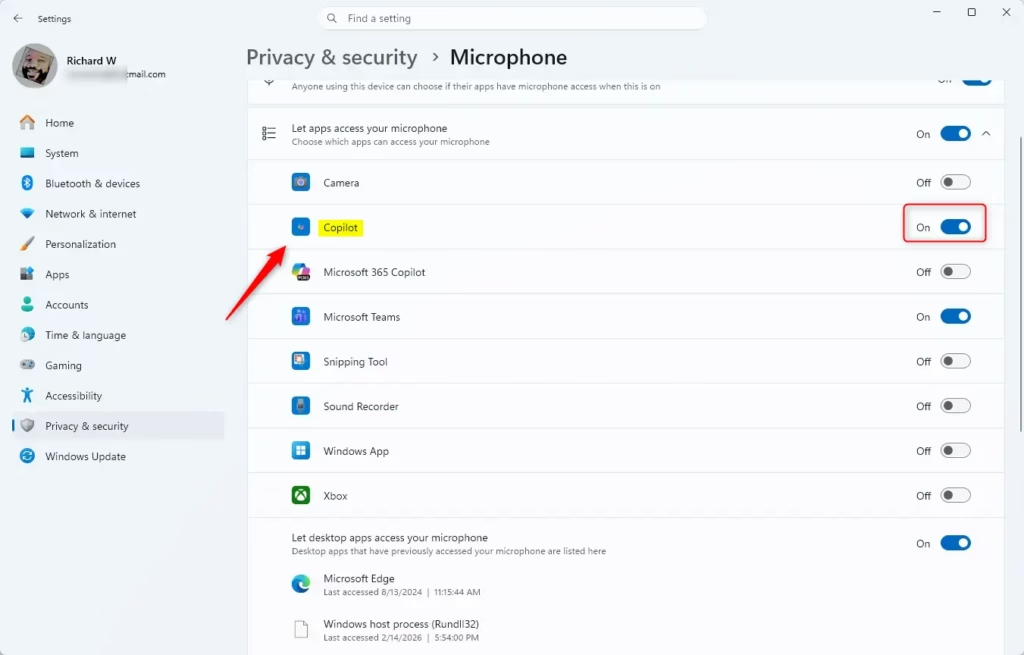
- Open Settings and go to Privacy & security Microphone The page shows the microphone access switches and a list of apps below them.
- Make sure Microphone access and Let apps access your microphone are turned on. If either is off, no app can use the microphone, and the per-app toggles will be greyed out or have no effect.
- Find Copilot in the list of apps.
- Turn its toggle on or off to allow or block microphone access.
Summary
You can change microphone permissions at any time, through either the Copilot app or Windows Settings. Both control whether the assistant can hear your voice commands. No restart is needed, but if Copilot doesn't seem to pick up the change, close and reopen the app. To undo a change, repeat the same steps and flip the switch back.
Was this guide helpful?

About the Author
Richard
Tech Writer, IT Professional
Richard is a writer at Geek Rewind who turns complex IT tasks into clear, step-by-step guides. He draws on years of hands-on experience in system administration and enterprise IT operations, focusing on Windows, Linux and WordPress: the problems people actually run into, and the fixes that work. His server and WordPress guides come from systems he runs himself. Richard builds and maintains the platform behind Geek Rewind, from its Ubuntu servers and Nginx configuration to its custom WordPress plugins. Many new tutorials start with readers' questions, and he's always glad to answer them in the comments.



No comments yet — be the first to share your thoughts!