

Copilot in Microsoft Edge on Windows 11 creates short, bullet-point summaries of long web pages, so you can get the main points without reading every word. The tool sits in the Edge sidebar and works on articles, news stories, and reports. It reads the text on the page you have open, so you don’t need to copy and paste anything.
Before you start, make sure Edge is up to date. Copilot features arrive through Edge updates, and the menu names below can differ slightly on an older build. Copilot also needs to be available in your region and allowed on your account. On a work or school PC, an administrator may have turned it off.
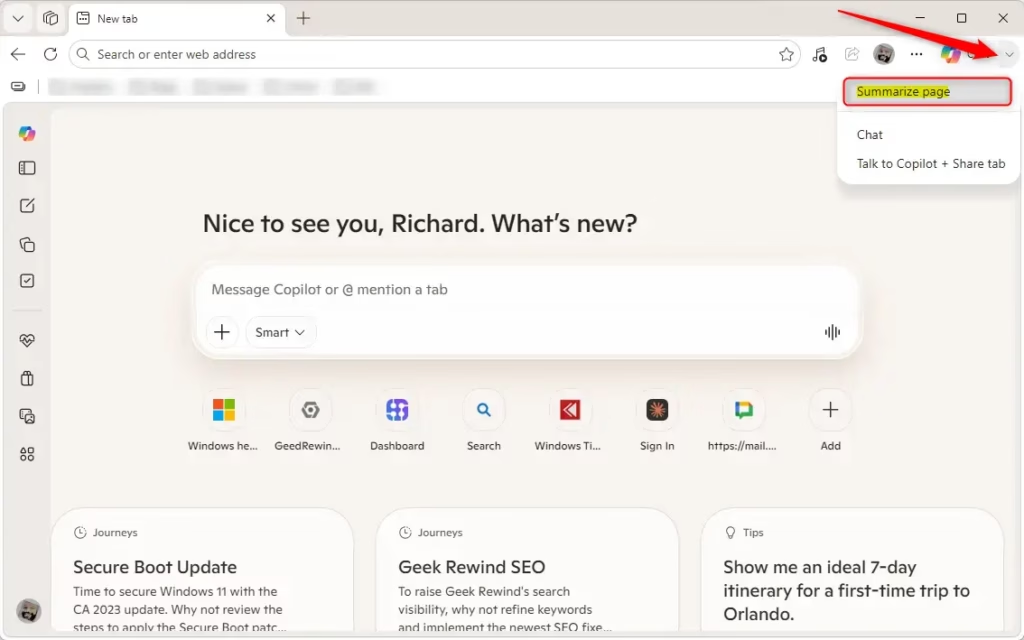
Open Microsoft Edge, go to the web page you want to summarize, and click the Copilot menu arrow on the toolbar, then click Summarize page. The summary appears in the sidebar as a list of key points within a few seconds.
Here’s How:
- Open Microsoft Edge.
- Go to the web page you want to summarize and wait for it to finish loading. A page that is still loading may give you a partial summary. Then use one of these two methods:
- Click the Copilot menu arrow on the toolbar, then click Summarize page.
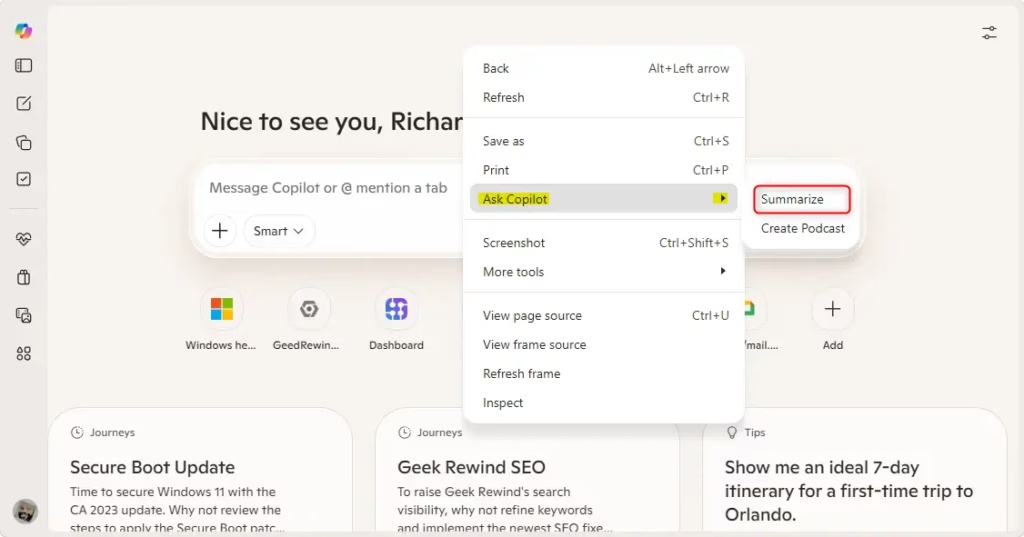
- Right-click an empty part of the page, click Ask Copilot, then click Summarize.
Those spots show a different context menu , and you may not see the Copilot entries.
- Look at the Copilot pane. It opens on the side of the browser and, after a few seconds, shows a summary of the page as a short list of key points.
- Read the summary. If you need more detail, type a follow-up question in the Copilot chat box, such as asking it to expand on one point. Close the pane when you are done and the page stays as it was.
If you don’t see Summarize page or Ask Copilot, check these things in order:
- Update Edge, then restart the browser.
- Check that you are signed in to Edge with your Microsoft account.
- Check whether your organization has blocked Copilot on this PC.
- Try a different page. Some pages, such as Edge’s internal settings pages, can’t be summarized.
Copilot can miss nuance or leave out details, so open the full page when the numbers, dates, or quotes matter. Very long pages may also be summarized only in part.
In short, you summarize a page with Copilot by opening Edge, going to the site you want to read, and choosing either the toolbar menu or the right-click menu . Copilot reads the text on your screen and gives you the main points, which saves time when you only need the gist of a long article or document.
Summarize Articles with Copilot | Microsoft Edge
Summary
Summarizing a web page in Microsoft Edge takes only a couple of clicks. Open the Copilot menu on the toolbar, choose Summarize page, and the AI-generated overview appears in the sidebar.
Using summaries to scan pages quickly saves your attention for the material that needs a careful read.
Have a question about this guide?
Answered by AI from this guide. Good questions may be added to this page — please don't include personal details.
Did this guide fix your problem?

About the Author
Richard
Tech Writer, IT Professional
Richard is a writer at Geek Rewind who turns complex IT tasks into clear, step-by-step guides. He draws on years of hands-on experience in system administration and enterprise IT operations, focusing on Windows, Linux and WordPress: the problems people actually run into, and the fixes that work. His server and WordPress guides come from systems he runs himself. Richard builds and maintains the platform behind Geek Rewind, from its Ubuntu servers and Nginx configuration to its custom WordPress plugins. Many new tutorials start with readers' questions, and he's always glad to answer them in the comments.
No comments yet — be the first to share your thoughts!