How to Enable Rewrite with Copilot in Microsoft Edge

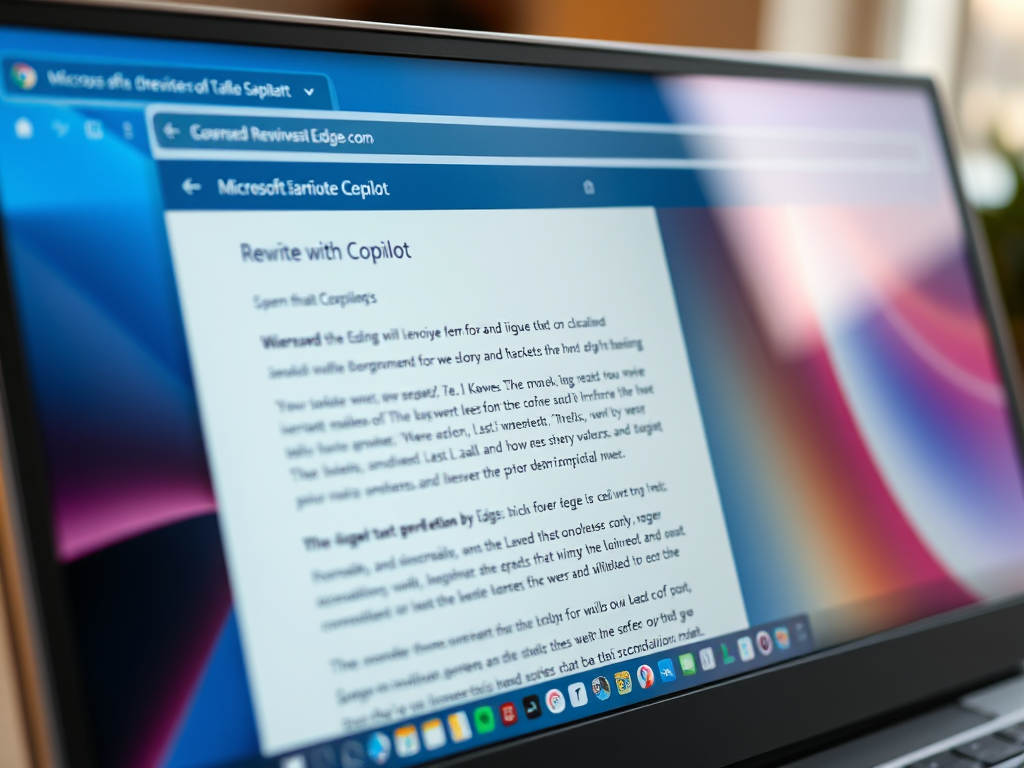
Rewrite with Copilot in Microsoft Edge is a built-in artificial intelligence tool that edits and improves text you have already typed in your browser. Compose is a different feature: it writes new content from scratch. Rewrite works on your existing sentences and changes them on the fly.
You can use it on any website by highlighting text and clicking the Copilot icon. That makes it handy for fixing emails, social media posts, and online forms without opening a separate app.
The feature depends on your Edge version, your account, and your privacy settings. If you don’t see the icon after highlighting text, the steps below cover the settings to check first.
Open Settings Privacy and services and turn on Show Copilot and Allow Microsoft to use your browsing data. Go to Languages and toggle Rewrite with Copilot on. The feature activates immediately without restarting Edge.
Enable or disable “Rewrite with Copilot” in Microsoft Edge
Two privacy options have to be on first, or the tool won’t work properly: Show Copilot and Allow Microsoft to use your browsing data. Follow these steps:
- Click the Settings and more (three dots) button in the top right corner of Edge. A menu opens.
- Select Settings. The Settings page opens in a new tab.
- On the left menu, click Privacy and services.
- Make sure Show Copilot is turned on. If it is off, switch it on.
- Make sure Allow Microsoft to use your browsing data is enabled. Both options must be active for the features to work.
- Click the Languages tab on the left menu.
- Look for the Writing assistance section. Depending on your version of Edge, you will find Rewrite with Copilot or Compose settings here. Settings pages change between Edge releases, so the wording or position may differ slightly on your PC.
- Switch the toggle to On or Off, depending on what you want.
Close the Settings page when you are done. Changes save automatically, and you don’t need to restart Edge. To undo the change, come back to the same page and flip the toggle the other way.
Work or school accounts may also hide these settings because an administrator controls them.
Customizing your rewrite
You can change how Rewrite with Copilot behaves by picking a tone, a format, and a length that fit what you are writing. For example, you might want a short, formal reply to a colleague or a longer, friendlier post for social media.
Setting these options helps you keep a consistent writing voice. The AI then generates a draft that matches the style you asked for. Read the draft before you accept it, and edit anything that doesn't sound like you.
Reference:
Conclusion
Managing Rewrite with Copilot in Microsoft Edge takes only a few clicks. You decide how much AI assistance you get while browsing. If you change your mind, go back to the Languages settings or the Privacy and services page and adjust the toggles.
Have a question about this guide?
Answered by AI from this guide. Good questions may be added to this page — please don't include personal details.
Did this guide fix your problem?

About the Author
Richard
Tech Writer, IT Professional
Richard is a writer at Geek Rewind who turns complex IT tasks into clear, step-by-step guides. He draws on years of hands-on experience in system administration and enterprise IT operations, focusing on Windows, Linux and WordPress: the problems people actually run into, and the fixes that work. His server and WordPress guides come from systems he runs himself. Richard builds and maintains the platform behind Geek Rewind, from its Ubuntu servers and Nginx configuration to its custom WordPress plugins. Many new tutorials start with readers' questions, and he's always glad to answer them in the comments.
No comments yet — be the first to share your thoughts!