How to Control Copilot’s Access to Context in Microsoft Edge

You control Copilot’s context access in Microsoft Edge via its settings. Navigate to Settings, then Copilot and sidebar, and toggle “Allow Copilot to read context clues on the web” on or off to manage its access to your browsing information.
Turn off “Allow Copilot to read context clues on the web” in Edge
Copilot in Microsoft Edge can read the page you have open, and in some cases other browsing context, so it can answer questions and write text about what you are looking at. If you would rather it did not see that content, you can switch the option off in Edge settings. The whole job takes less than a minute. The short version: open Edge, go to Settings , choose Copilot and sidebar, open the Copilot tile, and turn off the context option.
The steps below use the option name as it appears in the version this guide was written for. Edge updates often, and Microsoft sometimes changes the wording or position of AI settings. If your label is slightly different, look for the Copilot toggle that mentions reading or accessing page content or context.
- Open the Microsoft Edge browser.
- Click the three horizontal dots (Settings and more) in the top-right corner of the window. You can also press Alt+F. A menu opens.
- Choose Settings from the menu. The Settings page opens in a new tab.

- Select Copilot and sidebar from the menu on the left. The Copilot and sidebar options appear on the right.
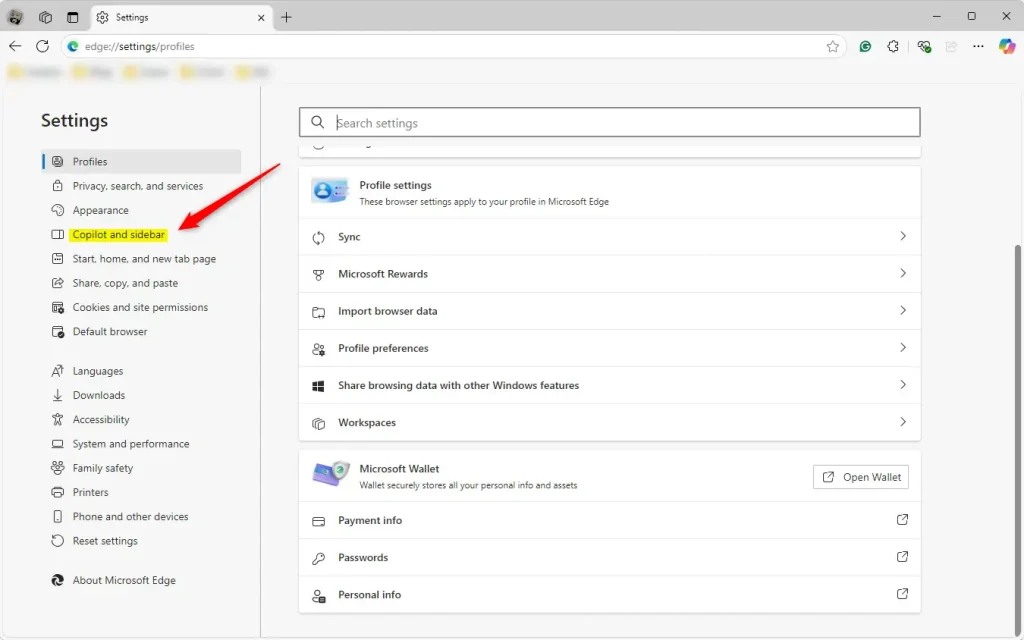
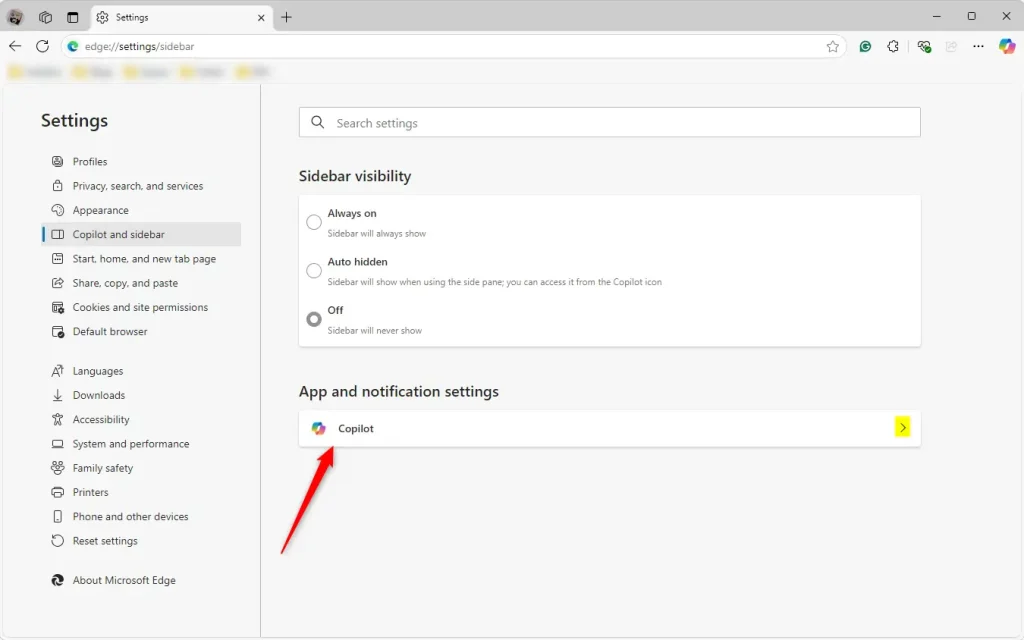
- Scroll to App and notification settings and click the Copilot tile. The tile expands and shows the Copilot options.
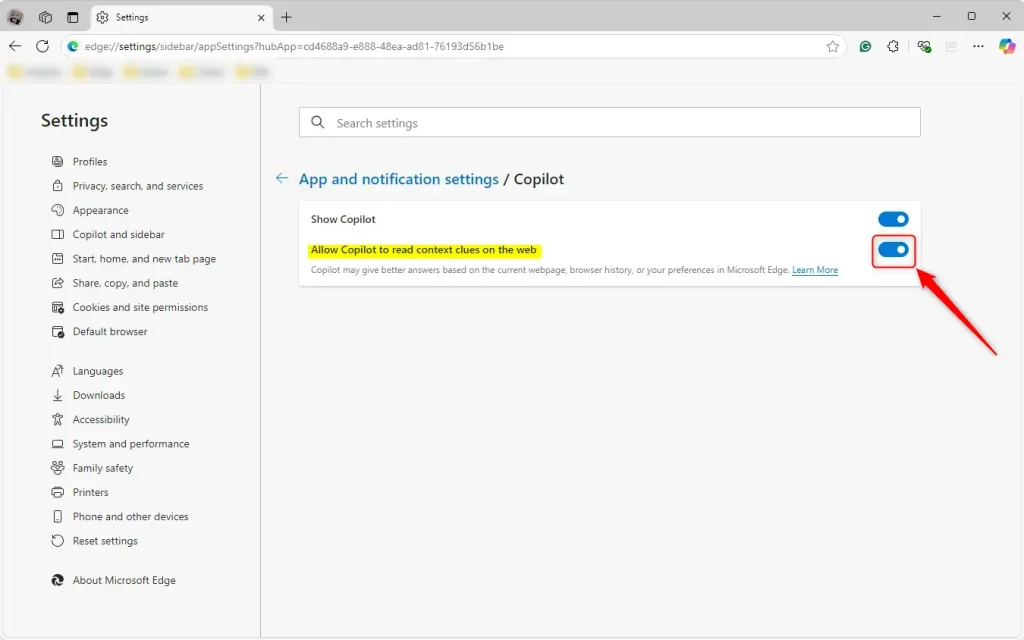
- Find Allow Copilot to read context clues on the web and click its toggle. Switch it off to stop Copilot from using the page content; switch it on to allow it again. The toggle shows its new state straight away.
- Close the Settings tab when you are done.
The change takes effect immediately. You do not need to restart Edge or Windows. To undo it, return to the same page and flip the toggle back.
If you cannot find the option, update Edge first. Go to Settings and more > Help and feedback > About Microsoft Edge, which checks for updates. Also note that on a work or school PC an administrator may manage these settings, in which case the toggle can be missing or greyed out and you will need to ask your IT team.
Reference:
Managing how Copilot accesses browsing information in Microsoft Edge controls how much of your activity the AI can see. Edge uses browsing context to improve Copilot's answers, and you decide whether it gets that context. The points below sum up what to remember.
- Microsoft Edge is the default browser in Windows 11 and uses browsing context to enhance the Copilot experience.
- You can turn the "Allow Copilot to read context clues on the web" feature on or off whenever you like. Nothing is permanent, and the change applies at once.
- The path is Settings Copilot and sidebar > App and notification settings. Open the Copilot tile there and toggle the relevant option.
- Turning this feature off helps keep your browsing more private, because Copilot no longer uses your browser history and preferences when it builds its responses.
- Keep Edge up to date to get the latest features and settings. If the option looks different or is missing on your PC, an older version or a work policy is the usual reason.
Follow these steps whenever you want to adjust the Copilot experience and control how much of your browsing it can see.
Have a question about this guide?
Answered by AI from this guide. Good questions may be added to this page — please don't include personal details.
Did this guide fix your problem?

About the Author
Richard
Tech Writer, IT Professional
Richard is a writer at Geek Rewind who turns complex IT tasks into clear, step-by-step guides. He draws on years of hands-on experience in system administration and enterprise IT operations, focusing on Windows, Linux and WordPress: the problems people actually run into, and the fixes that work. His server and WordPress guides come from systems he runs himself. Richard builds and maintains the platform behind Geek Rewind, from its Ubuntu servers and Nginx configuration to its custom WordPress plugins. Many new tutorials start with readers' questions, and he's always glad to answer them in the comments.
No comments yet — be the first to share your thoughts!