How to Enable or Disable Copilot in Outlook


You can enable or disable Copilot in version 16.0.17425.20176 of the new Outlook app through the settings menu. This tutorial covers the new Outlook for Windows, not the classic desktop version, which has a different layout.
Open Outlook, click the Settings gear icon, select Copilot from the sidebar, and toggle the “Turn on Copilot” option. Click Save to confirm your changes.
What is the New Outlook App?
The new Outlook app for Windows 11 is a refreshed take on the email and calendar program. It brings mail, calendar, and contacts into one workspace. It also adds dark mode, event previews from emails, and inline link snapshots.
What is Copilot in Outlook?
Copilot is an artificial intelligence assistant that generates text and summarizes content. It is built directly into the new Outlook app for Windows. In Outlook it can summarize email threads, draft new emails, and help with other tasks, which saves time on busy inboxes.
Whether you see Copilot at all can depend on your account and licence. On a work or school account, your organization’s administrator may control it. If the option is missing or greyed out, check with your admin before looking for a problem on your PC.
How to Enable or Disable Copilot in Outlook
You can turn this feature on or off at any time. The change only affects Copilot, and you can reverse it by repeating the same steps.
Step 1Open Outlook
- Open the Start menu and click the Outlook icon, or type Outlook into the taskbar search box and select the app from the results.
- Wait for the mailbox to load. You should see your inbox and the toolbar across the top of the window.
Make sure you open the new Outlook app. If the classic version opens instead, the steps below will not match what you see.

Step 2Open Settings
- Click the Settings gear icon in the top-right menu bar.
- The Settings window opens, with a list of categories down the left side.

Step 3Find Copilot Settings
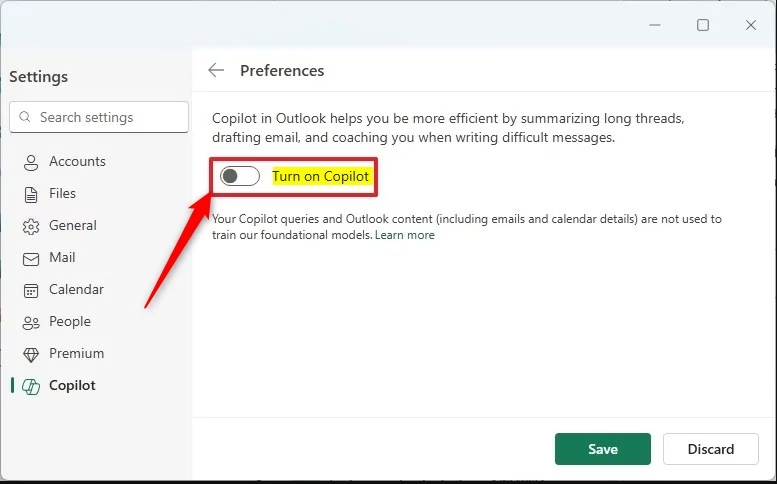
- In the Settings sidebar, click Copilot in the left menu. The Copilot options appear on the right.
- Switch the Turn on Copilot toggle on to enable Copilot, or off to disable it.
If Copilot is not in the left menu, the feature is probably not available for your account or version of the app. Check that Outlook is up to date and ask your administrator if it is a managed account.
Step 4Save Your Changes
- Click the Save button to keep your change.
- Close the Settings window.
Back in your mailbox, Copilot should now be available or hidden, depending on the toggle you chose. If you do not see the change right away, close Outlook and reopen it.
Summary
That is all it takes. Turning Copilot on or off happens in the app’s Settings menu, so you can decide how much AI help you want with your email tasks.
Have a question about this guide?
Answered by AI from this guide. Good questions may be added to this page — please don't include personal details.
Did this guide fix your problem?

About the Author
Richard
Tech Writer, IT Professional
Richard is a writer at Geek Rewind who turns complex IT tasks into clear, step-by-step guides. He draws on years of hands-on experience in system administration and enterprise IT operations, focusing on Windows, Linux and WordPress: the problems people actually run into, and the fixes that work. His server and WordPress guides come from systems he runs himself. Richard builds and maintains the platform behind Geek Rewind, from its Ubuntu servers and Nginx configuration to its custom WordPress plugins. Many new tutorials start with readers' questions, and he's always glad to answer them in the comments.
No comments yet — be the first to share your thoughts!