How to Enable or Disable Colorful Icons in Outlook App

Colorful icons add bright brand colors to your folders and messages in the Outlook app. If you prefer a plain look, you can switch them to a simple dark gray. This is an appearance setting in the newer version of Outlook for Windows (the “new Outlook”). It changes how your mailbox folders and items look, and it does not touch your mail, accounts or rules.
Open the new Outlook for Windows, click the Settings gear in the top-right corner, select General, then click Appearance. Under Navigation bar, switch the toggle On for colorful icons or Off for dark gray icons. The change applies immediately, and no restart is needed.
What is the New Outlook App?
The setting sits in the same Settings window as other options of the revamped client, such as calendar week numbers, search history and background notifications. If you want to tidy up the app, you can adjust those in the same visit.
Why Change Your Icon Style?
Dark gray icons may reduce power use a little on a laptop, but any speed or battery gain is negligible. Choose the style because you like it, not for performance.
How to Turn Colorful Icons On or Off
Switching icon styles takes a few clicks. Open Outlook, click the Settings gear in the top-right corner, select General in the sidebar, then click Appearance. From there you can switch between colorful and dark gray icons. The change shows up right away, and no restart is needed.
If you don’t see the Settings gear or the Appearance page described below, you are probably running the classic Outlook desktop app, which has a different layout. The steps are the same on Windows 11 Home and Pro.
- Open the Outlook app. Click its icon in the Start menu, or search for it in the taskbar. You should see your mailbox open with the folder list on the left.

- Look at the top right corner of the menu bar. Click the Settings gear icon. The Settings window opens with a sidebar on the left.

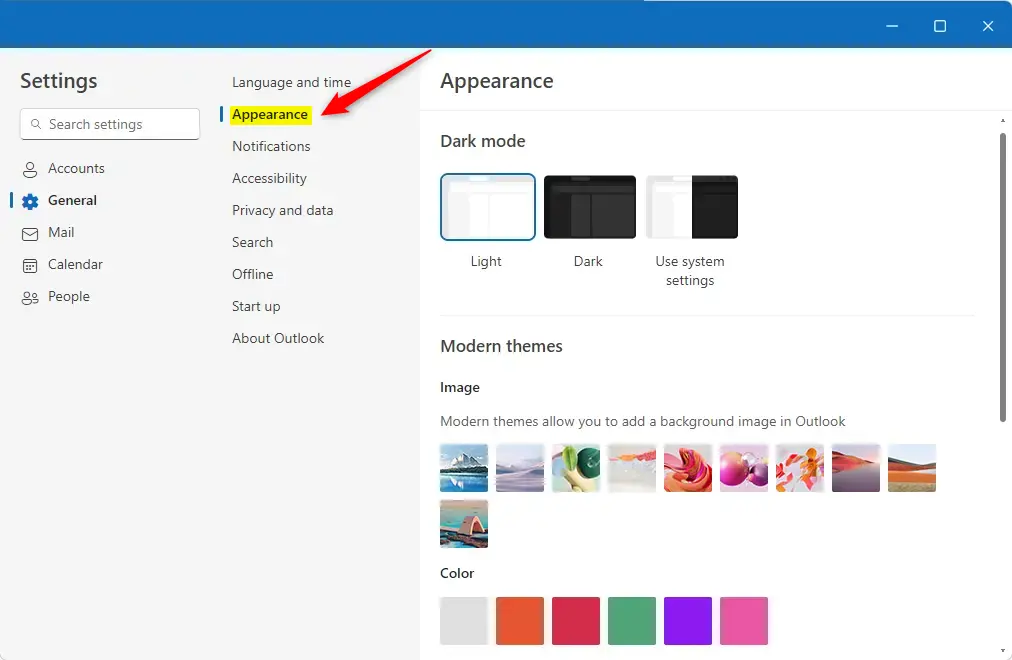
- In the Settings sidebar, click General. Then select Appearance. The appearance options appear on the right.
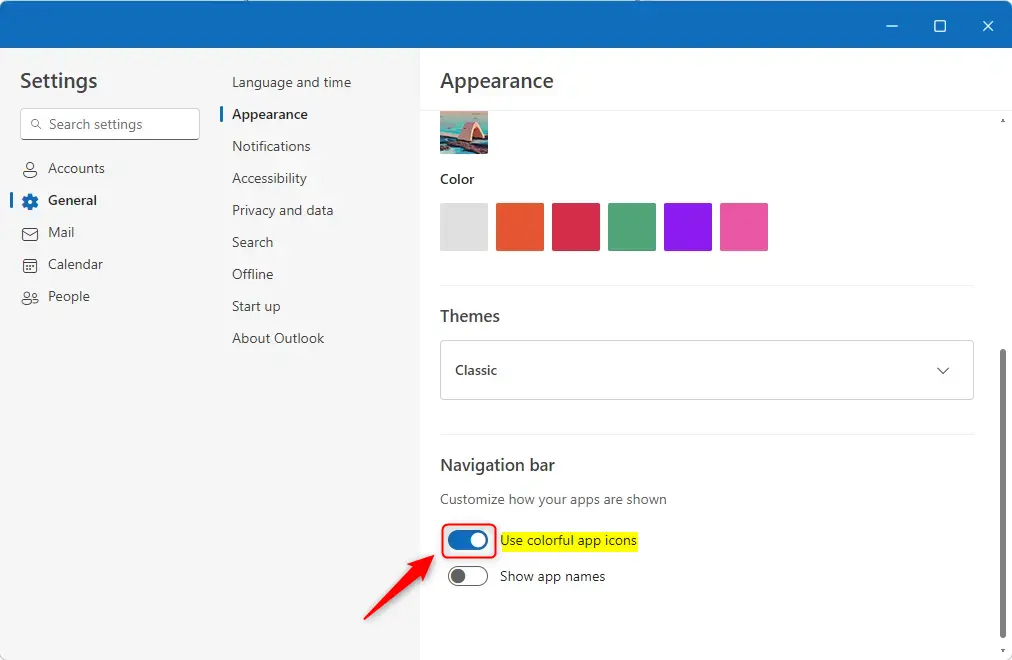
- Find the Navigation bar section. You'll see a toggle button. Switch it On for colorful icons or Off for dark gray icons. The icons should change as soon as you flip the toggle.
- Click Save to keep your changes, then close the Settings window.


Your icon preference is now saved. To undo it, go back to the same page and flip the toggle the other way. You can do this as often as you like.
Summary
Colorful icons let you personalize the app to match your style. You can switch between colorful and dark gray icons whenever you want through the General settings, so your inbox stays easy to scan and navigate.
- Modern Design: The new Outlook has a fresh, easy-to-use interface.
- Your Choice: Pick colorful icons or dark gray icons based on what you prefer.
- Easy Access: The settings are simple to find and change in just a few steps.
- Small Efficiency Gain: Dark gray icons may use slightly less power on a laptop, though you are unlikely to notice a speed difference.
- Make It Yours: Customize Outlook to match your style and work better for you.
Personalizing Outlook takes only a few clicks, so you can set up the workspace the way you like to work.
Have a question about this guide?
Answered by AI from this guide. Good questions may be added to this page — please don't include personal details.
Did this guide fix your problem?

About the Author
Richard
Tech Writer, IT Professional
Richard is a writer at Geek Rewind who turns complex IT tasks into clear, step-by-step guides. He draws on years of hands-on experience in system administration and enterprise IT operations, focusing on Windows, Linux and WordPress: the problems people actually run into, and the fixes that work. His server and WordPress guides come from systems he runs himself. Richard builds and maintains the platform behind Geek Rewind, from its Ubuntu servers and Nginx configuration to its custom WordPress plugins. Many new tutorials start with readers' questions, and he's always glad to answer them in the comments.
No comments yet — be the first to share your thoughts!