How to Enable or Disable Suggested People in Outlook

Suggested People in Outlook is the drop-down list of email addresses that appears in the To box when you start typing a name. Outlook stores up to 1,000 entries in this automatic suggestion list based on your past messages and work contacts.
Turn off this feature in your Outlook settings menu to stop unused email addresses from popping up on your screen. Cleaning up the suggestion list helps you find the right contacts faster and stops you from sending messages to the wrong person. This is most useful when old addresses, typos or former colleagues keep showing up at the top of the list.
To enable or disable Suggested people in the new Outlook for Windows 11, open Settings (the gear icon, top right), click General, then select Privacy and data. Switch the Suggested people feature on or off there. Turning it off also clears the saved suggestions, and that change can’t be reversed. Changes apply the next time you type in the To box.
Enable or disable suggested people in Outlook
To enable or disable suggested people in Outlook, open your Outlook settings, go to the privacy options, and switch the suggestion feature on or off. This setting controls whether Outlook remembers past contacts and offers them as you type names in the To line. You can change it at any time.
The setting does not depend on your Windows edition, so Home and Pro behave the same. If you use classic Outlook instead, the equivalent option is under File Options Mail, in the Auto-Complete List setting for the To, Cc and Bcc lines.
Configuring the preference begins with a specific menu path: Settings General Privacy and data. Make sure you are signed in to your account in Outlook first, because the suggestion list is tied to your mailbox.
- Launch Outlook from the Start menu or the taskbar search box . Wait for your mailbox to load before you go on.

- Locate the Settings gear icon at the top right of the menu bar and click it. A Settings window should open with a list of categories down the left side.

- Click General in the Settings sidebar.
- Select Privacy and data to load the configuration options. You should now see the privacy settings on the right, including the Suggested people section.
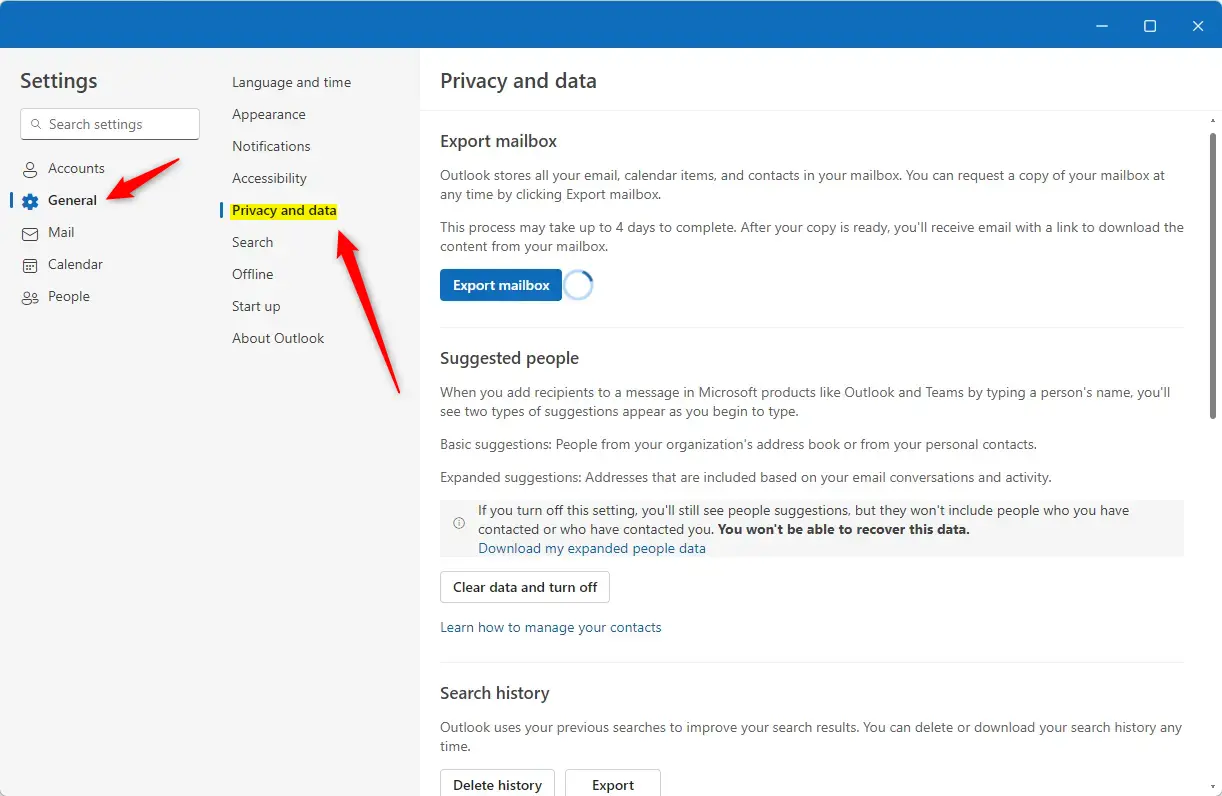
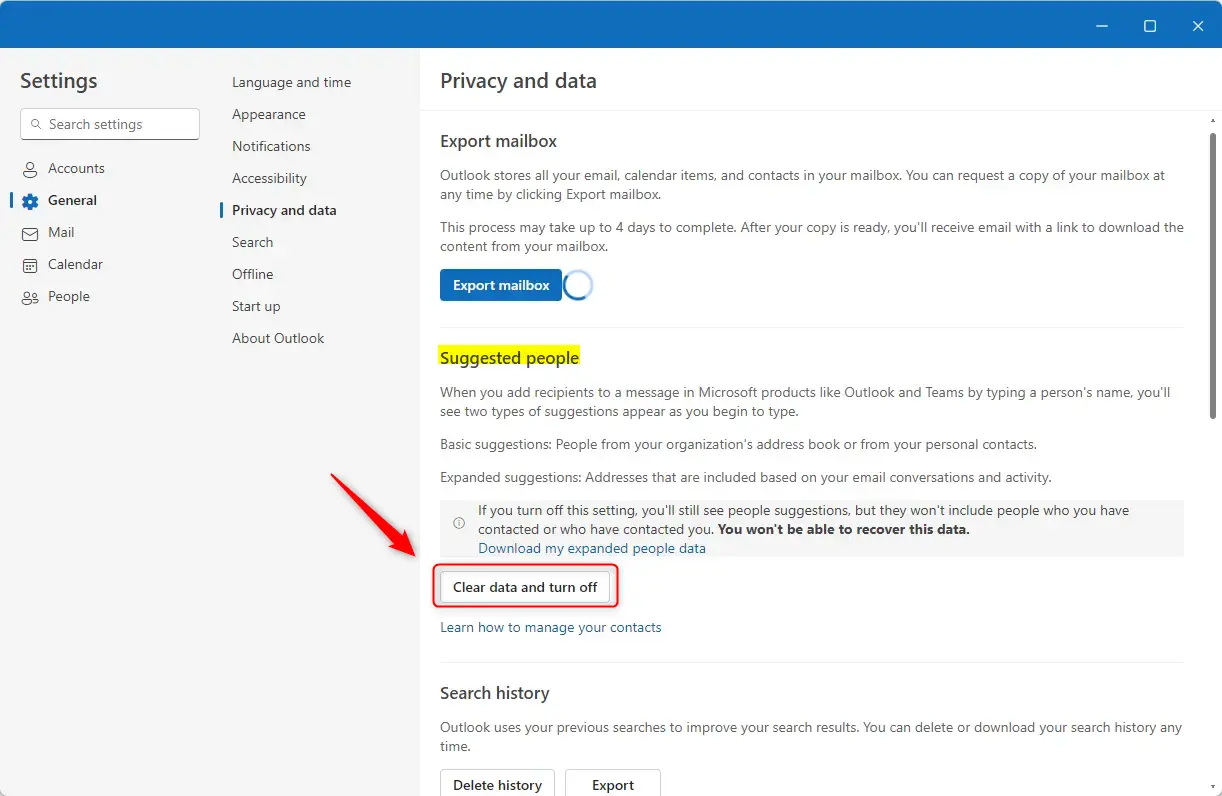
Turning the feature off also clears what Outlook has stored, so decide whether you want that before you continue.
- In the Suggested people section, click the Clear data and turn off button. Outlook removes the saved suggestions and stops offering new ones.
Treat this as a one-way step. Don't count on getting the old list back after you turn the feature on again.
- Save the modifications before closing out. If a Save button is shown, click it. Then close the Settings window.
No restart of Outlook or Windows is needed. The change applies the next time you type in the To box.
To undo the change, go back to Settings General Privacy and data and click Activate expanded contacts suggestions. Outlook then starts building recommendations from your messaging history again. Expect the list to be thin at first, since it has to learn from new messages.
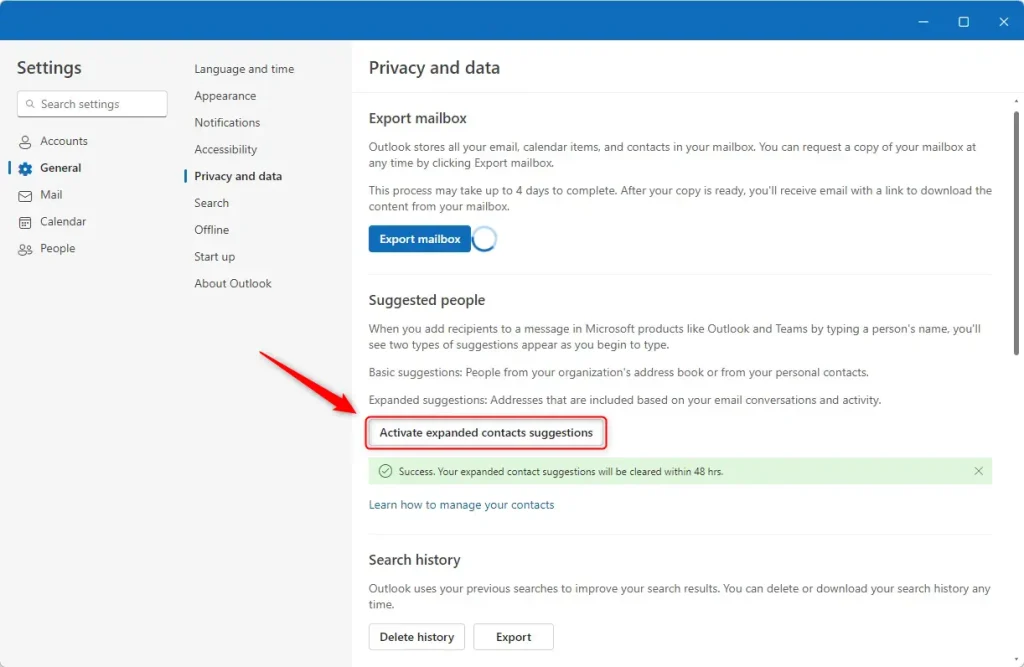
Configuration complete. To check it, start a new message and type a few letters of a name in the To box. With the feature off, you should no longer see the old suggestions appear.
Conclusion:
- The new Outlook app for Windows 11 enhances user experience with features like suggested people.
- Users can easily enable or disable the suggested people feature to customize their interaction.
- Accessing the settings is straightforward, ensuring a user-friendly approach to managing privacy.
- The ability to clear data and activate suggestions provides flexibility in how users handle their contacts.
- The Outlook app offers robust functionalities for efficient email and calendar management.
Was this guide helpful?
0% of readers found this helpful (1 votes)

About the Author
Richard
Tech Writer, IT Professional
Richard is a writer at Geek Rewind who turns complex IT tasks into clear, step-by-step guides. He draws on years of hands-on experience in system administration and enterprise IT operations, focusing on Windows, Linux and WordPress: the problems people actually run into, and the fixes that work. His server and WordPress guides come from systems he runs himself. Richard builds and maintains the platform behind Geek Rewind, from its Ubuntu servers and Nginx configuration to its custom WordPress plugins. Many new tutorials start with readers' questions, and he's always glad to answer them in the comments.



No comments yet — be the first to share your thoughts!