How to Use Outlook for Windows 11 Guides

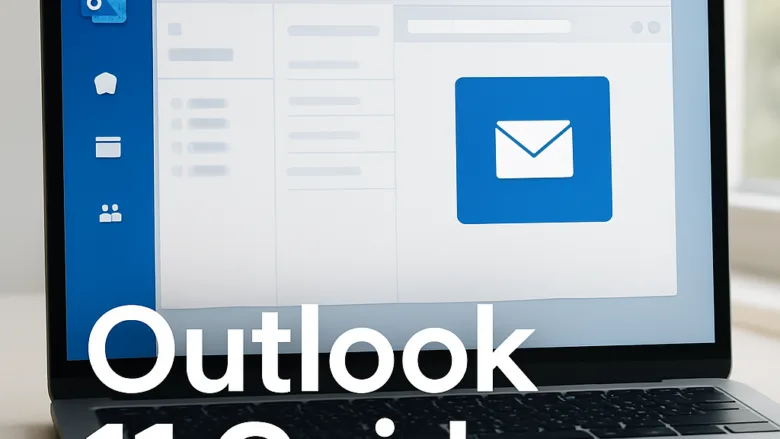
The Outlook reading pane lets you view emails directly inside your main inbox without opening them in a separate window. In Windows 11 you can move the pane to the right of the message list, put it at the bottom, or hide it completely from the View menu. The steps below are for classic Outlook for Windows. The new Outlook keeps the same options but moves them into its settings, as noted in each step.
- Open Outlook and select your inbox.
- Select the View tab on the ribbon.
- Select Reading Pane, then choose Right, Bottom or Off. The inbox redraws straight away. With Right, the message sits beside the list. With Bottom, it sits under the list. With Off, only the message list shows.
- In the new Outlook, go to View View settings Mail Layout instead, and pick the reading pane position there.
The setting applies to the folder you are in, so check your other folders if they look different. To undo the change, open the same menu and choose your old position.
Open Outlook and select the View tab on the ribbon. Select Reading Pane, then choose Right, Bottom or Off. In new Outlook, go to View View settings Mail Layout instead. The inbox redraws immediately to show your chosen position.
Getting Your Inbox Just Right
Start with viewing settings that make Outlook comfortable to read. Pick a reading pane position first, then adjust how messages are shown and set your baseline preferences. Do this before you change anything else, so you know which change caused what.
- Choose the reading pane position that suits your screen. A right-hand pane works well on wide monitors, and a bottom pane works better on narrow or laptop screens.
- Look through the View tab for the other layout options before you move on.
- Change one setting at a time and check the result in your inbox.


Managing Your Communications
This group covers read receipts, BCC and sending messages correctly. Work through the guides in order if you are new to Outlook, or jump to the one you need.
- Check your read receipt settings so Outlook does not tell senders you opened a message unless you want it to.
- Use BCC when you write to a group that should not see each other’s addresses.
- Check the recipient fields before you press Send. It is easy to put a name in To or Cc by mistake.


Organizing Your Schedule and Data
These guides cover sharing your availability and securing important messages. Use them when colleagues need to see when you are free, or when a message needs extra protection.
- Share your availability so others can pick a meeting time without emailing back and forth.
- Secure important messages quickly. Check which options your Outlook version and account type offer before you rely on them.
Advanced Features and Troubleshooting
The last group deals with problems that keep coming back and uses more advanced features. It covers forwarding rules, newsletter unsubscriptions and translation tools. Each one saves time once it is set up.
- A forwarding rule moves or copies incoming mail to another address automatically. Some organizations block external forwarding, so a rule may not work on a work account.
- Unsubscribing from newsletters cuts inbox clutter at the source, which is better than deleting the same messages every week.
- Translation tools let you read messages written in another language without copying the text elsewhere.


Common questions
How do I make Outlook open emails in a separate window?
The Pop-Out feature opens an email in its own window. That keeps several conversations visible at once and is useful when you compare messages or write a reply while reading another one. The option is tied to the Outlook View settings.
- Select a message in your inbox.
- Look for the Pop Out option for that message. It appears in the reading pane or on the ribbon, depending on your version and layout.
- Select it. The message opens in a separate window, and you can move it to another monitor or place it beside the main Outlook window.
If you do not see the option, check that the reading pane is turned on in the View menu. Double-clicking a message also opens it in its own window. Close the window when you are done, and the message stays in your inbox.
How do I stop emails from marking themselves as read?
Outlook can send a read receipt back to the sender when you open a message. The default setup may do this automatically, depending on your account and settings. You can turn off this behavior in the Trust Center or Privacy options.
- In classic Outlook, select File Options Mail
- Scroll to the Tracking section and find the read receipt settings.
- Choose how Outlook should respond to receipt requests: always send a receipt, ask each time, or never send one. Ask each time is a safe choice if you want to decide per message.
- Select OK to save.
In the new Outlook, the read receipt setting is in Settings under Mail, in the message handling options. No restart is needed in either version. Change the setting back to undo it. Some organizations set this by policy, and in that case you may not be able to change it.
How do I make sure my emails look good for everyone?
HTML is the usual message format. It supports rich styling such as bold text, colors and embedded images. Plain text strips all of that and works on almost any email program, including older ones, so use it when compatibility matters more than looks.
- Start a new message by selecting New Email.
- In classic Outlook, open the Format Text tab in the compose window.
- Choose HTML or Plain Text. If you switch to plain text, Outlook warns you that formatting and images will be lost. Confirm to continue.
This changes only the message you are writing. To change the default for all new messages, go to File Options Mail and look under the compose messages settings. In the new Outlook, look under Settings Mail Compose and reply.
How do I add a BCC field to my emails?
The BCC (Blind Carbon Copy) field hides recipient addresses from each other, which makes it the right choice for mass mailings. Recipients in the To and Cc fields can't see who is in BCC. If the field is not showing in your compose window, turn it on first.
- Select New Email to open the compose window.
- Open the Options tab in the compose window.
- Select Bcc. A Bcc line now appears under Cc.
- Enter the addresses in the Bcc field. Put your own address in To if the To field must not be empty.
Outlook remembers the setting for new messages. Before you send, check that no one was added to To or Cc by mistake, because a sent message can't be corrected.
How can I back up all my Outlook emails?
Store this file in a secure backup location to prevent data loss. A copy on the same drive as Outlook will not help if that drive fails.
- In classic Outlook, select File Open & Export Import/Export.
- Choose Export to a file and select Next.
- Select Outlook Data File (.pst) and select Next.
- Pick the mailbox or folder to export. Tick the option to include subfolders if you want everything.
- Choose a save location and file name, then select Finish. You can set an optional password, though you should store it safely, because a lost password means a file you can't open.
The export may take a while for a large mailbox. The export wizard is part of classic Outlook, so the new Outlook may not offer it. Switch to classic Outlook if you need a .PST file. Keep at least one copy on an external drive or other secure storage, and check that the file opens.
Have a question about this guide?
Answered by AI from this guide. Good questions may be added to this page — please don't include personal details.
Did this guide fix your problem?

About the Author
Richard
Tech Writer, IT Professional
Richard is a writer at Geek Rewind who turns complex IT tasks into clear, step-by-step guides. He draws on years of hands-on experience in system administration and enterprise IT operations, focusing on Windows, Linux and WordPress: the problems people actually run into, and the fixes that work. His server and WordPress guides come from systems he runs himself. Richard builds and maintains the platform behind Geek Rewind, from its Ubuntu servers and Nginx configuration to its custom WordPress plugins. Many new tutorials start with readers' questions, and he's always glad to answer them in the comments.
No comments yet — be the first to share your thoughts!