How to Enable or Disable Dark Mode in Outlook for Windows 11


Dark mode in Outlook for Windows 11 changes the app background to a dark color scheme that cuts down eye strain in dim lighting. It uses dark gray and black backgrounds with light text, which makes long emails easier to read at night.
You can use dark mode in both the New Outlook for Windows and the Classic desktop version of Outlook. In each one it is a setting you can turn on or off at any time, and nothing is lost when you switch back. This guide covers both versions, a fix for the reading pane staying white, and what to try when the theme will not stick.
Open Outlook, click Settings (gear icon) in the top-right corner, go to General Appearance, select Dark, and click Save. For Classic Outlook, click File Office Account and choose Black or Dark Gray under Office Theme. The change applies immediately.
New Outlook vs. Classic Outlook
The New Outlook for Windows is built on web technologies. Classic Outlook is the traditional desktop program. You can tell them apart by the top of the window. Classic Outlook has a File menu and a ribbon. The New Outlook has a simpler layout and a gear icon for settings.
The New Outlook follows your Windows 11 system settings more closely and has its own Light, Dark and System Default choices. Classic Outlook takes its theme from the Office account settings, so you usually pick it by hand there. The theme you pick in one version does not carry over to the other.
How to change to Dark Mode in New Outlook
You do not need administrator rights for any of these steps. The theme is a per-user setting, so it only changes Outlook for the account you are signed in to on Windows. Changing it does not require a restart of Windows.
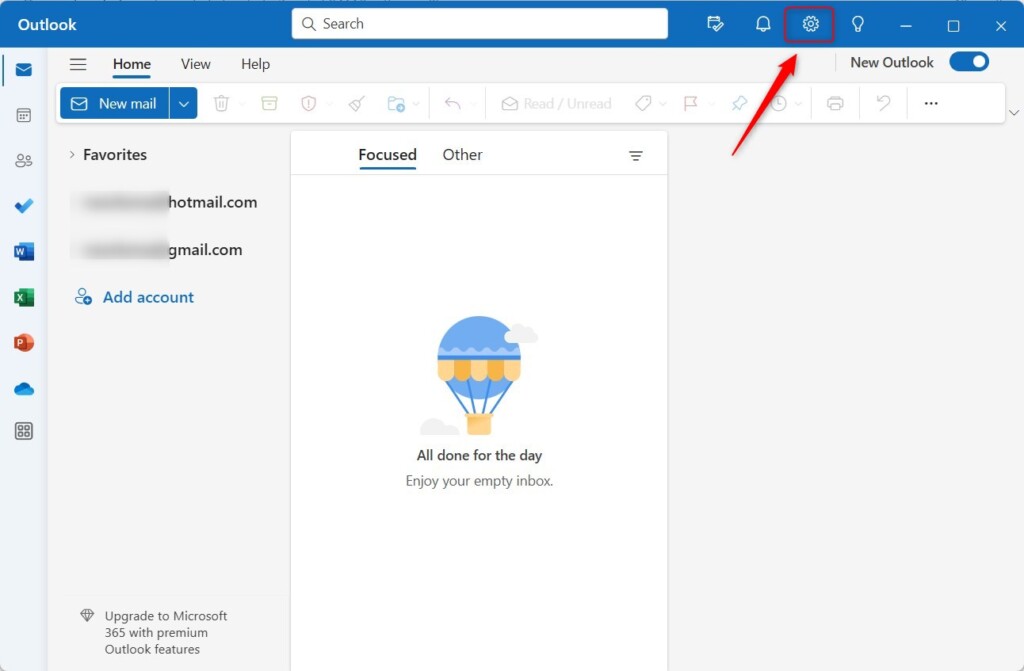
- Open the Outlook app. You should see your inbox in the New Outlook layout.
- Click the Settings (gear icon) in the top-right corner. A settings window opens over your mail.
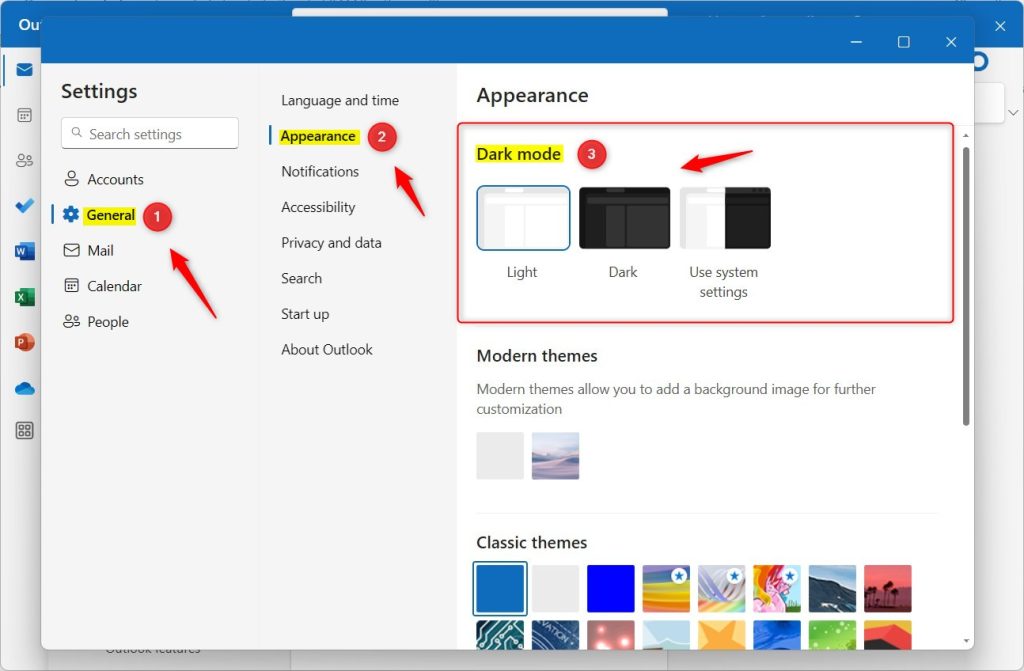
- Go to General Appearance. The theme options appear on the right.
- Select Light, Dark, or System Default. Choose Dark to turn dark mode on, or Light to turn it off. System Default makes Outlook follow your Windows 11 color mode, so it switches when Windows does.
- Click Save. The window should change color straight away. If it does not, close and reopen Outlook.
How to change to Dark Mode in Classic Outlook
- Open Outlook. This is the Classic version with the ribbon across the top.
- Click File Office Account. The account page opens, with the theme option on the left side.
- Under Office Theme, select Black or Dark Gray. Outlook changes right away. Black is the darkest option, and Dark Gray is a little softer. To go back to a light look, pick one of the lighter themes in the same list. If you cannot find the list, make sure you are signed in to your Office account. This setting also applies to the other Office apps, such as Word and Excel.
Managing the Reading Pane Background
Sometimes the reading pane stays white even when the rest of Outlook is dark. This happens because many emails carry their own light background, and Outlook shows them as the sender designed them. You can switch the background for a single message. To do that:
- Open an email. It appears in the reading pane or in its own window.
- Look for the Sun/Moon icon in the reading pane toolbar. If you opened the message in its own window, check the ribbon instead.
- Click it to toggle the background color of the message body. The message should switch between a dark and a light background. Click it again to undo the change.
Troubleshooting Outlook Dark Mode Bugs
The usual cure is to install pending Office updates, check one registry value, or repair Office. If dark mode will not turn on, or keeps turning itself off, start with updates. Missing updates are the most common cause, and they are the safest fix. Go to File Office Account Update Option to check. Work through the fixes below in order and test Outlook after each one.
- Check Office Updates: Go to File Office Account Update Options Update Now. Let the update finish, then close and reopen Outlook. If you do not see the update option, your copy of Office may be managed by your organization, and updates come from your IT team.
- Registry Check: Press Win + R, type regedit, and navigate to HKEY_CURRENT_USER\Software\Microsoft\Office\16.0.0\Common. Ensure the UI Theme value is set correctly. Editing the registry can cause problems if you change the wrong entry. Back up the key first (right-click it and choose Export), and only change the UI Theme value. If you are unsure, set the theme in Outlook instead with File Office Account, which is the safer route. This applies to Classic Outlook. [Requires Admin Privileges]
- Repair Office: Go to Settings Apps Installed Apps Modify Online Repair. Find your Microsoft Office or Microsoft 365 entry in the list first, then use its menu to reach Modify. Close Outlook and the other Office apps before you start. An online repair needs an internet connection and can take a while. It keeps your emails and files. [Requires Admin Privileges]
Summary
Customizing your Outlook appearance makes long sessions in your inbox more comfortable. Use the Appearance settings in New Outlook, or the Office Theme menu in Classic Outlook, to switch between light and dark whenever you like. If the theme does not behave, use the reading pane toggle for a white message body. If problems continue, run an Office repair to restore normal behavior.
Was this guide helpful?

About the Author
Richard
Tech Writer, IT Professional
Richard is a writer at Geek Rewind who turns complex IT tasks into clear, step-by-step guides. He draws on years of hands-on experience in system administration and enterprise IT operations, focusing on Windows, Linux and WordPress: the problems people actually run into, and the fixes that work. His server and WordPress guides come from systems he runs himself. Richard builds and maintains the platform behind Geek Rewind, from its Ubuntu servers and Nginx configuration to its custom WordPress plugins. Many new tutorials start with readers' questions, and he's always glad to answer them in the comments.



No comments yet — be the first to share your thoughts!