How to Enable Bcc in Outlook for Windows 11


Click Settings (gear icon) at the top right of Outlook, select Mail Compose and reply, check Always show Bcc, and click Save. The Bcc field now appears on all new messages for that account without restarting Outlook.
New Outlook vs. Classic Outlook
The Bcc field in Outlook for Windows 11 hides email addresses so other recipients cannot see who else got the message. Bcc stands for Blind Carbon Copy. It lets you send a message to a group without sharing anyone’s personal contact details.
Everyone listed in the To or Cc boxes can see each other. Anyone placed in the Bcc box stays hidden from all other recipients. This stops your contact list from leaking when you send updates to many people at once.
The steps depend on whether you use the New Outlook or Classic Outlook app. If you are not sure which one you have, look at the top right of the window. The New Outlook shows a New Outlook toggle switch, and the Classic version has a File menu.
How to show the Bcc field in New Outlook
These steps show Bcc in a single message. They apply to the New Outlook app.
- Open the Outlook app from the Start menu .
- Click New mail. A blank message window opens.
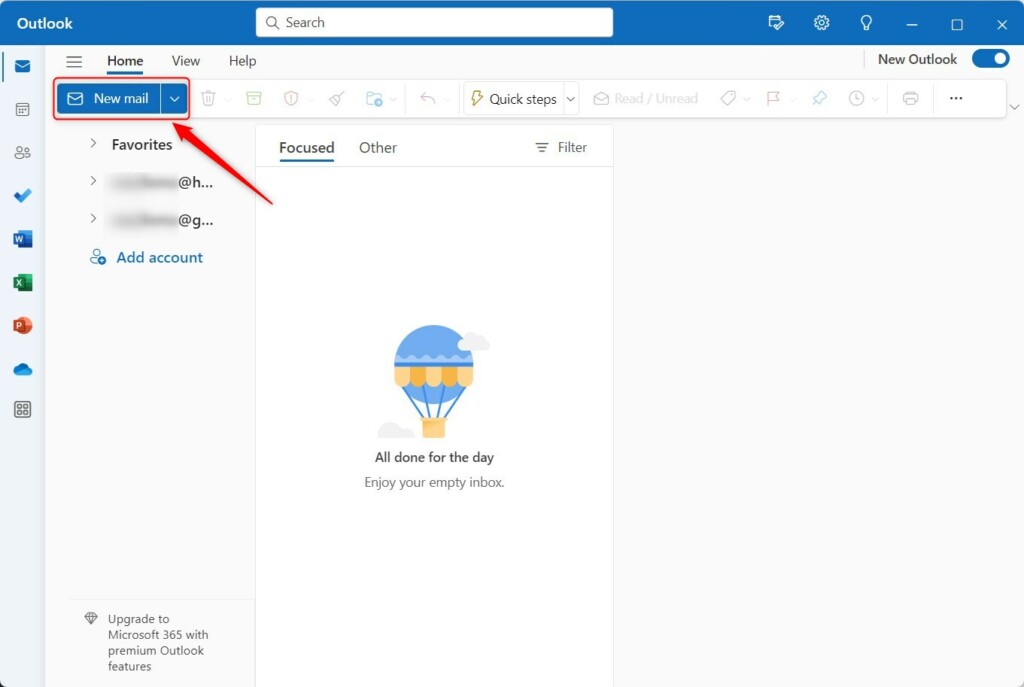
- Look to the right of the To field inside the message window.
- Click the Bcc button. A Bcc row now appears under the To row.
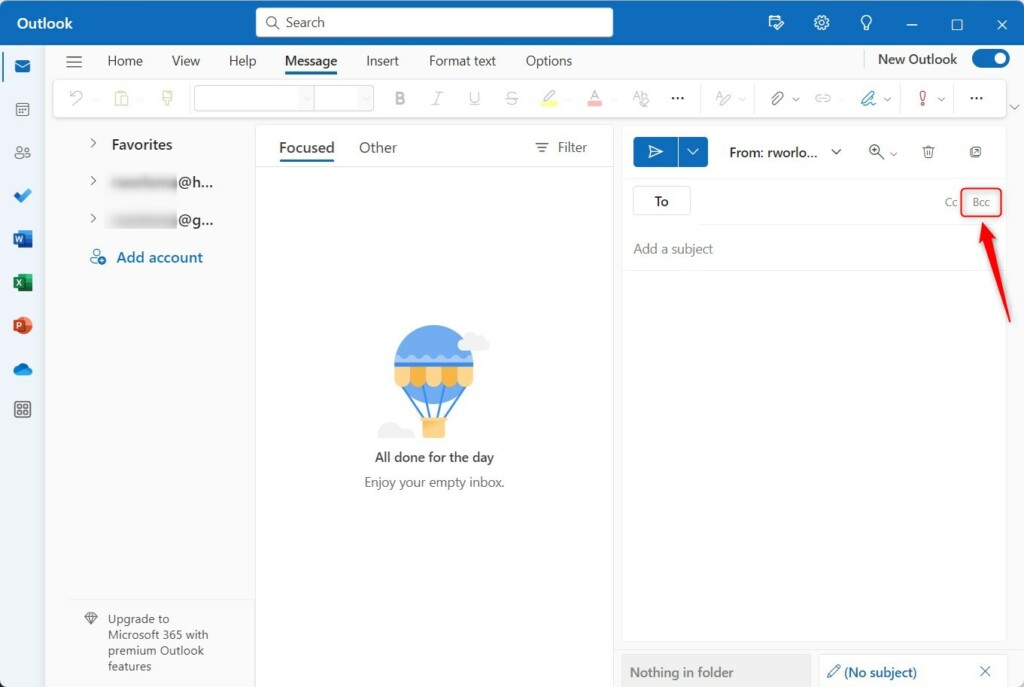
The next new message will start without it unless you change the setting below.
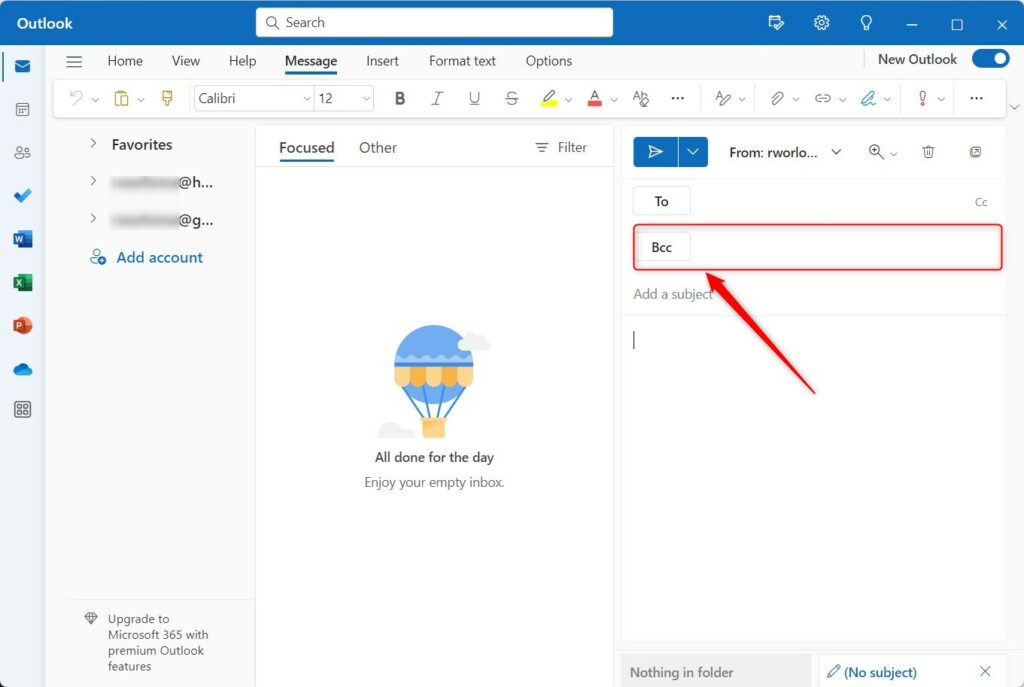
If you use Classic Outlook, the button is in a different place. In the message window, go to the Options tab and click Bcc in the Show Fields group. To hide the field again, click the same button.
How to always show the Bcc field
You can keep the field visible on all future messages. This saves you from clicking the button each time. Follow these steps in the New Outlook app.
- Click Settings (the gear icon) at the top right of the Outlook window. The Settings panel opens.

- Click Mail, then click Compose and reply. The options for writing messages appear on the right.
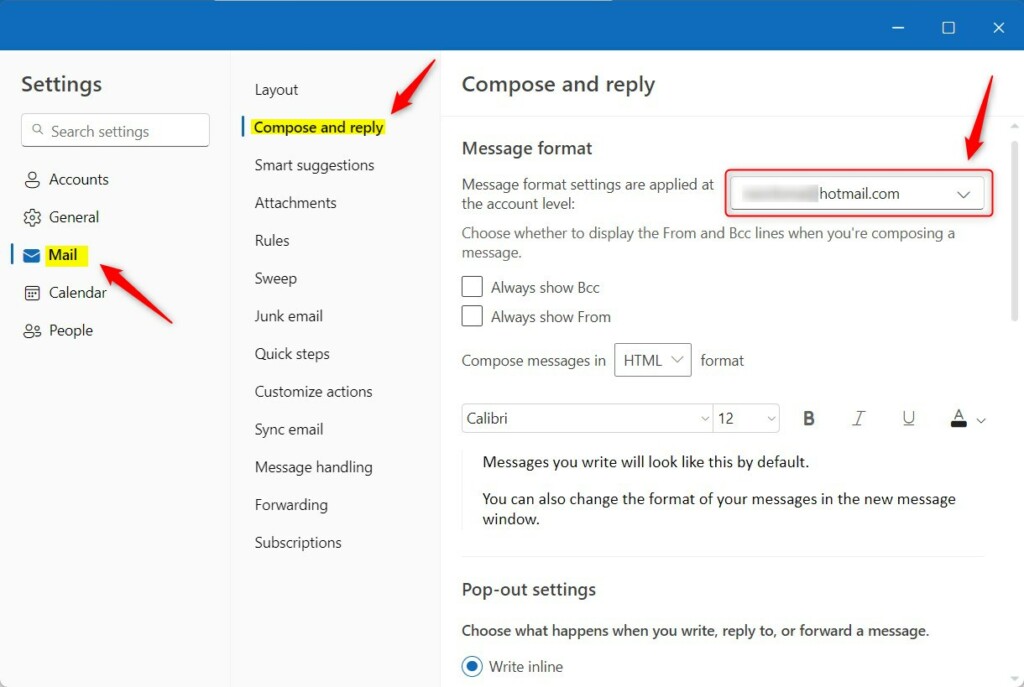
- Select the account you want to change, if you have more than one listed.
- Check Always show Bcc.
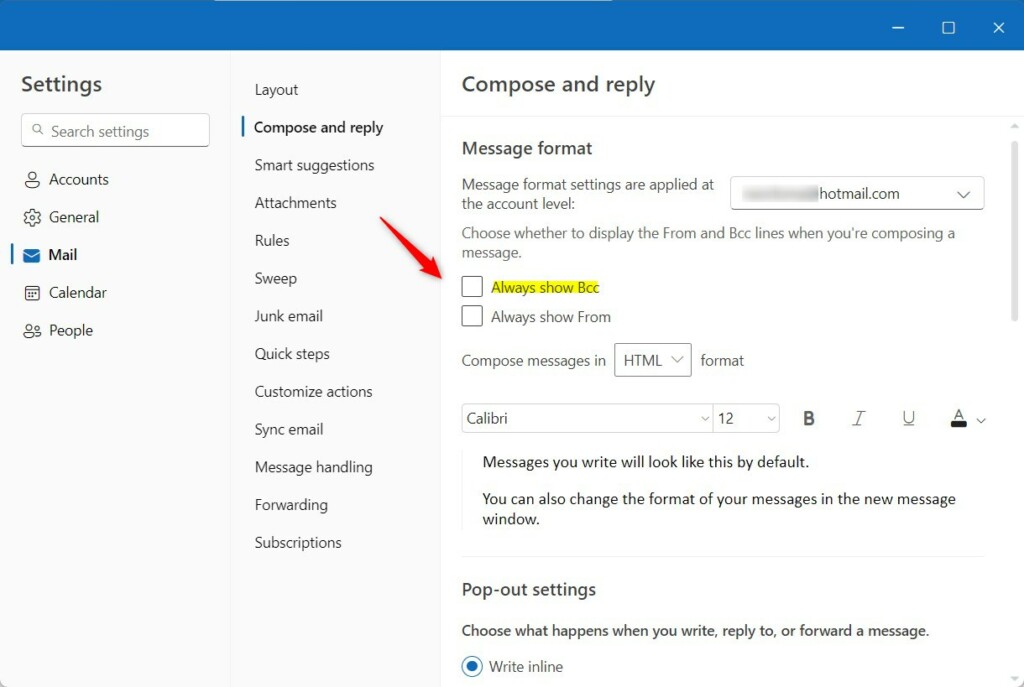
- Click Save to keep your changes.
- Repeat these steps for any other accounts you use.
You do not need to restart Outlook. Open a new message to check that the Bcc row is already there. To undo the change, go back to the same page, clear the Always show Bcc checkbox and save again.
Bcc Best Practices and Privacy Risks
Keep your contacts' email addresses private by following a few simple rules.
- Put your own address in the To box and everyone else in Bcc when you send to a large group.
- Check the To and Cc boxes before you click Send. An address typed in the wrong box cannot be pulled back.
- Be careful with Reply All. Bcc recipients who use Reply All will only reply to the people they can see, but a Cc or To recipient's reply goes to everyone visible in those boxes.
- Remember that Bcc hides addresses from other recipients only. It does not make the message secret from your mail provider or your own sent items.
Troubleshooting Missing Bcc Options
If the Bcc option is missing, check your view settings. Work through these checks in order.
- Confirm which app you are using. The Bcc button is on the To line in the New Outlook and on the Options tab in Classic Outlook.
- Open the message in its own window if you are writing in the reading pane. Look again for the button to the right of the To field.
- Widen the window if it is small. Buttons can be hidden when there is not enough room.
- Check the Always show Bcc setting for the account you are sending from. The setting is per account, so another account may still hide the field.
- Update Outlook through the Microsoft Store if the setting is still not there.
Summary
Private email relies on using Bcc correctly. Turning it on in Outlook for Windows 11 takes only a minute, and the setting stays in place once you save it.
Can I set Bcc to be on by default for all emails?
You can make Bcc show up by default on every email you send by changing your account preferences. To enable Bcc in Outlook on Windows 11, open Settings, click Mail, go to Compose and reply, and check the box that says Always show Bcc. This saves you from clicking the Bcc button every time you start a new message or reply to someone.
Can I set Bcc to be on by default for all emails?
Configuring this preference happens inside the settings menu. Go to Settings, click Mail, then open 'Compose and reply'. Check the 'Always show Bcc' box for the chosen email account. Saving the update makes the Bcc field show up automatically whenever composing a new message or replying to an existing thread.
Have a question about this guide?
Answered by AI from this guide. Good questions may be added to this page — please don't include personal details.
Did this guide fix your problem?

About the Author
Richard
Tech Writer, IT Professional
Richard is a writer at Geek Rewind who turns complex IT tasks into clear, step-by-step guides. He draws on years of hands-on experience in system administration and enterprise IT operations, focusing on Windows, Linux and WordPress: the problems people actually run into, and the fixes that work. His server and WordPress guides come from systems he runs himself. Richard builds and maintains the platform behind Geek Rewind, from its Ubuntu servers and Nginx configuration to its custom WordPress plugins. Many new tutorials start with readers' questions, and he's always glad to answer them in the comments.
No comments yet — be the first to share your thoughts!