How to Enable out of Office Replies in Outlook for Windows 11


Out of office replies in Outlook for Windows 11 send an automatic email response to anyone who messages you while you are on vacation or time off. This built-in feature lets you set a custom away message for a specific date range, so you can manage your inbox without answering each message by hand.
You can send the message only to coworkers inside your company, or include outside senders as well. Setting it up takes less than a minute and keeps your contacts informed while you are away. This guide covers the Outlook desktop app, Outlook on the web and the Outlook mobile app. It also covers what to check when replies are not going out.
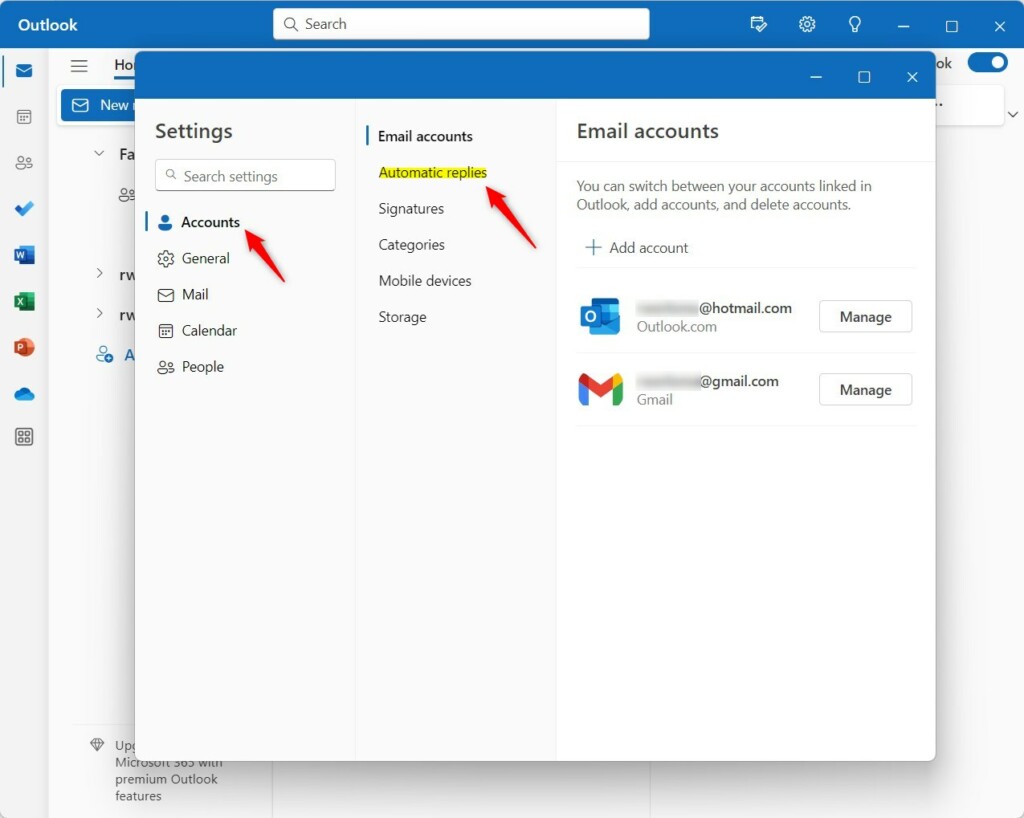
Click the Settings gear icon, go to Accounts, then select Automatic replies. Toggle the switch to On, set your times, and type your message.
Setting up Automatic Replies in Outlook for 🪟 Windows 11
Automatic replies tell people you are away by sending a message back to anyone who emails you. To turn them on, open the settings menu in your email app, switch on automatic replies and type your message in the box. Say when you will be back, and name someone to contact for urgent matters if you can.
The steps below are for the new Outlook app in Windows 11. Menu labels can differ slightly between builds. The older classic Outlook looks different: there you find the feature under File Info Automatic Replies
- Open the Outlook app on your Windows 11 computer. Your inbox should load. If it asks you to sign in, use the account you want the replies to come from.

Open the new Outlook app in Windows 11 - Click the Settings gear icon in the top right corner. The Settings window opens.

Add Gmail to Outlook app in Windows 11 - Navigate to the Accounts tab on the left sidebar. A list of your settings categories for connected accounts appears.
- Select Automatic replies. If you have more than one account connected, pick the account you want to set replies for.
Setup automatic replies in Outlook - Toggle the switch to On. The scheduling options and the message box become available.
- Configure your start and end times to schedule automatic replies. Pick the exact dates and times you leave and return. Replies then stop on their own when the end time passes, so you do not have to remember to switch them off.
- Type your message in the text box. Keep it short: say you are away, give your return date and name a backup contact. If you see an option to send replies to people outside your organization, tick it only if you want external senders to get the message too. Then save the change if Outlook shows a Save button.
If you do not see Automatic replies, the account type is usually the reason. Automatic replies work with Exchange-based accounts, such as Microsoft 365 work or school accounts and Outlook.com. Some other account types, such as plain IMAP or POP accounts, may not offer the option. To turn the replies off early, return to the same screen and set the switch to Off.
How to set up Out of Office in Outlook Web (OWA)
If you use Outlook webmail, follow these steps. They also work on a PC where you prefer the browser, and the replies apply to your whole mailbox, whichever app you read mail in:
- Log in to your account at outlook.office.com. Your mailbox opens in the browser.
- Click the Settings gear icon. It sits in the top right corner of the page, and a settings pane opens.
- Go to Mail Automatic replies The automatic replies panel opens.
- Turn on the Turn on automatic replies switch. Set the start and end times if the option to send replies only during a time period is shown.
- Enter your message and click Save. Your replies are active once the save goes through. To stop them early, come back here and turn the switch off.
Setting up Out of Office on Outlook Mobile
- Open the Outlook mobile app on your phone.
- Tap your profile icon in the top left. A side menu slides out.
- Tap the Settings gear icon at the bottom of that menu.
- Select your email account. Choose the one that supports automatic replies if you have several.
- Tap Automatic Replies and toggle it on. Then type your message and set the dates if the app asks for them. Because the setting lives on your mailbox, it takes effect for all your Outlook apps.
Troubleshooting: Why are my replies not sending to external recipients?
Make sure you've selected the option to send replies outside your organization.
If the option is greyed out or missing, your organization's administrator may have blocked external automatic replies. Only your IT team can change that. Also check that the start and end times are correct, and that the switch is still on. Send a test message from a personal account to confirm the reply arrives.
Summary
Setting up your Out of Office Outlook message helps you manage your time away from work. You can easily schedule these automatic replies using the desktop app, webmail, or mobile app. Set an end date so the reply stops by itself, and send yourself a test message from another account before you leave.
Have a question about this guide?
Answered by AI from this guide. Good questions may be added to this page — please don't include personal details.
Did this guide fix your problem?

About the Author
Richard
Tech Writer, IT Professional
Richard is a writer at Geek Rewind who turns complex IT tasks into clear, step-by-step guides. He draws on years of hands-on experience in system administration and enterprise IT operations, focusing on Windows, Linux and WordPress: the problems people actually run into, and the fixes that work. His server and WordPress guides come from systems he runs himself. Richard builds and maintains the platform behind Geek Rewind, from its Ubuntu servers and Nginx configuration to its custom WordPress plugins. Many new tutorials start with readers' questions, and he's always glad to answer them in the comments.
[…] features, including support for email signatures, external email accounts, setting out-of-office automatic replies, email sorting, subscription management, email forwarding, setting default From […]
[…] features, including support for email signatures, external email accounts, setting out-of-office automatic replies, email sorting, subscription management, email forwarding, and […]
[…] features, including support for email signatures, external email accounts, setting out-of-office automatic replies, email sorting, and subscription […]
[…] features, including support for email signatures, external email accounts, setting out-of-office automatic replies, and email […]
[…] The app has many features, including support for email signatures, external email accounts, and setting out-of-office automatic replies. […]
[…] app has many features, including support for email signatures, external email accounts, setting out-of-office automatic replies, email sorting, subscription management, email forwarding, Blind Carbon Copy (Bcc), and […]
[…] accounts. The app comes with many useful tools like email signatures, external email accounts, out-of-office automatic replies, email sorting, subscription management, email forwarding, setting default From address, backing up […]
[…] app includes many tools, such as support for email signatures, external email accounts, setting out-of-office automatic replies, email sorting, subscription management, email forwarding, setting default From address, backing up […]