Control Outlook Alerts When App Is Closed


In the new Outlook for Windows, pop-ups for new email and calendar reminders can keep appearing after you close the app window. Microsoft built this background behavior in so you stay informed without leaving Outlook open all day.
Turning these alerts off removes a steady source of distraction. It can also save a little battery on a laptop. The change takes less than two minutes, and you can reverse it at any time.
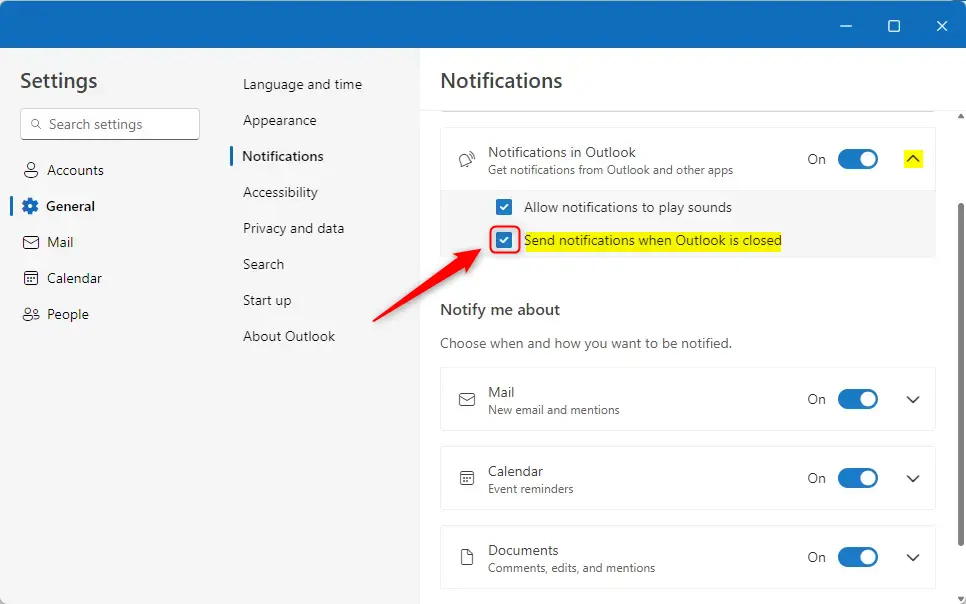
Open Outlook, click the Settings gear, select General, then Notifications. Find “Notifications in Outlook” and check “Send notifications when Outlook is closed” to enable alerts. Uncheck it to disable them.
Turn “Send notifications when Outlook is closed” on or off
You control this with one toggle in Outlook’s notification settings. It decides whether you see new-message pop-ups when the main mail window is shut. The steps below are for the new Outlook for Windows on Windows 11. Classic Outlook, the older desktop version, uses different menus, so if you don’t see the gear icon in step 2, you are probably running that version.
Here is how to configure the feature.
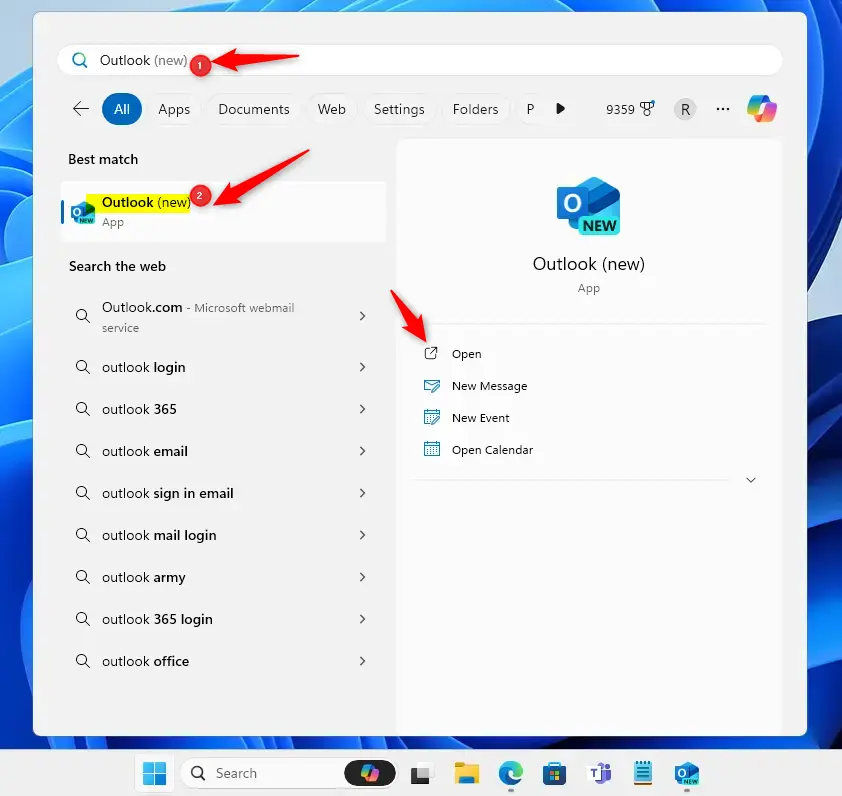
- Open Outlook from the Start menu or the taskbar search box . Wait for your mailbox to load.
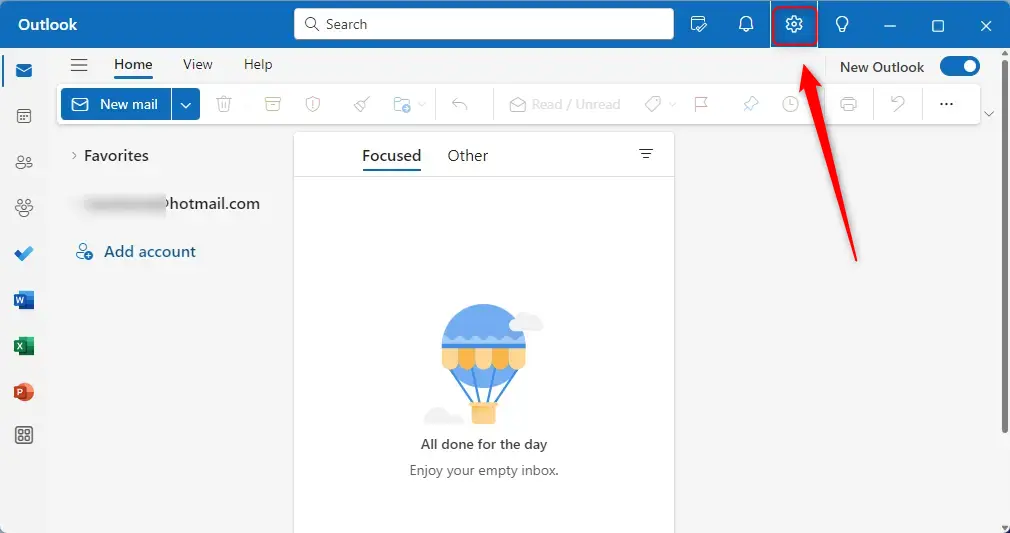
- Click the Settings gear icon at the top right of the menu bar. The Settings window opens over your mailbox.
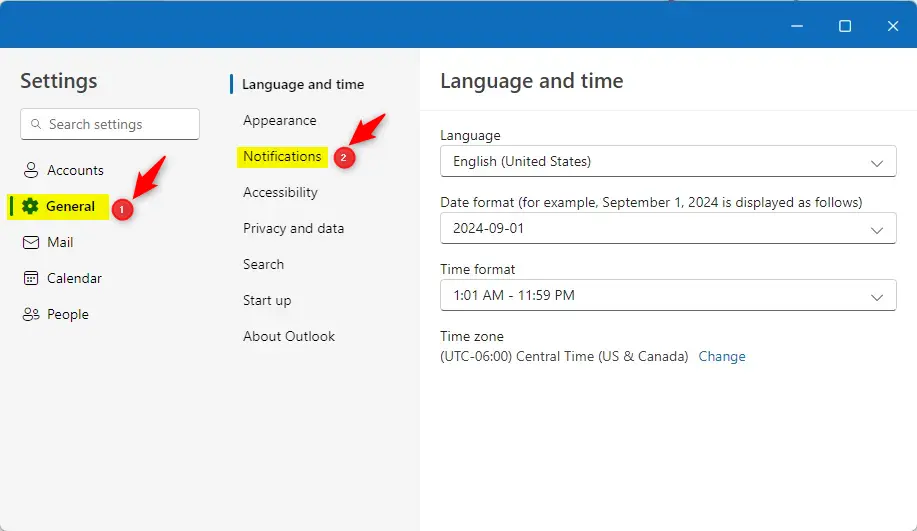
- Select General in the sidebar, then open Notification settings. You should now see a list of notification options for mail and calendar.
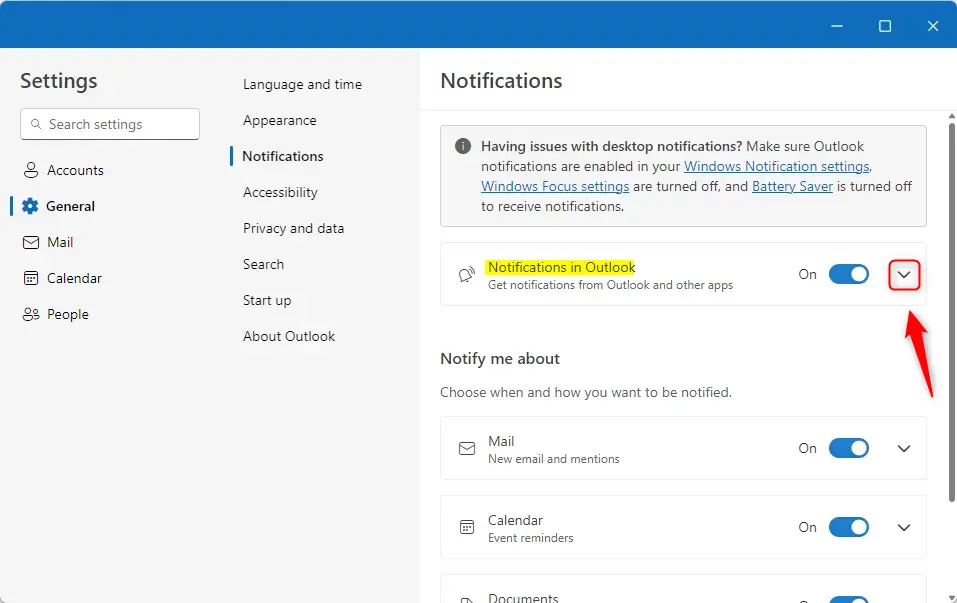
- Find the Notifications in Outlook section.
- Click the dropdown caret to reveal the sound controls for your alerts.
This assumes you have "Notification in Outlook" turned on. If the main notification switch is off, the nested settings do nothing and may look greyed out. Turn the main switch on first, then come back to these options.
- To keep receiving alerts while Outlook is shut, check the box next to Send notifications when Outlook is closed.
- To stop background alerts, uncheck that same box.
- Close the Settings window when you are finished. Outlook saves the change on its own, so you don't need to restart the app or Windows.
To undo the change, repeat the steps and flip the box back. This is a per-user setting inside Outlook, so it works the same on Home and Pro editions of Windows 11.
If alerts are missing when you expect them, check these things:
- Review your Windows Notification settings and make sure Outlook is allowed to send notifications.
- Make sure Focus Assist (the built-in distraction blocker) is off. On newer builds of Windows 11 it is called Do Not Disturb.
- Turn off Battery Saver, because it can limit what apps do in the background.
Disabling background notifications cuts distractions and saves a little system power. Keeping them on means you won't miss urgent messages.
Conclusion:
- Turning notifications on or off when Outlook is closed on Windows 11 helps you manage your productivity while staying aware of important emails and appointments.
- Leaving the option on keeps you informed without having the Outlook window open.
- Turning it off, based on your work style, helps minimize distractions and conserve system resources.
- With the steps above, you can set this option to suit your needs in a couple of minutes.
Have a question about this guide?
Answered by AI from this guide. Good questions may be added to this page — please don't include personal details.
Did this guide fix your problem?

About the Author
Richard
Tech Writer, IT Professional
Richard is a writer at Geek Rewind who turns complex IT tasks into clear, step-by-step guides. He draws on years of hands-on experience in system administration and enterprise IT operations, focusing on Windows, Linux and WordPress: the problems people actually run into, and the fixes that work. His server and WordPress guides come from systems he runs himself. Richard builds and maintains the platform behind Geek Rewind, from its Ubuntu servers and Nginx configuration to its custom WordPress plugins. Many new tutorials start with readers' questions, and he's always glad to answer them in the comments.
[…] Calendar, switch to dark mode, link preview, sound alerts for notifications, turn on or off notifications when Outlook is closed, alerts for emails and mentions, and […]
[…] to your Calendar, switch to dark mode, link preview, sound alerts for notifications, turn on or off notifications when Outlook is closed, and […]
Too bad Outlook won’t save ‘Notifications When Closed’. It’s listed as an option but is non-functional. Simply put, Outlook (Win11) does not send notifications when closed… Which is uselessly substandard.