How to Enable or Disable Ask Before Closing window with Pinned Tabs in Edge

- 20 steps
- Needs administrator rights
To make Microsoft Edge ask before it closes a window that has several tabs open, go to Settings and more > Settings Accessibility. Then turn on Ask before closing a window with multiple tabs. The option sits under the Usability heading. It needs no administrator rights and no restart.
Open Settings and more > Settings Accessibility in Microsoft Edge and turn on Ask before closing a window with multiple tabs under the Usability heading. The change applies immediately with no restart or administrator rights needed. Closing a window that holds several tabs then shows a confirmation prompt first.
Turn on Ask before closing a window with multiple tabs
This setting adds a confirmation prompt. It protects you from closing a full window of tabs by accident, for example with a stray click on the X button or a mistyped shortcut.
- Open Microsoft Edge.
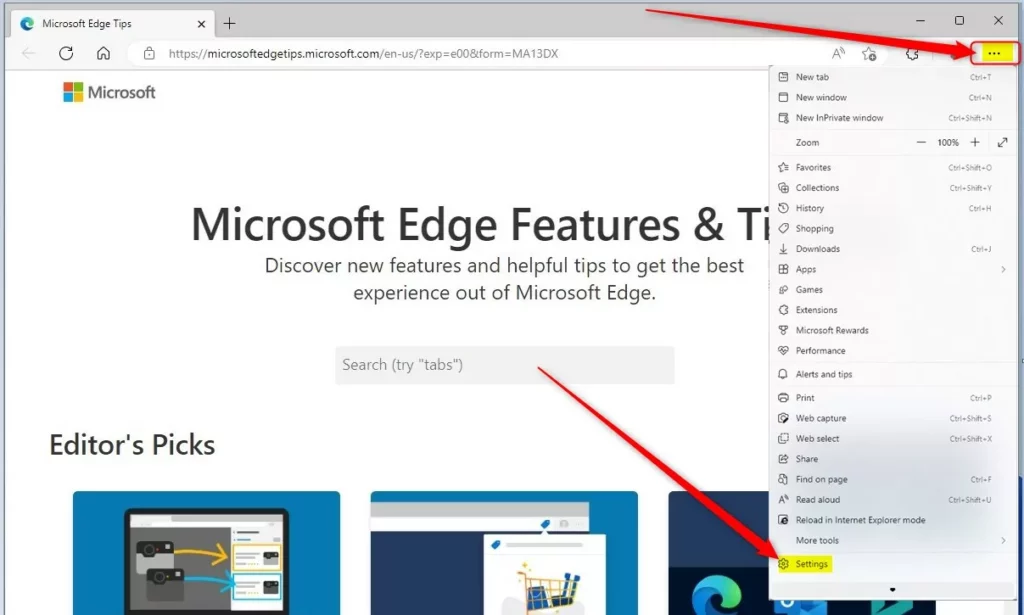
micrsoft edge browser more option and settings - Select Settings and more (the three dots at the top right of the window). You can also press Alt+F.
- Select Settings. A Settings page opens in a new tab.
- Select Accessibility in the left-hand list.
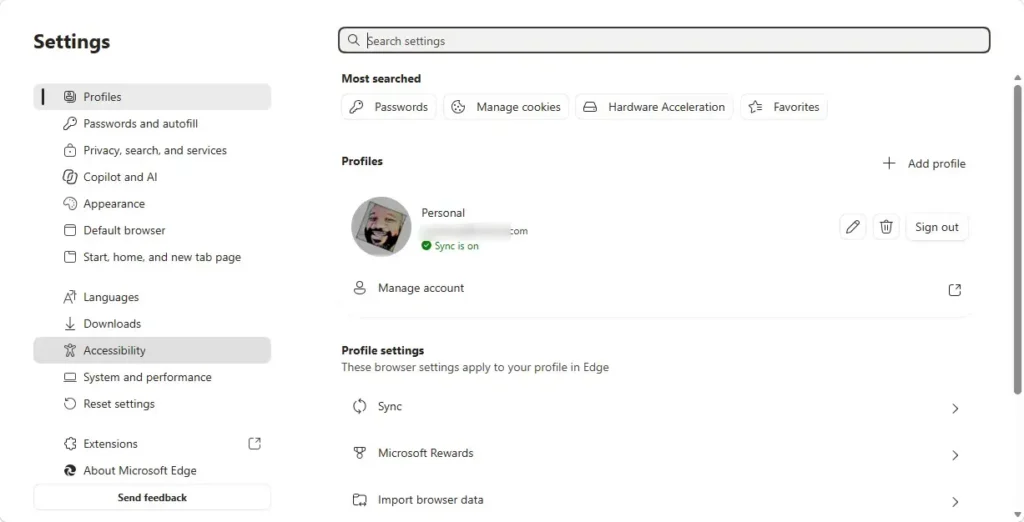
- Find the Usability section.
- Turn on Ask before closing a window with multiple tabs. The toggle switches to the on position.
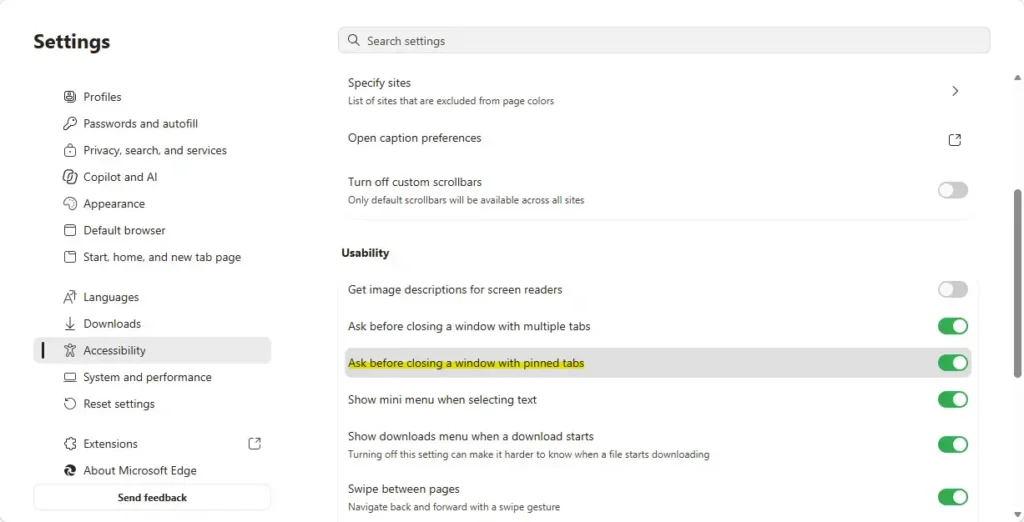
The change applies right away. Edge saves it automatically, so there is no Save or Apply button.
Open the setting from the address bar
If you want to skip the menus, go straight to the Accessibility page with a typed address.
- Click the address bar, or press Ctrl+L.
- Type
edge://settings/accessibilityand press Enter. The Accessibility page opens. - Scroll to Usability.
- Turn on Ask before closing a window with multiple tabs.
Check that the prompt works
- Press Ctrl+N to open a new Edge window.
- Press Ctrl+T to open a second tab in that window. The window now holds more than one tab.
- Select the Close (X) button at the top right of that window. Edge shows a confirmation prompt instead of closing straight away.
- Choose to cancel if you want to keep the window open, or confirm to close it.
What the setting covers
- Closing a window with several tabs. Edge asks for confirmation before it closes the window and all its tabs.
- Closing several windows at once. Edge also asks when you close a window or windows that have multiple tabs open.
- Closing a single tab. Closing one tab with the tab’s X button or Ctrl+W does not trigger the prompt. The setting protects whole windows, not individual tabs.
Turn the prompt off again
If the prompt gets in your way, switch it off. Your open tabs and other settings stay as they are.
- Select Settings and more Settings.
- Select Accessibility.
- Under Usability, turn off Ask before closing a window with multiple tabs.
Edge now closes multi-tab windows immediately again.
Shortcuts for closing tabs and windows
These keyboard shortcuts close things in Edge. Knowing them helps you avoid triggering a close you didn’t intend.
- Ctrl+W closes the current tab.
- Ctrl+Shift+W closes the current window.
- Alt+F4 closes the window you are working in, including an Edge window.
Bring back tabs you closed by mistake
The prompt is a safeguard, but you can still recover tabs if you close a window without it. This works whether or not the setting is on.
- Open Microsoft Edge.
- Press Ctrl+Shift+T. Edge reopens the most recently closed tab or window.
- Press the shortcut again to reopen the one before it.
To reopen closed tabs from the menu, select Settings and more History. Then look for the closed tabs in the Recently closed list.
What to do next
If the prompt doesn’t appear, return to Settings and more > Settings Accessibility and confirm the switch is still turned on. Then check that the window you closed had more than one tab. If you want Edge to bring your tabs back each time it starts, look at the options under Settings Start, home, and new tabs.
Have a question about this guide?
Answered by AI from this guide. Good questions may be added to this page — please don't include personal details.
Did this guide fix your problem?

About the Author
Richard
Tech Writer, IT Professional
Richard is a writer at Geek Rewind who turns complex IT tasks into clear, step-by-step guides. He draws on years of hands-on experience in system administration and enterprise IT operations, focusing on Windows, Linux and WordPress: the problems people actually run into, and the fixes that work. His server and WordPress guides come from systems he runs himself. Richard builds and maintains the platform behind Geek Rewind, from its Ubuntu servers and Nginx configuration to its custom WordPress plugins. Many new tutorials start with readers' questions, and he's always glad to answer them in the comments.
No comments yet — be the first to share your thoughts!