
- 27 steps
- Needs administrator rights
To mute a tab in Microsoft Edge, select the speaker icon on the noisy tab, or press Ctrl+M while that tab is active. Select the icon or press the shortcut again to bring the sound back. None of this needs administrator rights or a restart.
To mute a tab in Microsoft Edge, select the speaker icon on the noisy tab in the tab strip, or press Ctrl+M while that tab is active. Select the crossed-out icon or press Ctrl+M again to restore the sound. No administrator rights or restart are needed. Right-click the tab for a Mute tab option if the icon is hard to reach.
Mute a tab with the speaker icon
Edge shows a small speaker icon on any tab that is playing audio. Selecting it silences that tab only. Every other tab keeps its sound.
- Open Microsoft Edge.
- Look along the tab strip at the top of the window for the tab with a small speaker icon next to its title. That icon means the page is playing audio right now.

- Select the speaker icon on that tab. The sound stops, and the icon changes to a speaker with a line through it.

- To hear the tab again, select the crossed-out speaker icon once more. The line disappears and the audio resumes.
If you can’t see a speaker icon
The icon appears only while a page is producing sound. If a video is paused or a page is silent, there is nothing to mute, so Edge hides it. Start playback or wait for the sound to begin, and the icon shows up.
Mute a tab from the right-click menu
- Right-click the tab you want to silence.
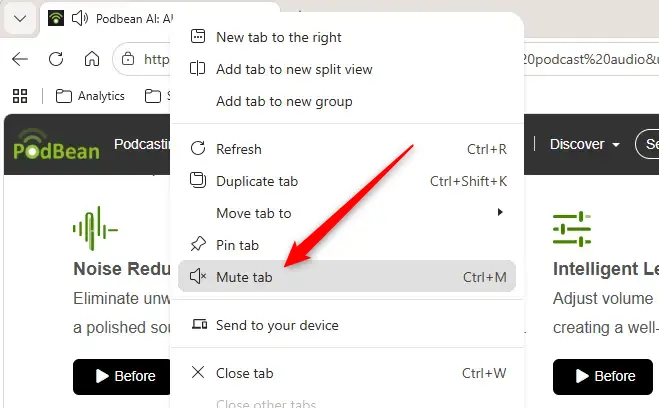
- Select Mute tab from the menu. The tab goes quiet.
- To reverse it, right-click the same tab and select Unmute tab.
Mute a tab with a keyboard shortcut
The shortcut is the fastest option when audio blasts out and you need it off immediately. It acts on the tab you are currently viewing.
- Select the tab that is making noise so it becomes the active tab.
- Press Ctrl+M. The tab mutes and shows the crossed-out speaker icon.
- Press Ctrl+M again on the same tab to unmute it.
Add a mute tab extension
An extension (a small add-on that gives the browser extra features) is worth installing if you want more control, such as muting every tab at once. Edge has no built-in button for that. Extensions come from the Microsoft Edge Add-ons store, and the exact names and options vary, so check each one’s description before you install it.
Install the extension
- Open Microsoft Edge.
- Select Settings and more (the three dots in the top-right corner), then select Extensions. You can also select the Extensions icon on the toolbar if it is showing.
- In the pop-up menu, select Get extensions for Microsoft Edge. The Edge Add-ons store opens.
- Type
mute tabin the search box and press Enter. - Find an extension that fits what you need, then select Get.
- Confirm the prompt that appears. Edge installs the extension and tells you when it is ready.
Pin the extension to the toolbar
New extensions can hide inside the Extensions menu. Pinning the extension puts its button where you can reach it in one click.
- Select Settings and more Extensions.
- Find the mute tab extension in the list.
- Select Show in toolbar next to it. Its icon now appears beside the address bar.
- Select the extension’s icon to mute or unmute sound across your tabs, depending on what the extension offers.
Remove the extension later
- Select Settings and more Extensions Manage extensions.
- Find the mute tab extension and select Remove.
- Confirm when Edge asks. The icon leaves the toolbar.
Control Edge’s volume as a whole in 🪟 Windows 11
Tab muting works inside the browser. If you want to turn down Edge itself without touching individual tabs, use the Windows volume mixer, the panel that sets the volume for each open app. It treats Edge as one app, so it can’t single out one tab.
- Open Settings.
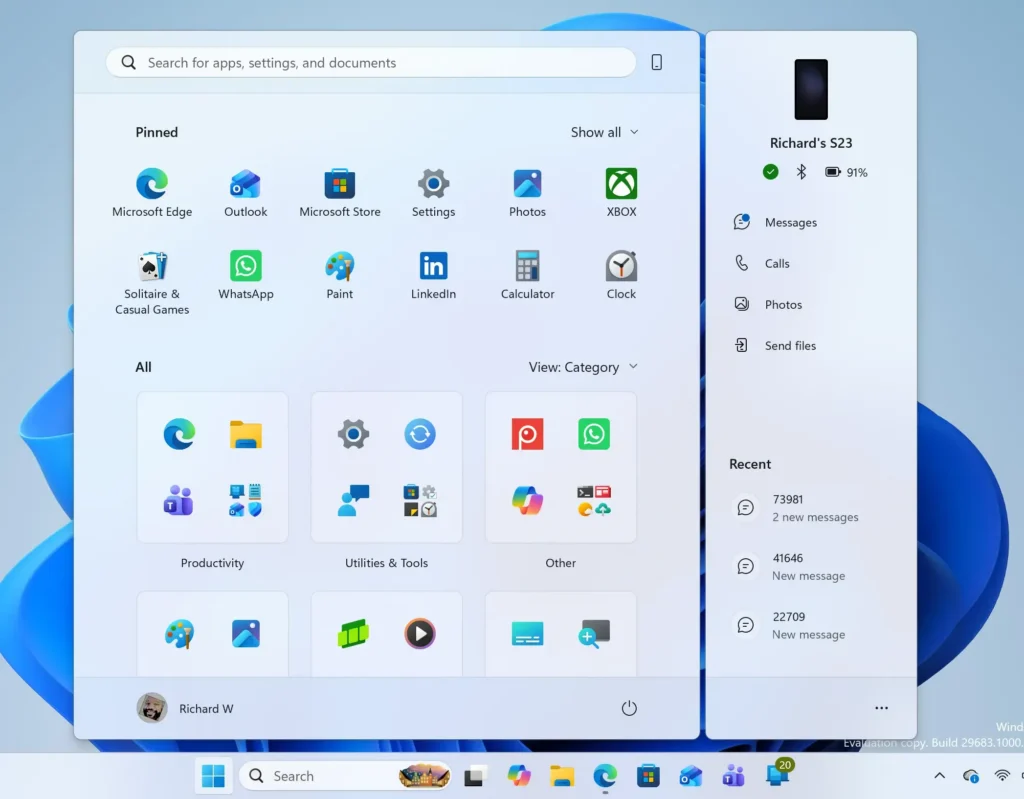
Start Menu - Go to System Sound.
- Scroll down and select Volume mixer.
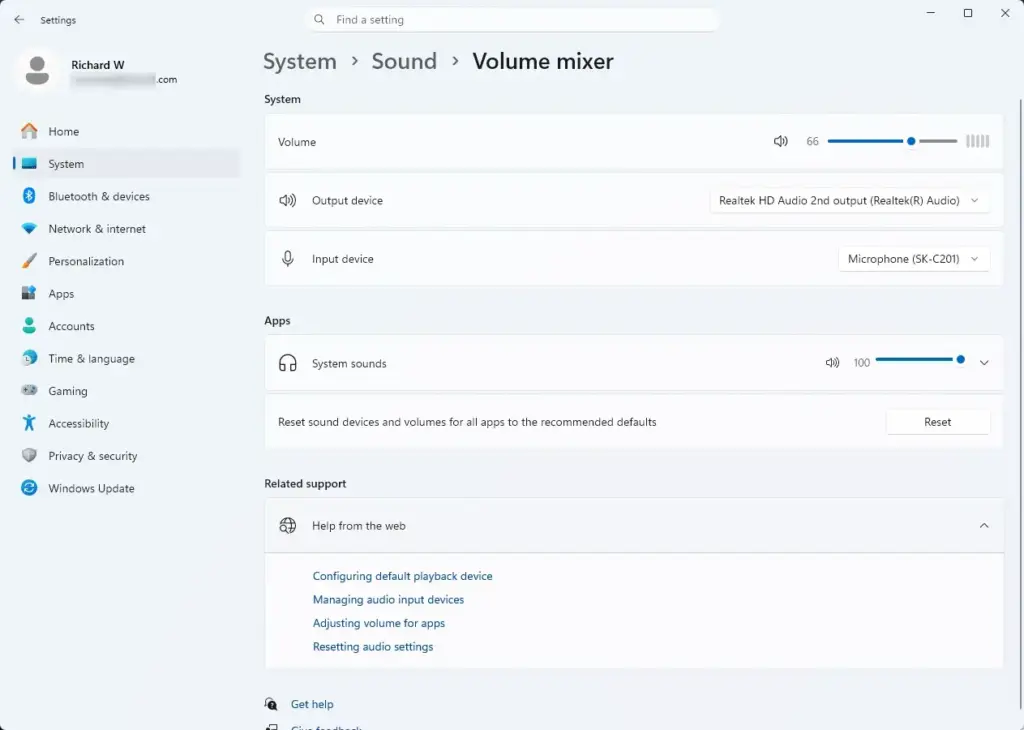
Settings › Sound › Volume mixer - Find Microsoft Edge in the app list and drag its slider down to lower the volume, or all the way left to silence it.
To undo the lowered volume, return to the same screen and drag Edge’s slider back up. If Edge has no sound later even though tabs aren’t muted, check this slider first.
Which method should you use?
- Speaker icon: best for spotting and silencing the offending tab at a glance.
- Right-click menu: best when the tab is too small to hit the icon.
- Ctrl+M: best when you are already on the tab and need silence quickly.
- Extension: best if you often juggle many audio tabs and want bulk control.
- Volume mixer: best for lowering all of Edge’s sound at once, without touching individual tabs.
What to do next
If a tab keeps making noise after you mute it, close it and reopen the page; some sites restart their sound from scratch, and Edge can treat that as a new sound source. If Edge has no sound at all, open the Windows volume mixer and check that its slider is not at zero. If too many tabs are slowing Edge down, open Edge’s performance settings next.
Have a question about this guide?
Answered by AI from this guide. Good questions may be added to this page — please don't include personal details.
Did this guide fix your problem?

About the Author
Richard
Tech Writer, IT Professional
Richard is a writer at Geek Rewind who turns complex IT tasks into clear, step-by-step guides. He draws on years of hands-on experience in system administration and enterprise IT operations, focusing on Windows, Linux and WordPress: the problems people actually run into, and the fixes that work. His server and WordPress guides come from systems he runs himself. Richard builds and maintains the platform behind Geek Rewind, from its Ubuntu servers and Nginx configuration to its custom WordPress plugins. Many new tutorials start with readers' questions, and he's always glad to answer them in the comments.
No comments yet — be the first to share your thoughts!