How to Mute and Unmute Sound in Windows 11


- 10 steps
- Needs administrator rights
- Includes a restart or sign-out
Muting sound in Windows 11 stops all system audio at once, across games, videos and apps. You can silence your PC in under two seconds using the Quick Settings menu on your taskbar or a keyboard shortcut. The mute applies to your whole PC, so it is the quickest fix when a video starts playing loudly in a quiet room or a meeting.
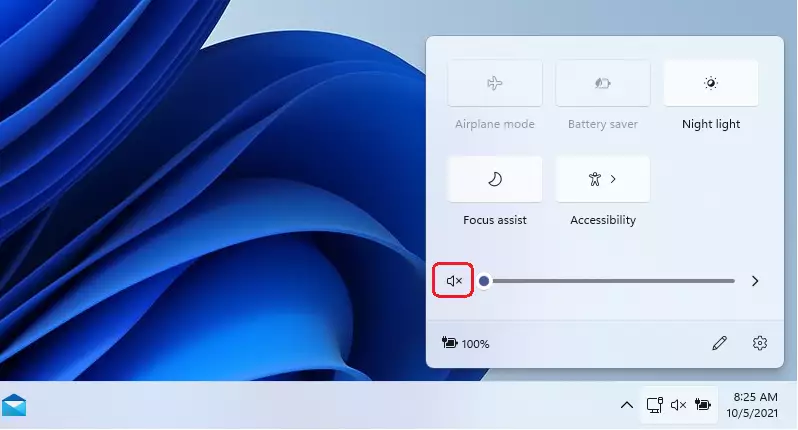
When sound is muted, Windows 11 places a small “x” over the speaker icon on the taskbar, so you can always see that your audio is off. To turn sound back on, click that same icon or press the mute or volume keys on your keyboard. Nothing is lost when you mute. Your volume level is kept, and the sound comes back at the same level.
Click the speaker icon in the Quick Settings area at the right end of the taskbar, next to the Wi-Fi and battery icons, to mute all system sound in Windows 11. A small “x” appears on the speaker icon. Click it again to unmute. Your volume level is kept, so the sound returns at the same level.
How to mute sound using the Quick Settings menu
The fastest way to mute is the Quick Settings menu on your taskbar. It sits where the Wi-Fi, speaker and battery icons are grouped, at the right end of the taskbar. Click that group, then click the speaker icon to turn off all system audio at once. This stops every sound on your computer right away, and you don’t need to open the main Settings app.

- Click the Quick Settings area on your Taskbar, the group of Wi-Fi, speaker and battery icons next to the clock. A panel with tiles and a volume slider opens above it.
- Look at the bottom of the panel for the volume slider. Locate the Speaker icon at the left end of the slider.
- Click the icon to mute the sound. A small “x” appears on the speaker icon, both in the panel and on the taskbar. Click the icon again to unmute.
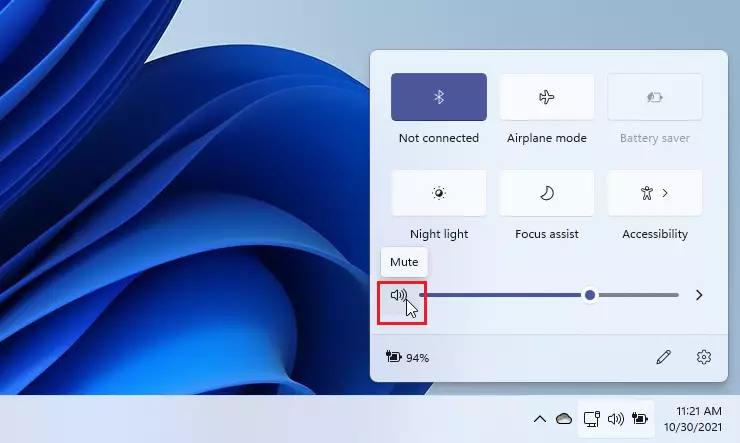
You can also drag the volume slider all the way to the left. Once the volume is at zero, the speaker icon shows a small “x” to indicate that nothing will play. Keep in mind that this changes your volume level, so after you unmute you will need to drag the slider back up. Clicking the speaker icon is the better choice when you want your old volume back.
Keyboard shortcuts to mute sound
Many keyboards have a dedicated mute button, often on the top row, that lets you mute sound in Windows 11 with a single press. On many laptops this is a function key with a speaker icon, and you may need to hold the Fn key while you press it. Press the same key again to unmute. If the key does nothing, check that the sound is not already muted at the app level, and try the Quick Settings method above. External keyboards with a mute key work the same way once Windows has detected them.
How to mute specific applications
You can mute sound for specific applications in Windows 11 by using the Volume Mixer tool. This menu lets you silence one program, like a web browser or video player, while keeping all other system sounds turned on. This is useful when you want to hear a call or music but not a noisy browser tab. Right-click the speaker icon on your Taskbar, open the Volume Mixer, and drag the slider for the app you want to quiet all the way to zero. An app only appears in the mixer while it is open and able to play sound, so start the app first if you don’t see it in the list.
- Right-click the Speaker icon on your Taskbar.
- Select Open volume mixer. The Volume mixer page in the Settings app opens, with a slider for each app that can play sound.
- Find the app you want to silence and drag its volume slider to zero or click the speaker icon for that app. The other apps keep their own volume.
Troubleshooting sound muting issues
If your sound keeps muting itself in Windows 11, the most common fix is to check and update your audio drivers through Device Manager. Before you do that, rule out the simple causes. Check that the app you are using is not muted in the Volume Mixer, that a headset or speaker with its own mute button is not switched off, and that the right output device is selected under Settings System Sound.
If those look fine, update the driver. You need to be signed in with an administrator account.
- Right-click the Start button and select Device Manager.
- Expand Sound, video and game controllers. You should see your audio device listed, for example a Realtek or other audio entry.
- Right-click the audio device and select Update driver.
- Choose Search automatically for drivers and follow the prompts. Restart the PC if Windows asks you to.
If the problem began right after a driver update, open the device’s properties in Device Manager and check the Driver tab for Roll Back Driver. If the button is greyed out, Windows has no earlier driver to go back to.
Summary
Muting your sound in Windows 11 takes a click using the Taskbar, keyboard shortcuts, or the Volume Mixer for specific apps. To unmute, repeat the same action: click the speaker icon again or press the mute key. If you face persistent issues, checking your audio drivers is the best first step. For more details, visit the official Windows 11 Sound Settings page.
Have a question about this guide?
Answered by AI from this guide. Good questions may be added to this page — please don't include personal details.
Did this guide fix your problem?

About the Author
Richard
Tech Writer, IT Professional
Richard is a writer at Geek Rewind who turns complex IT tasks into clear, step-by-step guides. He draws on years of hands-on experience in system administration and enterprise IT operations, focusing on Windows, Linux and WordPress: the problems people actually run into, and the fixes that work. His server and WordPress guides come from systems he runs himself. Richard builds and maintains the platform behind Geek Rewind, from its Ubuntu servers and Nginx configuration to its custom WordPress plugins. Many new tutorials start with readers' questions, and he's always glad to answer them in the comments.
No comments yet — be the first to share your thoughts!