Mute Sound from Quick Settings in Windows 11

- 18 steps
- Needs administrator rights
- Includes a restart or sign-out
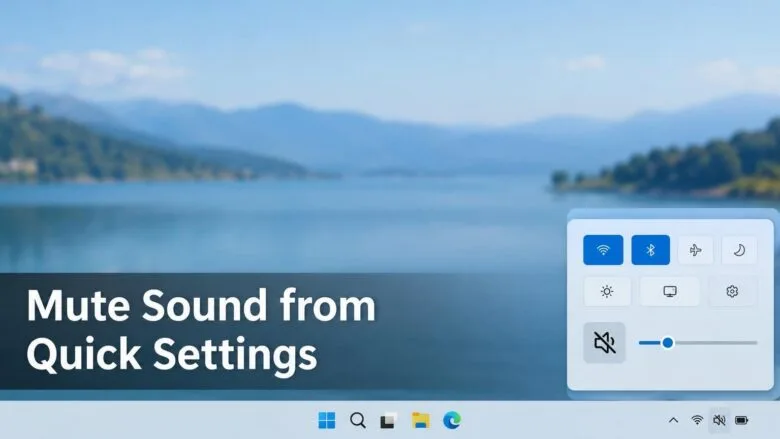
The mute button in Windows 11 Quick Settings is the speaker icon to the left of the volume slider. Click it once and all sound from your current speakers or headphones stops. Click it again and sound returns at the same level.
Quick Settings (the panel that opens from the Wi-Fi, speaker and battery icons at the right end of the taskbar) is built into every edition of Windows 11. That includes Home and Pro. Hold the Win and press A to open Quick Settings from the keyboard. No restart and no administrator rights are needed.
Click the speaker icon to the left of the volume slider in Quick Settings to mute all sound in Windows 11. Quick Settings opens from the Wi-Fi, speaker and battery icons at the right end of the taskbar, or with Win+A. Muting keeps your volume level, so clicking the speaker again restores sound at the same setting.
What the Quick Settings Mute Button Does
The mute button turns off audio output without touching your volume level. If the slider sits at 40% when you mute, it still sits at 40% when you unmute. That is the main difference between muting and dragging the slider to zero, which loses your previous level.
Three details help you avoid confusion later:
- Mute belongs to one output device. An output device is anything Windows plays sound through, such as laptop speakers, a Bluetooth headset or a monitor with built-in speakers. Muting your speakers does not mute your headphones.
- It affects every app at once. Music, video, system sounds and call audio all go quiet together.
- It does not mute your microphone. The Quick Settings button controls sound coming out of the PC, not sound going in.
How to Mute Sound from Quick Settings in 🪟 Windows 11
Use these steps to press the mute button in Quick Settings and confirm that your PC is silent. The list also covers how to unmute, so you can follow it start to finish. None of the steps change a system setting that is hard to undo.
- Click the speaker, Wi-Fi and battery icons on the taskbar. These icons sit together at the right end, next to the clock. The Quick Settings panel opens above them.
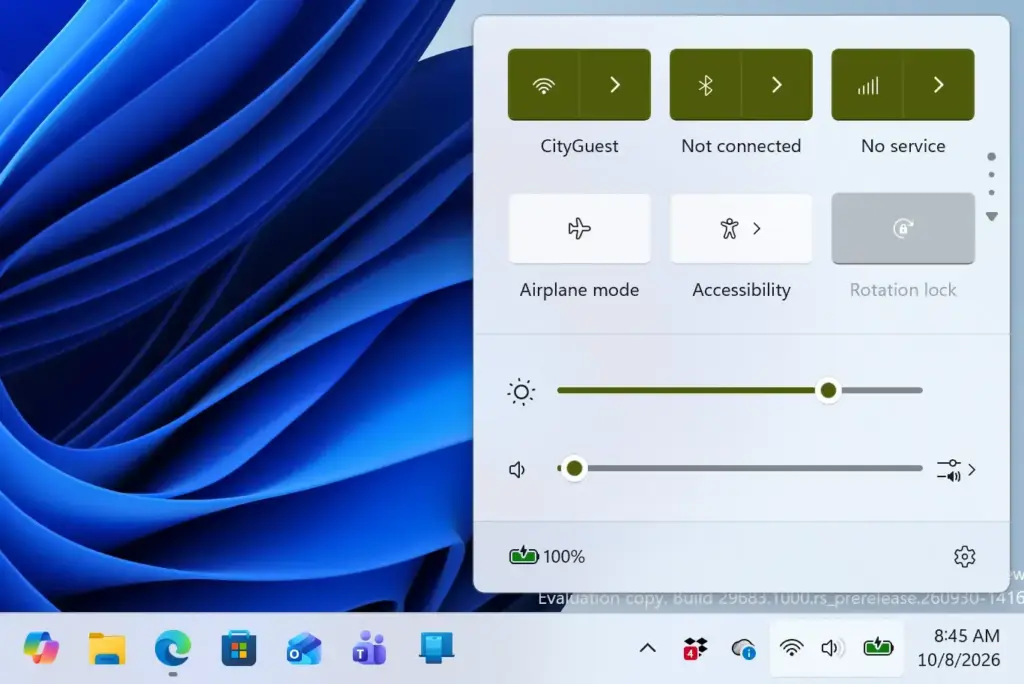
Notification Centre - Find the volume slider. It is the horizontal bar near the bottom of the panel, with a speaker icon on its left.
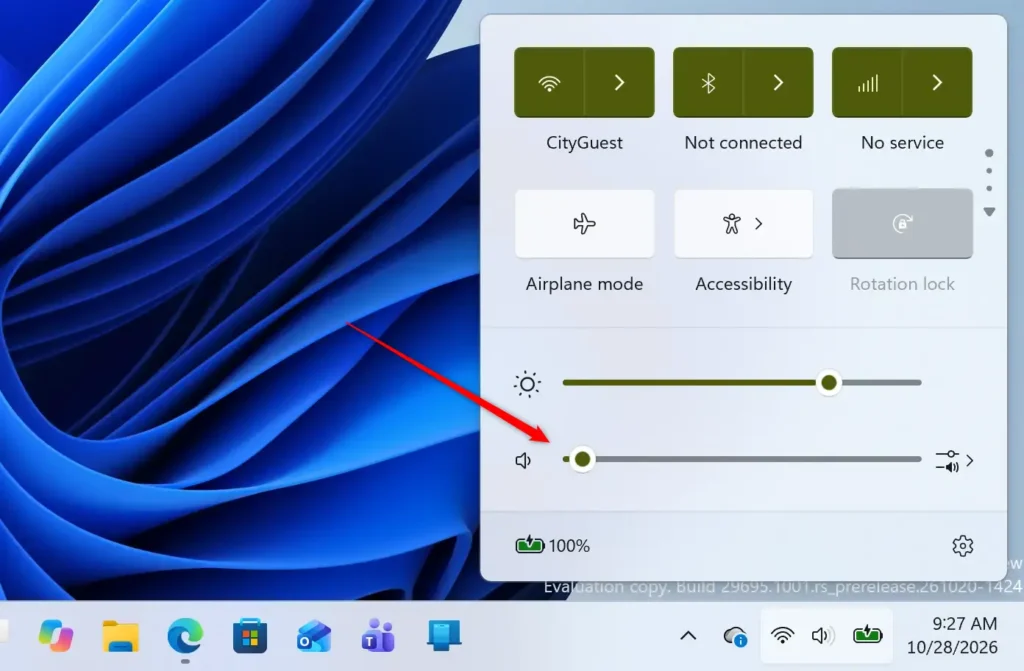
Notification Centre - Click the speaker icon to the left of the slider. This is the mute button. The icon changes to a speaker with a small X, and sound stops right away.
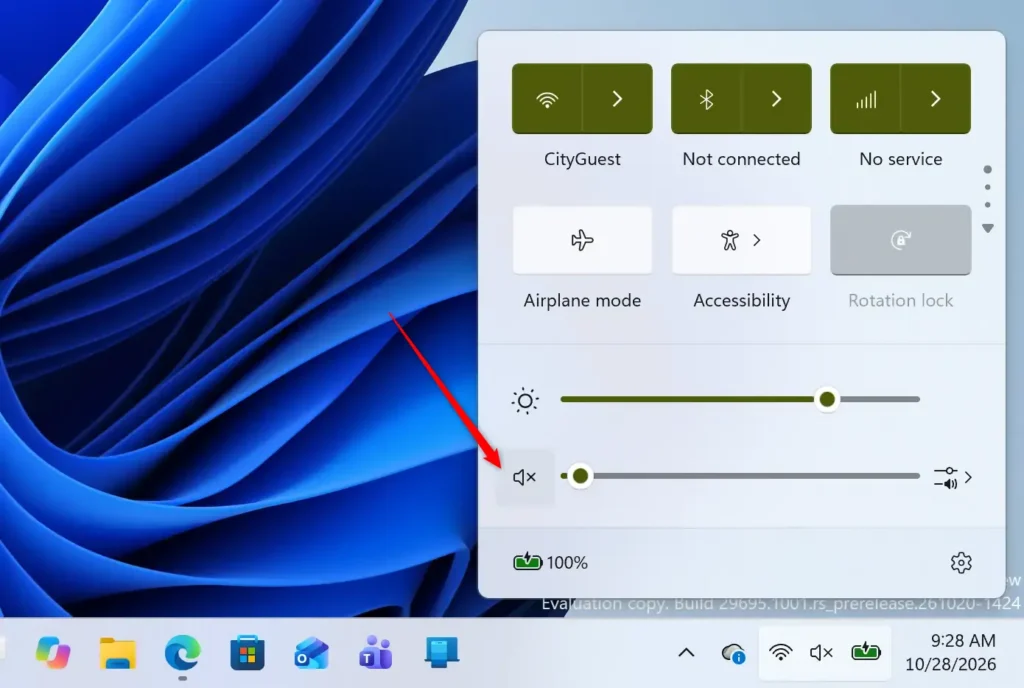
Notification Centre - Check the taskbar icon. While the PC is muted, the speaker icon in the system tray also shows the X. The slider keeps its position, but no sound plays.
- Click an empty area of the desktop to close Quick Settings. The mute stays in place after the panel closes. Pressing Esc also closes it.
- Open Quick Settings again and click the speaker icon to unmute. The X disappears from both icons, and sound plays at the level the slider shows.
Open Quick Settings from the Keyboard
- Press Win+A. Quick Settings opens in the lower-right corner of the screen.
- Press Tab until the volume controls are highlighted. A selection outline appears around the item that has focus.
- Press Space or Enter on the speaker icon. This toggles mute on or off.
Quick Settings has several buttons, and the number of Tab presses depends on how many it shows. Keep pressing Tab until the speaker icon has focus. If the keyboard route is slow, the Mute key described below is faster.
Use the Volume Mute Key on Your Keyboard
Most laptop keyboards have a dedicated mute key, usually a speaker icon with an X, printed on one of the F-keys (the row of keys across the top of the keyboard). Press it once to mute and again to unmute. On many laptops, you must hold the Fn key (the function key that changes what the F-keys do) at the same time, unless the manufacturer set the media keys to work without it.
The key toggles the same mute state that Quick Settings shows. Press it, then open Quick Settings, and you will see the speaker icon with the X.
Check Which Device You Are Muting
Quick Settings mutes the device that is currently selected as your output. If sound still plays after you click the mute button, Windows may be sending audio to a different device than you expect. A common case is a Bluetooth headset that is connected but sitting on a desk.
To see and change the output device, follow these steps:
- Open Quick Settings. Click the speaker icon in the taskbar or press Win+A.
- Click the arrow to the right of the volume slider. A list of output devices appears, with the active one marked.
- Click the device you want to use. Windows switches to it, and the slider now shows that device’s volume and mute state.
- Click the speaker icon next to the slider if you need to mute or unmute that device.
If you do not see the arrow on your version of Windows 11, open Settings System Sound instead. The Output section lists the same devices. Select the one you want as your default.
Mute One App Instead of the Whole PC
The Quick Settings mute button silences everything. To quiet a single app while the rest keeps playing, use the Volume mixer (a Settings page that gives each running app its own volume level). Open Settings System Sound Volume mixer to see a slider for every app that is producing sound.
Many apps also have their own mute control. Web browsers let you mute a single tab, which is a page open in the browser window, and video-call apps have a separate microphone mute. These controls work separately from the Windows mute, so an app can stay quiet even after you unmute the PC. If one app is silent and others are not, check that app’s own volume and mute settings first.
Show the Volume Icon Where You Can Reach It
The speaker icon in the taskbar tray is a shortcut to Quick Settings and is part of the same group as Wi-Fi and battery. In Windows 11, clicking any of the three opens the same panel.
You can change what else lives in that panel with the pencil icon (Edit quick settings) at the bottom. That edit mode controls the buttons in Quick Settings, such as Bluetooth and Airplane mode. The volume slider is not one of them.
Taskbar space is limited, and the Search button takes some of it. If you are making room, see how to change the Windows 11 taskbar Search button layout for that. See Resume app button on the Windows 11 taskbar for a further taskbar option.
If the Mute Button Does Not Work
Problems fall into three groups: Quick Settings will not open, no sound device is available, or sound plays after muting. Start with the symptom you see.
Quick Settings Will Not Open
If clicking the icons or pressing Win+A does nothing, the taskbar may have stopped responding. Windows Explorer (the process that draws the taskbar and Start menu) is the program behind it. You can restart Windows Explorer without losing your open files. Restarting it makes the taskbar flicker for a moment.
- Press Ctrl+Shift+Esc. Task Manager opens.
- Click Processes in the left menu if it is not already selected.
- Find Windows Explorer in the list. Scroll if you cannot see it.
- Right-click Windows Explorer and choose Restart. The taskbar disappears and returns within a few seconds.
- Press Win+A to test Quick Settings. The panel should open now.
If Task Manager opens in a compact view with no list of processes, click More details at the bottom first.
The Speaker Icon Shows a Red X or “No Audio Output Device”
A red X on the taskbar speaker icon, or a message that no audio output device is installed, means Windows cannot find a device to play through. This is different from the grey X of mute. Check these in order:
- Plug a wired headset or speakers back in, or reconnect your Bluetooth device.
- Open Settings System Sound and look under Output. If a device is listed but unused, select it.
- Restart the PC. A restart often brings back an audio device that dropped out.
If the device is still missing, the audio driver (the software that lets Windows talk to the sound hardware) may need attention. Right-click the Start button, choose Device Manager, and expand Sound, video and game controllers. A warning symbol on an entry points to a driver problem. Installing or rolling back a driver may require administrator rights, and Windows asks for them if it does.
Sound Still Plays After You Mute
If you hear audio after clicking the mute button, look at the speaker icon first. If it shows the X, the device you muted is not the one playing sound. Open the output list as described earlier and switch to the right device. Also check for a second sound source, such as an external speaker with its own volume knob or a monitor playing audio over HDMI (the video cable that also carries sound).
Some audio drivers add their own control panel with a separate mute option. If Windows shows the PC as muted but the speakers are loud, check the sound software from your PC maker in the system tray.
The Mute Icon Looks Muted but You Need the Microphone Off
Quick Settings does not control your microphone. To silence the microphone, use the mute control in the call or recording app. You can also open Settings System Sound and look under Input to choose which microphone Windows uses.
A physical mute button on a headset or USB device works separately from Windows. Press it and check the device’s own light to confirm its state.
Undo the Mute
Mute is not a permanent setting. You do not need to reset anything to get your sound back. Click the speaker icon in Quick Settings again, or press the keyboard Mute key, and sound returns at your earlier level. If the icon still shows an X after you click it, try the Mute key on your keyboard. Then check the output device list for a second device that is still muted.
What to Do Next
With the mute button working, your next stop is the rest of the taskbar and Start menu, where small shortcuts save time. Read how to add or remove the Power button on the Windows 11 Start menu, or add a Sign out button to the Start menu. Both follow the same Settings-first approach used here.
Frequently asked questions
How to adjust power and sleep settings in 🪟 Windows 11?
Open Settings, select System, then Power & battery. Use the Screen and sleep section to choose when the screen turns off and when the PC goes to sleep. Changes apply right away, and you can set different times for when the PC is plugged in and when it runs on battery.
How to get help in 🪟 Windows 11 keyboard sound?
Windows 11 has no setting for typing sounds. To hear a beep when Caps Lock, Num Lock or Scroll Lock changes, open Settings, go to Accessibility, select Keyboard, and turn on Toggle keys. Other key sounds depend on your keyboard's manufacturer software.
How to adjust display settings in 🪟 Windows 11?
Save your work first, because a resolution change can blank the screen for a moment. Then open Settings, select System, and choose Display. Use the Scale menu to resize text and apps, and the Display resolution menu to change sharpness.
How to backup system settings in 🪟 Windows 11?
Open Settings, select Accounts, then Windows backup. Turn on Remember my apps and Remember my preferences to save your app list and settings to your Microsoft account. Your files are not included, so use File History or a backup drive for them.
Still have a question?
Answered by AI from this guide. Good questions may be added to this page — please don't include personal details.
Did this guide fix your problem?

About the Author
Richard
Tech Writer, IT Professional
Richard is a writer at Geek Rewind who turns complex IT tasks into clear, step-by-step guides. He draws on years of hands-on experience in system administration and enterprise IT operations, focusing on Windows, Linux and WordPress: the problems people actually run into, and the fixes that work. His server and WordPress guides come from systems he runs himself. Richard builds and maintains the platform behind Geek Rewind, from its Ubuntu servers and Nginx configuration to its custom WordPress plugins. Many new tutorials start with readers' questions, and he's always glad to answer them in the comments.
No comments yet — be the first to share your thoughts!