Task Manager in Windows 11 is a built-in diagnostic tool that tracks every app and background process running on your PC. It gives you a live look at hardware usage with exact numbers for your CPU, memory, disk, and network speed.
Advertisement
Press Ctrl+Shift+Esc on your keyboard at any time to open Task Manager instantly. This tool lets you force close frozen programs, stop heavy apps from slowing down your startup, and check overall system health in seconds.
This guide covers the ways to open it, what each section does, and the steps for the most common jobs. The layout described here is the current Windows 11 version (22H2 and later), where the sections are listed in a sidebar on the left. On the original 21H2 release they appear as tabs across the top instead. The names are mostly the same.
⚡ Quick Answer
Press Ctrl+Shift+Esc to open Task Manager on Windows 11. The window displays all running apps and background processes with live CPU, memory, disk, and network usage figures, letting you force close frozen programs and monitor system health.
Advertisement
Why use Task Manager?
You use Task Manager when your computer feels slow, an app freezes, or you want to see if a program is using too much memory. It helps you take control of your system resources.
A typical check goes like this. Something feels sluggish, so you open Task Manager and look at which process is using the most CPU, memory, or disk. If one app is far ahead of the rest, you can close it. If everything is high, the cause is usually too many startup apps or too little RAM, and the Performance and Startup sections will show you which.
Advertisement
What happens when you use it?
When you use Task Manager, you can stop unresponsive programs, speed up your startup time, and monitor your hardware health. It gives you a live look at your computer’s “vital signs.”
⚠️WarningTask Manager only shows and controls what is already running.
Closing a process does not uninstall anything, and a program you end can be started again as normal. The one caution is unsaved work: ending an app removes it without asking you to save, so you lose any changes in it.
How to open Task Manager
💡TipTask Manager opens instantly with a keyboard shortcut, and you can also reach it from the Start menu or the Start button’s right-click menu.
The fastest way is to press Ctrl+Shift+Esc at the same time. You can also press Ctrl+Alt+Del and click Task Manager, or right-click the Start button and choose it from the menu.
If the screen is frozen and one method does nothing, try another. Ctrl+Alt+Del is handy because Windows shows that screen even when an app has hung. Pick whichever method you remember best from the list below.
Advertisement
Press Ctrl+Shift+Esc on your keyboard. Task Manager opens straight away, with no menu in between.
Press Ctrl+Alt+Del and choose Task Manager. This opens a full-screen blue menu first, and Task Manager is one of the options on it.
Press Win+X to open Power User Tasks menu and select Task Manager. The menu appears at the bottom left of the screen. Right-clicking the Start button opens the same menu.
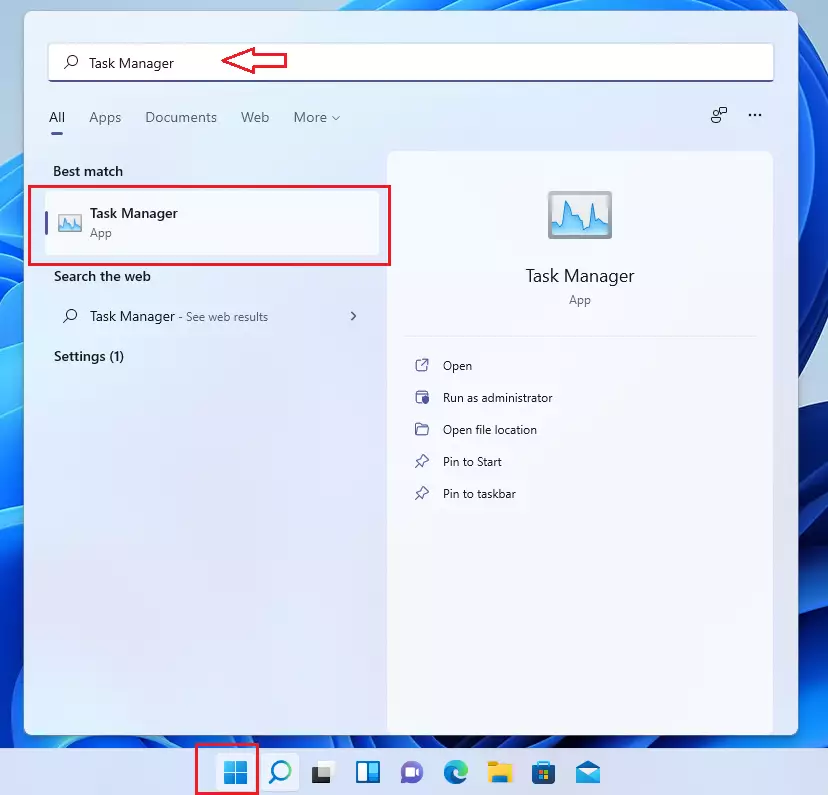
Click the Start button, type “Task Manager,” and press Enter. Task Manager should be the top result.
search task manager on windows 11
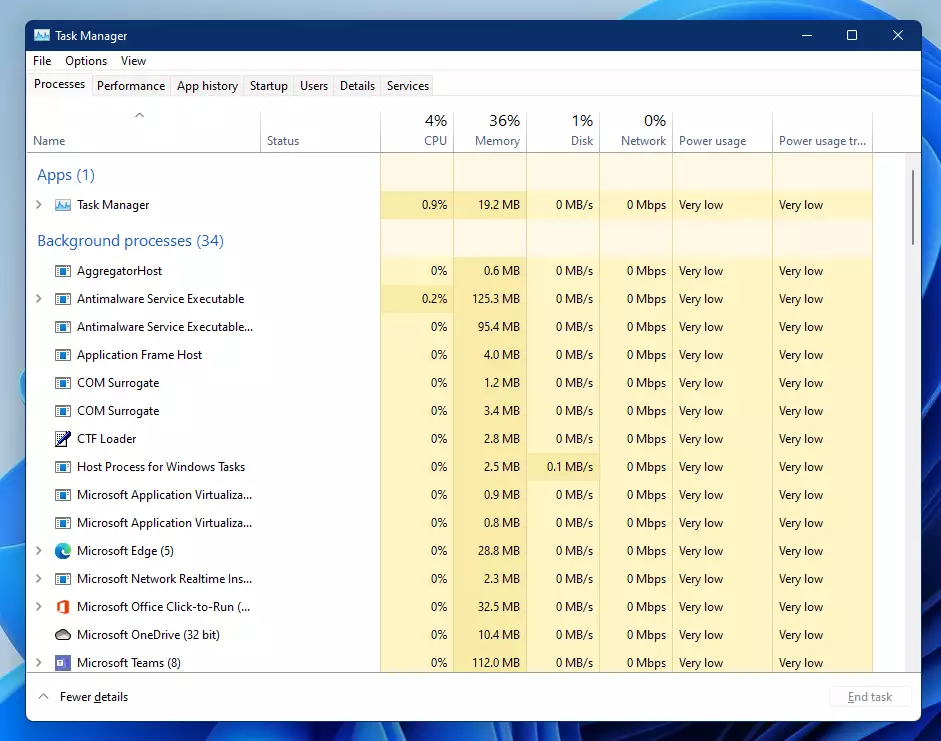
Whichever method you use, the Task Manager window opens on the Processes section, with your running apps and background tasks listed and usage figures beside each one.
You can also open it using the command line. Follow these steps:
Press Win+R. The Run dialog box appears at the bottom left of the screen.
Type the following command in the Open box.
Press Enter. Task Manager 📊 opens.
💻Code
taskmgr

task manager in windows 11
Understanding the tabs
Task Manager uses separate sections to break down your computer’s health and activity. In current Windows 11 they are listed in a sidebar on the left. If you only see icons, click the three-line menu button at the top left to expand the names. The Processes section shows open apps and background tasks using your memory and processor. The Performance section displays live graphs for your hardware, helping you spot performance bottlenecks right away.
Advertisement
The sections are listed below in the order they appear.
ProcessesShows all apps and background tasks currently running. To close a frozen app, right-click it and choose End task. The window should disappear within a few seconds. Click the column headings, such as CPU or Memory, to sort by the biggest users. The Efficiency mode option on the right-click menu limits how much a process can use, and it is a gentler choice than ending it.
PerformanceDisplays live charts for your CPU, Memory, Disk, and Network usage. Click an item in the list to see its detailed graph. For the CPU this includes speed and uptime, and for Memory it shows how much RAM is in use and how much is free.
App historyShows how much data and time your Windows apps have used. It covers apps from the Microsoft Store and similar apps, not traditional desktop programs, so a short list is normal.
StartupLists apps that open automatically when you turn on your PC. In current Windows 11 this section is named Startup apps. You can disable items here to make your computer boot faster. Right-click an app and choose Disable, and check the Startup impact column to find the ones that slow things down most. To undo it, right-click the same app and choose Enable. The change takes effect the next time you sign in or restart. Disabling an item does not uninstall the app.
UsersShows who is logged into the computer. (Admin Note: You need admin privileges to sign out other users). If you have them, right-click a user to sign them out, which closes their apps and loses any unsaved work.
DetailsProvides advanced technical information about every process. This includes the process ID (PID), status, and the user account that started it. It is the closest match to the classic Task Manager list, and it is useful when you need to identify one specific process.
ServicesLists background services. (Admin Note: Changing these requires admin privileges to stop or start specific services). Right-click a service to start, stop, or restart it. Stopping a service you do not recognize can break features or cause problems with Windows, so only change ones you understand.
Summary
Task Manager is an essential tool for every Windows 11 user. It allows you to monitor performance, manage startup programs, and close frozen applications. By learning how to navigate these sections, you can keep your computer running smoothly and fix common issues without needing professional help.
If you only remember one thing, remember the shortcut Ctrl + Shift + Esc. When an app stops responding, open Task Manager, find the app in Processes, and use End task. Come back to the Startup apps section every few months to keep your boot time down.
📬 Get new Windows tips in your inbox
One email when we publish something worth your time. No spam, unsubscribe anytime.
Have a question about this guide?
Answered by AI from this guide. Good questions may be added to this page — please don't include personal details.
Richard is a writer at Geek Rewind who turns complex IT tasks into clear, step-by-step guides. He draws on years of hands-on experience in system administration and enterprise IT operations, focusing on Windows, Linux and WordPress: the problems people actually run into, and the fixes that work.
His server and WordPress guides come from systems he runs himself. Richard builds and maintains the platform behind Geek Rewind, from its Ubuntu servers and Nginx configuration to its custom WordPress plugins.
Many new tutorials start with readers' questions, and he's always glad to answer them in the comments.
One email when we publish a guide worth your time — new Windows features, the fixes that actually
work, and a heads-up when Microsoft breaks something. Unsubscribe in one click.
📬 Get new Windows tips in your inbox
One email when we publish something worth your time. No spam, unsubscribe anytime.


No comments yet — be the first to share your thoughts!