How to Sign Out Other Users in Windows 11


- 9 steps
- Needs administrator rights
Signing out another user in Windows 11 closes their desktop session. Every app they had open stops, and any unsaved work in those apps is lost. You don’t need their password, but you do need administrator rights on the PC.
This comes up on shared home PCs and office workstations when someone forgets to log off. A forgotten session keeps using memory and leaves that person’s files open to whoever sits down next. Task Manager and Command Prompt can both end it in a few steps. Task Manager works on Home, Pro and Enterprise. The command-line method is best suited to Pro and Enterprise, and some of those commands may not be available on Home. If a command isn’t recognized there, use Task Manager instead.
Using Task Manager
You must be signed in with an administrator account to end another user’s session. If Windows asks for permission, approve the prompt or enter an administrator’s credentials.
Pick Sign out, not Disconnect, if you see both. Disconnect only detaches the session. Their apps keep running in the background and keep using memory. Sign out actually closes the session.
- Open the Start menu , search for Task Manager , and open the app. You can also press Ctrl+Shift+Esc on your keyboard. Task Manager opens in its own window.
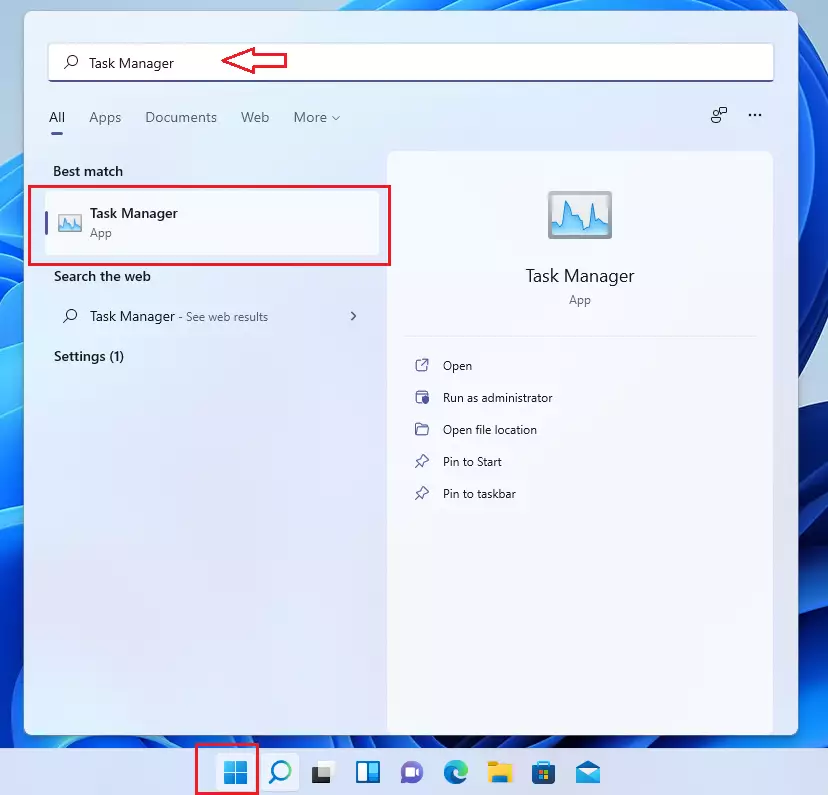
Task Manager may open as a small window with only a list of apps. The next step expands it.
- If you see a small window, click More details. The full window opens with Processes, Performance and the other pages. If you already see the full window, skip this step.
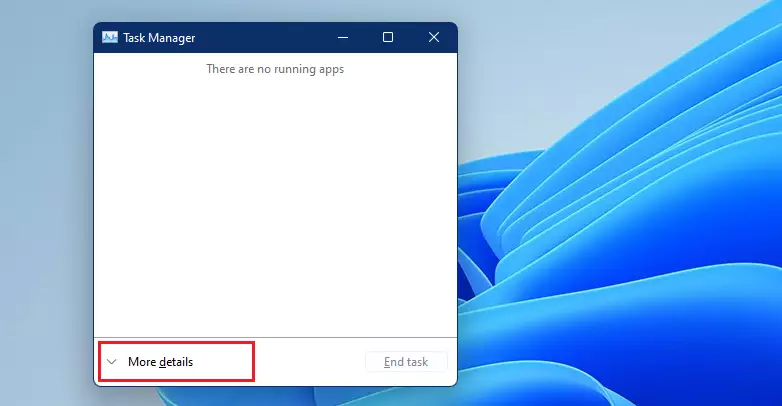
With the full window open, you can move to the Users page.
- Click the Users tab at the top. On current Windows 11 builds, Task Manager shows its pages in a left-hand menu instead, so click Users there. You should now see a list of every signed-in account, including your own.
- Select the account you want to sign out. Check the name carefully, because you can sign yourself out from this same list.
- Click the Sign out button at the bottom of the window. %📂%LNK0%%
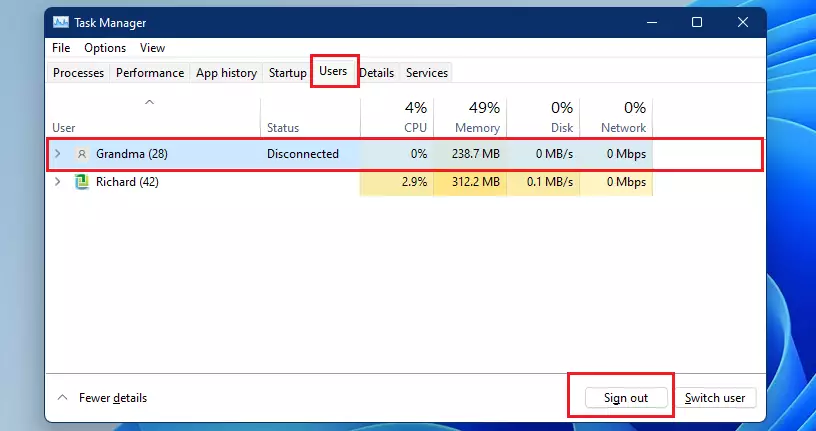
If the button is greyed out or missing, you are probably not running Task Manager as an administrator. Close it and reopen it from an administrator account.
Click Sign-out user to confirm. If the other person may still have unsaved work, find them and ask them to save it before you confirm. You can’t undo this once it’s done.
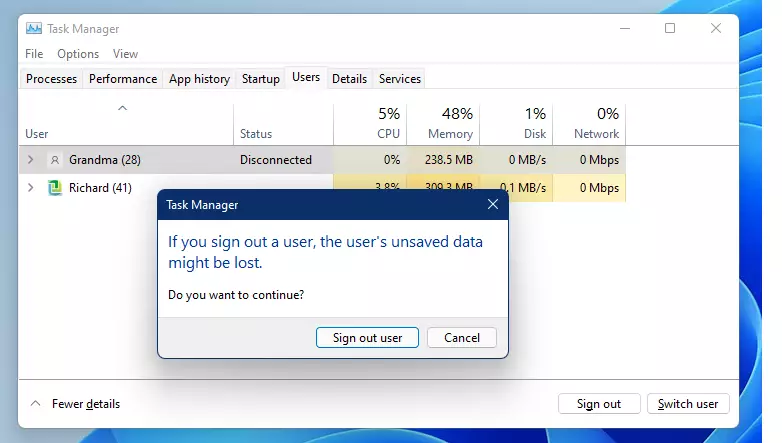
After a few seconds the account should disappear from the Users list. If it stays, wait a moment and check again. A heavy app can take a little time to close.
Using Command Prompt (Admin Required)
Command Prompt signs users out with text commands. It requires an elevated window, meaning one opened with administrator rights. You list the active sessions, note the session ID of the user you want, then run a logoff command with that ID. The session ends immediately.
- Click Start , search for cmd, right-click it, and select Run as administrator. Approve the User Account Control prompt if one appears. A black Command Prompt window opens, and its title bar should say Administrator.

If the title bar doesn’t say Administrator, close the window and open it again with Run as administrator. Without elevation, you won’t be able to sign out other users.
- To see a list of everyone currently logged in, type the following command and press Enter:
query session
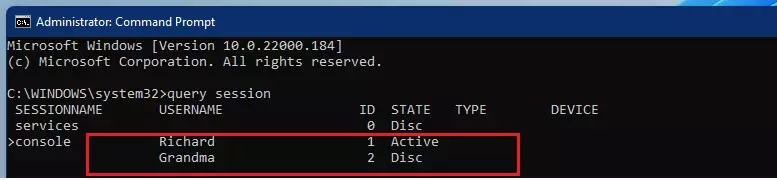
The output is a table with one row per session. It lists each user name, the session ID and the session state. Your own session is usually marked with a > symbol, so you can tell which row is yours.
- Look at the ID number next to the user you want to remove. Make sure it isn't the ID of your own session.
- Type the following command, replacing 2 with the ID number you found, and press Enter:
logoff 2
The user will be signed out immediately without any further warnings, so there is no chance to cancel. Run the first command again to confirm the session is gone from the list.
Summary
Windows 11 lets several people stay signed in on one computer at the same time. When someone forgets to log off, you can end their session from Task Manager or Command Prompt as long as you have administrator rights. Task Manager is the safer choice because it shows a warning first. Command Prompt is faster, but it gives no warning. With either method, check that the person has saved their work before you sign them out.
Have a question about this guide?
Answered by AI from this guide. Good questions may be added to this page — please don't include personal details.
Did this guide fix your problem?

About the Author
Richard
Tech Writer, IT Professional
Richard is a writer at Geek Rewind who turns complex IT tasks into clear, step-by-step guides. He draws on years of hands-on experience in system administration and enterprise IT operations, focusing on Windows, Linux and WordPress: the problems people actually run into, and the fixes that work. His server and WordPress guides come from systems he runs himself. Richard builds and maintains the platform behind Geek Rewind, from its Ubuntu servers and Nginx configuration to its custom WordPress plugins. Many new tutorials start with readers' questions, and he's always glad to answer them in the comments.
No comments yet — be the first to share your thoughts!