How to Restart Windows Explorer in Windows 11

Restarting Windows Explorer fixes a frozen taskbar, missing desktop icons, or a stuck File Explorer in Windows 11 without a full reboot. Windows Explorer is the background process (explorer.exe) that runs your desktop, taskbar, Start menu and file folders.
Lockups and crashes happen when this process stops responding. Closing it and starting it again takes less than 60 seconds and often clears the problem right away. Save any open work first. Open File Explorer windows will close during the restart, and any file copy in progress may be interrupted.
Press Ctrl+Shift+Esc to open Task Manager , find Windows Explorer in the Processes tab, and click the Restart button at the bottom right. Your taskbar and desktop will disappear briefly, then return refreshed. This fixes frozen taskbars and missing icons without restarting Windows.
Option 1Restart Explorer Using Task Manager
This is the fastest route when you can still use the mouse and keyboard. Use it first.
- Press
Ctrl + Shift + Escon your keyboard to open Task Manager . You should see the Task Manager window appear on top of your other windows. - Open the Processes tab if it is not already showing.
- Scroll down to Windows processes (or use the search box at the top) and click Windows Explorer . If you see only a short list of apps, click More details first.
- Click the Restart button at the bottom right. In the newer Task Manager layout, the button is called Restart task and sits in the toolbar at the top. You can also right-click Windows Explorer and choose Restart. The taskbar and desktop will vanish for a second or two, then come back.
- Close Task Manager once your desktop and taskbar are back.
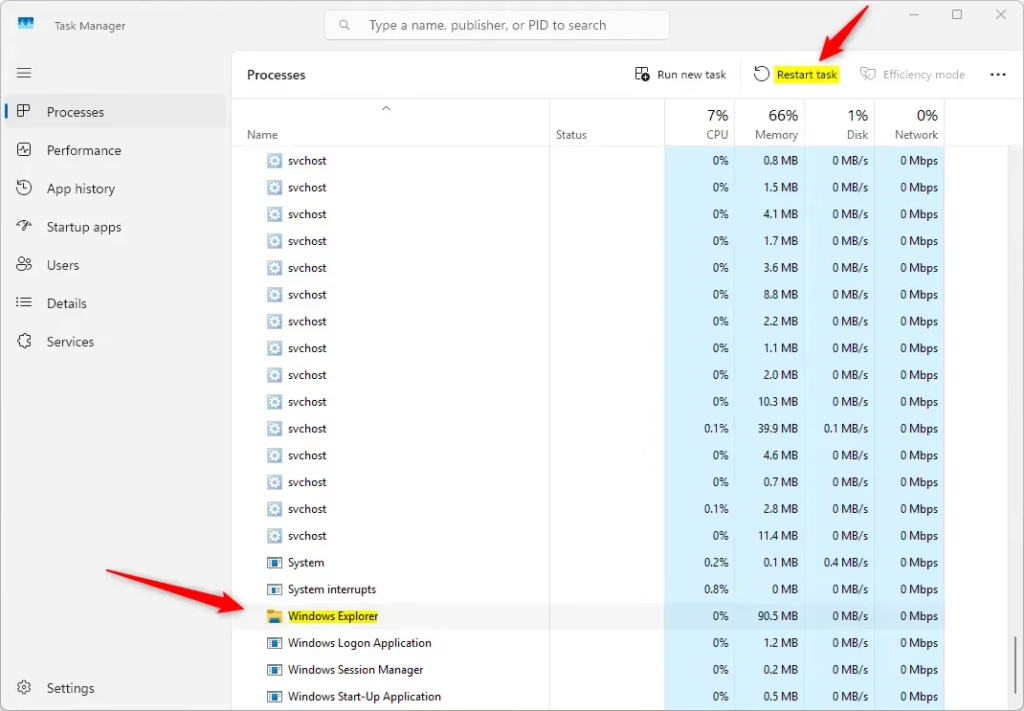
This usually clears small display bugs without a reboot. Nothing needs to be undone afterwards, because Windows reloads the same desktop and settings.
If Windows Explorer is missing from the list, Explorer may have already crashed. Skip to the manual start method further down. If the Restart button is greyed out, click the Windows Explorer row again to select it.
What happens: Task Manager stops and restarts the Explorer process. Your desktop reappears refreshed.
Option 2Restart Explorer Using Command
It also helps when Task Manager itself is slow or won't open. The command forces Explorer to close, and Windows then reloads the desktop interface.
- Right-click the Start button, or press Win + X, and select Windows Terminal. On some builds the entry is labelled Terminal. If you prefer, open PowerShell or Command Prompt from search instead. A normal (non-admin) window is enough, so you only need Windows Terminal (Admin) if a normal window gives you an access error.
- Copy one of the commands below and paste it into the window. Use the PowerShell version in Windows Terminal or PowerShell, and the Command Prompt version in Command Prompt.
- Press
Enter. Your taskbar and desktop will disappear for a moment, then return.
For PowerShell or Windows Terminal:
powershell "Get-Process -Name explorer | Stop-Process; Start-Process explorer.exe"For Command Prompt:
Restarting Windows Explorer refreshes the desktop and taskbar. This cycle clears out temporary glitches and reloads the graphical interface entirely. This action often fixes visual glitches or unresponsiveness in Windows 11.
This method is quick because it skips the menu clicks. It is a useful backup when Task Manager fails to open. If the desktop does not come back after a few seconds, use the manual start method below.
Option 3Start Explorer Manually if It's Stopped
Use this method when your screen is black and only the mouse cursor is visible, or when the taskbar and icons have disappeared and Explorer is not running at all. You launch the explorer process yourself from Task Manager, which brings the taskbar and desktop icons back.
- Press
Ctrl + Shift + Escto open Task Manager. If that shortcut does nothing, press Ctrl + Alt + Delete and choose Task Manager from the screen that appears. - Depending on your version of Task Manager:
- Old Task Manager: Click File in the menu bar, then select Run new task.
- New Task Manager (Windows 11 22H2 and later): Click Run new task in the toolbar at the top.
- A Create new task box opens. Type
explorer.exein the box and click OK. - Wait a few seconds. Your desktop and taskbar should now appear again.
- Close Task Manager when you are done.
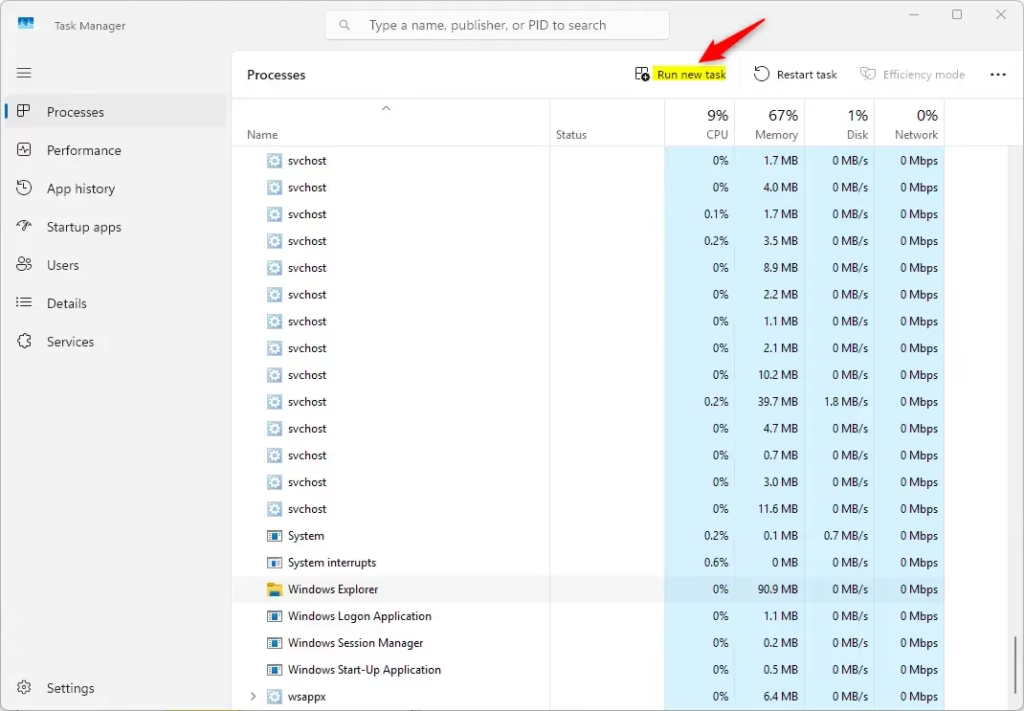
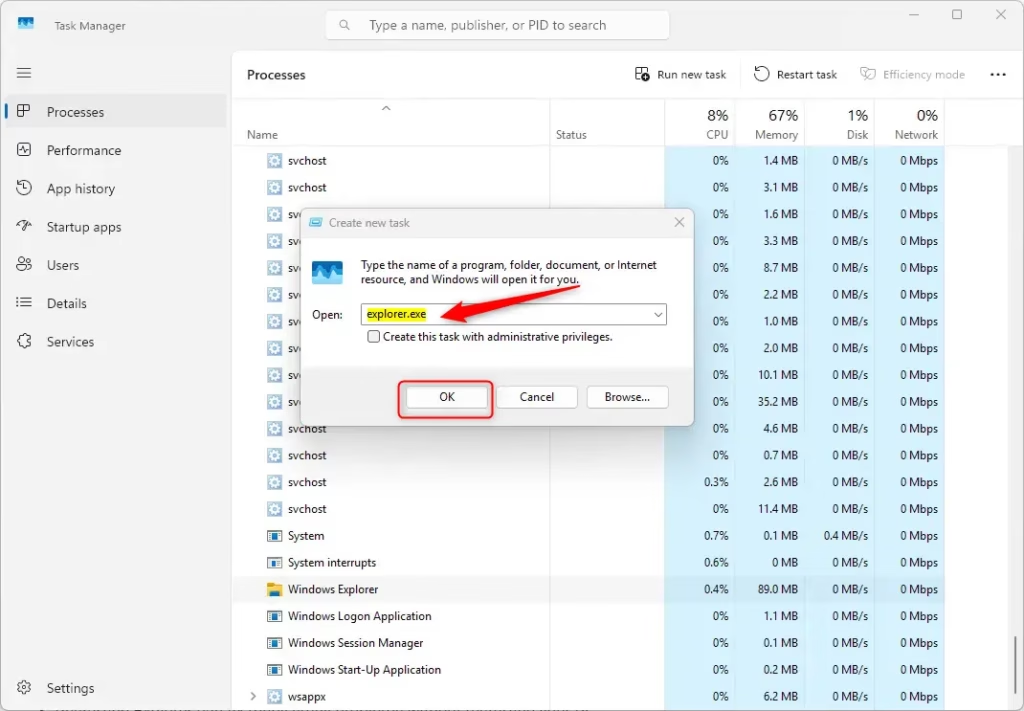
Starting Explorer from Task Manager bypasses the normal desktop interface, so it works even when the taskbar and Start menu are gone. It is the way to regain control of the computer when Explorer fails completely. If a File Explorer window opens instead of the taskbar returning, Explorer was still running. Use the restart method from the first section.
Summary
- Windows Explorer controls your desktop, taskbar, and file browsing.
- Restarting Explorer can fix many small problems without restarting your PC.
- You can restart it easily using Task Manager or commands.
- If Explorer stops completely, you can manually start it again using Task Manager.
- If the problem comes back often, restart Windows fully and install pending updates. Frequent Explorer crashes can point to a faulty shell add-on or a driver issue.
Restarting Explorer fixes freezing desktop icons, missing taskbars, and slow file windows without rebooting your whole PC. It takes only a few seconds, whether you use Task Manager or a command line. Knowing these steps helps you deal with common Windows interface bugs and gets your computer working normally again right away.
Was this guide helpful?

About the Author
Richard
Tech Writer, IT Professional
Richard is a writer at Geek Rewind who turns complex IT tasks into clear, step-by-step guides. He draws on years of hands-on experience in system administration and enterprise IT operations, focusing on Windows, Linux and WordPress: the problems people actually run into, and the fixes that work. His server and WordPress guides come from systems he runs himself. Richard builds and maintains the platform behind Geek Rewind, from its Ubuntu servers and Nginx configuration to its custom WordPress plugins. Many new tutorials start with readers' questions, and he's always glad to answer them in the comments.




No comments yet — be the first to share your thoughts!