How to Keep Windows 11 Task Manager Always on Top

The “always on top” setting in Windows 11 Task Manager keeps the window above your other windows. You can watch live CPU, memory and disk figures while you work in another app, and nothing covers the performance data. The option is built in from Windows 11 version 22H2 onward, so you don’t have to keep switching between a full-screen app and the troubleshooting window.
It takes a couple of clicks to turn on, and you can spot a frozen program or a background task slowing the machine without losing the window. It works the same on Home and Pro, and no restart is needed.
If you can’t find the option, check your version first. The original Windows 11 release (21H2) uses the older Task Manager layout. Update through Settings Windows Update , then try again.
Open Task Manager with Ctrl+Shift+Esc, click the Settings gear icon at the bottom left, find Window management, and tick the Always on top checkbox. Task Manager then stays visible above all other windows, even when you click away or open full-screen apps.
Step 1Open Task Manager
There are several ways to open Task Manager . Use whichever is fastest for you:
- Press Ctrl+Shift+Esc. This opens Task Manager directly, with no search needed.
- Right-click the Start button and choose Task Manager from the quick-access menu.
- Right-click the Task Manager icon on the taskbar, if it is already running, to open its jump menu.
A running Task Manager often hides there.
Either way, the Task Manager window should now be on screen, showing the Processes page by default.
Step 2Turn on "Always on Top"
Turning on the pinning is a single setting. Once it is on, the window stays visible even when other programs overlap it. Doing the same steps again turns it off, so the change is easy to undo.
The setting lives in Task Manager's own Settings page, which the next section walks through step by step.
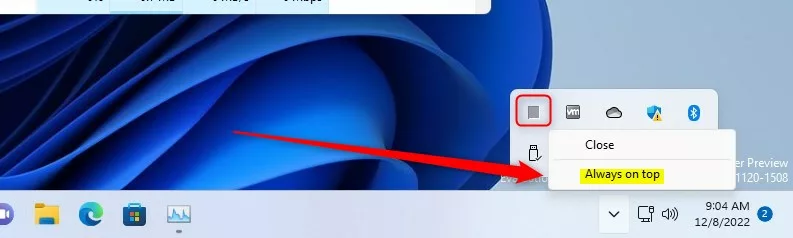
Alternative Method:
In Windows 11 22H2 and later, the option is in Task Manager's Settings page. Follow these steps:
- Open Task Manager using any method above.
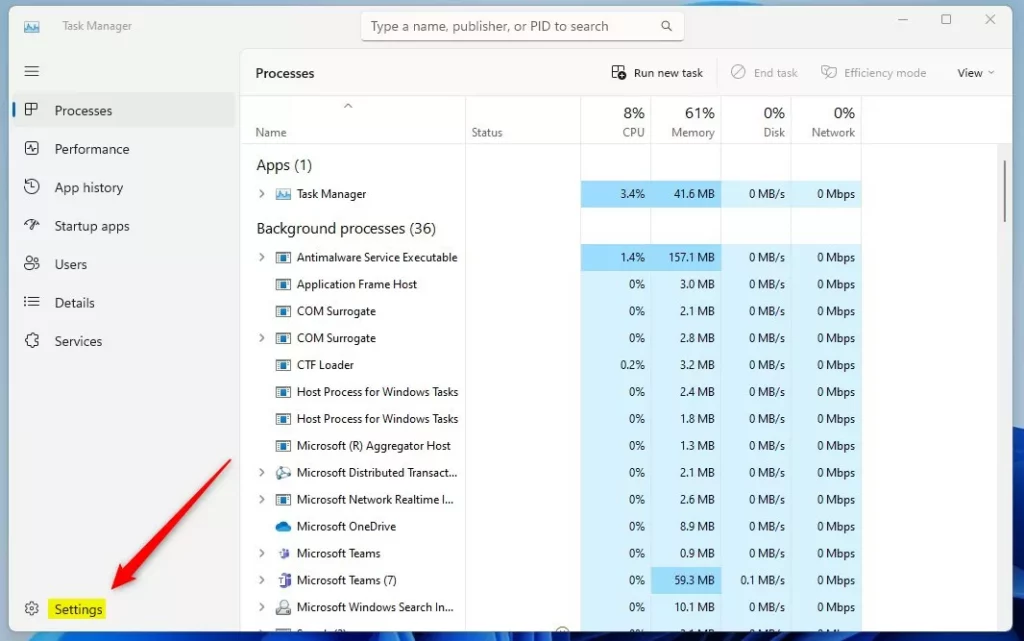
- Click the Settings gear icon at the bottom of the left-hand navigation pane. The Settings page replaces the process list.
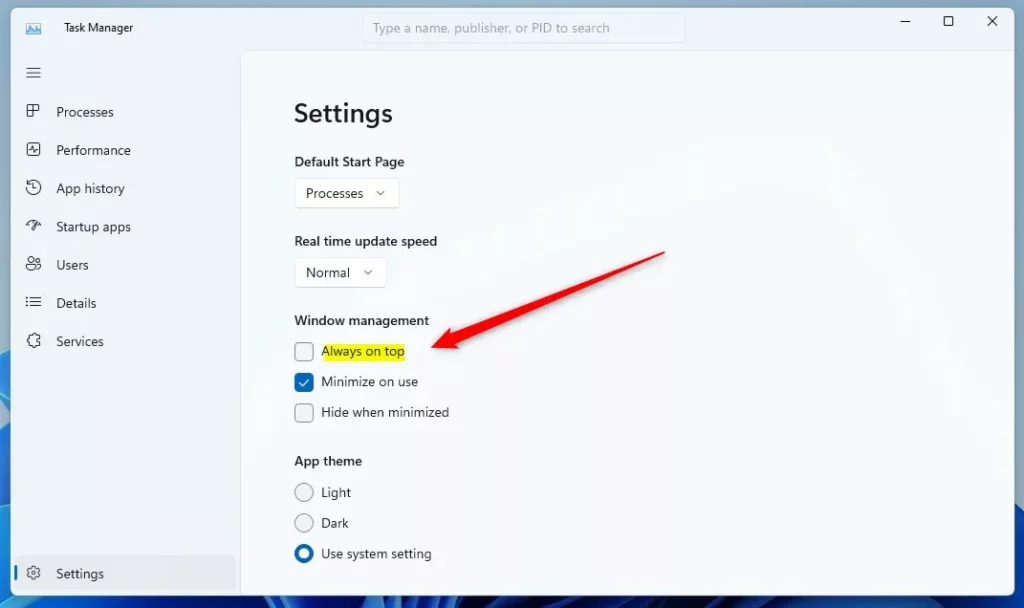
- Find the Window management section.
- Tick the checkbox next to Always on top.
The window now stays above other apps, even when you click away from it. Open a full-screen program or a browser window to confirm that Task Manager still sits on top.
To undo it, return to the same page and clear the Always on top checkbox. The window then behaves like any other and can go behind your apps again.
Alt + A on the keyboard toggles the "Always on top" option on or off while you navigate Task Manager's Settings.Summary
- "Always on top" keeps the Task Manager window visible above all other windows.
- Use
Ctrl + Shift + Escto open Task Manager quickly. - Right-click the taskbar icon or use Task Manager's Settings to turn "Always on top" on or off.
- This helps you watch your computer's activity without losing Task Manager behind other apps.
Keeping Task Manager on top lets you watch your computer's activity without the window disappearing behind other apps. Open it with Ctrl + Shift + Esc, then tick Always on top under Window management in Settings. The window then stays visible while you work in full-screen programs.
Task Manager now stays anchored where you need it. If it ever gets in the way, clear the same checkbox to release it.
Have a question about this guide?
Answered by AI from this guide. Good questions may be added to this page — please don't include personal details.
Did this guide fix your problem?

About the Author
Richard
Tech Writer, IT Professional
Richard is a writer at Geek Rewind who turns complex IT tasks into clear, step-by-step guides. He draws on years of hands-on experience in system administration and enterprise IT operations, focusing on Windows, Linux and WordPress: the problems people actually run into, and the fixes that work. His server and WordPress guides come from systems he runs himself. Richard builds and maintains the platform behind Geek Rewind, from its Ubuntu servers and Nginx configuration to its custom WordPress plugins. Many new tutorials start with readers' questions, and he's always glad to answer them in the comments.
No comments yet — be the first to share your thoughts!