Change Real-Time Update Speed In Windows 11 Task Manager


Real-time update speed in Task Manager (the Windows tool that shows running apps and system performance) controls how often the CPU, memory, disk and network figures refresh on screen. By default Windows 11 uses the Normal speed, which refreshes once per second. That is fast enough to catch spikes and slowdowns as they happen.
You can change the speed to High, Normal, Low or Paused. Go faster when you are chasing a short spike. Go slower or pause when you want to read the numbers or want the lightest load on the machine. The speeds work like this:
- High – updates every 0.5 seconds. Best for catching brief spikes. Task Manager itself uses a little more CPU at this speed.
- Normal – updates every 1 second. This is the default and suits most situations.
- Low – updates every 4 seconds. Easier to read, and a bit gentler on a laptop battery.
- Pause – stops live updates. The screen holds the last data it showed.
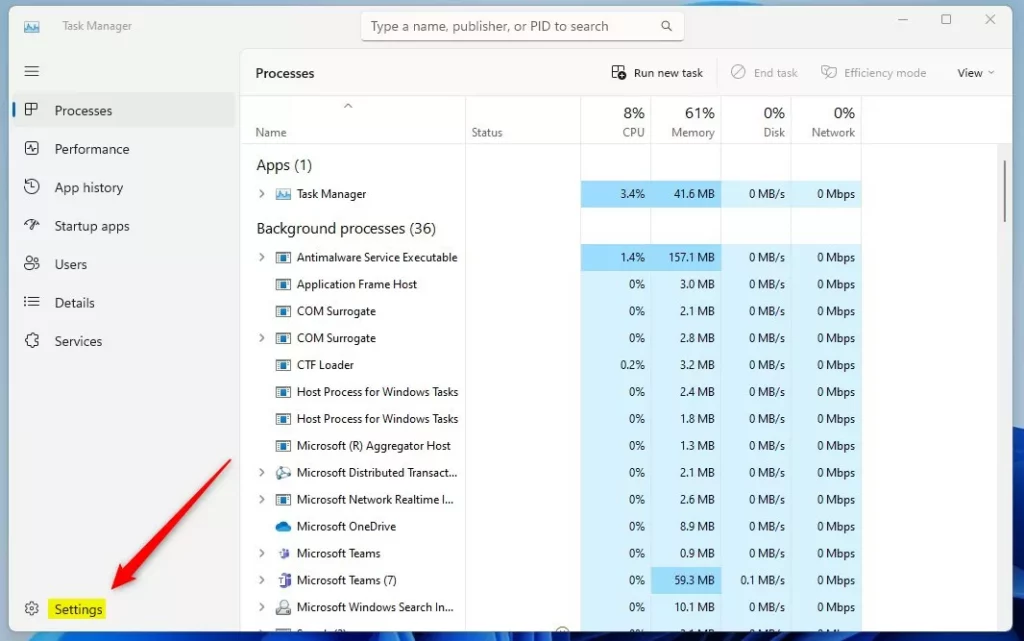
Open Task Manager , click Settings in the bottom left, and select your desired speed from the Real-time update speed dropdown. You can choose High, Normal, Low, or Pause updates to suit your monitoring needs.
How to Change Real-Time Update Speed in Task Manager
You can change the update speed in a few clicks. The setting is the same on Windows 11 Home and Pro, it takes effect immediately, and you do not need to restart. The steps below use the current Task Manager layout, with the navigation sidebar on the left.
- Open Task Manager in one of two ways:
- Right-click the Start button and choose Task Manager , or
- Press Ctrl+Shift+Esc on your keyboard.
- Look at the bottom of the left sidebar and click the gear-shaped Settings icon. The Settings page opens in the main part of the window.
If your sidebar shows only icons, hover over the gear to confirm it is Settings. If you are on an older build that still has the classic menu bar across the top, the same option is under View Update speed
- On the Settings page, find the section called Real-time update speed.
- Open the list and pick the speed you want:
- High
- Normal
- Low
- Pause
You should see the graphs and the process list change their refresh rate right away. If you picked Pause, the numbers freeze until you choose another speed.
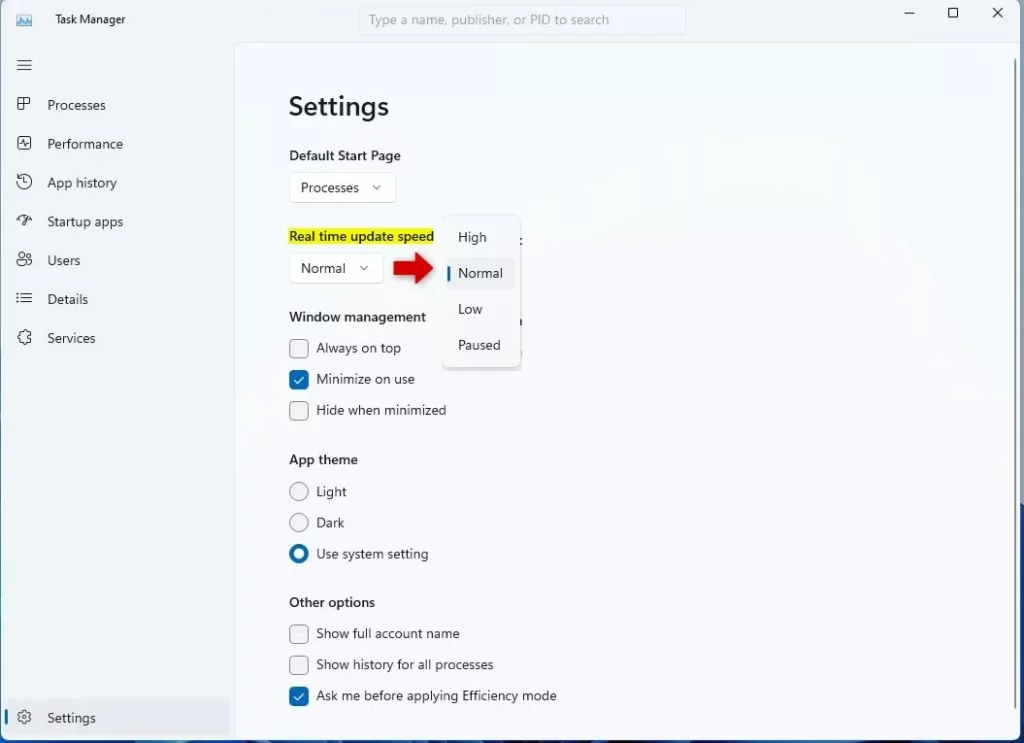
To undo the change, go back to the same list and choose Normal. If Task Manager looks frozen and the numbers are not moving, check that the speed has not been left on Pause. Setting the speed to suit the job lets you watch resource usage at a pace that fits your workflow.
Summary
- Windows 11 Task Manager lets you control how often it refreshes data with the "Real-time update speed" setting.
- You can set it to update very fast, update slowly, or pause updates.
- Changing it takes a few clicks, needs no restart, and is easy to reverse by choosing Normal.
Task Manager update speed settings in Windows 11 let you control how often performance charts and process lists refresh on your screen. You can speed up the refresh rate to spot fast-moving spikes, slow it down to read data easily, or pause updates entirely so items stop jumping around while you try to click them.
Have a question about this guide?
Answered by AI from this guide. Good questions may be added to this page — please don't include personal details.
Did this guide fix your problem?

About the Author
Richard
Tech Writer, IT Professional
Richard is a writer at Geek Rewind who turns complex IT tasks into clear, step-by-step guides. He draws on years of hands-on experience in system administration and enterprise IT operations, focusing on Windows, Linux and WordPress: the problems people actually run into, and the fixes that work. His server and WordPress guides come from systems he runs himself. Richard builds and maintains the platform behind Geek Rewind, from its Ubuntu servers and Nginx configuration to its custom WordPress plugins. Many new tutorials start with readers' questions, and he's always glad to answer them in the comments.
No comments yet — be the first to share your thoughts!