How to Reset All Task Manager Settings to Default in Windows 11

What is Task Manager ?
Task Manager is a built-in Windows 11 tool. It shows which programs and processes are running, how much CPU, memory, disk and network each one is using, and it lets you force-close an app that has stopped responding.
Why reset Task Manager settings?
Task Manager settings are easy to change by accident. You might drag a column, switch the default tab, or change a view option and not remember what it looked like before. You can put everything back in one go instead of undoing each change by hand. That helps most when you don’t remember the original settings.
A reset restores the default layout, column sizes and view options. Custom arrangements, such as modified columns on the Processes tab or customized Performance graphs, go back to their original state. Nothing on your PC besides Task Manager ’s own preferences is touched, and your running programs are not affected.
This guide covers three methods, from fastest to most involved. Start with the first. Move on only if it doesn’t fix the problem.
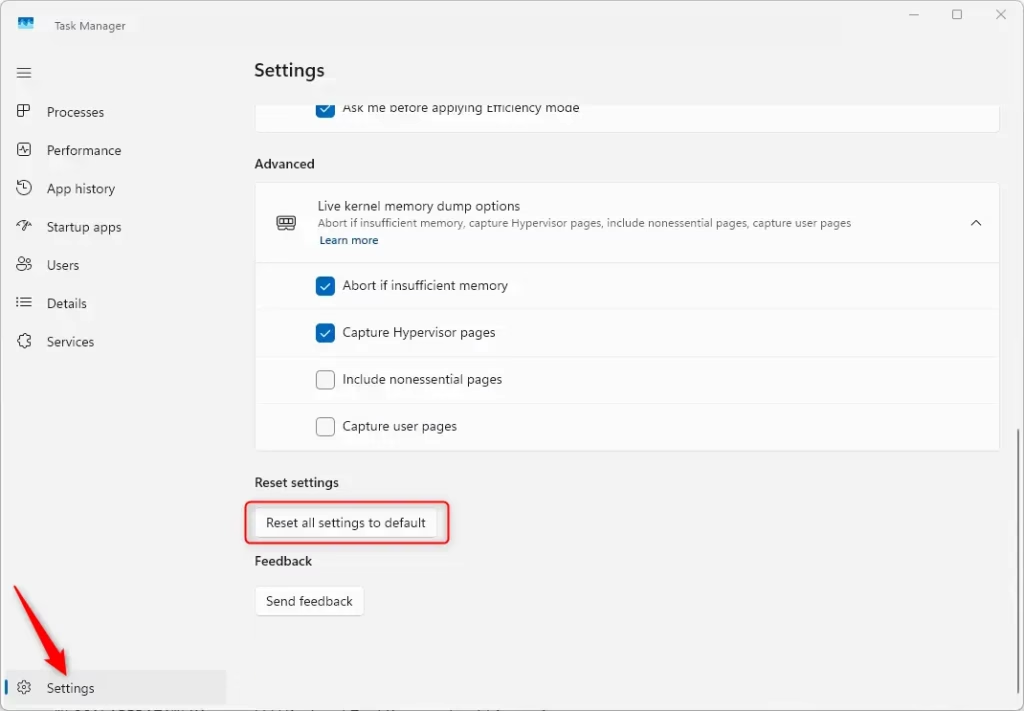
Open Task Manager by pressing Ctrl+Shift+Esc, click Settings at the bottom left, then click Reset all settings to default and confirm. Task Manager returns to its original layout, column sizes and view options with no restart needed.
Option 1Use a Keyboard Shortcut
What this does: This shortcut resets Task Manager instantly using a key combination. It needs no menus and no files, so it works even when Task Manager’s own Settings page is hard to reach.
What Changed
This reset method is available in Windows 11.
- Close Task Manager if it is already open.
- Press and hold Ctrl + Shift + Alt while you open Task Manager . Keep the keys held until the window appears.
- Check the window. It should open with the default layout, column sizes and view options. If it still looks wrong, use the next method.
Option 2Use Task Manager Settings
You can reset Task Manager settings from its built-in Settings page. This is a good choice if the layout looks strange or the app doesn’t behave properly. It restores the default configuration without touching hidden system files or using the command line. You will find the Settings entry at the bottom left of the Task Manager window.
This works in the redesigned Task Manager in current Windows 11 builds. Windows 11 Home and Pro behave the same here. If your Task Manager looks older and has no Settings entry, you are probably on an early Windows 11 release, so use the shortcut method above instead.
- Open Task Manager by pressing Ctrl+Shift+Esc. The Task Manager window appears.
- Click Settings on the bottom left side of Task Manager . The Settings page opens in the main pane.
- Click the Reset all settings to default button. A confirmation prompt appears.
- Click Reset to confirm your choice. Task Manager returns to its default layout and view options.
If you want a particular layout back, you will have to set it up again.
Option 3Delete the Settings File
You can also reset Task Manager by deleting the hidden configuration file in your user profile data folder. This is an advanced troubleshooting step. Windows then creates a fresh preferences file the next time Task Manager starts. It fixes stubborn problems where the app won’t remember your preferred view or column widths.
Close Task Manager completely before you look for the file. If it is still running, it may keep the file in use or write its old settings back. The folder is hidden, so if you browse to it in File Explorer , turn on View Show Hidden items first.
Latest Update
This method is the most thorough, as it removes the user-specific configuration file for Task Manager .
- **ADMIN PRIVILEGES REQUIRED** Delete the file located at:
%LOCALAPPDATA%\Microsoft\Windows\TaskManager\settings.json
If you want to be able to go back, copy the file to another folder before you delete it. Once the file is gone, open Task Manager again. It starts with default settings and creates a new file. Don’t recreate or restore the old file by accident, or the problem will come back.
Summary
You can reset Task Manager to its original defaults in Windows 11 in three ways: a keyboard shortcut, the app’s Settings page, or manually deleting the saved configuration file. The shortcut is the fastest. The other two are reliable alternatives if the shortcut doesn’t work or the Settings page is unresponsive or stuck.
Understanding Task Manager Settings
Task Manager in Windows 11 has several settings that change its appearance and behavior. You can change how columns are displayed on the Processes tab, adjust the graphs and data shown on the Performance tab, and set options such as always-on-top display. When you reset Task Manager, all of these go back to their default values. A reset is useful if you changed something by accident, or if you simply want a clean slate for monitoring your system’s performance.
Troubleshooting Common Issues
If resetting Task Manager doesn't resolve your issue, or if you run into errors, check the points below.
Task Manager won't open: Make sure you have administrative privileges. Try running Task Manager as an administrator (Ctrl + Shift + Esc, then click the gear icon). If you used a registry method, double-check the path and value name for typos.
Settings don't stick: Make sure Task Manager is fully closed before you attempt a reset. If you deleted the configuration file, make sure you didn't accidentally recreate it. Also check for third-party software that might manage or override Task Manager settings.
Errors during reset: If you get errors while editing the registry, undo the changes you made. Consider using the file deletion method instead, because it is generally less prone to system-wide errors.
Frequently asked questions
How do I get my Task Manager back to normal?
Open Task Manager and go to the View menu, then select Options. Click the Reset button to restore default layout, column sizes, and view options. Alternatively, hold Ctrl + Shift + Alt while opening Task Manager for an instant reset.
How do I reset all settings to default in 🪟 Windows 11?
Settings reset varies by app. For Task Manager, use View Options Reset For Windows system settings, go to Settings System Recovery and choose Reset this PC. For individual features, check their options menu for a reset button.
How do I reset all settings back to default?
The method depends on what you're resetting. For Windows, go to Settings System Recovery Reset this PC. For individual apps, look in their Settings or Options menu for a Reset button. Task Manager resets through View Options Reset
Why won't my PC reset to factory settings in 🪟 Windows 11?
Reset may fail due to corruption, insufficient space, or disabled recovery partition. Try restarting your PC and attempting again. Run Settings System Recovery Reset this PC in Safe Mode. If it still fails, use Windows installation media to repair or reinstall Windows.
Still have a question?
Answered by AI from this guide. Good questions may be added to this page — please don't include personal details.
Did this guide fix your problem?

About the Author
Richard
Tech Writer, IT Professional
Richard is a writer at Geek Rewind who turns complex IT tasks into clear, step-by-step guides. He draws on years of hands-on experience in system administration and enterprise IT operations, focusing on Windows, Linux and WordPress: the problems people actually run into, and the fixes that work. His server and WordPress guides come from systems he runs himself. Richard builds and maintains the platform behind Geek Rewind, from its Ubuntu servers and Nginx configuration to its custom WordPress plugins. Many new tutorials start with readers' questions, and he's always glad to answer them in the comments.
No comments yet — be the first to share your thoughts!