Windows 11 Task Manager Not Responding? 7 Ways to Fix It

- 40 steps
- Needs administrator rights
- Group Policy needs Windows 11 Pro, Enterprise or Education
- Includes a restart or sign-out
A frozen Task Manager leaves you unable to close stuck apps or check system performance. The window usually turns white, stays blank, or stops updating. Task Manager is the built-in system monitor that lets you force-quit frozen programs and check CPU and memory usage.
Corrupted system files, glitchy background processes, or a damaged user account often cause Task Manager to stop responding. The methods below run from the quickest and least disruptive to the most drastic. Work through them in order and test Task Manager after each one. Stop as soon as it works. Most of the time you will not need to go past the first two or three.
Fix Windows 11 Task Manager not responding by using alternative launch methods like pressing the Ctrl+Shift+Esc keys or typing taskmgr into the Run dialog box. If it opens frozen, restart Windows Explorer from the process list or use the Command Prompt to repair corrupted system files.
Fix 1: Use Keyboard Shortcuts and Alternative Launch Methods
Opening Task Manager a different way helps you bypass a broken shortcut or a stuck interface. Each key combination below calls Task Manager through a separate route in Windows. If a mouse click does nothing, one of the others will often still work, and you can then close the frozen apps.

Try these methods one at a time:
- Press Ctrl+Shift+Esc together. This opens Task Manager directly and skips the taskbar and the Start menu, so it works even when the desktop is sluggish.
- Press Ctrl+Alt+Del together. On the blue screen that appears, click Task Manager. This screen is drawn by Windows itself, so it still responds when Explorer is hung.
- Press Win+X to open the quick link menu, then click Task Manager in the list. Right-clicking the Start button opens the same menu.
- Press Win+R to open the Run dialog box, type
taskmgrinto the box, and press Enter.

If one of these methods opens Task Manager and it works normally, the cause is most likely a broken shortcut or a temporary glitch in the interface. You can carry on with your work. If Task Manager opens but is still blank or frozen, move on to the next method.
Fix 2: Restart Windows Explorer
Windows Explorer is the process that draws your taskbar, desktop icons, and File Explorer windows. When it gets stuck, other parts of the interface can freeze with it, including Task Manager. Restarting it refreshes the desktop and often brings a frozen Task Manager back without a full reboot.
Follow these steps to restart Windows Explorer:
- Open Task Manager with one of the methods above, such as Ctrl+Shift+Esc.
- If an older Task Manager window is already open and frozen, select it and press Alt+F4 to close it. Windows may ask whether to wait or close the program, so choose to close it. Then open a fresh copy with Ctrl+Shift+Esc.
- On the Processes page, find Windows Explorer . It sits in the list of apps and Windows processes, so scroll down if you do not see it at first.
- Click Windows Explorer to select it.
- Click the Restart task button in the toolbar at the top of the Task Manager window. It appears when Windows Explorer is selected. You can also right-click Windows Explorer and choose Restart.
Your screen and taskbar will flash or disappear for a second or two. This is normal, and your open apps keep running. Once the desktop reloads, open Task Manager again and check that it responds. If the screen stays black or the taskbar does not come back, press Ctrl+Shift+Esc, choose Run new task, and start Explorer again from there.

Fix 3: Run System File Checker and DISM Scans
System File Checker (SFC) and DISM (Deployment Image Servicing and Management, a tool that repairs the Windows component store that SFC draws from) are built-in repair tools. They scan for corrupted system files and replace them with healthy copies. Damaged system files are a common cause of Task Manager hangs, so this step is worth the wait.
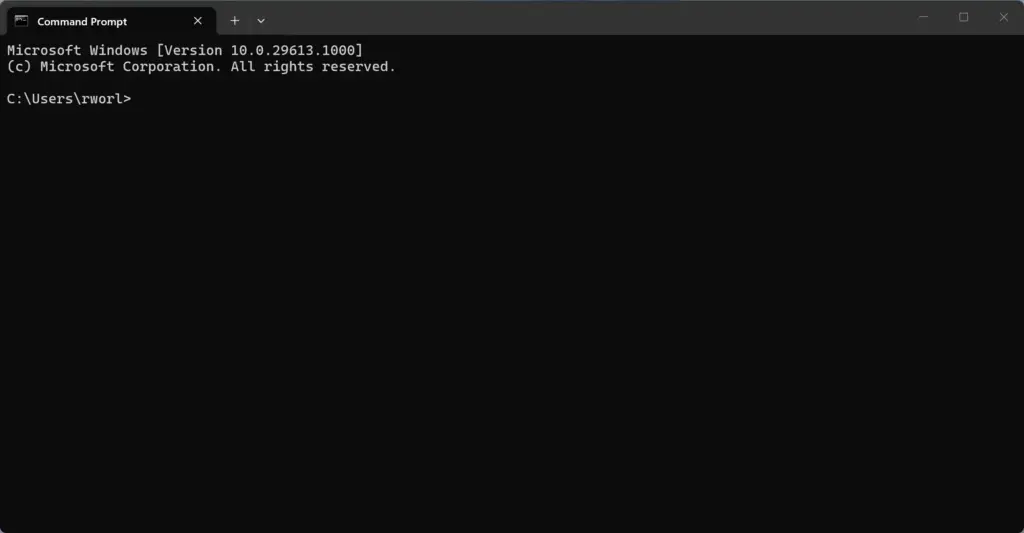
You must open Command Prompt as an administrator. Without elevated rights the scans cannot repair protected files, and SFC will simply refuse to run. You can do this by typing cmd in the Windows search bar, right-clicking the Command Prompt result, and choosing Run as administrator. If search is not responding, right-click the Start button and choose Terminal (Admin) instead. The commands work the same way there.
You must be signed into an administrator account on your computer to run these commands.
- Click the search box on the taskbar , or click Start . You should see the search panel open.

- Type
cmdinto the search box. Command Prompt should appear at the top of the results. - In the search results, right-click Command Prompt and select Run as administrator.
- If a User Account Control prompt asks whether you want to allow this app to make changes to your device, click Yes. If you are signed in as a standard user, Windows asks for an administrator password instead.
- A black Command Prompt window opens. Type the System File Checker command exactly as shown in this guide, then press Enter. The scan starts and a percentage counter appears.
Wait for the verification to reach 100 percent. It can take several minutes, and the counter may seem to stall for a while. Do not close the window early, because the tool is repairing the damaged files that make Task Manager freeze. When it finishes, read the message it prints. If it says it repaired files, restart your PC and test Task Manager. If it says it found corrupt files it could not fix, run the DISM repair command first, then run the SFC scan again. When you are done, close the Command Prompt window.
Fix 4: Check for User Account Profile Glitches
Testing with a brand new user account tells you whether a corrupted profile is causing the freeze. If Task Manager works normally on the fresh profile, your old account files are damaged. In that case, move your personal data to a new profile to fix the problem permanently.
To test this, create a temporary local user account on your computer.
- Press Win+I to open the Settings app .

- Click Accounts in the left-hand menu.
- Click Other users. Some versions of Windows label this Family & other users.
- Next to Add other user, click Add account. A Microsoft account sign-in window opens.
- Click I don’t have this person’s sign-in information.
- Click Add a user without a Microsoft account.
- Type a simple name for the test account, such as
TestUser. You can leave the password fields blank if you prefer, then click Next. The new account should now appear in the list under Other users. - Click Start , click your profile icon at the bottom left, and select Sign out.
- On the sign-in screen, choose the new
TestUseraccount and sign in. The first sign-in takes a minute while Windows builds the profile. - Try opening Task Manager in this new account.
If Task Manager works perfectly here, your old user profile is damaged. You can keep using the new account, or copy your personal files over to it, to fix the problem for good. If it freezes in the new account as well, the profile is not the cause. Sign out, go back to your normal account, and continue with the next method. When you are finished testing, you can delete the test account from Settings Accounts Other users by selecting it and choosing Remove.
Fix 5: Check for Unfamiliar Background Processes and Software Conflicts
Names like Crashpad or Renderer are usually helper tasks from modern apps and browsers, not viruses. Even so, a rogue background program or a conflicting utility stuck in a loop can make Task Manager freeze, turn white, or stop updating. Safe Mode is the quickest way to test this. It starts Windows with a minimal set of drivers and services, so third-party software stays out of the way.
To find out whether a background program is causing the hang:
- Click Start , then click the Power icon.
- Press and hold the Shift key and click Restart. Keep holding Shift until the screen changes.
- Your computer restarts to a blue selection screen. Click Troubleshoot.
- Click Advanced options.
- Click Startup Settings. If you do not see it, click See more recovery options at the bottom first.
- Click Restart.
- When the computer reboots to a numbered list of startup choices, press 4 or F4 to enable Safe Mode.
- Once Windows loads in Safe Mode, try opening Task Manager .
To leave Safe Mode, restart the computer normally. If Task Manager works fine in Safe Mode, a third-party app or antivirus program that loads at normal startup is the likely cause. Perform a clean boot, which starts Windows with only Microsoft services. Then re-enable your startup items a few at a time until the freeze comes back. The last item you turned on is your culprit.
Fix 6: Check Windows Registry Settings for Task Manager Restrictions
System policies can restrict Task Manager, and an old tweak or a piece of management software may have set one. A blocked Task Manager normally shows a message that it has been disabled by your administrator rather than just freezing. Still, it takes a minute to rule out. The Windows Registry is the database that stores low-level system settings, and policies like this are saved there. You can check the policy safely through the Local Group Policy Editor, without editing the registry by hand.
Note: This step requires administrator privileges.
- Press Win+R to open the Run dialog box.
- Type
gpedit.mscinto the box and press Enter. The Group Policy Editor is only included in Windows 11 Pro, Enterprise, and Education. If you use Windows 11 Home, the command will fail, so skip to the note after these steps. - In the Local Group Policy Editor window, use the left-hand panel to go to User Configuration Administrative Templates System > Ctrl+Alt+Del Options.
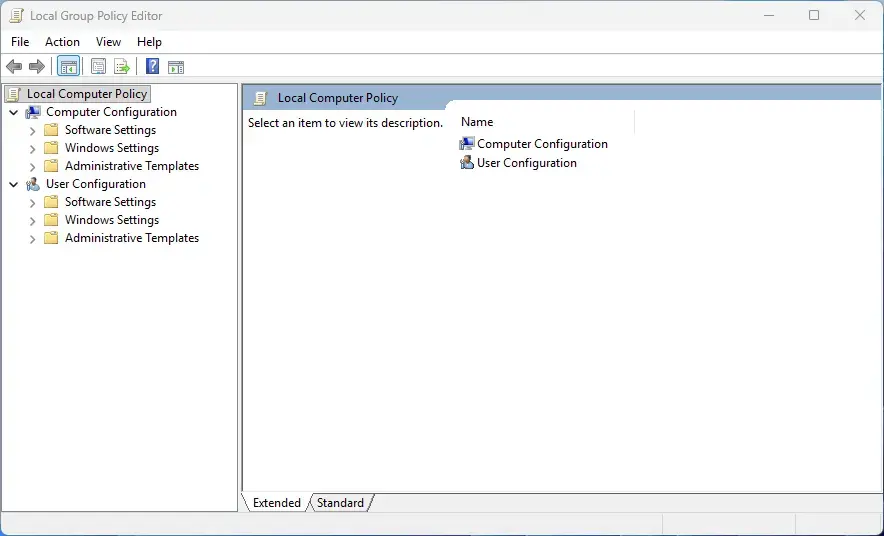
- Look in the middle pane for the setting named Remove Task Manager .
- Double-click Remove Task Manager . A settings window opens.
- Check that it is set to Not Configured or Disabled. If it is set to Enabled, change it to Not Configured, click Apply, then click OK. Sign out and back in, or restart, so the change takes effect.
On Windows 11 Home you cannot open the Group Policy Editor. A default Home installation does not hide or block Task Manager unless custom administrative software changed it. On a work or school PC, an organization policy may also reapply this setting, so ask your IT department if it keeps coming back.
Fix 7: Perform an In-Place Upgrade or System Reset
A reset is the last resort. It repairs deep operating system corruption when the other fixes have failed, and you can choose to keep your personal files. It takes a while and removes your installed apps, so try everything else first.
Before you start, back up anything important to an external drive or cloud storage. On a laptop, plug in the charger so the reset does not run out of battery partway through.
To reset your computer while keeping your files:
- Press Win+I to open the Settings app.
- Click System in the left sidebar, then click Recovery on the right.
- Find the Reset this PC section and click the Reset PC button.
- A window gives you two choices. Click Keep my files. This removes the apps and settings you installed but keeps your personal documents, photos, and files. The other choice, Remove everything, wipes the drive.
- Choose Cloud download or Local reinstall to reinstall Windows. Cloud download is the better choice if your internet connection is stable, because it fetches a fresh copy of Windows. Local reinstall reuses the files already on your PC, which may include the corruption.
- Follow the remaining instructions on your screen to complete the reset. The PC restarts several times.
Once the reset finishes, Windows 11 is freshly installed and Task Manager should work normally. You will need to reinstall your apps afterwards.
Unique Expert Tips: Preventing Future Task Manager Freezes
These two habits help prevent the freeze from coming back. The first resets Task Manager’s own saved preferences. The second deals with a common cause of Task Manager slowdowns: the browser.
- Clear the Task Manager CacheThe modern Windows 11 Task Manager stores cached data about column layouts, page selections, and window sizes. If this data gets corrupted, the app can freeze on launch. You can reset it by opening the Run dialog box (Win+R) and typing
%localappdata%\Microsoft\Windows\WinX, or by checking the application data folders to clear the corrupted interface preferences. A clean cache helps prevent sudden blank white screens. - Monitor Resource-Heavy Browser ExtensionsMany Task Manager freezes come from web browsers whose background processes consume thousands of threads. When you open Task Manager, it tries to read all active threads at once. If a browser has hundreds of idle background tabs open, it can overwhelm Task Manager’s update cycle. Close tabs you are not using and turn off extensions you do not need. Do this in your browser’s extensions page, and the system stays more responsive.
Summary
What to do next
Once Task Manager responds normally again, create a manual system restore point so you can quickly roll back after future software problems. Type “Create a restore point” in the Start search, open the result, and use the Create button on the System Protection tab. If freezes continue after all the software repairs, test your memory for physical errors. Windows Memory Diagnostic is built in, and you can find it by searching for it in Start. A failing RAM module or drive can cause random hangs that no software fix will cure.
“`
Have a question about this guide?
Answered by AI from this guide. Good questions may be added to this page — please don't include personal details.
Did this guide fix your problem?

About the Author
Richard
Tech Writer, IT Professional
Richard is a writer at Geek Rewind who turns complex IT tasks into clear, step-by-step guides. He draws on years of hands-on experience in system administration and enterprise IT operations, focusing on Windows, Linux and WordPress: the problems people actually run into, and the fixes that work. His server and WordPress guides come from systems he runs himself. Richard builds and maintains the platform behind Geek Rewind, from its Ubuntu servers and Nginx configuration to its custom WordPress plugins. Many new tutorials start with readers' questions, and he's always glad to answer them in the comments.
No comments yet — be the first to share your thoughts!