How to Turn On or off Always on Top for Windows Terminal in Windows 11

This guide shows you how to keep the Windows Terminal window above all other windows, and how to turn that off again when you no longer need it. The change takes about a minute. It needs no restart and no administrator rights, and it works the same on Windows 11 Home and Pro.
Open Windows Terminal, press Ctrl +, to open Settings , click Appearance, and switch Always on top to On. Click Save and the terminal window stays above all other windows immediately, with no restart needed.
What is Windows Terminal?
Windows Terminal puts command-line tools such as Command Prompt and PowerShell into a single window with tabs. You open one app and pick the shell you want for each tab. On recent Windows 11 builds it is the default terminal app, so you probably already have it.
The official Windows Terminal documentation covers every feature and setting in detail, including the always-on-top option. It is worth a look if you want to customize the app further.
What does “Always On Top” mean?
With Always on top turned on, the Windows Terminal window stays visible above your other windows, even when you click into another app. That is handy when you want to watch a long-running command, a build log or a ping test while you work in a browser or an editor.
The downside is that the terminal can cover things you need to see. If that gets annoying, move the window to a second monitor or turn the setting off again using the same steps below.
How to Enable or Disable Always On Top
- Open Windows Terminal. Click the Start menu, type Windows Terminal and press Enter. The terminal window opens with a tab for your default shell.
- Click the down arrow next to the tabs at the top of the window, then click Settings. You can also press
Ctrl + ,(Ctrl plus comma) to open Settings directly. A new Settings tab opens inside the terminal window.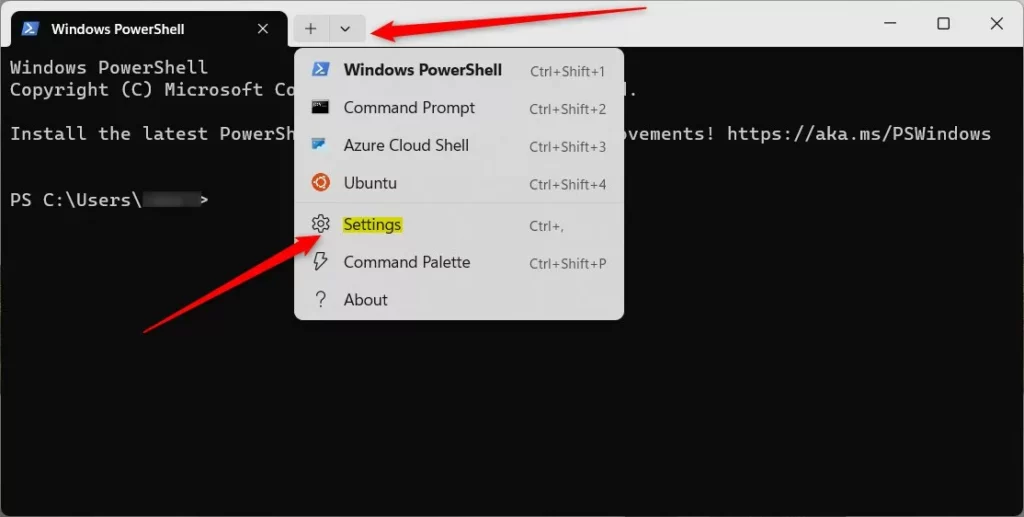
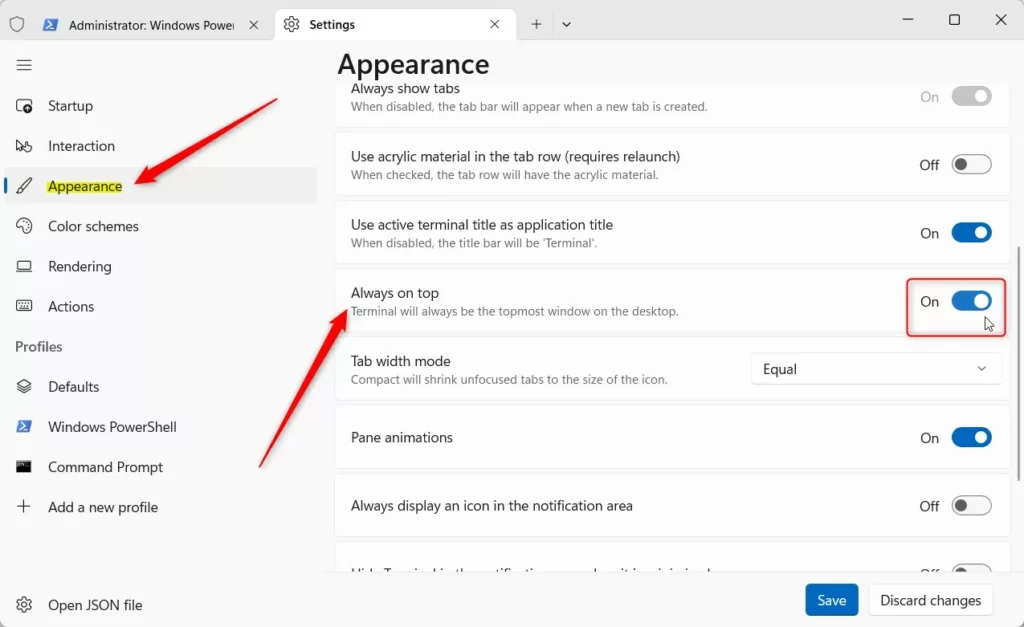
Windows Terminal Settings button updated - In the list on the left side of the Settings tab, click Appearance. The appearance options appear on the right.
- Find the Always on top option. Set the switch to On if you want Windows Terminal to stay above other windows. Set it to Off if you want it to behave like a normal window again.
- Click the Save button at the bottom right of the Settings tab. The change takes effect straight away, and you do not need to restart the terminal. Click another app to test it: the terminal should stay in front when the setting is on.
- Close the Settings tab and keep using Windows Terminal as usual.
Open the Microsoft Store, check Downloads for updates, install any available update for Windows Terminal, and try again. To undo the change at any time, go back to Settings Appearance, switch Always on top to Off and click Save.
To turn Always on top on or off in Windows Terminal, do the following:
- Open Windows Terminal.
- Click the down arrow next to the tabs and choose Settings, or press Ctrl + ,.
- Select Appearance.
- Switch Always on top to On or Off, then click Save.
Summary
You can switch the setting on or off at any time in the Appearance settings.
Small changes like this make the terminal fit the way you work. Check for Windows Terminal updates now and then through the Microsoft Store, because updates bring new features and fixes.
For more detailed information, visit the official Windows Terminal Documentation.
Have a question about this guide?
Answered by AI from this guide. Good questions may be added to this page — please don't include personal details.
Did this guide fix your problem?

About the Author
Richard
Tech Writer, IT Professional
Richard is a writer at Geek Rewind who turns complex IT tasks into clear, step-by-step guides. He draws on years of hands-on experience in system administration and enterprise IT operations, focusing on Windows, Linux and WordPress: the problems people actually run into, and the fixes that work. His server and WordPress guides come from systems he runs himself. Richard builds and maintains the platform behind Geek Rewind, from its Ubuntu servers and Nginx configuration to its custom WordPress plugins. Many new tutorials start with readers' questions, and he's always glad to answer them in the comments.
No comments yet — be the first to share your thoughts!