How to Change Windows Terminal Launch Mode in Windows 11


Windows Terminal launch mode controls how the app window appears the moment you open it in Windows 11. You can set the app to start in a standard window, a maximized window, a full screen window, or one of two “focus” layouts that hide the tabs and title bar.
This setting helps you tailor the interface for tasks that need extra space, such as running long command line scripts or working across several tabs. The change takes about a minute, and you can reverse it at any time.
Open Terminal, click the down arrow next to the tabs and choose Settings, then select Startup in the left pane. Pick your option from the Launch mode list, such as Maximized or Focus, and click Save. The new layout applies the next time you open a Terminal window.
What happens when done?
The setting applies to every new Terminal window you open from then on. A window that is already open keeps its current layout until you close it and start a new one.
How to change the Windows Terminal launch mode
Here is the short version. Open Terminal, click the down arrow at the top of the window and choose Settings. In the left pane, select Startup, find the Launch mode list, pick the option you want, and click Save. The steps below walk through each part in detail.
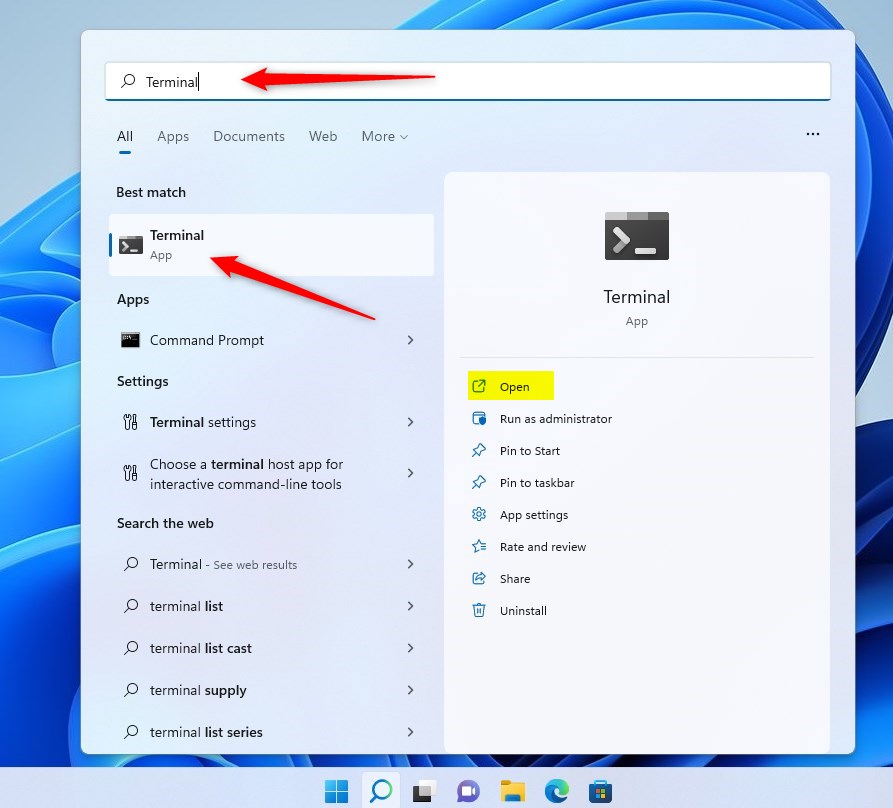
- Open the Terminal app. Click the Start button, type “Terminal,” and select Terminal from the results. A Terminal window opens, usually with a PowerShell tab. On Windows 11 the Terminal app is installed by default on current builds. If the search finds nothing, install Windows Terminal from the Microsoft Store.
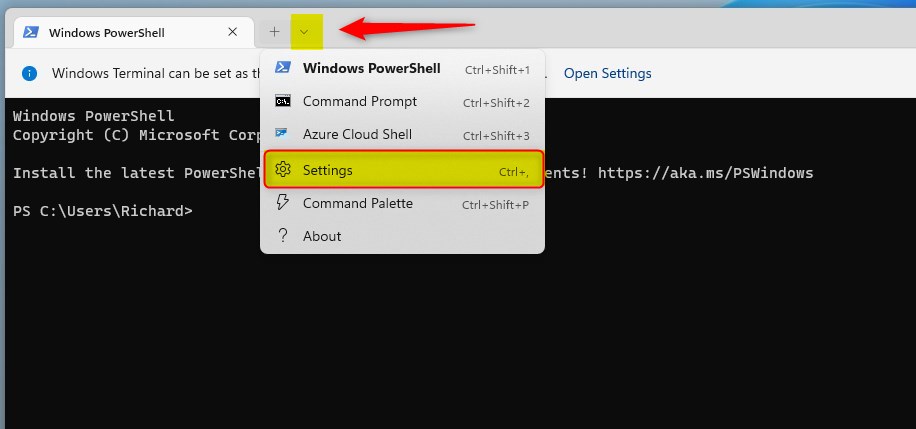
- Once the app is open, click the down arrow at the top of the window, next to the tabs. Select Settings from the menu. You can also press Ctrl + , (the comma key) on your keyboard to open this screen. The Settings page opens in a new tab inside Terminal, with a list of categories on the left.
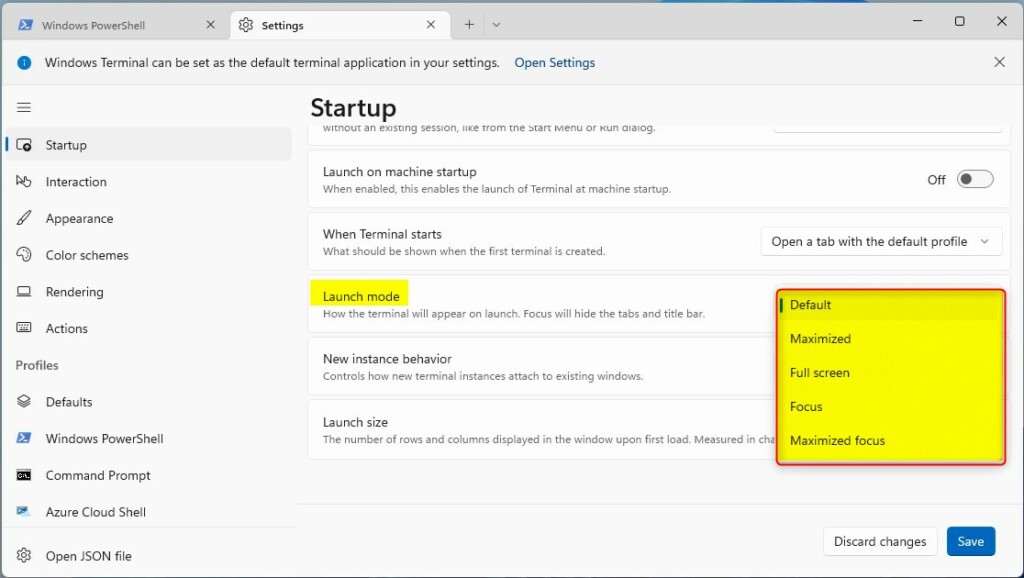
- Select the Startup section in the left pane. Find the Launch mode setting and choose your preferred option from the list. The list contains these choices:
- Default: Opens in the standard window size. This is the setting Terminal ships with.
- Maximized: Opens as a full-size window. The title bar and tabs stay visible, and you can still see the taskbar .
- Full screen: Opens covering your entire screen, including the taskbar . Press F11 to leave full screen once Terminal is open.
- Focus: Opens in a normal window but hides the tabs and title bar. This gives you a clean, minimal window.
- Maximized focus: Opens as a full-size window with the tabs and title bar hidden. It is a good pick for a single long-running session where you want as much text on screen as possible.
- Click the Save button at the bottom of the page to apply your changes. Close Terminal and open it again. The new window should now start in the mode you chose. To undo the change, return to Startup, set Launch mode back to Default, and click Save again.
Understanding JSON Configuration
Windows Terminal stores your preferences in a plain-text configuration file named settings.json. Every change you make on the Settings page is written to this file, so you can also edit it by hand if you prefer. To open it, select Open JSON file at the bottom of the left pane in Settings. Editing the file gives the same result as using the Settings page, but a typo can stop a setting from loading, so make a copy of the file before you change it.
Launch mode decides how the window looks when it opens. The machine startup option decides whether Terminal opens automatically when you sign in to Windows.
Launch Position, Size, and Behavior
Beyond the launch mode, you can also tell Windows Terminal exactly where to appear on your screen and how large it should be. Look through the other options on the Startup page for the launch size and position settings. Keep in mind that a size you set only matters when Launch mode is Default or Focus. A maximized or full screen mode fills the screen regardless of the size you chose.
Summary
Getting your Windows Terminal launch mode right helps you work more efficiently, because your workspace is set up the same way every time you open the app. If you later want a different layout, the same setting is always one Settings page away.
Have a question about this guide?
Answered by AI from this guide. Good questions may be added to this page — please don't include personal details.
Did this guide fix your problem?

About the Author
Richard
Tech Writer, IT Professional
Richard is a writer at Geek Rewind who turns complex IT tasks into clear, step-by-step guides. He draws on years of hands-on experience in system administration and enterprise IT operations, focusing on Windows, Linux and WordPress: the problems people actually run into, and the fixes that work. His server and WordPress guides come from systems he runs himself. Richard builds and maintains the platform behind Geek Rewind, from its Ubuntu servers and Nginx configuration to its custom WordPress plugins. Many new tutorials start with readers' questions, and he's always glad to answer them in the comments.
[…] open the Windows Terminal app, and use the PowerShell tab as […]
[…] open the Windows Terminal app and select either Windows PowerShell or Command Prompt […]
[…] open Windows Terminal and select either Windows PowerShell or Command Prompt […]
[…] Read more about how to open Windows Terminal with PowerShell. […]