How to Change Windows Terminal Language in Windows 11

Windows Terminal can show its own interface in a different language from the rest of Windows 11. That means you can change what Terminal displays without touching your main PC language settings. Windows Terminal is the Microsoft app that brings Command Prompt, PowerShell and other command environments into one tabbed window.
The change is one setting and takes less than a minute. It works on Windows 11 version 21H2 and newer, as long as your copy of Terminal is reasonably current. The same steps apply on Home and Pro.
Open Windows Terminal, press Ctrl +, to open Settings , click Appearance in the left sidebar, select a language from the Language (requires relaunch) dropdown, click Save, then close and reopen Terminal completely.
What is Windows Terminal?
Windows Terminal is a modern app in Windows 11 that combines Command Prompt, PowerShell and WSL in a single window. You can run each of them in its own tab, or split a tab into panes and work in several shells side by side. Because the app has its own language setting, you can pick the language you want for Terminal without affecting anything else on the PC.
Terminal does more than the older console windows. You can open many tabs at once, split the window into panes, and display a wide range of symbols and characters. You can also change its colors and backgrounds to suit your taste.
Why Does Windows Terminal Use a Certain Language?
By default, Terminal uses the same display language as Windows. Override that only when you want a different language for your command line and want the rest of the system left alone.
This setting changes Terminal’s own interface: menus, settings pages and labels. It does not change the language of the programs you run inside it. Those follow their own rules.
How to Change the Language in Windows Terminal
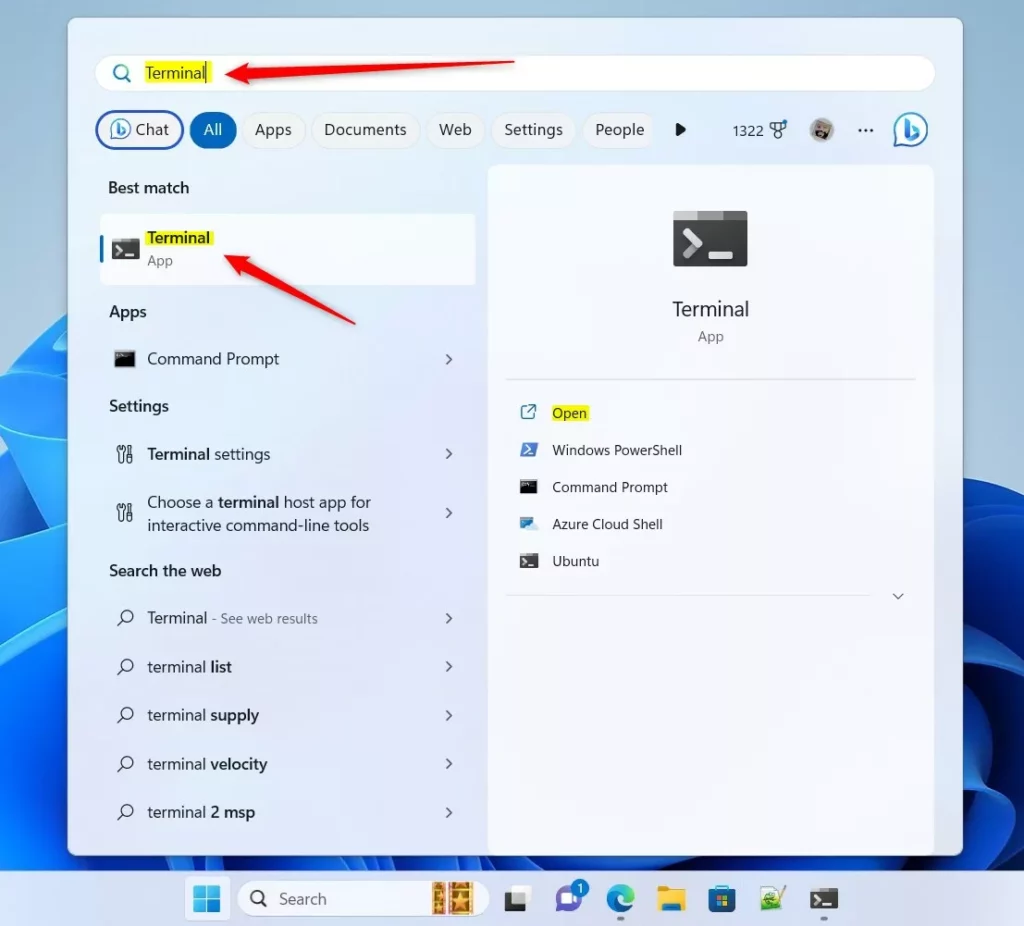
Step 1Open Windows Terminal
- Press the Windows key.
- Type
Terminalinto the search box. - Select the app from the results.
If the app does not appear in search, it may not be installed. Windows 11 22H2 and later include it, but on 21H2 you may need to install it from the Microsoft Store.
Step 2Open the Settings
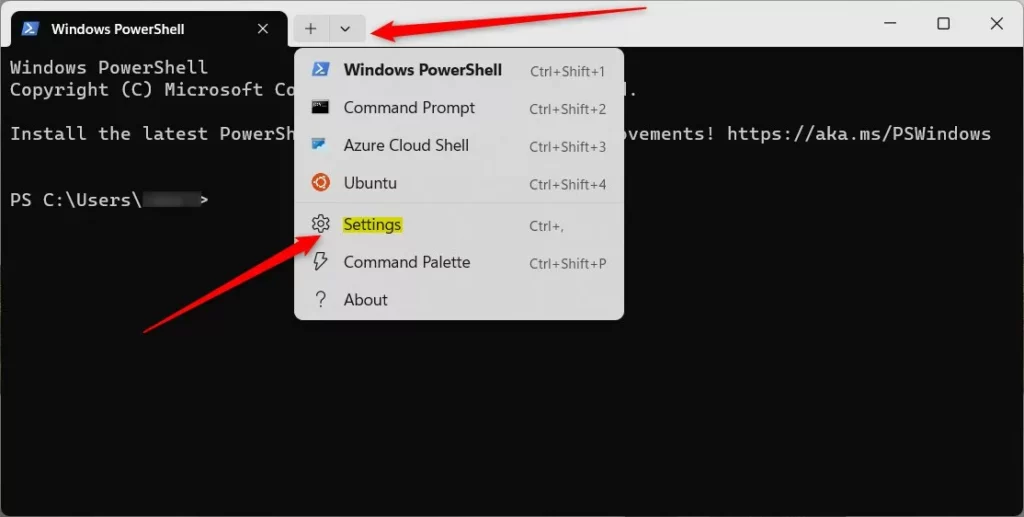
- Look at the title bar at the top of the Terminal window.
- Click the small down arrow ▼ next to the tabs.
- Select Settings from the menu.
You can also skip the menu and press Ctrl + , on the keyboard. Either way, a Settings page opens in a new tab inside Terminal, with a list of categories down the left side.
Step 3Change the Language
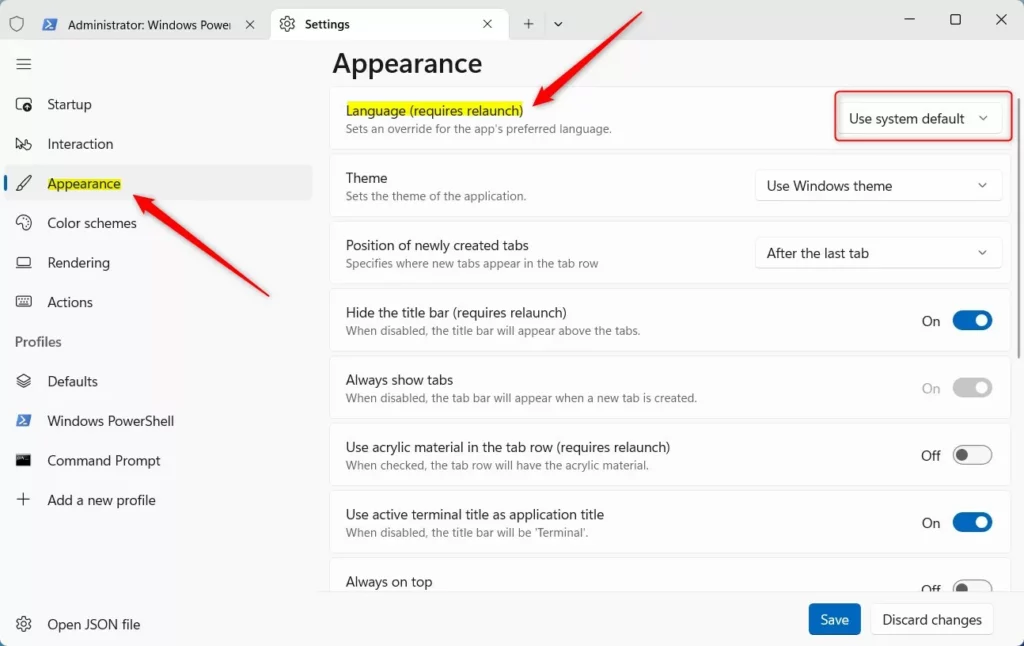
- In the left sidebar of Settings, click Appearance.
- Find the option labeled Language (requires relaunch).
- Open the drop-down list and choose the language you want.
If you cannot see the Language option at all, your copy of Terminal is probably too old. Update it through the Microsoft Store and try again.
Step 4Save and Restart
- Click the Save button at the bottom of the Settings page.
- Close Windows Terminal completely, including every open Terminal window.
- Open Windows Terminal again.
The menus and settings pages should now appear in the language you picked. The setting says it requires a relaunch, so the old language stays until you close and reopen the app.
To undo the change, go back to Settings, then Appearance, and set Language (requires relaunch) back to the default entry, which follows your Windows display language. Save, then relaunch Terminal again.
Summary
- Windows Terminal is a modern app for command-line tools in Windows 11.
- It uses your Windows system language by default, but you can set a different language inside the app itself.
- Changing the language is simple: open Terminal, go to Settings Appearance, pick a new language, save, and restart Terminal.
Windows Terminal uses your main system language by default, but you can set a different language just for this app. Open the app, go to Settings, choose Appearance, pick a language under Language (requires relaunch), and click Save. Then close and reopen Terminal so the new language applies to all your menus and tabs.
- How to Open Command Prompt in Windows 11
- How to Open PowerShell in Windows 11
- How to Install Linux on Windows 11 (WSL)
- How to Change Windows 11 Display Language
If you have questions about changing the Windows Terminal language in Windows 11, leave a comment below the article. Your feedback helps shape future tutorials.
Have a question about this guide?
Answered by AI from this guide. Good questions may be added to this page — please don't include personal details.
Did this guide fix your problem?

About the Author
Richard
Tech Writer, IT Professional
Richard is a writer at Geek Rewind who turns complex IT tasks into clear, step-by-step guides. He draws on years of hands-on experience in system administration and enterprise IT operations, focusing on Windows, Linux and WordPress: the problems people actually run into, and the fixes that work. His server and WordPress guides come from systems he runs himself. Richard builds and maintains the platform behind Geek Rewind, from its Ubuntu servers and Nginx configuration to its custom WordPress plugins. Many new tutorials start with readers' questions, and he's always glad to answer them in the comments.
No comments yet — be the first to share your thoughts!