How to Install Microsoft PC Manager on Windows 11

Microsoft PC Manager is a free system optimization tool made by Microsoft. It cleans junk files, boosts memory, and runs security checks to speed up Windows 11. The app works on both Windows 11 and Windows 10, and it helps fix lag and free up storage space. It is the same on Home and Pro editions.
Temporary files and background apps pile up over time and slow down your PC. Clearing out these leftovers helps your computer run smoothly again. This guide covers three ways to install the app: the Microsoft Store, a manual download, and a command in Windows Terminal. Pick one. You do not need all three.
Download Microsoft PC Manager from the Microsoft Store, its official website, or by using the winget command in Windows Terminal. The Microsoft Store method is the easiest, as the app installs automatically after clicking “Get”.
Method 1Install from the Microsoft Store
The Microsoft Store is the easiest route because it installs the app and keeps it updated for you. Install Microsoft PC Manager on your Windows 11 PC directly from the Store.
Open the Microsoft Store listing for PC Manager with this link. It should open in the Store app. If your browser asks which app to use, choose Microsoft Store.
Click the Get button on the listing page to start the download. The button changes to show progress. If it says Open instead of Get, the app is already installed on this PC.
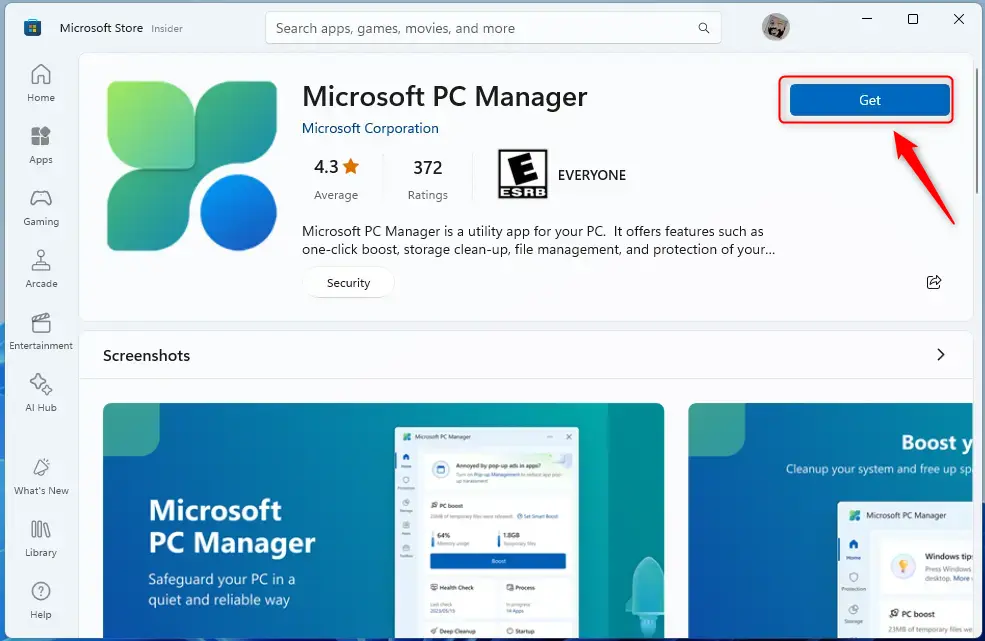
- Wait for the download to finish. The app installs on its own, so you do not need to click through a setup wizard.
- Click Open once the process completes. The PC Manager window should appear.
Method 2Download the EXE File
A manual download is an alternative if the Store integration fails. This can happen when the Store is blocked, will not open, or keeps stalling on a download. Use these steps instead:
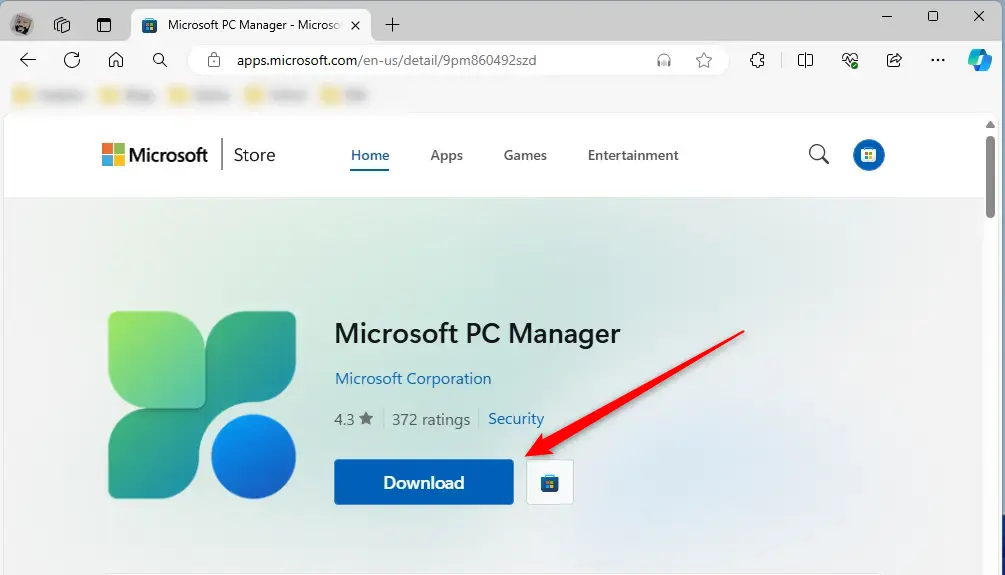
Open your web browser and go to this link:
Click the Download button on the page. Your browser saves the installer file, usually to the Downloads folder. If the browser shows a warning, check that the file came from the Microsoft page before you keep it.
- Open File Explorer and go to the Downloads folder to find the installer.
- Double-click the file to launch the setup wizard.
- Follow the prompts in the wizard until the installation finishes.
Method 3Use the Winget Command
Windows Terminal (a text-based interface for running commands) lets you install Microsoft PC Manager quickly by running one short command. Open Windows Terminal, paste the install command, and press Enter. You finish the setup without clicking through a web browser. This method is handy when you set up several PCs or work over remote sessions.
Open the Windows Terminal app. Then open either a Windows PowerShell or a Command Prompt tab inside the console. Either one works for this command. You do not need to run it as administrator unless Windows asks for it.
Copy this command and paste it into the console window. In Windows Terminal, you can paste with Ctrl+V or by right-clicking:
winget install 9pm860492szd
- Press Enter to run the command.
- Accept the license terms when prompted. The installation will not continue until you do.
- Wait for the console to report that the installation is complete, then look for PC Manager in the Start menu.
Summary
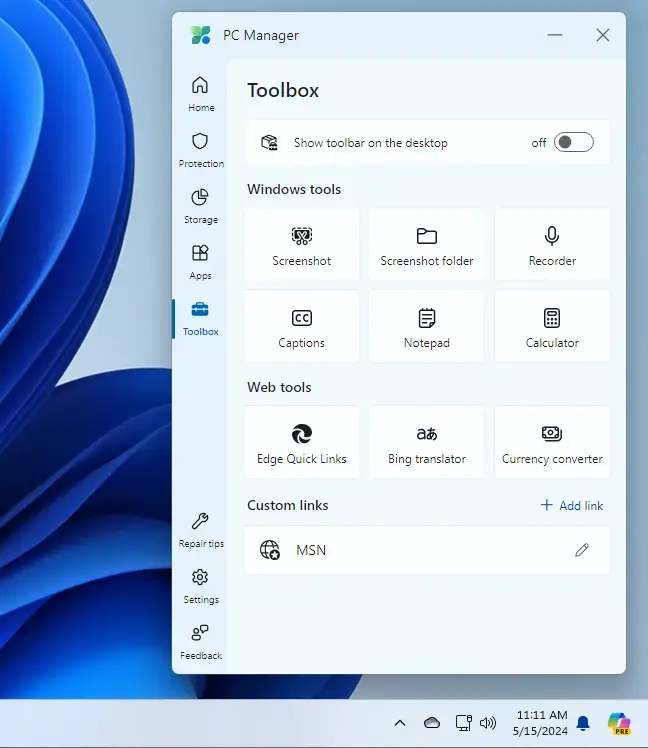
Microsoft PC Manager helps keep your Windows 11 PC clean and running smoothly. It removes junk files, boosts speed, and checks for security issues. If you decide you do not want it, you can remove it like any other app in Settings Apps Installed apps
Have a question about this guide?
Answered by AI from this guide. Good questions may be added to this page — please don't include personal details.
Did this guide fix your problem?

About the Author
Richard
Tech Writer, IT Professional
Richard is a writer at Geek Rewind who turns complex IT tasks into clear, step-by-step guides. He draws on years of hands-on experience in system administration and enterprise IT operations, focusing on Windows, Linux and WordPress: the problems people actually run into, and the fixes that work. His server and WordPress guides come from systems he runs himself. Richard builds and maintains the platform behind Geek Rewind, from its Ubuntu servers and Nginx configuration to its custom WordPress plugins. Many new tutorials start with readers' questions, and he's always glad to answer them in the comments.
No comments yet — be the first to share your thoughts!