How to Reinstall Dev Home App in Windows 11

The Dev Home app in Windows 11 gives you one dashboard for tracking coding projects, managing Dev Drives (the special storage drives for developer work), and turning on developer tools. If it freezes, crashes, or loses its settings, a reinstall clears out the bad files and puts a fresh copy on your PC.
The process is two parts: remove the app with PowerShell, then download it again from the Microsoft Store. It takes about 5 minutes. Before you start, close Dev Home if it is still running, and note down any settings you want to set up again afterwards.
Open Windows Terminal, ensure you’re in PowerShell, then run Get-AppxPackage *Windows.DevHome* | Remove-AppxPackage to uninstall Dev Home. Next, open the Microsoft Store, search for Dev Home, and click Install. The app reinstalls in a few minutes and appears in your Start menu .
How to Uninstall and Reinstall Dev Home
A fresh installation is the right fix when the app freezes, closes right after you open it, or won’t open at all. It will not fix problems caused by something else on your system, such as a broken Windows update or a missing tool Dev Home depends on. If the same fault returns after a clean reinstall, look there next.
Step 1Open Windows Terminal with PowerShell
You remove Dev Home by running a command in Windows Terminal. On Windows 11, Windows Terminal normally opens straight into PowerShell, but check the tab name before you type anything, because the same command will not work in Command Prompt.
- Click the Start button or press the Win.
- Type Windows Terminal and select it from the list.
- Make sure the tab says PowerShell. If not, click the down arrow (˅) next to the plus (+) sign and choose PowerShell.
- Click the Start button or press the Win.
- Type Windows Terminal and select it from the results. A terminal window opens.
- Look at the active tab at the top of the window. It should say PowerShell.
- If it shows something else, click the down arrow (˅) next to the plus (+) sign and choose PowerShell. A new tab opens with a PowerShell prompt.
Read more about how to open Windows Terminal with PowerShell.
Step 2Uninstall Dev Home for Your User Account
With the PowerShell tab open, run the removal command for your own user account. This removes Dev Home only for the account you are signed in to, so you do not need administrator rights for this version.
Type or copy-paste this command into the PowerShell window, then press Enter:
Get-AppxPackage *Windows.DevHome* | Remove-AppxPackagewinget uninstall --id Microsoft.DevHome -e --source winget
PowerShell may show a short progress bar while it works. When the prompt comes back, the app has been removed. Check the Start menu: Dev Home should no longer be listed. If a red error appears instead, read the message. The most common cause is a typo, so copy the command again rather than retyping it.
Step 3 (Optional): Uninstall Dev Home for All Users
Without them, Windows will not let the system-wide removal command run, and you will get an access error. Open Windows Terminal as administrator first.
- Click the Start button.
- Type Windows Terminal.
- ⚠️ Admin Required: Right-click on Windows Terminal and select Run as administrator.
- Again, make sure you are in the PowerShell tab, then paste this command and press Enter:
- Right-click the Start button.
- Select Windows Terminal (Admin). On newer builds of Windows 11, this entry may be labelled Terminal (Admin).
- Click Yes on the User Account Control (UAC) prompt. If you are on a standard account, Windows asks for an administrator's password instead.
- Check that the tab says PowerShell. If not, click the down arrow (˅) next to the plus (+) sign and choose PowerShell. The window title should now include "Administrator".
Get-AppxPackage -AllUsers -PackageTypeFilter Bundle -Name "*Windows.DevHome*" | Remove-AppxPackage -AllUserswinget uninstall --id Microsoft.DevHome -e --source winget
Learn more about running Windows Terminal as admin.
Step 4Reinstall Dev Home from Microsoft Store
The Microsoft Store is the easiest way to get Dev Home back once the old files are gone. You need an internet connection, and you may be asked to sign in with a Microsoft account if the Store is not already signed in.
- Open the Microsoft Store app on your PC.
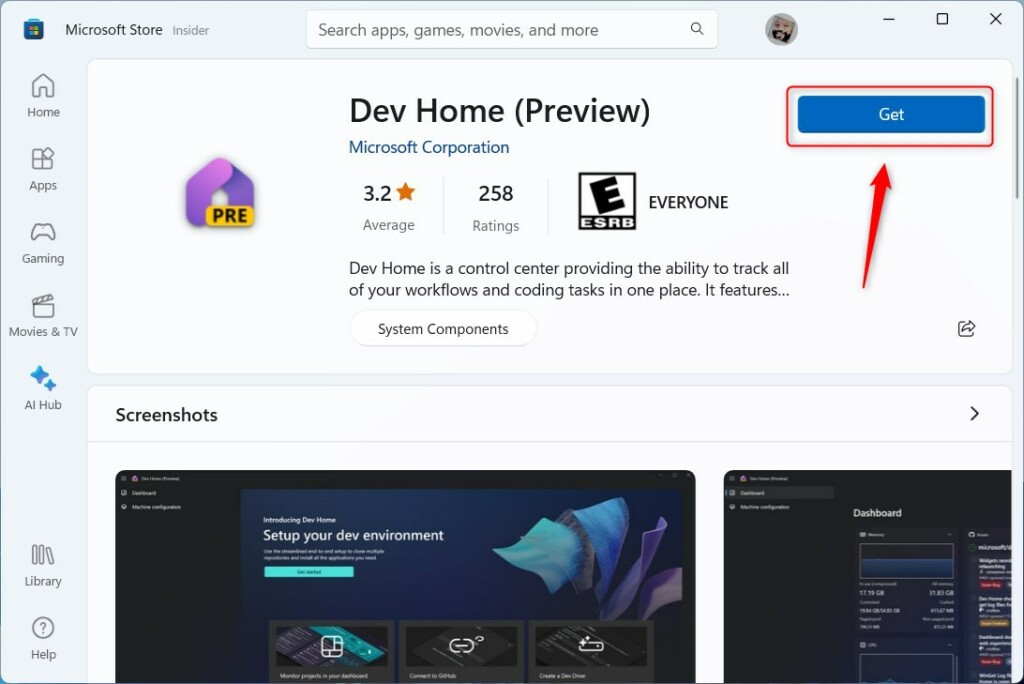
- Search for Dev Home or click this link: Get Dev Home app
- Click the Get button to download and install the app.
- Open the Microsoft Store app from the Start menu.
- Click the search bar at the top and type Dev Home. Press Enter.
- Select Dev Home from the results to open its page. Make sure the publisher is Microsoft Corporation.
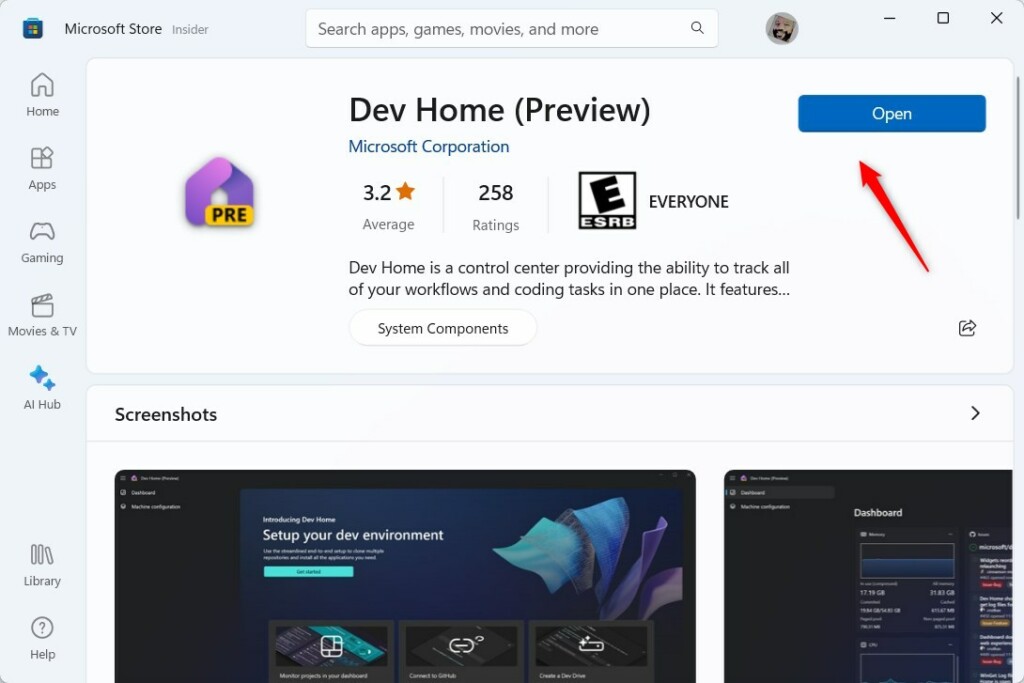
- Click Get. The Store downloads and installs the app, and the button changes to Open when it is done.
If Dev Home does not appear in the Store, note that Microsoft has announced it is retiring the app. In that case the Store may no longer offer it, and a reinstall may not be possible. Check the Microsoft Store listing for the current status.
Once the installation finishes, launch the app from the Start menu or click Open in the Store. The Dev Home dashboard should load without freezing. You may need to reconnect your GitHub account and set up your project widgets again, since a clean install does not bring back your old settings.
Sign in to each Windows 11 profile and repeat the Microsoft Store steps above. Until then, those users will not see the app.
Once Dev Home opens normally, the reinstall is finished. No restart is needed.
Summary
Reinstalling Dev Home on Windows 11 clears out common performance faults and restores your core developer tools. Project tracking and performance tuning workflows should run normally again once the fresh copy is in place.
Have a question about this guide?
Answered by AI from this guide. Good questions may be added to this page — please don't include personal details.
Did this guide fix your problem?

About the Author
Richard
Tech Writer, IT Professional
Richard is a writer at Geek Rewind who turns complex IT tasks into clear, step-by-step guides. He draws on years of hands-on experience in system administration and enterprise IT operations, focusing on Windows, Linux and WordPress: the problems people actually run into, and the fixes that work. His server and WordPress guides come from systems he runs himself. Richard builds and maintains the platform behind Geek Rewind, from its Ubuntu servers and Nginx configuration to its custom WordPress plugins. Many new tutorials start with readers' questions, and he's always glad to answer them in the comments.
No comments yet — be the first to share your thoughts!