How to Run Apps as Administrator in Windows 11

Running an app as administrator in Windows 11 gives the program full access to change system files and install software, which a standard user account blocks for security. You can launch any program with these elevated rights in two clicks. Right-click the app icon and choose Run as administrator from the menu.
This guide covers three ways to do it: once, every time, or from a shortcut you pin to the taskbar . It also covers the risks and a command-line option. The steps are written for current Windows 11.
Right-click the app icon and select Run as administrator from the menu, then click Yes on the User Account Control prompt. To run it as administrator every time, right-click the icon, open Properties, click the Compatibility tab, and check Run this program as an administrator.
Why run as an administrator?
Running a program as an administrator grants it extra permissions. These let the program change important Windows 11 system settings that ordinary programs cannot alter, such as files in protected folders, system-wide settings and parts of the registry.
Being signed in to an administrator account is not the same thing. Even then, Windows starts most programs with standard rights. It only raises them when you approve it. That is why some tools fail with “access denied” until you start them as administrator.
What happens when done?
When you run an app as an administrator, it gets full access to make system changes a normal user can’t, such as altering important Windows settings . Installers, disk and network tools, and older programs that write to protected folders are the usual reasons to do this.
Only elevate apps you trust and actually need to elevate. Anything you start this way can change the system without asking again.
How to run an app as an administrator once
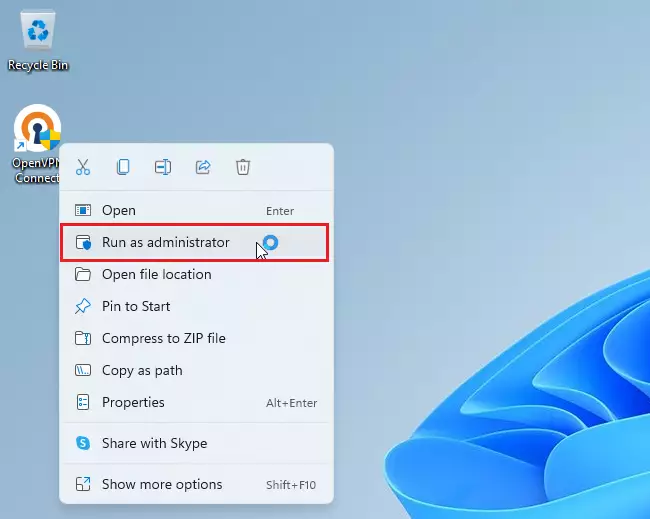
You can run an app as administrator for a single session when it needs temporary system changes and you don't want to give it permanent full access to your PC. Find the app shortcut or .exe file, right-click the icon, and pick Run as administrator from the menu that appears. Click Yes on the User Account Control prompt and the program launches with full permissions right away.
The next time you open the app normally, it runs without elevation again. Nothing is saved.
- Find the app icon on your desktop or in your Start menu. In Start, you can type the app's name in the search box, or open All apps and find it in the list.
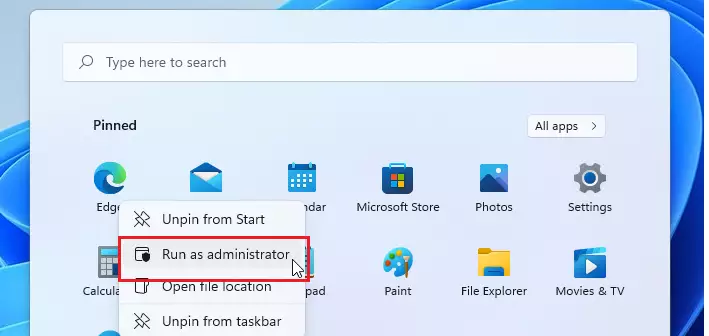
- Right-click the icon. A context menu opens. On Start menu items, the admin option may sit under More.
- Select Run as administrator. A User Account Control window appears and asks whether you want to allow the app to make changes to your device. Click Yes. If you are signed in with a standard account, Windows asks for an administrator's password instead. The app then opens with elevated rights.
- Alternatively, select the app and press Ctrl + Shift + Enter on your keyboard. This works well from Start search. Type the app's name, then press the three keys together instead of plain Enter. You get the same User Account Control prompt.
If Run as administrator is missing from the menu, the item may not be an app you can elevate, such as a document or a Microsoft Store app. Right-click the app's actual .exe file or its desktop shortcut instead.
How to always run an app as an administrator
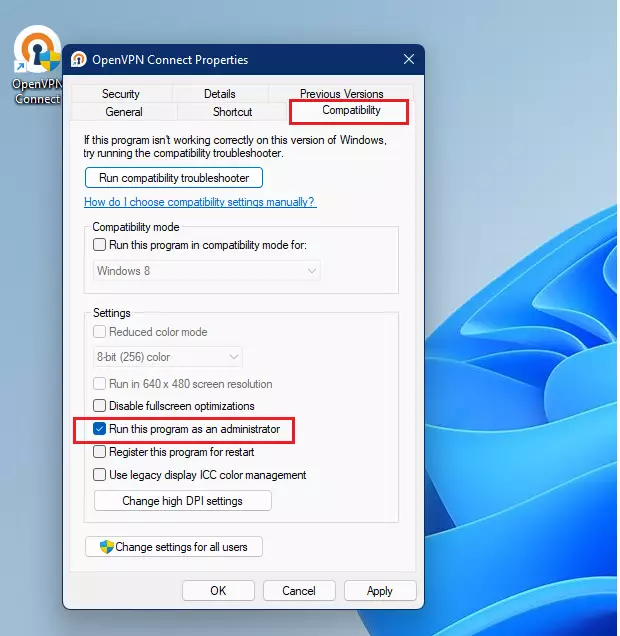
You can configure Windows 11 to always run an app as administrator, so you don't have to right-click and choose the option every time you open it. Right-click the app shortcut, open Properties, go to the Compatibility tab, and check the box next to Run this program as an administrator. Save your changes by clicking Apply, and the program will request elevated permissions on every future launch.
You will still see the User Account Control prompt each time. This setting only saves you the right-click step. It does not skip the prompt.
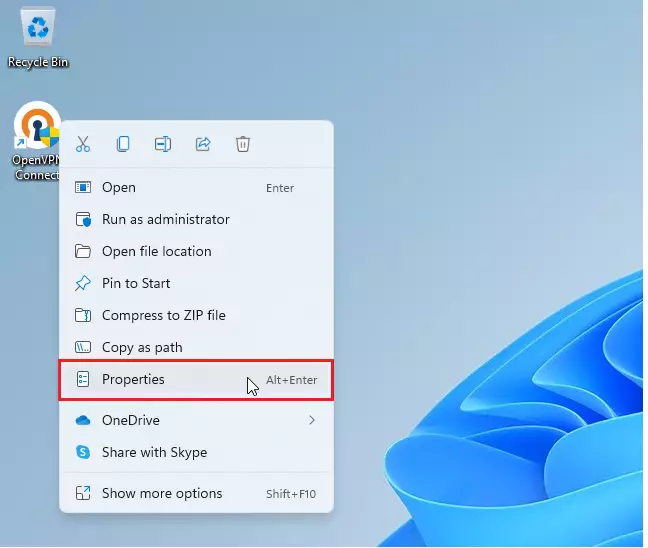
- Right-click the app icon and select Properties. For a Start menu item, first right-click it and choose Open file location (under More). Then right-click the shortcut that opens. The Properties window appears.
- Click on the Compatibility tab. You will see a list of compatibility and settings options.
- Check the box that says Run this program as an administrator. If the box is greyed out, you may not have permission to change this file, or the program is protected by Windows. In that case, try the Change settings for all users button at the bottom of the tab.
- Click Apply, then OK to save your changes. The window closes. The next time you open the app it asks for elevation. To undo this, return to the same tab, clear the checkbox and save again.
No restart is needed. The setting applies the next time the app starts.
Pinning an Admin-Elevated Shortcut
You can create a special shortcut that always runs your app as an administrator, allowing you to pin it to your taskbar for quick access with elevated rights. This is handy for tools you elevate daily.
- Right-click the app's shortcut on your desktop and select Properties. If you don't have a shortcut yet, right-click an empty spot on the desktop and choose New Shortcut, then follow the wizard to point it at the app's .exe file.
- On the Shortcut tab, click Advanced. A small dialog opens.
- Check Run as administrator, then click OK.
- Click Apply, then OK in the Properties window.
- Right-click the shortcut, choose Show more options, then select Pin to taskbar. The icon appears on the taskbar, and each click on it asks for elevation.
To undo this, clear the same checkbox, or unpin and delete the shortcut.
Security Risks and UAC
Running apps as an administrator carries security risks. A malicious or buggy program with admin rights can change system files, install other software or disable protections. That is why Windows has User Account Control (UAC) prompts, which ask for your permission before making changes.
Read each prompt. Check that the program name and publisher are what you expect. If a prompt appears when you didn't start anything, click No. Don't turn UAC off to avoid the prompts. You can adjust its level by searching Start for "Change User Account Control settings", but the default is the safest choice for most people.
Command Line Alternative
The command line provides another way to launch programs with administrator rights. To run a program as a specific account from a terminal, type runas /user:Administrator "program_name". Windows asks for that account's password, and the application then runs with that account's rights so it can perform system-level tasks. The built-in Administrator account is disabled by default on Windows 11, so this command only works if it has been enabled or if you swap in another administrator account name.
If you just want an elevated command line, there is an easier route. Right-click the Start button and choose Terminal (Admin), then click Yes on the prompt. Any program you start from that window inherits the elevated rights. Close the window when you are done.
runas /user:Administrator "C:\Path\To\Your\App.exe"
Summary
Running an app as an administrator gives it special power to change system files. You can do this once with a right-click, permanently through the app's Compatibility settings, or through a dedicated shortcut. Use it only for programs you trust, and read every UAC prompt before you click Yes.
Have a question about this guide?
Answered by AI from this guide. Good questions may be added to this page — please don't include personal details.
Did this guide fix your problem?

About the Author
Richard
Tech Writer, IT Professional
Richard is a writer at Geek Rewind who turns complex IT tasks into clear, step-by-step guides. He draws on years of hands-on experience in system administration and enterprise IT operations, focusing on Windows, Linux and WordPress: the problems people actually run into, and the fixes that work. His server and WordPress guides come from systems he runs himself. Richard builds and maintains the platform behind Geek Rewind, from its Ubuntu servers and Nginx configuration to its custom WordPress plugins. Many new tutorials start with readers' questions, and he's always glad to answer them in the comments.
No comments yet — be the first to share your thoughts!