Run File Explorer as Administrator in Windows 11


Running File Explorer as an administrator in Windows 11 lets you bypass standard security limits to modify protected system files and folders. File Explorer (the default app you use to browse files) normally runs with basic permissions. Those permissions block changes to critical directories like 📁C:\
You need elevated administrator rights when standard user access stops you from editing, moving, or deleting deep system files. You will typically see an “access denied” or “you need permission to perform this action” message. This guide covers two ways to launch File Explorer with full administrative control. Both work the same on Windows 11 Home and Pro.
Before you start, make sure your account is an administrator, or that you know the password of one. Without that, Windows will not let you elevate anything. Be careful once you are in. An elevated window can change or delete files that Windows needs to boot.
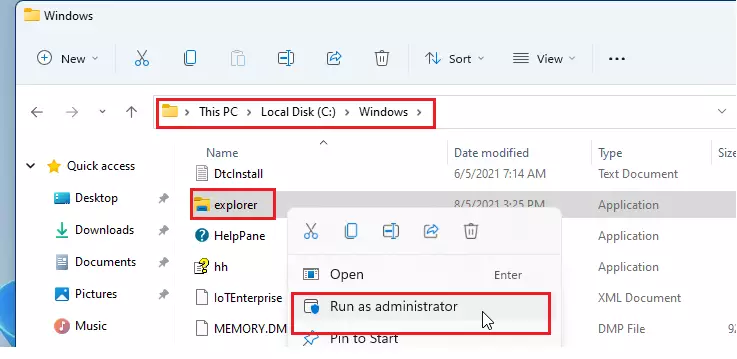
To run File Explorer as administrator in Windows 11, open the Windows folder at 📁C:\
How to open File Explorer in Windows as an administrator
The first method starts File Explorer from its own program file in the Windows folder and uses the right-click Run as administrator option. The second method, further down, uses Task Manager . A normal shortcut or the Start menu only opens File Explorer with standard rights, so you need one of these two routes.
- open File Explorer from the Taskbar or press the Windows + E keys on your keyboard. A normal File Explorer window should appear.
- Navigate to the C:\Windows folder. This folder holds many files, so it can take a moment to load.
- Scroll down and locate the explorer app. Make sure you pick the app itself, not a similarly named file or folder.
- Right-click the app and select Run as administrator. If you do not see the option in the short menu, use the Show more options entry first.
- If the User Account Control prompt appears, approve it. If you are signed in as a standard user, Windows asks for an administrator’s password instead.
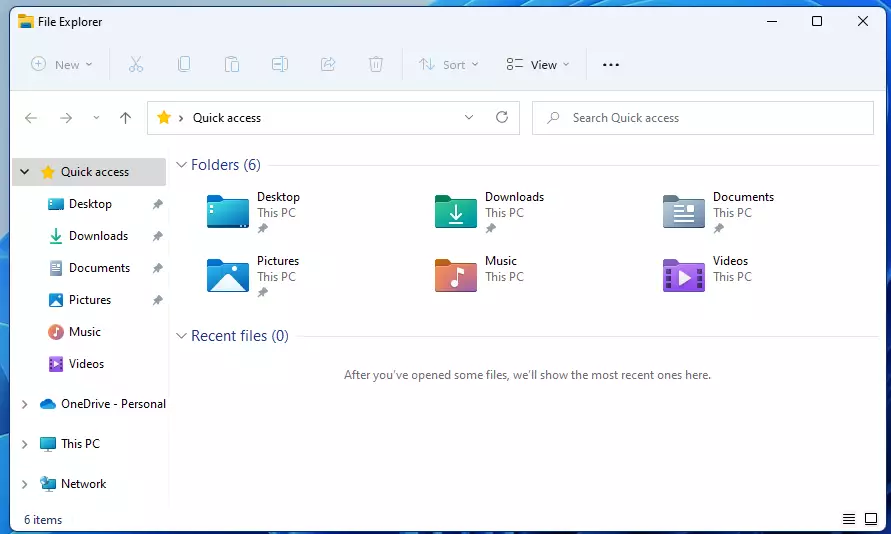
It may look identical to a normal window, so use it for the task you had in mind and then close it. You do not need to restart the PC. To undo the change, close the window. The next time you open File Explorer normally, it runs with standard rights again.
This is the better choice if the right-click option does not do anything for you. You open Task Manager , start a new task, and tick the box that runs it with administrator privileges.
- open the Task Manager in Windows 11. Pressing Ctrl + Shift + Esc also opens it directly.
- If prompted, select More details.
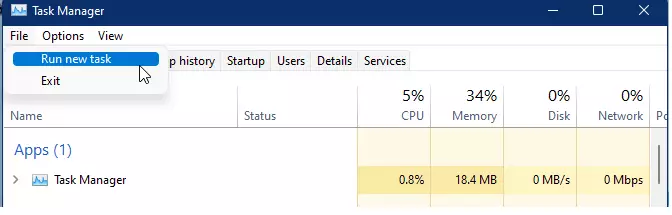
- Click Run new task, as shown below. On some builds this is a button at the top of the window. On others you reach it through File Run new task A small Create new task window should open.
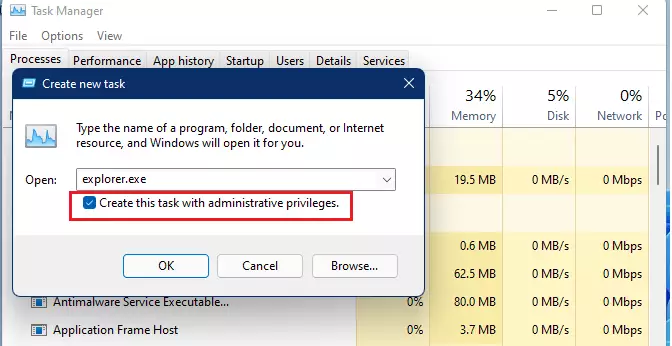
- In the pop-up window, check the box labeled Create this task with administrative privileges. If you skip this box, the new window opens with normal rights and nothing changes.
- Type the command below into the box (it is explorer.exe) and press Enter.
explorer.exe
After pressing Enter, a new File Explorer window will open with administrator privileges. If nothing appears, check that the box was ticked and that you approved any prompt. If the box is missing or greyed out, your account is probably not an administrator. Sign in with one and try again.
When you finish, close the elevated window. No restart is needed, and your regular File Explorer keeps working as before.
That completes the process.
Conclusion:
- Opening File Explorer with administrative privileges lets you manage protected files and folders that a standard window blocks.
- You can run File Explorer as an administrator by right-clicking its program file in the Windows folder or by starting a new task in Task Manager.
- Your account needs administrator permissions, or you need an administrator's password, for either method to work.
- Use the elevated window only for the job at hand and close it afterward, since mistakes in system folders can break Windows.
- Try both methods and keep whichever one fits your workflow better.
Have a question about this guide?
Answered by AI from this guide. Good questions may be added to this page — please don't include personal details.
Did this guide fix your problem?

About the Author
Richard
Tech Writer, IT Professional
Richard is a writer at Geek Rewind who turns complex IT tasks into clear, step-by-step guides. He draws on years of hands-on experience in system administration and enterprise IT operations, focusing on Windows, Linux and WordPress: the problems people actually run into, and the fixes that work. His server and WordPress guides come from systems he runs himself. Richard builds and maintains the platform behind Geek Rewind, from its Ubuntu servers and Nginx configuration to its custom WordPress plugins. Many new tutorials start with readers' questions, and he's always glad to answer them in the comments.
No comments yet — be the first to share your thoughts!