How to Open Windows Terminal at Startup in Windows 11


Windows Terminal can open your command-line tools as soon as your desktop loads in Windows 11. It is the Microsoft app that puts Command Prompt, PowerShell and Linux shells in one window with tabs. On Windows 11 22H2 and later it comes installed. On earlier builds you install it from the Microsoft Store.
Setting this up saves you a few clicks every time you turn on your PC.
Why Automate Terminal Launch?
Automating the terminal launch removes repetitive setup steps. If you open the same shell every morning for scripts, SSH sessions or monitoring tools, they are ready before you reach for the keyboard.
Your customized Terminal preferences (profiles, color schemes, fonts) also apply every time the session starts, so the window always looks the way you set it up.
How to Automatically Launch the Terminal App on Windows
You can make Windows Terminal start automatically by changing one setting inside the app. It has a built-in option to launch itself when you sign in, so you do not need to add a shortcut to your Startup folder. The change works the same on Windows 11 Home and Pro, and it needs no restart. It takes effect the next time you sign in.
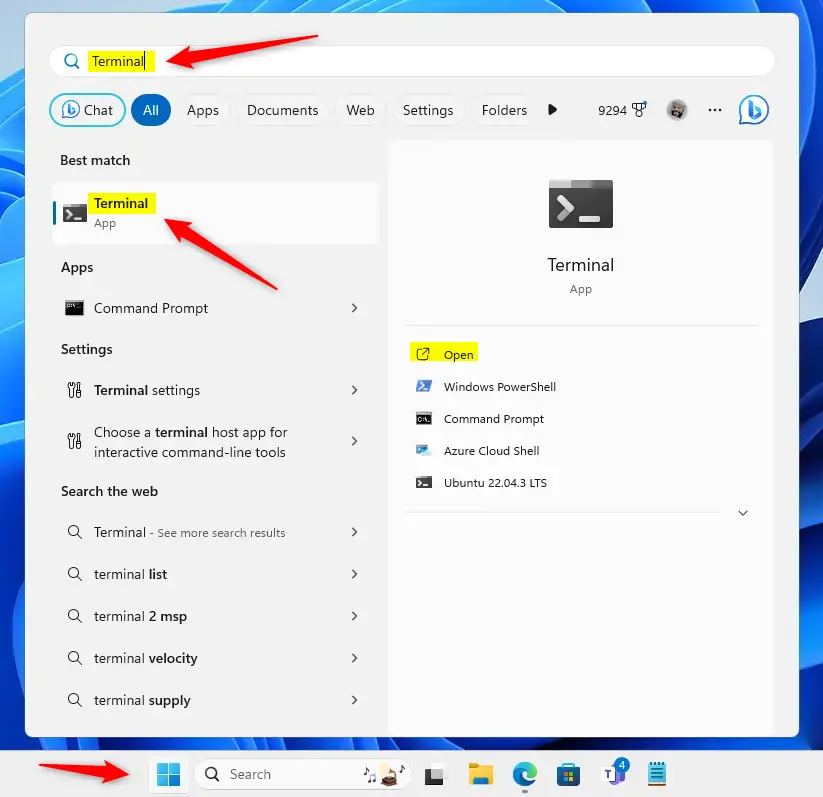
- Press the Windows key.
- Type Terminal.
- Press Enter to launch the Windows Terminal app.
A Terminal window should open with a tab for your default shell, usually PowerShell. If nothing appears in search, the app is not installed. Get it from the Microsoft Store first.
Step 2: Access Terminal Settings
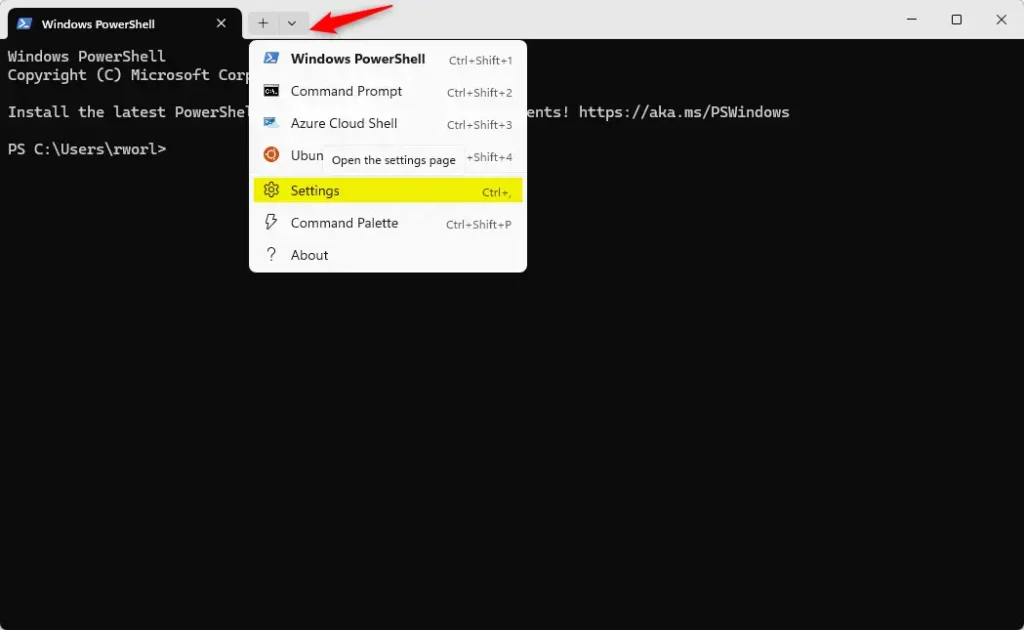
- Click the down arrow in the tab bar at the top of the window.
- Select Settings.
A new Settings tab opens with a list of options on the left.
Step 3: Enable Startup Launch
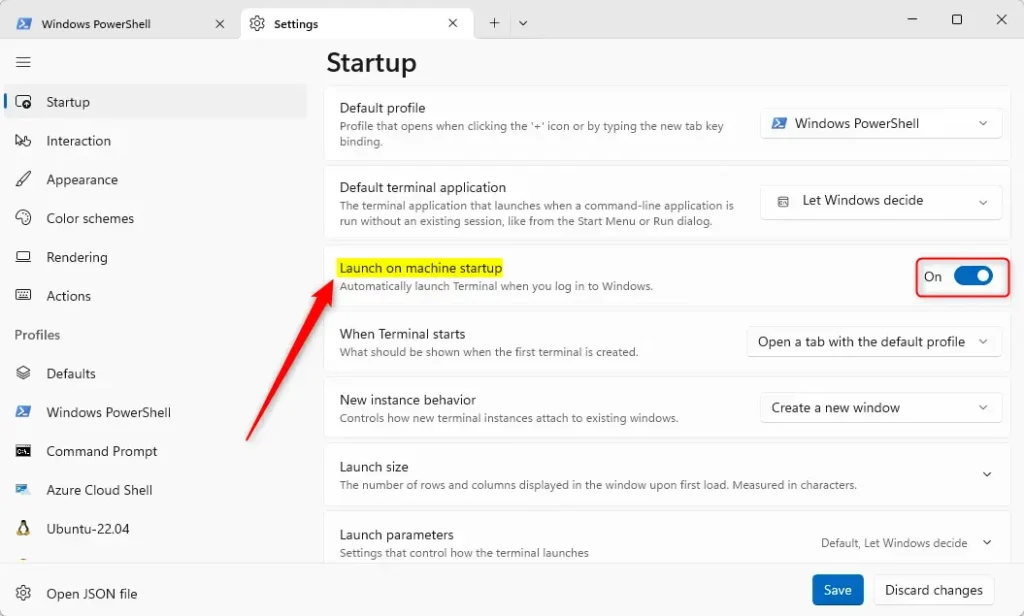
- Click Startup in the left menu.
- Find the Launch on machine startup tile.
- Move its toggle to On.
The toggle should now read On. If it is greyed out or flips back to Off, check Settings Apps Startup. Windows may be blocking Terminal there, or a policy on a work PC may be controlling it.
What happens when you enable this? The application opens every time your user profile loads, meaning each time you sign in to Windows.
Step 4: Save Your Changes
- Click the Save button at the bottom of the settings page before you close the Settings tab.
Click Save again if you are unsure.
The setup is complete. From now on the terminal loads alongside your desktop. To test it, sign out and back in, or restart the PC, and look for the Terminal window once the desktop appears.
Want to Turn It Off?
To undo this, repeat the steps above:
- Open Terminal and go to Settings Startup
- Move the Launch on machine startup toggle to Off.
- Click Save.
Terminal will no longer open when you sign in.
Summary
Controlling how Terminal launches takes only a trip to the Startup page in Settings and one toggle. Once you have saved it, Terminal opens with every sign-in until you turn it off again.
Leave a note in the comments section below if you run into questions during the process.
Have a question about this guide?
Answered by AI from this guide. Good questions may be added to this page — please don't include personal details.
Did this guide fix your problem?

About the Author
Richard
Tech Writer, IT Professional
Richard is a writer at Geek Rewind who turns complex IT tasks into clear, step-by-step guides. He draws on years of hands-on experience in system administration and enterprise IT operations, focusing on Windows, Linux and WordPress: the problems people actually run into, and the fixes that work. His server and WordPress guides come from systems he runs himself. Richard builds and maintains the platform behind Geek Rewind, from its Ubuntu servers and Nginx configuration to its custom WordPress plugins. Many new tutorials start with readers' questions, and he's always glad to answer them in the comments.
[…] check to see if UCPD is running. You can do that using the Terminal app with the PowerShell or Command Prompt […]
[…] open Windows Terminal and select Windows […]
[…] the launch size, set the default profile, change the startup behavior, open the admin window, open Terminal automatically at startup, add copy selection to the clipboard automatically, automatically hide the Terminal window, […]
[…] the default profile, change the startup behavior, open the admin window, open Terminal automatically at startup, add copy selection to the clipboard automatically, automatically hide the Terminal […]