How to Add or Remove Windows Terminal Shield Icon

The admin shield icon in Windows Terminal is a small visual marker that shows when your command-line window has administrator rights. Windows 11 lets you turn this title bar indicator on or off depending on your preference.
You need administrator permissions for advanced PC tasks like editing system files or managing network settings. Controlling this icon helps you keep track of your security privileges while you work across multiple windows.
Open Windows Terminal Settings, navigate to the Appearance tab, and toggle the “Display a shield in the title bar when Windows Terminal is running as Administrator” option to On. Save your changes to enable the shield icon for elevated sessions.
Method 1Easy Settings Adjustment
Windows Terminal allows you to add or remove the Windows Terminal shield icon directly through its built-in settings menu. This adjustment places a clear visual cue on your title bar so you can instantly tell if your current window runs with administrator permissions.
Open Windows Terminal. Find it in your Start Menu and open it.
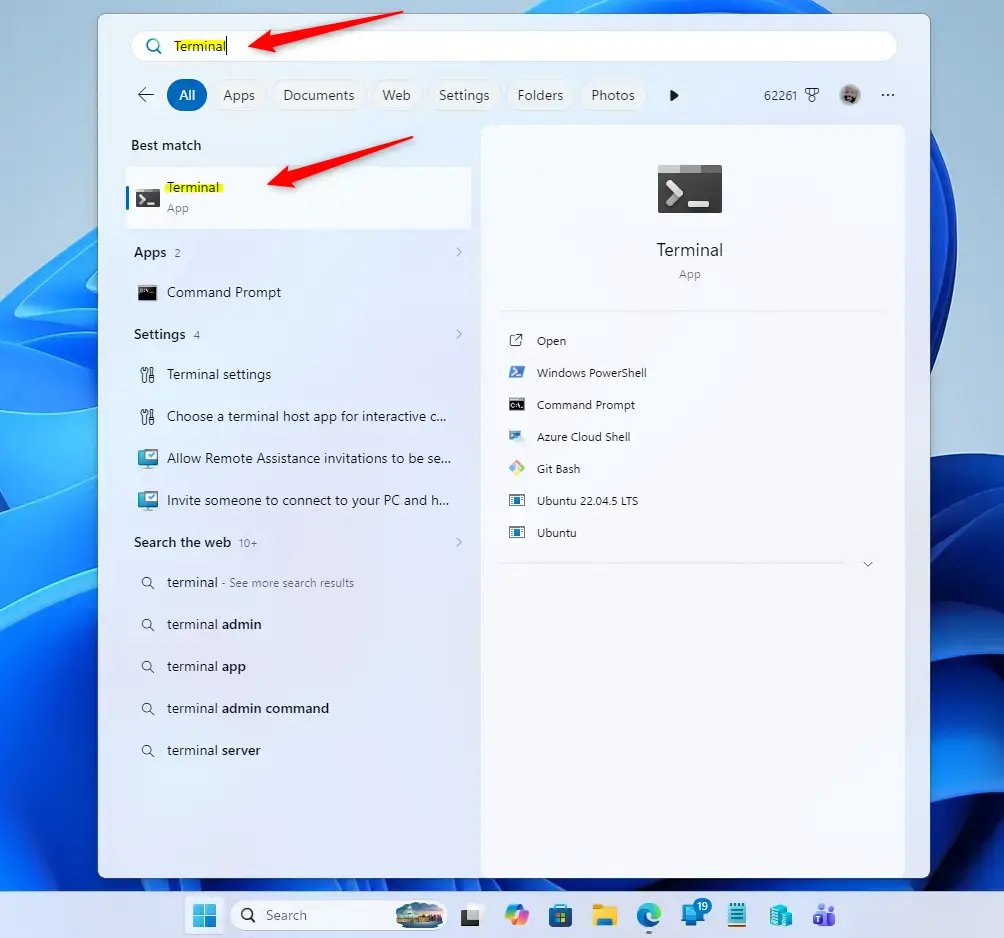
Go to Settings . Click the small dropdown arrow next to the tabs at the top of the window. Then, choose Settings from the menu. You can also press
Ctrl + ,(the Control key and the comma key together) to open Settings .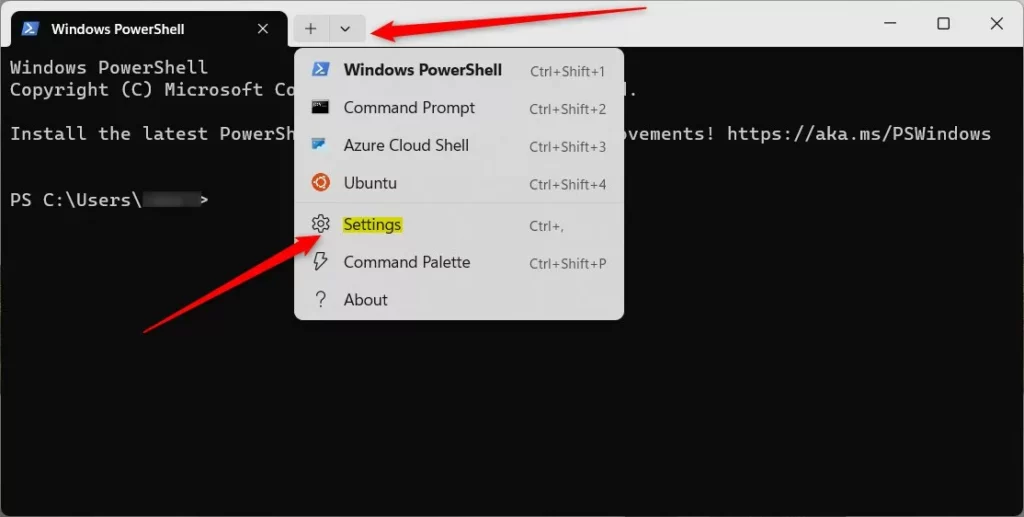
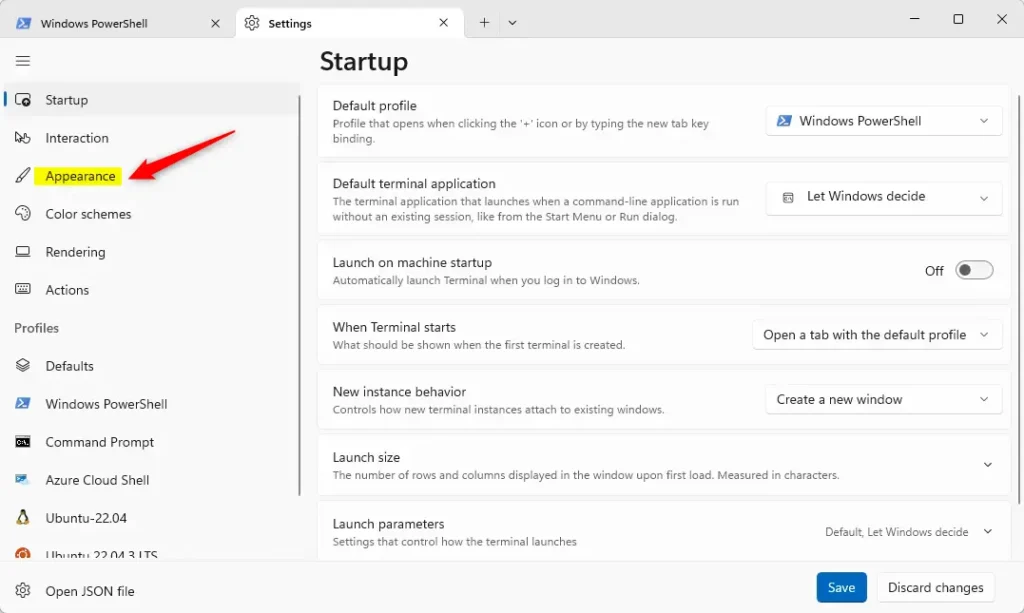
Windows Terminal Settings button updated Find Appearance. In the Settings window, click on Appearance in the list on the left side.
The Shield Icon setting controls the display of an administrator shield icon in the Windows Terminal title bar. Locate the "Display a shield in the title bar when Windows Terminal is running as Administrator" option. Click the switch next to this option to toggle it On (which shows the shield icon) or Off (which hides it). Turning the shield icon On confirms that Windows Terminal is running with administrator rights, while turning it Off provides a cleaner title bar appearance.
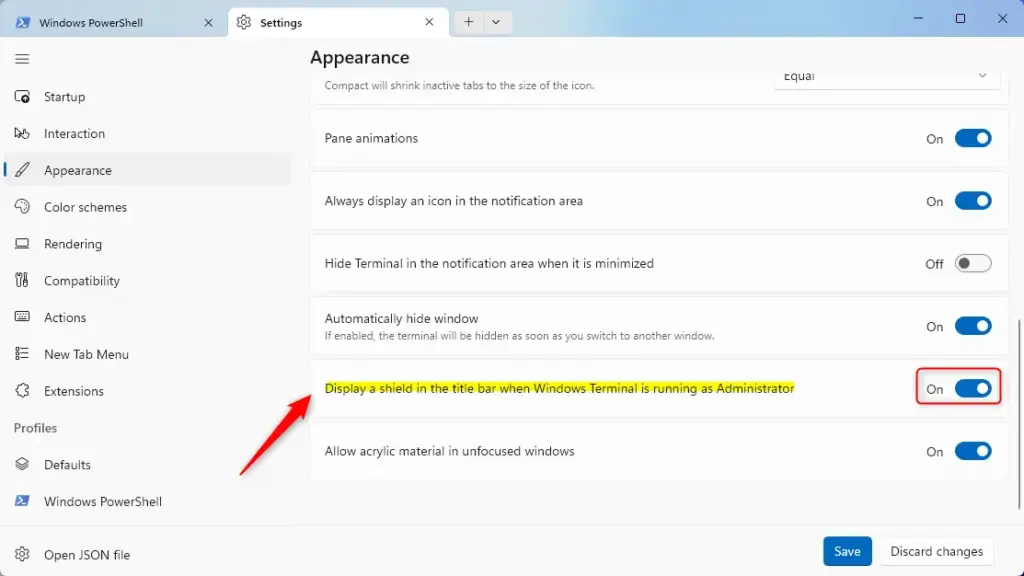
Save Changes. Close the Settings tab. Your changes are saved automatically.
Method 2Using the Registry Editor
Registry Editor lets you turn the Windows Terminal shield icon on or off by changing specific system values. This advanced method gives you direct control over the title bar display, though you must follow the steps carefully to avoid system errors.
Mistakes can cause problems with your computer. It's a good idea to save a backup of your registry before you start. To do this, open the Registry Editor, click File, and then choose Export.
Open Registry Editor. Press
Windows key + Rto open the Run box. Typeregeditand press Enter. You may see a prompt asking for permission; click Yes.Go to the right folder. In the Registry Editor, look for the folder structure on the left. Navigate to this location:
HKEY_CURRENT_USER\Software\Microsoft\Windows\Terminal\Settings📝Good to KnowIf you don't see a folder named Settings inside the Windows\Terminal folder, you can create it.Right-click on the Windows\Terminal folder, select New, and then choose Key. Name this new key Settings.
Create a new setting. With the Settings folder selected, right-click in the empty space on the right side. Choose New, and then select DWORD (32-bit) Value.
Name the setting. When asked for a name, type
ShowAdminShieldexactly. Make sure the spelling and capitalization are correct.Set the value. Double-click on the
ShowAdminShieldvalue you just created. A small window will appear. In the Value data field, do the following:- To show the shield icon when running as administrator, enter 1.
- To hide the shield icon when running as administrator, enter 0.
Click OK when you are finished.
To change the Admin shield icon later, return to the **Admin shield icon setting** and change the number from 1 to 0, or 0 to 1. Setting the number to 1 displays the icon when Windows Terminal runs as an administrator, while 0 hides it.
Close and restart. Close the Registry Editor. Then, close all Windows Terminal windows and open it again. The change should now be active.
Method 3Using PowerShell
PowerShell gives you a quick way to control the Windows Terminal shield icon using command-line instructions. This approach lets you update the underlying registry value without opening graphical menus, making it ideal for fast changes.
Open PowerShell. Click the Start button, type
PowerShell, and press Enter. If you might need special permissions, right-click on PowerShell in the search results and select "Run as administrator." However, for this specific setting, administrator rights are usually not needed.Enter the command. Type one of the following commands into the PowerShell window and press Enter. These commands change the same registry setting as in Method 2.
To show the shield icon:
PowerShellSet-ItemProperty -Path "HKCU:\Software\Microsoft\Windows\Terminal\Settings" -Name "ShowAdminShield" -Value 1 -Type DWordTo hide the shield icon:
PowerShellSet-ItemProperty -Path "HKCU:\Software\Microsoft\Windows\Terminal\Settings" -Name "ShowAdminShield" -Value 0 -Type DWordExplanation: This command tells PowerShell to set a specific property (
Set-ItemProperty) at a certain location (-Path) with a new data value (-Name) and type (-Value).Restart Windows Terminal. Close all open Windows Terminal windows and then open it again. Your chosen setting should now be applied.
You can copy and paste specific PowerShell commands directly into the Windows Terminal to avoid typing mistakes when adding or removing the admin shield icon from the Windows Terminal title bar. This prevents errors and ensures the command for modifying the title bar's admin shield icon executes correctly.
Summary
The Windows Terminal shield icon is a visual indicator that shows when the application is running with administrator rights. You can control its appearance through the Terminal's own settings, or by making changes in the Windows Registry using tools like the Registry Editor or PowerShell.
Was this guide helpful?

About the Author
Richard
Tech Writer, IT Professional
Richard is a writer at Geek Rewind who turns complex IT tasks into clear, step-by-step guides. He draws on years of hands-on experience in system administration and enterprise IT operations, focusing on Windows, Linux and WordPress: the problems people actually run into, and the fixes that work. His server and WordPress guides come from systems he runs himself. Richard builds and maintains the platform behind Geek Rewind, from its Ubuntu servers and Nginx configuration to its custom WordPress plugins. Many new tutorials start with readers' questions, and he's always glad to answer them in the comments.


[…] copy selection to the clipboard automatically, automatically hide the Terminal window, enable admin mode shield, and […]