How to Run Windows Terminal in the Background

Running Windows Terminal in the background keeps your command-line tasks active after you close the app window. Windows Terminal is a tabbed app that hosts Command Prompt, PowerShell and other shells in one window. The background setting changes what happens to those sessions when you click the close button.
This feature requires Windows Terminal version 1.19.10572.0 or newer. With it, you can start a long task such as a script or a local server, close the window, and let the computer finish the work without a window on your screen. Windows Terminal comes preinstalled on Windows 11 22H2 and later, and it works the same on Home and Pro.
Open Windows Terminal, click the down arrow on the top bar and select Settings. Go to Compatibility, switch on “Allow Windows Terminal to run in the background,” then click Save. Your tasks now continue running after you close the window.
How to Let Windows Terminal Run in the Background
Open Windows Terminal, go to its settings, and switch on the option that allows it to run in the background. Until you do that, closing the window ends the sessions inside it and stops whatever they were running.
- Open Windows Terminal: Click the Start menu (the Windows icon at the bottom-left of the taskbar). Type Terminal. Click Windows Terminal in the results. A terminal window opens with a tab for your default shell, usually PowerShell.

Open the Windows Terminal app - Go to Settings: Click the down arrow ▼ on the top bar, next to the tabs, and then click Settings. You can also press
Ctrl + ,on your keyboard. The Settings page opens in a new tab, with a list of categories down the left side.
Open Windows Terminal Settings - Find the Compatibility option: In the left pane, click Compatibility. Look for the option named “Allow Windows Terminal to run in the background.” Set the switch to On to let the app keep running after you close the window. Set it to Off to go back to the default behavior. The wording can differ a little between releases, so look for the entry that mentions running in the background. If the option isn’t there, update Windows Terminal.
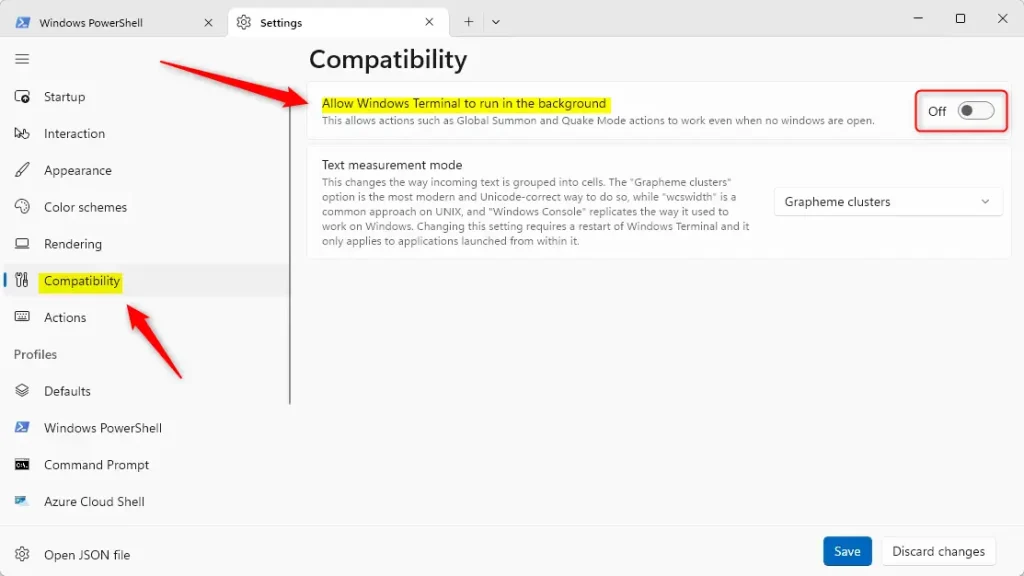
Allow Windows Terminal to run in the background toggle - Save your changes: Click the Save button at the bottom of the Settings page to apply the change. Then close the Settings tab. If the new behavior doesn’t show up, close every Windows Terminal window and open it again.
That’s it. Windows Terminal can now keep running in the background, so your tasks won’t stop when you close the window. To check, start a long-running command, close the window, and open Task Manager. You should still see Windows Terminal listed. To undo the change, go back to Settings Compatibility, switch the option Off, and click Save.
Why Run Windows Terminal in the Background?
- It lets you keep running scripts and commands without interruption, even if you close the window by accident.
- The Settings page makes it easy to turn this feature on or off at any time. Remember to click Save after each change.
- You can customize Windows Terminal to fit your workflow better. Profiles, color schemes and startup behavior all live in the same Settings page.
- Keep Windows Terminal updated for the best experience and new features. You can update it through the Microsoft Store, and the Settings page also has an About section that shows your current version.
Background execution lets you run long scripts, downloads and other command-line tasks without keeping the app window open on your screen. Your work isn’t cut off if you close the window by mistake, and you can reclaim the screen space for other apps while the task finishes.
Keep in mind that a background task still uses CPU, memory and network like any other program. If your computer slows down or a task seems stuck, check Task Manager to see what is running, and end the task there if you need to.
Summary
Running Windows Terminal in the background takes a few clicks. Open Windows Terminal, go to Settings Compatibility, and turn on “Allow Windows Terminal to run in the background.” Click Save and you’re done. Your command-line tasks now keep running when you close the app window. If you ever want the old behavior back, turn the same switch off.
Have a question about this guide?
Answered by AI from this guide. Good questions may be added to this page — please don't include personal details.
Did this guide fix your problem?

About the Author
Richard
Tech Writer, IT Professional
Richard is a writer at Geek Rewind who turns complex IT tasks into clear, step-by-step guides. He draws on years of hands-on experience in system administration and enterprise IT operations, focusing on Windows, Linux and WordPress: the problems people actually run into, and the fixes that work. His server and WordPress guides come from systems he runs himself. Richard builds and maintains the platform behind Geek Rewind, from its Ubuntu servers and Nginx configuration to its custom WordPress plugins. Many new tutorials start with readers' questions, and he's always glad to answer them in the comments.
No comments yet — be the first to share your thoughts!