How to Enable Automatically Hide Window in Windows Terminal


Automatically hide window in Windows Terminal makes the app disappear the moment you click away from it. It was added in version 1.19.10922.0. It keeps your screen clear while you work in other apps.
The setting can be turned on from the Settings window. If your build doesn’t show it there, you can turn it on by editing the settings.json file instead. Either way, the Terminal stays out of your way until you bring it back.
Open Windows Terminal, press Ctrl +, to open Settings , click the Appearance tab, and toggle Automatically hide window to On. The Terminal now hides whenever you click outside it, with no restart needed.
What is Windows Terminal?
Windows Terminal is a Microsoft app that puts several command-line tools in one tabbed window. These include Command Prompt (a text-based interface for running commands), PowerShell (a task automation shell) and WSL (Windows Subsystem for Linux, which lets you run Linux on your PC). You can run several command environments side by side and change their appearance, shortcuts and startup behavior.
Terminal is built to be customized. In Settings you can change the language, the initial window size, the default profile and what happens at startup.
Other settings cover automatic startup and clipboard options. Automatically hide window sits alongside these as one more behavior you can switch on or off.
Why Use Automatically Hide Window?
Leaving many apps open creates clutter fast. With this setting on, the Terminal tucks itself away as soon as you click another window, so your workspace stays tidy while you multitask.
If you refer to the Terminal constantly, for example to watch a long build or a log, you may prefer to leave this off. Turning it off brings back the normal behavior, where the window stays visible until you minimize or close it.
How to Enable Automatically Hide Window
The steps below start with the toggle. If you can't find it, use the Open JSON file button at the bottom left of the Settings window. This opens settings.json, where you can add the matching line yourself. The setting needs Terminal version 1.19.10922.0 or later. To check your version, open the dropdown menu and select About. If it's older, update Windows Terminal from the Microsoft Store first.
- Open the Windows Terminal app. Click the Start menu, type "Terminal" and select Terminal from the results. A Terminal window opens with your default profile.

- Click the down arrow at the top of the Terminal window. Then click Settings. You can also press Ctrl + , to open it directly. The Settings window opens in a new tab.

- In the Settings window, click the Appearance tab on the left side. The appearance options appear on the right.
- Find the "Automatically hide window" option. Move the switch to On to enable it, or to Off to disable it. If you can't find the option, your build doesn't show it here, so use the Open JSON file method described above.
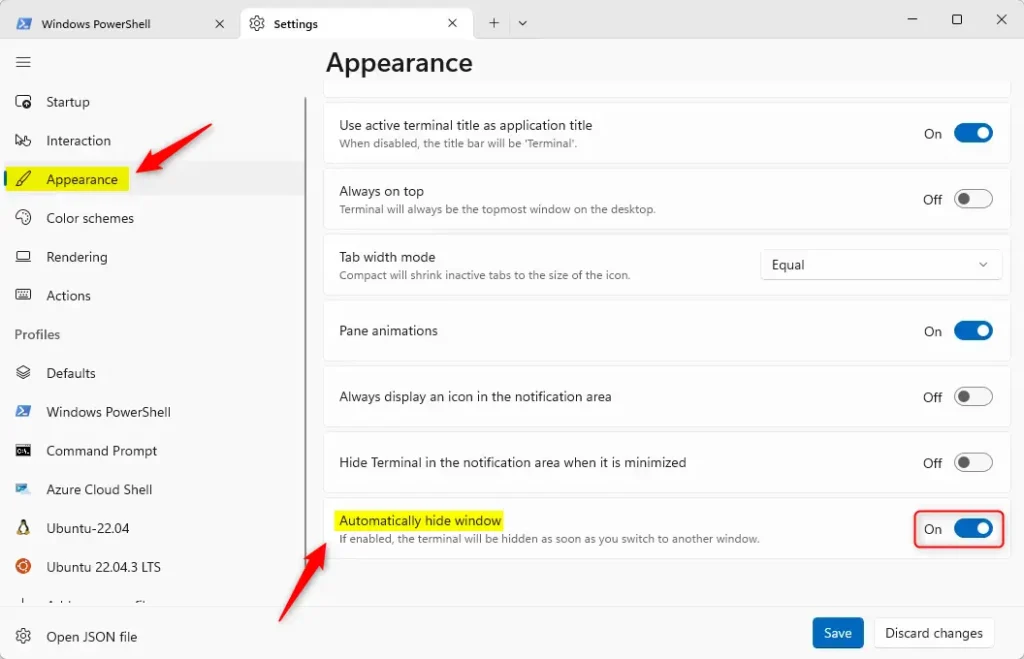
- Click the Save button at the bottom. Then close the Settings window. The change applies right away, and you don't need to restart Windows.
To undo this, open Settings again and set the switch back to Off, then click Save. If you edited settings.json by hand, remove the line you added.
What Happens When You Enable This?
With the setting on, the window disappears as soon as you click another application. That keeps your desktop organized, because the command line is only on screen when you actually need it.
Summary
Hiding a command window you aren't using is a simple way to keep your desktop tidy.
Have a question about this guide?
Answered by AI from this guide. Good questions may be added to this page — please don't include personal details.
Did this guide fix your problem?

About the Author
Richard
Tech Writer, IT Professional
Richard is a writer at Geek Rewind who turns complex IT tasks into clear, step-by-step guides. He draws on years of hands-on experience in system administration and enterprise IT operations, focusing on Windows, Linux and WordPress: the problems people actually run into, and the fixes that work. His server and WordPress guides come from systems he runs himself. Richard builds and maintains the platform behind Geek Rewind, from its Ubuntu servers and Nginx configuration to its custom WordPress plugins. Many new tutorials start with readers' questions, and he's always glad to answer them in the comments.
[…] Terminal automatically at startup, add copy selection to the clipboard automatically, automatically hide the Terminal window, and […]