How to Automatically Hide the Windows Terminal Window

Windows Terminal has two features that are easy to mix up. Focus mode hides the standard window frame and title bar. Quake mode turns the Terminal into a slide-out panel that appears with a single keyboard shortcut. Press the Win plus the backtick key (`) to make the panel slide onto your screen, and press it again to tuck it away.
The setting in this tutorial is related but different. It hides the Terminal window by itself as soon as you click into another program. It takes less than 2 minutes to set up in the settings menu of Windows Terminal version 1.18 or later. If you don’t see the option, update Windows Terminal from the Microsoft Store first. The feature is built in, so you don’t need any extra software.
Open Windows Terminal, go to Settings , then Appearance. Toggle the “Automatically hide window” option to your preference. Save your changes to enable or disable this feature, which hides the Terminal when you switch applications.
What is Windows Terminal?
Windows Terminal is a Microsoft app that brings Command Prompt, PowerShell, and other command-line tools together in one tabbed window. It lets you run several command-line environments side by side, use custom themes, and set up your own keyboard shortcuts. It also includes features like windows terminal auto hide, which keeps your desktop clear when you are not using the console.
You can customize Windows Terminal in many ways. You can change its language, size, startup behavior, colors, and more. One handy option makes the Terminal window hide automatically when you click away to another program. The window is not closed, and your sessions keep running. It is just moved out of your way until you call it back.
Why Use Automatically Hide Window?
Do you switch between programs a lot? Hiding the Terminal window can keep your desktop less crowded. This suits you if you run a quick command, check the result, and go back to your editor or browser. You don’t have to minimize the window or move it aside yourself.
Do you want the Terminal window always visible? Then leave the feature off, or turn it off again. That is the better choice if you watch long-running output, such as logs or a build, on a second monitor while you work in another window. With auto hide on, that window would vanish every time you click elsewhere.
It really depends on what works best for you! The setting is a simple toggle, so you can try it for a day and switch it back if it gets in your way.
How to Turn On or Off Automatically Hide Window
- Open Windows Terminal. Click the Start button, type
Terminalin the search box, and click Windows Terminal in the results. On Windows 11 you can also right-click the Start button and pick Terminal from the menu. You should see a Terminal window open with a tab for your default shell.

Open the Windows Terminal app - Open the Settings page. Click the down arrow (˅) next to the tabs at the top, then click Settings. Or press
Ctrl + ,on your keyboard. A Settings tab opens with a list of categories on the left side.

Open the Windows Terminal Settings - Click the Appearance tab on the left side of the Settings window. The options for the whole Terminal app, rather than a single profile, appear on the right. If the tab or the option in the next step is missing, your Terminal is probably older than version 1.18. Update it from the Microsoft Store and try again.
- Find the option called Automatically hide window and click its toggle switch.
- Set the switch to On to enable automatic hiding.
- Set the switch to Off if you want the Terminal window to stay visible all the time.
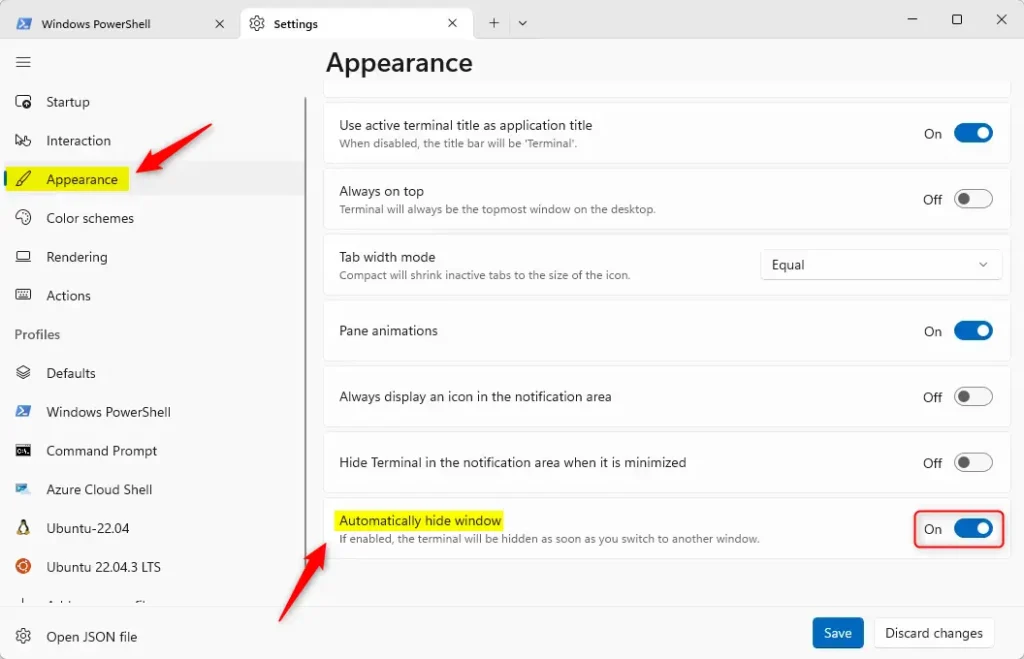
Automatically hide Terminal window setting In short, to set up windows terminal auto hide, open the app, go to Settings from the dropdown menu, and select the Appearance tab on the left. From there, you can turn on the setting that makes the window hide itself when it loses focus. That keeps your screen clutter-free while you work.
- Click the Save button at the bottom of the page to keep your changes. Then close the Settings tab. Terminal applies saved settings right away, so you should not need to restart it. If you leave without saving, the toggle goes back to its old position.
That's it! Now your Terminal window will hide automatically when you switch to another app. Or it will stay visible if you turned the feature off. To test it, click on your desktop or another program while Terminal is open. The Terminal window should disappear. To get it back, use the Win + ` shortcut mentioned at the start. To undo the change at any time, return to Settings Appearance, turn the switch off, and click Save.
Summary
Using windows terminal auto hide keeps your desktop tidy and cuts down on distraction by tucking the window away when you are not using it. Combine it with other appearance tweaks and profile settings, and you can build a cleaner, more efficient workspace for your command-line tasks.
Customizing Windows Terminal pays off quickly once you use it daily. Microsoft provides at least three helpful guides for this. They explain how to change the appearance, set up profiles, and manage keyboard shortcuts, so you can build a workflow that suits you.
Have a question about this guide?
Answered by AI from this guide. Good questions may be added to this page — please don't include personal details.
Did this guide fix your problem?

About the Author
Richard
Tech Writer, IT Professional
Richard is a writer at Geek Rewind who turns complex IT tasks into clear, step-by-step guides. He draws on years of hands-on experience in system administration and enterprise IT operations, focusing on Windows, Linux and WordPress: the problems people actually run into, and the fixes that work. His server and WordPress guides come from systems he runs himself. Richard builds and maintains the platform behind Geek Rewind, from its Ubuntu servers and Nginx configuration to its custom WordPress plugins. Many new tutorials start with readers' questions, and he's always glad to answer them in the comments.
No comments yet — be the first to share your thoughts!