How to Change Tab Colors in Windows Terminal

Tab colors in Windows Terminal let you give each open session its own shade, so you can sort active tasks and projects at a glance in Windows 11 and Windows 10. You can set the color for any Command Prompt or PowerShell profile by adding a standard hexadecimal color code (for example, #0078D7) to the settings .json configuration file. That file is where Windows Terminal stores your profiles and appearance options.
If you only want a color for the current tab, you don’t have to edit any file. Right-click the tab, choose Color…, and pick a shade from the list. This changes only that tab, and only for the current session. The settings .json method is the one to use when you want a profile to always open with the same color.
Right-click the tab you want to color in Windows Terminal, select Change tab color, and click a preset shade from the palette or choose Custom to pick your own. The tab changes color immediately and stays that color only for the current session.
What is Windows Terminal?
It is built into Windows 11 as the default terminal on current builds. On Windows 10 you install it from the Microsoft Store. Out of the box it can run:
- Command Prompt
- Windows PowerShell
- Bash (Linux commands) through Windows Subsystem for Linux (WSL)
It’s a handy place to run all your command-line tasks in one window. You can open several tabs at once, and each one can use a different shell. That is exactly why color helps. Once you have three or four tabs open, they all look alike unless you mark them.
Why Change Tab Colors?
Color is a quick visual cue, and it costs nothing. Here is what it gets you in daily use:
- Tell tabs apart. Tab titles are often just “PowerShell” or “Command Prompt” repeated. A different color for each makes the right tab easy to find without reading every title.
- Organize your work by color. Pick a simple scheme and stick to it. For example, use red for tabs with administrator rights, green for a project you’re building, and blue for general use. A consistent scheme helps most when a red tab warns you that you’re about to run commands with elevated rights.
- Personalize your Terminal. Colors are a small change that makes the app feel like yours, and you can change or remove them at any time.
Windows Terminal reloads the settings automatically, so the tab returns to its default look without a restart.
How to Change Tab Colors in Windows Terminal
Windows Terminal tab colors can be changed easily using the built-in right-click menu, letting you color-code different tabs so you can tell them apart at a glance. To do this, open Windows Terminal, right-click the tab you want to edit, select the color option from the menu, and pick your preferred shade from the palette.- Open Windows Terminal: Click the Start menu. Type
Terminalin the search box. Then click Windows Terminal in the results.
Open the Windows Terminal app - Right-click the tab you want to change: At the top of the Terminal window, find the tab you want to color. Right-click on it to open a menu.
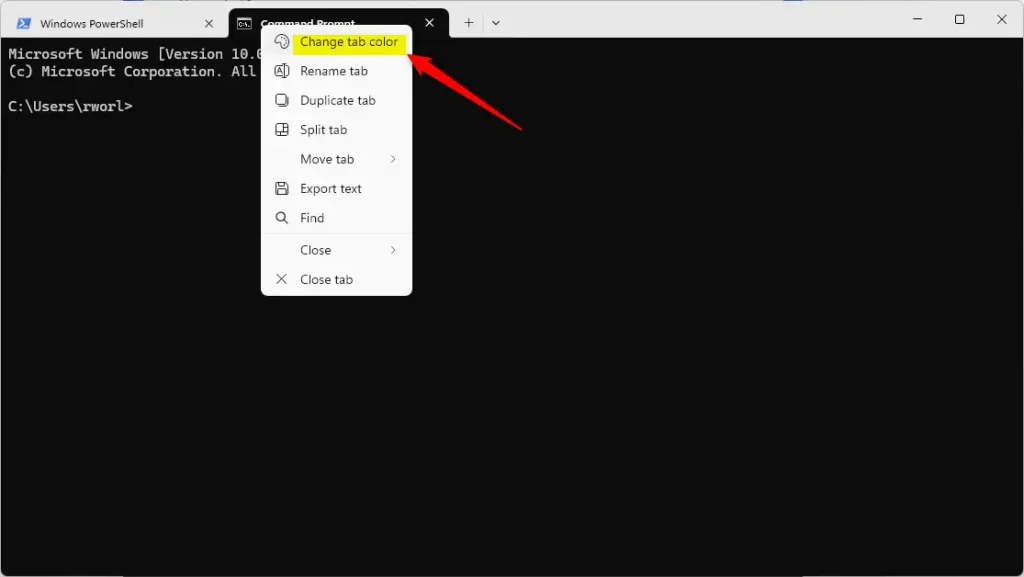
Change tab color option in Windows Terminal - Select "Change tab color" from the menu.
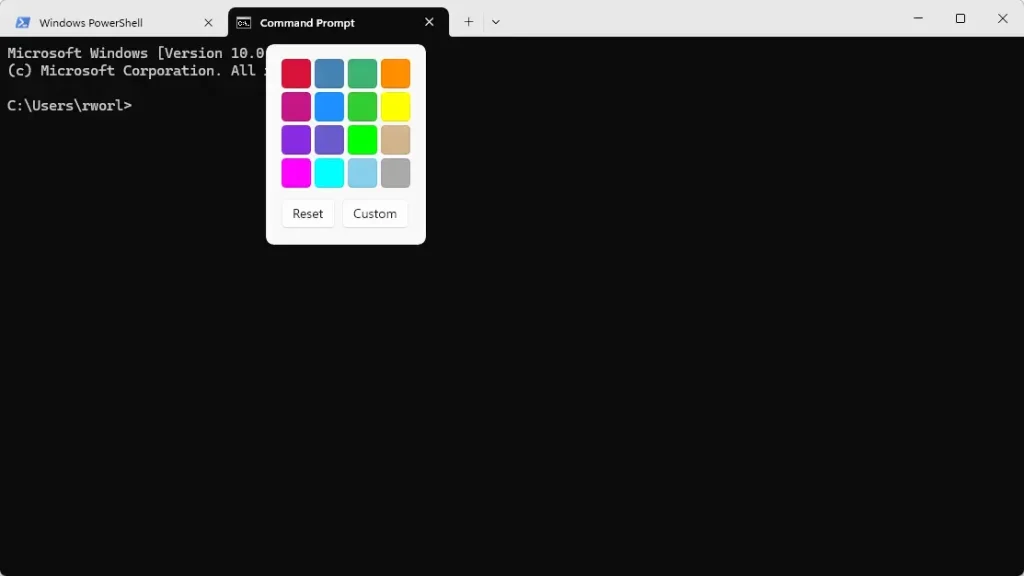
Selecting a custom tab color in Windows Terminal - Pick a color for your tab:
- Click one of the preset colors to use it.
- Click Reset to go back to the default color.
- Click Custom to choose your own color using a color picker.
- You can also enter specific color codes like RGB or hex if you want a precise color.
- Watch your tab change color: After you select a color, the tab will change to that color immediately.
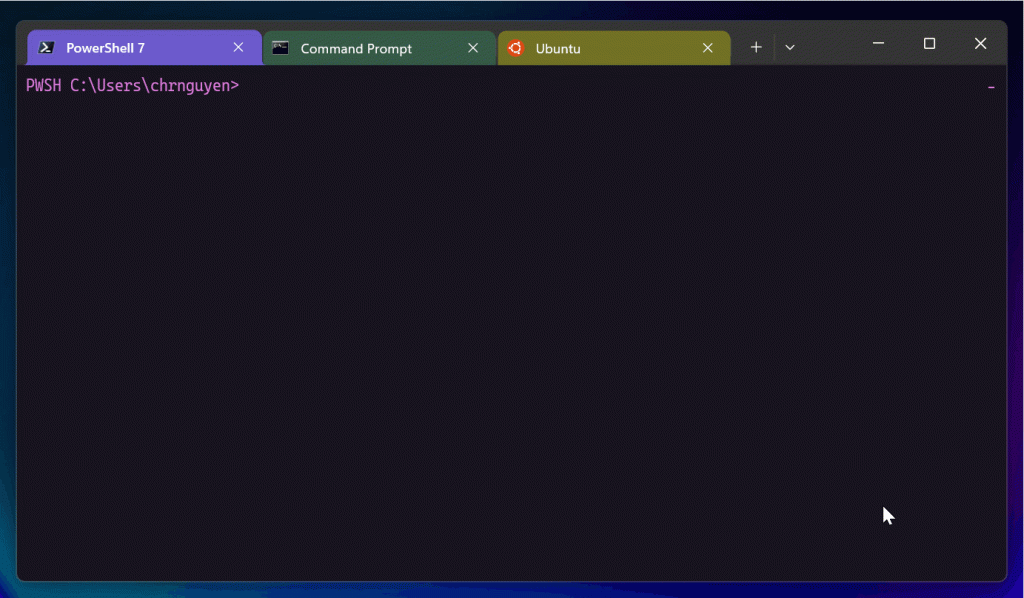
Windows Terminal tabs with different colors
That's It!
Now your Windows Terminal tabs will have colors that help you stay organized and work faster.
Extra Tips
- You can change the colors anytime by right-clicking the tab again.
- Use different colors for different projects or tasks.
- Try pressing
Ctrl + Tabto switch between tabs and see the color indicators in action!
Learn More
Microsoft added this helpful feature in the Windows Terminal Preview version 1.23. To learn more, visit the official Microsoft blog.
Summary
- Changing tab colors is quick and easy.
- Colors make your Terminal sessions easier to manage.
- You can use preset or custom colors.
- New Windows Terminal updates keep improving your experience.
Was this guide helpful?

About the Author
Richard
Tech Writer, IT Professional
Richard is a writer at Geek Rewind who turns complex IT tasks into clear, step-by-step guides. He draws on years of hands-on experience in system administration and enterprise IT operations, focusing on Windows, Linux and WordPress: the problems people actually run into, and the fixes that work. His server and WordPress guides come from systems he runs himself. Richard builds and maintains the platform behind Geek Rewind, from its Ubuntu servers and Nginx configuration to its custom WordPress plugins. Many new tutorials start with readers' questions, and he's always glad to answer them in the comments.




No comments yet — be the first to share your thoughts!