Easy Way to Open Windows Security in Windows 11

- 5 ways to do it
- Needs administrator rights
Windows Security is the built-in security app in Windows 11. It handles virus protection, shows your protection status, and manages the firewall. Microsoft Defender and the other core protection tools all sit inside this one app, so you can check your system’s health in a few seconds.
There are several ways to open it: the taskbar tray, the Start menu, Windows Search, the Settings app, or a command. Pick whichever is closest to hand. All of them open the same app, and none needs a restart. They work the same on Windows 11 Home and Pro.
Windows Security is the built-in app for virus protection, firewall and sign-in options in Windows 11. To open it, click the shield icon in the system tray at the far right of the taskbar, next to the clock. If the shield is hidden, click the upward arrow (^) first. You can also open it from the Start menu, Windows Search, or Settings Privacy & security Windows Security.
What’s Inside Windows Security?
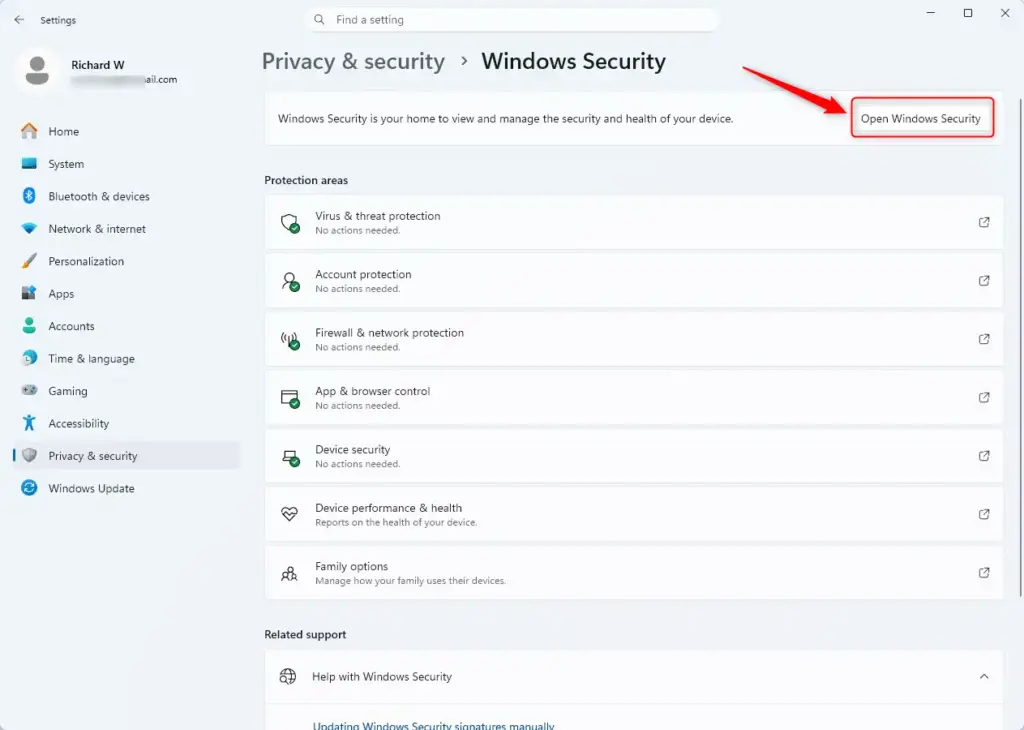
Windows Security protects your PC from viruses, manages your sign-in options, and controls the firewall. From one dashboard you can check for threats, run a manual scan, see device performance reports, and set up family options. The dashboard is split into the areas below.
- Virus & threat protectionChecks for threats, lets you run scans, and shows whether your protection is up to date. This is the area you will use most.
- Account protectionHelps manage how you sign in, including Windows Hello (face, fingerprint or PIN login) and Dynamic lock, which locks the PC when your paired phone moves away.
- Firewall & network protectionManages the firewall, which controls what traffic enters and leaves your network.
- App & browser controlUses Microsoft Defender SmartScreen to help protect you from harmful apps, websites, and downloads.
- Device securityShows the built-in hardware-based features that protect your device from malware. What you see here depends on your hardware.
- Device performance & healthChecks how well your device is running and whether Windows is up to date.
- Family optionsLets you monitor and manage children’s online activity and devices. It works through a Microsoft family group, so you need a Microsoft account to use it.
- Protection historyShows what actions Windows Security has taken, such as removing or quarantining threats.
Method 1Using the Taskbar Icon
- Look at the system tray on the far right of the taskbar, next to the clock, for the shield icon.
- Check the icon’s status mark. A green check means all is well. A yellow or red mark means Windows Security has something that needs your attention.
- If you don’t see the shield, click the small upward-pointing arrow (^) in the system tray. You should see a pop-up with the hidden icons.
- Click the shield icon. The Windows Security home page should open.
In short: find the shield in the system tray and click it to open Windows Security.
If the shield is not in the hidden icons either, go to Settings Personalization Taskbar Other system tray icons and turn on the Windows Security notification icon. You can turn it off there again to hide it.

Method 2Through the Settings App
You can also reach Windows Security through the Settings app. This route is handy when you want to jump straight to a specific section.
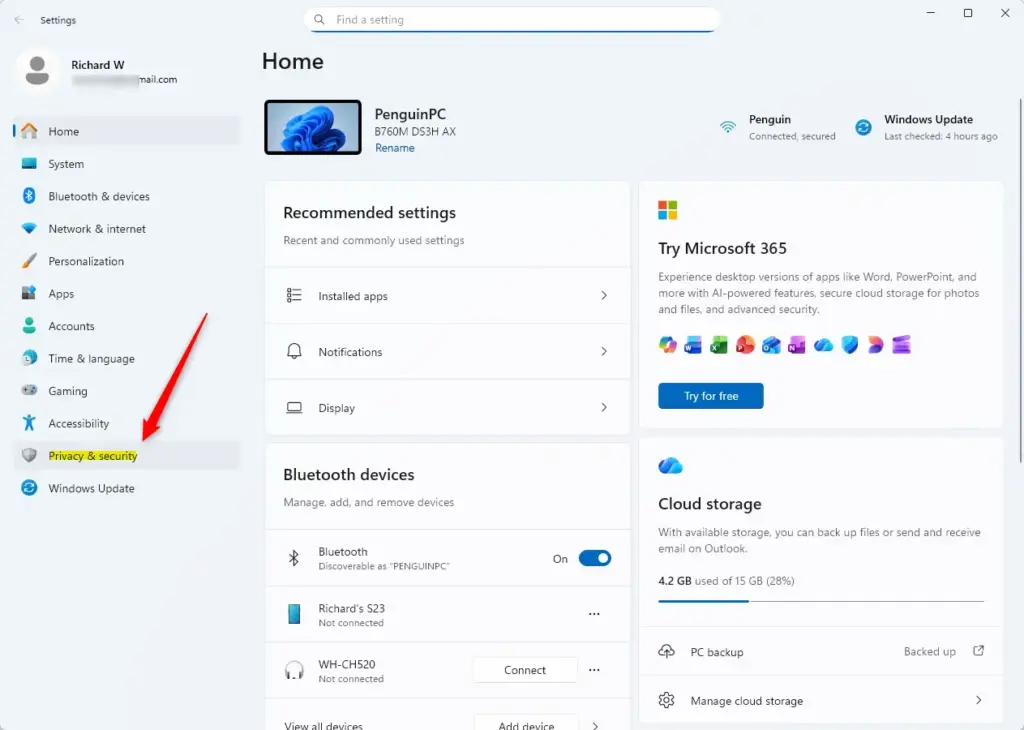
- Open Settings. Right-click the Start button and choose Settings, or press
Windows key + I. The Settings window should appear. - Click Privacy & security in the left-hand menu.
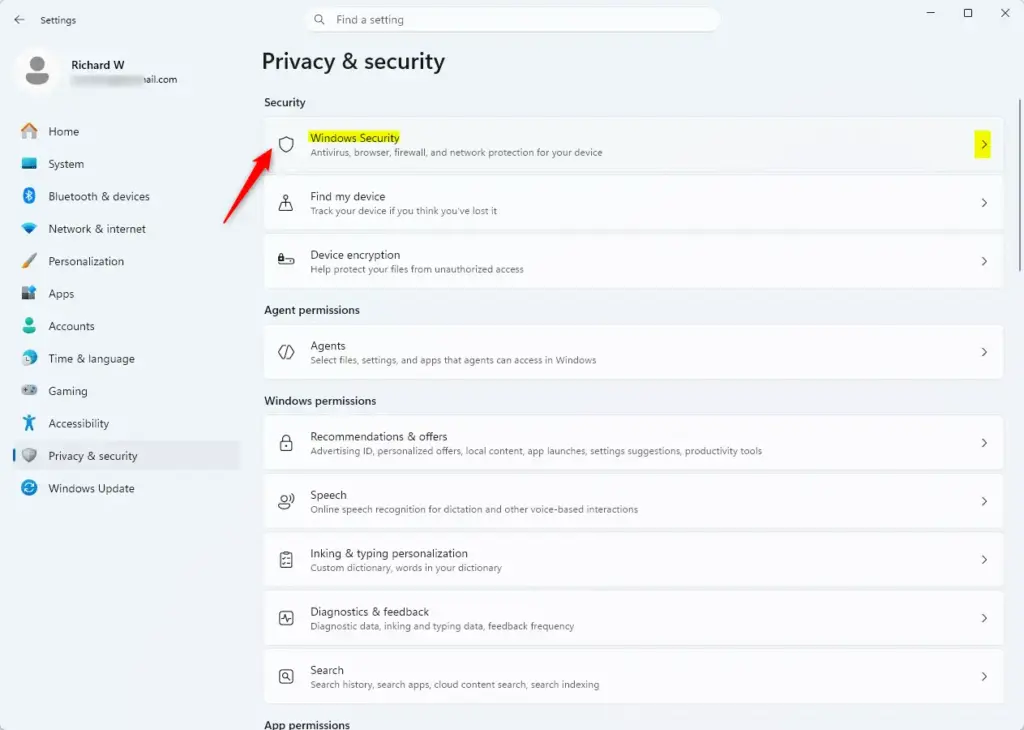
- On the right side, scroll down and click Windows Security. You should see a page listing the protection areas, each with its current status.
- Click the Open Windows Security button to open the main dashboard. You can instead click a section name, such as Virus & threat protection, to go straight to that area.
The short version: open Settings with the right-click menu or Win + I, choose Privacy & security, then select Windows Security and click Open Windows Security.
Method 3From the Start Menu
Windows Security is also in the Start menu’s list of installed apps. This method is useful if the tray icon is missing.
- Open the Start menu by clicking the Windows icon on the taskbar or pressing the
Windows keykey. The Start menu should open. - Click All apps, usually in the top right of the pinned apps section. On some newer builds, Start is laid out differently and the all-apps list is shown as a button or a category view, so look near the top right of Start.
- Scroll through the alphabetical list until you find Windows Security. It sits near the end of the list, under W.
- Click Windows Security to open the main screen. Or right-click it and choose a specific section, such as Firewall & network protection, to go there directly.
In short: click Start, scroll through the list of installed apps, and click Windows Security.
Method 4Using Windows Search
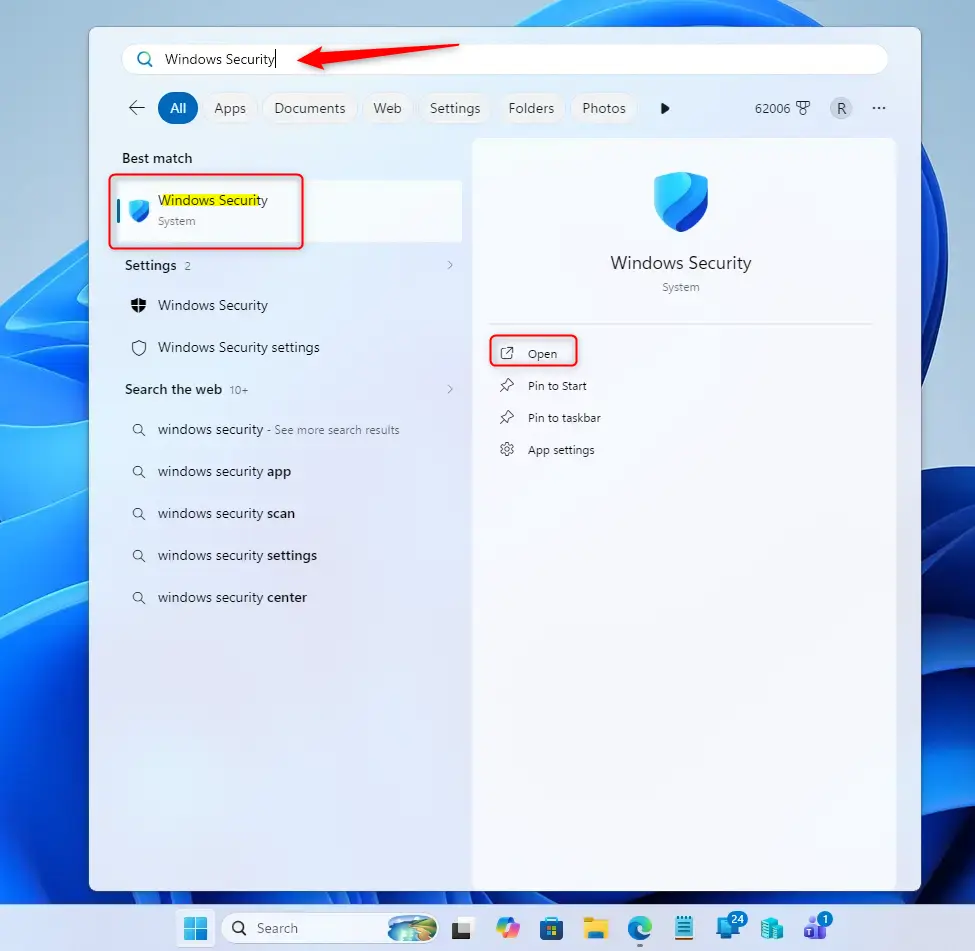
Windows Search is the quickest way if you prefer the keyboard. It works even when the tray icon is hidden.
- Click the search icon (magnifying glass) on the taskbar, or press
Windows key + S. The search panel should open. - Start typing Windows Security in the search box. The app should appear as the top result after a few letters.
- Click the Open button next to Windows Security to go to the main screen. Or click one of the protection areas listed below it to go straight there.
The short version: open search with the magnifying glass or Win + S, type Windows Security, and click it in the results.
Method 5Via the Command Line
Commands work well if you manage several machines or want to script a shortcut. Each command opens Windows Security on a specific page. You don’t need administrator rights for any of them, so a normal Terminal window is enough.
- Open Windows Terminal. Right-click the Start button and choose Windows Terminal. On some builds the entry is labeled Terminal. The Admin version also works, but you don’t need it.
- Type or paste one of the following commands and press Enter:
- To open the main Windows Security home page:
start windowsdefender: - To open Virus & threat protection:
start windowsdefender://threat - To open Firewall & network protection:
start windowsdefender://network - To open App & browser control:
start windowsdefender://appbrowser
- To open the main Windows Security home page:
- The matching section of Windows Security should open in its own window. You can close the terminal afterward.
You can also use the Run dialog instead of a terminal:
- Press
Win + Rto open the Run dialog box. - Type one of the following commands and press
Enter:windowsdefender:opens the main Windows Security app.windowsdefender:Scanopens the Virus & threat protection section, handy for a quick scan.windowsdefender:Firewallopens the Firewall & network protection section.
Summary
You can open Windows Security from the taskbar shield icon, the Settings app, the Start menu, Windows Search, or a command. All of them reach the same app, so use whichever is fastest for you. From there you can check for threats, change settings, and keep your device protected.Enter
Have a question about this guide?
Answered by AI from this guide. Good questions may be added to this page — please don't include personal details.
Did this guide fix your problem?

About the Author
Richard
Tech Writer, IT Professional
Richard is a writer at Geek Rewind who turns complex IT tasks into clear, step-by-step guides. He draws on years of hands-on experience in system administration and enterprise IT operations, focusing on Windows, Linux and WordPress: the problems people actually run into, and the fixes that work. His server and WordPress guides come from systems he runs himself. Richard builds and maintains the platform behind Geek Rewind, from its Ubuntu servers and Nginx configuration to its custom WordPress plugins. Many new tutorials start with readers' questions, and he's always glad to answer them in the comments.
No comments yet — be the first to share your thoughts!