How to Enable or Disable Windows Security Notifications in Windows 11


- 3 ways to do it
- Needs administrator rights
- Group Policy needs Windows 11 Pro, Enterprise or Education
- Includes a restart or sign-out
Windows Security notifications are the pop-up alerts in Windows 11 that warn you about virus detections, firewall status changes, and critical system health issues. They appear as banners in the corner of the screen and are also stored in the Notification Center. Managing these alerts lets you stop unwanted pop-ups and choose exactly which security warnings appear.
You can turn off specific alerts, such as virus and threat protection, if you prefer a quieter experience and actively monitor your PC yourself. This guide covers three methods: the Settings app, the Local Group Policy Editor, and the Registry Editor. Each one is reversible.
You can manage Windows Security notifications in Windows 11 via Settings System Notifications, or by using the Local Group Policy Editor or Registry Editor for more advanced control. Adjusting these settings helps you receive only the security alerts that are important to you.
Why manage these notifications?
Managing Windows 11 security notifications helps stop annoying pop-ups from appearing on your screen. This is especially useful if you already use a different antivirus program, because the two products can both send you messages about the same things. Turning off these alerts keeps your desktop quiet. But Windows will stop warning you about problems, so you must check your computer’s health yourself from time to time.
Pick the method that fits your setup. The Settings app works on every edition of Windows 11 and is the easiest to undo. The Group Policy Editor is only included in Pro, Enterprise and Education, not Home. The Registry Editor works on all editions but is the easiest to get wrong, so use it last.
What happens when done: Once you change these settings and restart, Windows will stop showing specific security alerts. You will need to manually check your security provider settings to ensure your system remains protected. A good habit is to open the Windows Security app once a week and look for warning icons on the dashboard.
Disclaimer: Disabling Windows 11 security notifications can hide critical alerts about your computer’s health, such as virus threats or firewall issues. Only disable these if you are an advanced user or have alternative security software installed. For official guidance, refer to Microsoft Support.
Before you edit the registry or Group Policy, create a restore point so you have an easy way back if something goes wrong.
Method 1Standard Settings (Non-Technical Users)
Disabling Windows 11 security notifications through the Settings app is the easiest way to stop alerts without touching advanced tools. You can turn off these messages directly in your system settings so Windows stops interrupting your work with security warnings. This works on both Home and Pro, needs no restart, and takes effect right away.
- Open Settings and go to System Notifications You should see a list of notification options at the top and a list of apps further down.
- Scroll down to Notifications from apps and other senders and find Windows Security in the list of apps. If you can’t see it, the app may not have sent a notification yet, so try again after a scan or a status change.
- Toggle the switch next to Windows Security to Off to stop notifications from appearing in the Notification Center. The switch should now read Off, and no more Windows Security banners will pop up.
To undo this, return to the same page and set the switch back to On. If you only want to silence certain alerts, such as virus and threat protection, open the Windows Security app and look for the notification settings under its own Settings page. Turning off the switch in System settings hides all of its alerts, while the app lets you be more selective.
Method 2Local Group Policy Editor (IT Admin Context)
Turning off Windows 11 security notifications using the Local Group Policy Editor (a tool for managing system settings across multiple devices) lets you block alerts on one or many computers at the same time. This method works best for system administrators who want to control notification settings across a network. It requires Windows 11 Pro, Enterprise or Education. On Home, gpedit.msc will not open, so use the Settings or Registry method instead.
- Press Win+R to open the Run dialog.
- Type gpedit.msc and press Enter. The Local Group Policy Editor opens. Approve the User Account Control prompt if one appears.
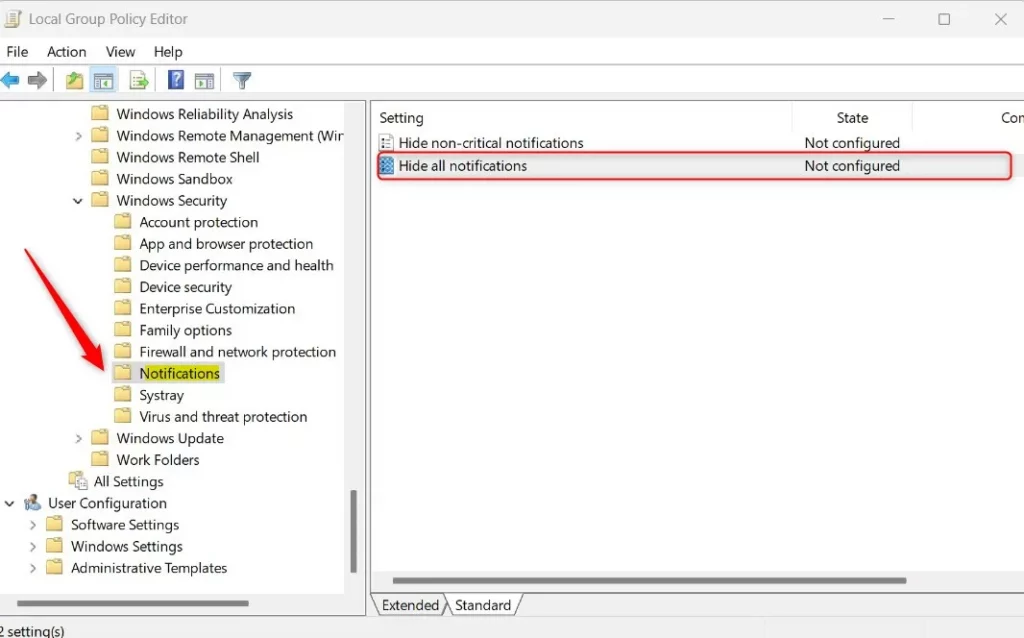
- In the left pane, navigate to:
Computer Configuration\Administrative Templates\Windows Components\Windows Security\Notifications.
- Double-click Hide all notifications in the right pane. A settings window opens.
- Select Enabled to suppress all alerts.
- Click Apply, then OK.
- Restart your computer so the policy is applied. After you sign in, Windows Security alerts should no longer appear.
To undo this, open the same policy, choose Not Configured, click Apply, and restart.
Method 3Registry Editor
Suppressing Windows 11 security notifications through the Registry Editor requires you to change specific system keys to block alerts permanently. This advanced method stops all unwanted security messages from popping up by making a direct change to your Windows system database. A wrong edit can cause problems, so export a backup of the key (File Export) before you change anything. You need an administrator account for this method.
- Press Win+R to open the Run dialog.
- Type regedit and press Enter. Approve the User Account Control prompt. The Registry Editor opens.
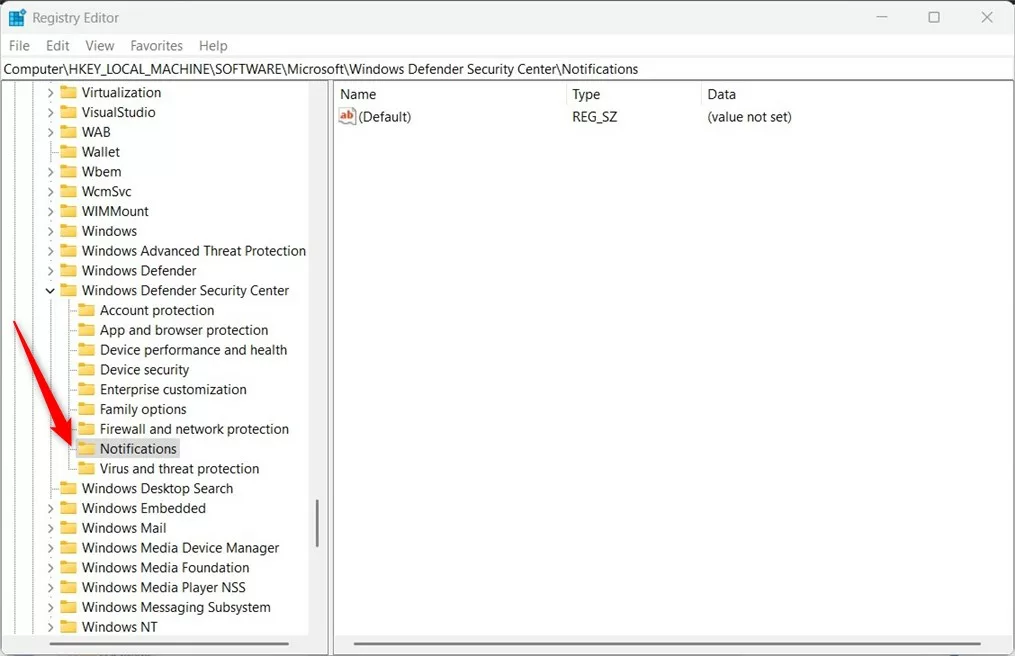
- Navigate to:
HKEY_LOCAL_MACHINE\SOFTWARE\Policies\Microsoft\Windows Defender Security Center\Notifications. If a key in that path is missing, right-click its parent key, choose New Key, and create it with the name shown in the path.
- In the right pane, right-click an empty area and choose New DWORD (32-bit) Value.
- Name the new value:
DisableNotifications. - Double-click the new value and set its value data to
1to hide alerts. Click OK. - Close the Registry Editor and restart your PC so the change takes effect.
To undo this, delete the value you created (right-click it and choose Delete), or import the backup you exported, and restart.
Troubleshooting and Common Issues
If notifications still aren't disabling, work through these checks:
- Double-check that you're logged in with an administrator account. Registry and policy changes made from a standard account may not save.
- Check if a Group Policy is overriding your registry settings. On a work or school PC, an administrator may be managing these options, and your change will be reset.
- Make sure you restarted after making the change.
- If you see Windows Defender SmartScreen alerts, these are separate from general security notifications and should generally remain enabled to protect against malicious websites.
Summary
Managing Windows 11 security notifications helps keep your PC clutter-free. You can use the Settings app for simple changes or the Group Policy/Registry Editor for system-wide control. Always remember that these alerts are designed to keep your device safe, so proceed with caution. If you turn them off, check the Windows Security app regularly, and switch the alerts back on if you stop using another antivirus product.
Have a question about this guide?
Answered by AI from this guide. Good questions may be added to this page — please don't include personal details.
Did this guide fix your problem?

About the Author
Richard
Tech Writer, IT Professional
Richard is a writer at Geek Rewind who turns complex IT tasks into clear, step-by-step guides. He draws on years of hands-on experience in system administration and enterprise IT operations, focusing on Windows, Linux and WordPress: the problems people actually run into, and the fixes that work. His server and WordPress guides come from systems he runs himself. Richard builds and maintains the platform behind Geek Rewind, from its Ubuntu servers and Nginx configuration to its custom WordPress plugins. Many new tutorials start with readers' questions, and he's always glad to answer them in the comments.
No comments yet — be the first to share your thoughts!