How to Change System Locale in Windows 11

Windows 11 lets you change system locale from Control Panel Region. Open the Administrative tab, click Change system locale…, pick a language, click OK and restart the PC. The system locale is the language and code page Windows uses for non-Unicode programs, which are older apps that don’t use modern Unicode text.
When the locale doesn’t match what a program expects, you often see strange symbols, question marks or boxes where letters should be. A program designed for German regions may not show special characters correctly under English (United States). Switching the locale to Japanese can fix garbled text in a legacy Japanese application. Modern apps ignore this setting.
The change is system-wide. It applies to every user on the PC, needs an administrator account, and takes effect only after a restart. You can switch it back at any time with the same steps. The options are the same on Windows 11 Home and Pro.
Open Control Panel , go to Region, and select the Administrative tab. Click Change system locale, pick the language you need, click OK, and restart the PC. The system locale controls which language non-Unicode programs use, and it applies to every user on the PC. You need an administrator account, and the change takes effect only after the restart.
Checking Your Current System Locale
Before you change anything, check what your computer is set to right now. That gives you a starting point, and you can return to it if the new setting doesn’t help.
You can check your system locale settings from Control Panel , Command Prompt or PowerShell. All three show the same value, so use whichever you prefer.
Method 1Using the Control Panel
The classic Control Panel shows your current system locale in plain words. It works the same on Windows 11 Home and Pro. You open the Region window, go to the Administrative tab, and read the language listed for non-Unicode programs.
The administrative language settings are also reachable from Settings. Go to Settings Time & language Language & region and use the Administrative language settings link under Related settings. It opens the same Region window. The steps below use Control Panel.
These steps show your current system locale:
- Search for Control Panel. Type "Control Panel" in the Windows search bar and click the result. The Control Panel window opens.
- Check the View by setting in the top-right corner. If you see categories such as System and Security or Clock and Region, click Clock and Region. If you see small or large icons, click Region and skip the next step.
- Click Region if you opened Clock and Region. A Region window opens and shows your current regional settings on the Formats tab.
- Click the Administrative tab at the top of the window. The tab shows the section for non-Unicode programs.
- Read the language under Current language for non-Unicode programs. It sits in the Language for non-Unicode programs section. That language is your system locale, which your computer uses for older apps.
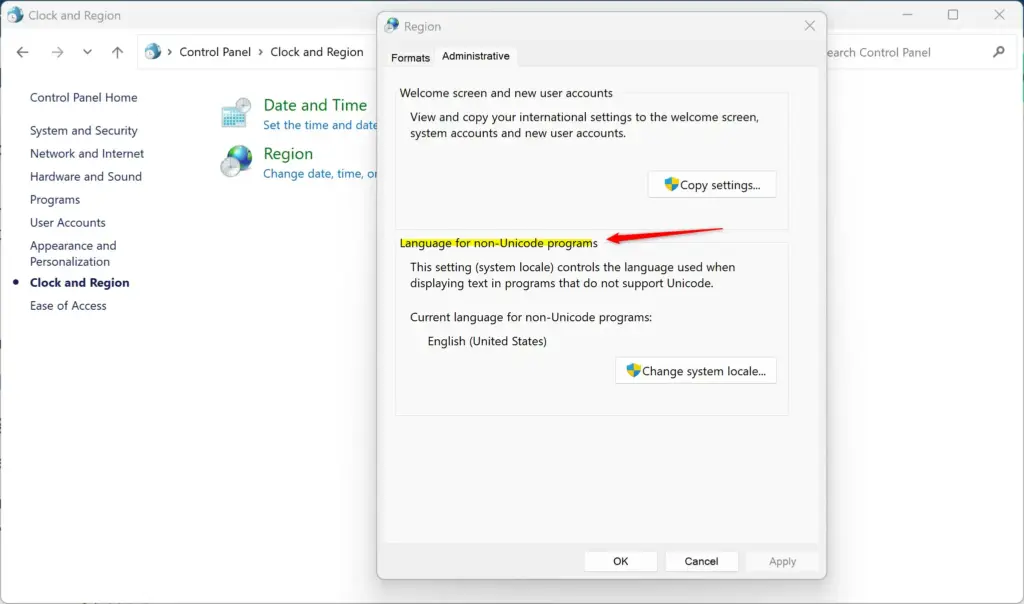
If the language shown doesn't look right for the programs you want to use, or you don't recognize it, you probably need to change it. Write down the current value first so you can go back to it. The change methods are covered further down.
Method 2Using Command Prompt
Command Prompt shows your current system locale with one built-in command, so you don't need to open several settings windows. You type the locale query command, press Enter, and read the active language setting for older programs.
- Open Command Prompt. Type "cmd" in the Windows search bar and press Enter. A black Command Prompt window opens. If you plan to make changes later, right-click the result and choose Run as administrator instead, then click Yes if User Account Control asks for permission.
- Type the command below and press Enter. Type it exactly as shown:Code
systeminfo | findstr /B /C:"System Locale" - Wait for the output to finish. The command can take a moment, so don't press Enter again.
- Read the line labelled "System Locale." That line is your current system locale.
systeminfo command might take a moment to get the information.A small pause after you press Enter is normal. Don't close the window. The output appears once the command finishes.
Method 3Using PowerShell
PowerShell is a fast way to check your system locale. A short command shows the language code Windows uses for non-Unicode programs. It works on every edition of Windows 11.
- Open PowerShell as administrator. Type "PowerShell" in the Windows search bar, right-click Windows PowerShell and select Run as administrator. Click Yes if User Account Control appears, and a blue PowerShell window opens.
- Type the command below and press Enter:PowerShell
Get-WinSystemLocale - Read the result. PowerShell shows your current system locale straight away. It might look like "en-US" or "de-DE." That code is the language and region Windows uses for older apps.
Good to know: The system locale mainly affects how non-Unicode programs show text. The formats for dates, times and currency are set separately on the Formats tab in the same Region window. After a change, check that tab too if an older program still shows dates or money amounts wrongly.
Changing Your System Locale in 🪟 Windows 11
To change your Windows 11 system locale, you need administrator permission. If you are signed in with a standard account, Windows asks for an administrator password. Windows applies the setting to the whole PC, not only to your account.
If the Change system locale... button does nothing, or you can't get past the prompt, you are not signed in with administrator rights. Sign in with an administrator account and try again.
Method 1Using the Control Panel
This is the most common and recommended way to do a system locale change. The steps below go from opening Control Panel to the final restart.
- Open Control Panel. Type "Control Panel" in the Windows search bar and click the result.
- Open the Region window. If you see categories, click Clock and Region, then Region. If you see icons, click Region. The Region window opens on the Formats tab.
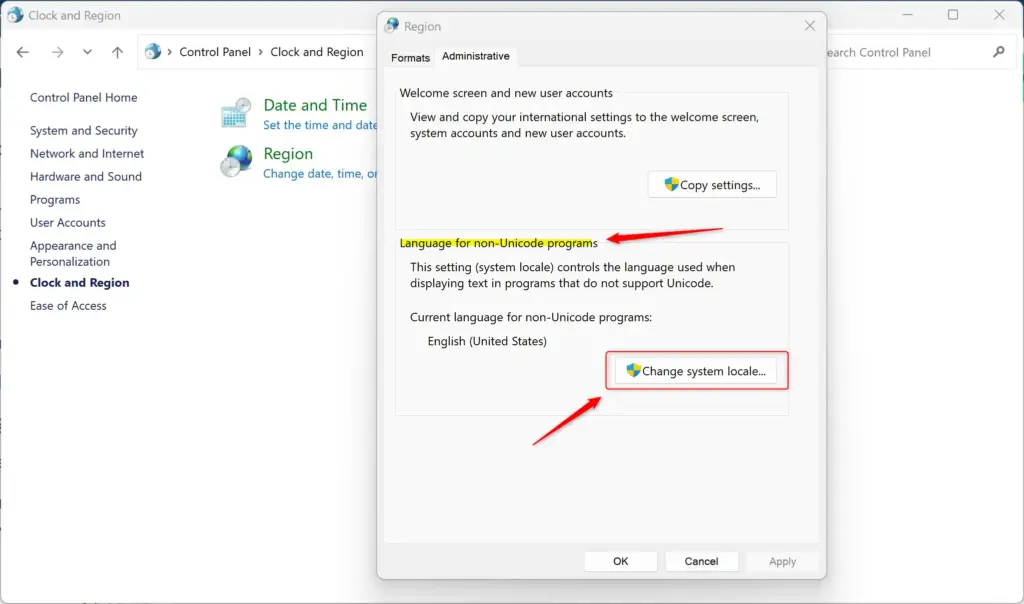
- Click the Administrative tab. The Language for non-Unicode programs section appears.
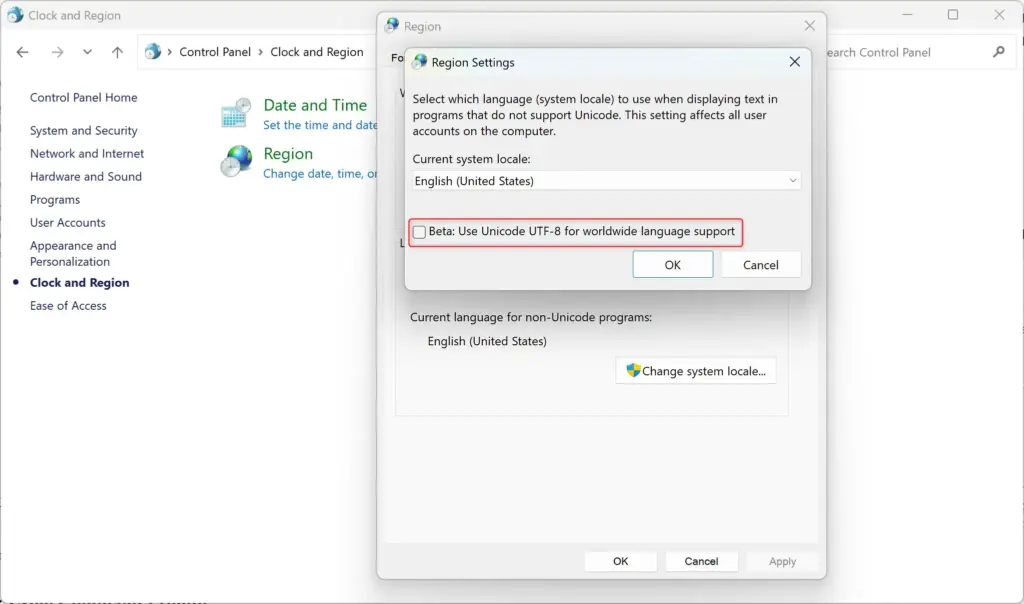
- Click Change system locale.... Accept the prompt if Windows asks for administrator approval. A Region Settings window appears.
- Open the Current system locale dropdown menu. Choose the language that matches the older programs you need to run. For an old German program, choose German.
- Leave Beta: Use Unicode UTF-8 for worldwide language support cleared. Tick it only if you know you need it. It changes how Windows handles text for the whole system and can break other older programs.
- Click OK in the Region Settings window. Windows will likely tell you to restart your computer for the changes to work fully.
- Save your work, then click Restart now. If you click Cancel, the change doesn't take effect until the next restart.
After the restart, open the Administrative tab again to confirm the new language is shown. To undo the change, repeat these steps and pick your original language.
If you have problems after changing the locale, go to Settings Time & language Language & region and add the language pack you need.
Method 2Using Command Prompt for Quick Access
A Command Prompt shortcut opens the right settings window with a single command. These steps take you from an administrator Command Prompt to a finished system locale change without digging through menus.
- Open Command Prompt as administrator. Search for "cmd," right-click the result, and select Run as administrator. Click Yes if User Account Control appears.
- Type `control.exe intl.cpl,,8` and press Enter. Type it exactly as shown, including both commas.
- Wait for the Region settings window to open. It should show the Administrative tab. If it opens on a different tab, click Administrative yourself.
- Click Change system locale.... Accept the administrator prompt if Windows shows one, and the Region Settings window appears.
- Choose your language in the Current system locale dropdown menu. Pick the one your older program expects.
- Click OK. Windows asks you to restart the PC.
- Click Restart now. Save your work first, because the PC restarts straight away.
The `control.exe intl.cpl,,8` command skips several steps and opens the "Administrative" tab of the Region settings window directly, so you reach the system locale setting faster.
Method 3: Using PowerShell with a Specific Command
PowerShell can change the system locale directly from the command line. This works well for automated setups and for advanced users who manage several PCs. You open PowerShell with administrator rights and run the cmdlet that applies a new language code to your non-Unicode program settings.
- Open PowerShell as administrator. Search for "PowerShell," right-click the result, and select Run as administrator. Click Yes if User Account Control appears.
- Choose the locale you want. PowerShell needs its language code, so replace
<LocaleName>with the correct one. Here are some examples:- For English (United States):
en-US - For German (Germany):
de-DE - For Japanese (Japan):
ja-JP - For French (France):
fr-FR
- For English (United States):
- Check the command format. The command looks like this:PowerShell
Set-WinSystemLocale -SystemLocale <LocaleName> - Type your own version of the command. For example, to set it to German, type:PowerShell
Set-WinSystemLocale -SystemLocale de-DE - Press Enter to run it. You might be asked to install extra language features. If an error appears, check that you opened PowerShell as administrator and that the language code is spelled correctly.
- Restart your computer. The new system locale only applies after the restart.
To go back, run the same command again with your original language code, then restart. You can confirm the result afterwards with the PowerShell check from earlier in this guide.
Summary
Changing the system locale in Windows 11 fixes text display problems in older programs that do not use modern Unicode text encoding. You can check or update your settings using Control Panel, Command Prompt or PowerShell. You always need administrator rights, and you need to restart your computer afterward to apply the changes properly. If the problem remains after the restart, check that the right language pack is installed.
Frequently asked questions
How to change locale?
Open Control Panel and go to Region. On the Administrative tab, click Change system locale. Choose the language you need, click OK, and restart your PC. You need an administrator account, and the change applies to every user on the computer.
How to change system locale to japanese?
Open Control Panel, select Region, and go to the Administrative tab. Click Change system locale, choose Japanese (Japan), click OK, and restart the PC. Use this only to fix garbled Japanese text in an older app. Sign in as an administrator first.
How to change locale to japanese?
Changing the locale to Japanese does not translate Windows menus. Open Control Panel, go to Region, and select the Administrative tab. Click Change system locale, pick Japanese (Japan), click OK, and restart. Only older non-Unicode apps are affected.
How to set locale to japanese?
Open Control Panel and select Region. On the Administrative tab, click Change system locale and select Japanese (Japan). Click OK, then restart your PC so the change takes effect. You need an administrator account. Modern apps are not affected, and you can switch back the same way.
What is system locale?
System locale is the language and code page Windows uses for older programs that do not support Unicode, the standard for modern text. A code page is a table that maps numbers to letters. When it does not match a program, text can show as question marks or boxes. Modern apps ignore it.
How to set system locale to japanese?
Open Control Panel, go to Region, and click the Administrative tab. Click Change system locale, select Japanese (Japan), then click OK. Restart the computer to apply it. This needs an administrator account and affects every user on the PC.
Still have a question?
Answered by AI from this guide. Good questions may be added to this page — please don't include personal details.
Did this guide fix your problem?

About the Author
Richard
Tech Writer, IT Professional
Richard is a writer at Geek Rewind who turns complex IT tasks into clear, step-by-step guides. He draws on years of hands-on experience in system administration and enterprise IT operations, focusing on Windows, Linux and WordPress: the problems people actually run into, and the fixes that work. His server and WordPress guides come from systems he runs himself. Richard builds and maintains the platform behind Geek Rewind, from its Ubuntu servers and Nginx configuration to its custom WordPress plugins. Many new tutorials start with readers' questions, and he's always glad to answer them in the comments.
Yes, that was what I tought first to do without that little tutorial. But it that not doing that. Also if I want to run a program with another UNICODE language, that do not mean that the whole system must be in the local UNICODE language. So..it is not completly correct and also do not work so simply.
But thanks..
And sorry for my bad english. I am a little bit stressed becouse my programs from other countries worked under windows 10 perfectly fine and in the upgrade report was nothing written about that there will be unicode system changes.
[…] you click Next, your current Windows 11 local account will switch to this Microsoft […]
[…] Regional format settings influence how dates, times, numbers, and currencies are displayed on your computer according to your locale. Windows supports a variety of languages, plus currency and date/time formats for the countries/regions that use those languages. […]
[…] Regional format settings influence how dates, times, numbers, and currencies are displayed on your computer according to your locale. […]
[…] Regional format settings control how your computer shows dates, times, numbers, and currency based on where you live. […]
[…] Regional format controls how Windows shows dates, times, numbers, and money based on your country or language. For example, some places use a comma (,) as a decimal point while others use a dot (.). […]