How to Set System Locale on Ubuntu 24.04

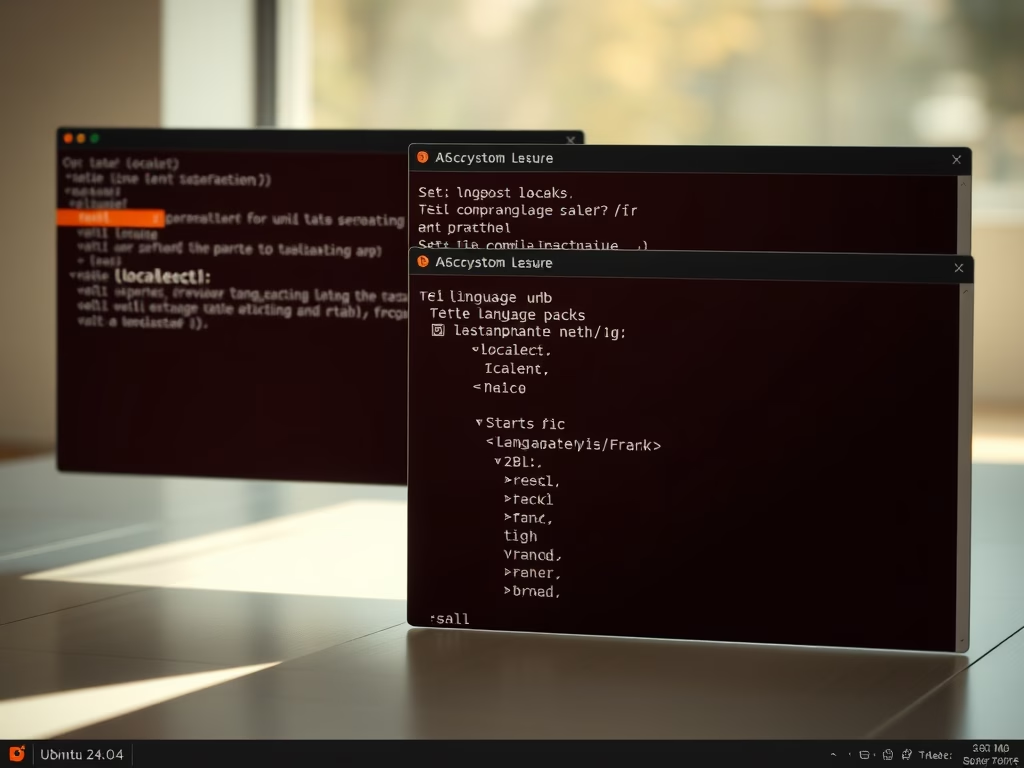
System locale on Ubuntu 24.04 controls the language, date formats, and currency symbols your computer uses across menus and apps, such as setting standard English formats with en_US.UTF-8.
Updating this regional profile takes just a few terminal commands and ensures your desktop displays text and numbers correctly for your region.
Go to Settings Region & Language to choose your preferred language and formats. For terminal users, use `sudo localectl set-locale LANG=your_locale` after ensuring the necessary language packs are installed and generated with `sudo locale-gen`.
Introduction
Changing your system locale on Ubuntu tells your computer how to handle dates, numbers, and text for your region.
Check your current settings
First, open your terminal. Type the following command to see your current locale %📂%LNK0%%:
localectl
Look for the line that says LANG=. This shows your current language and region.
Search and install additional locales
Language packs on Ubuntu 24.04 provide the necessary files for new languages before you can set system locale. You can find available language packs by running apt search language-pack- in your terminal, and install what you need using sudo apt install followed by the specific language pack name.
apt search language-pack-
Installing a French language pack on Ubuntu 24.04 updates the operating system's language settings. The command `sudo apt install language-pack-fr` adds French files to the Ubuntu 24.04 system, allowing users to change the displayed language on Ubuntu 24.04 to French.
sudo apt install language-pack-gnome-fr-base language-pack-fr
Ubuntu 24.04 system locale generation requires running the `locale-gen` command. This command creates the language and regional settings that the Ubuntu 24.04 operating system needs. This locale generation process ensures applications correctly display dates, numbers, and text for your chosen language.
sudo locale-gen fr_FR.UTF-8
Finally, check that it is ready to use by typing:
localectl list-locales
Change system locale
System locale on Ubuntu changes your default language and region settings using the command line. You can set system locale Ubuntu by running sudo localectl set-locale with your preferred language code, such as LANG=fr_FR.UTF-8, and then verify the new settings by running localectl by itself.
sudo localectl set-locale LANG=fr_FR.UTF-8
localectl again.While a full system restart ensures these changes apply globally to every service, logging out of your user account and logging back in is usually sufficient to apply the changes to your personal user environment.
Conclusion
Making sure your system locale is set correctly ensures your computer behaves as you expect.
Was this guide helpful?

About the Author
Richard
Tech Writer, IT Professional
Richard is a writer at Geek Rewind who turns complex IT tasks into clear, step-by-step guides. He draws on years of hands-on experience in system administration and enterprise IT operations, focusing on Windows, Linux and WordPress: the problems people actually run into, and the fixes that work. His server and WordPress guides come from systems he runs himself. Richard builds and maintains the platform behind Geek Rewind, from its Ubuntu servers and Nginx configuration to its custom WordPress plugins. Many new tutorials start with readers' questions, and he's always glad to answer them in the comments.



No comments yet — be the first to share your thoughts!